MuteDeck Mobile
MuteDeck Mobile is in preview, and you'll need to enable the feature before it appears in the desktop app. Open MuteDeck → Settings and click the wrench icon at the bottom left. This opens a new window where you can turn on Enable mobile device support. This then shows Mobile Devices in the main settings menu.
MuteDeck 5.0 is coming soon, which will have it enabled by default.
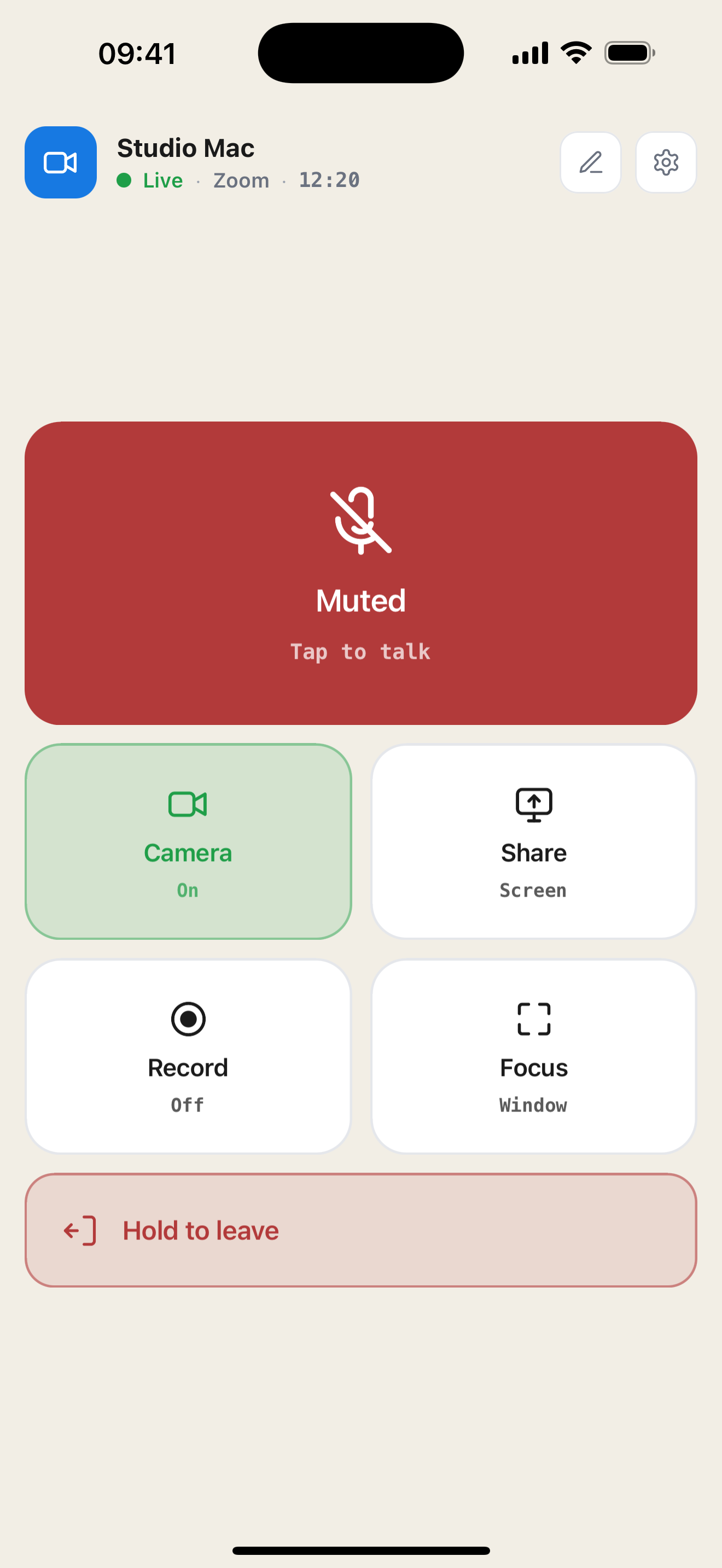
MuteDeck Mobile turns your iPhone or Android phone or tablet into a meeting remote. Pair it with MuteDeck on your computer to mute your microphone, toggle your camera, control screen sharing and recording, bring the meeting window forward, and leave a call.
Your meeting runs on your computer. The phone displays its status and sends controls to the MuteDeck desktop app over your local network.
Before you start
- Install MuteDeck Mobile on your iPhone or Android phone. Download it from the App Store or Google Play.
- Install and open MuteDeck on your Mac or Windows computer. Use the latest desktop release, at least 4.11 or newer.
- Connect the phone and computer to the same local network. Your computer can use Wi-Fi or Ethernet, as long as the two devices can reach each other.
- Make sure MuteDeck on your computer can detect and control your meeting app. See Supported Apps and Installing Browser Extensions for desktop setup.
MuteDeck Mobile needs a licensed MuteDeck or an active trial. The mobile app itself is free.
Set up your remote
- On your computer, open MuteDeck → Settings → Mobile Devices.
- Turn on Enable mobile devices, then choose Pair new device.
- On your phone, open MuteDeck and pair with your computer.
Learn the app
- Pair your phone: use a nearby computer, scan a QR code, or paste pairing data.
- Control a meeting: understand each button and its live status.
- Layouts and settings: choose a layout, resize buttons, and adjust behavior.
- Troubleshooting: resolve pairing, connection, and control problems.
Common questions
Does the meeting audio go through my phone?
No. MuteDeck Mobile is a remote for the desktop app. Your computer continues to handle the meeting, microphone, camera, and recordings.
Can I use it away from my computer's network?
The app is designed for a local-network connection. But as long as your phone can reach your computer over the network, it can control MuteDeck. For example, you can use a VPN to connect your phone to your home or office network while away.
A phone using only cellular data cannot reach a computer on your home or office network through this setup.
Can I switch between several computers?
The mobile app remembers one paired computer at a time. To use another computer, unpair the current one, then pair again.
Can I add custom actions or reactions?
This version provides six built-in controls. Adding custom-action buttons, reactions, and raise-hand controls is not supported in the mobile app, but might be in future releases.
Screenshots in this guide show the iOS app with example computer and meeting data. Android uses the same main screens and controls; system prompts and appearance can differ.