Control a Meeting
After pairing your phone, join a meeting on your computer and keep MuteDeck running there. The mobile app shows the computer's name and, when a call is detected, Live, the meeting app, and a timer.
Live at the top means a meeting is active. It does not mean your microphone is unmuted. Read the microphone button to check whether others can hear you.
Mute and unmute
The large microphone button shows the current state:
| Button | Meaning | Tap it to… |
|---|---|---|
| Red Muted, with Tap to talk | Your microphone is muted | Unmute |
| Green Mic live, with Tap to mute | Your microphone is unmuted | Mute |
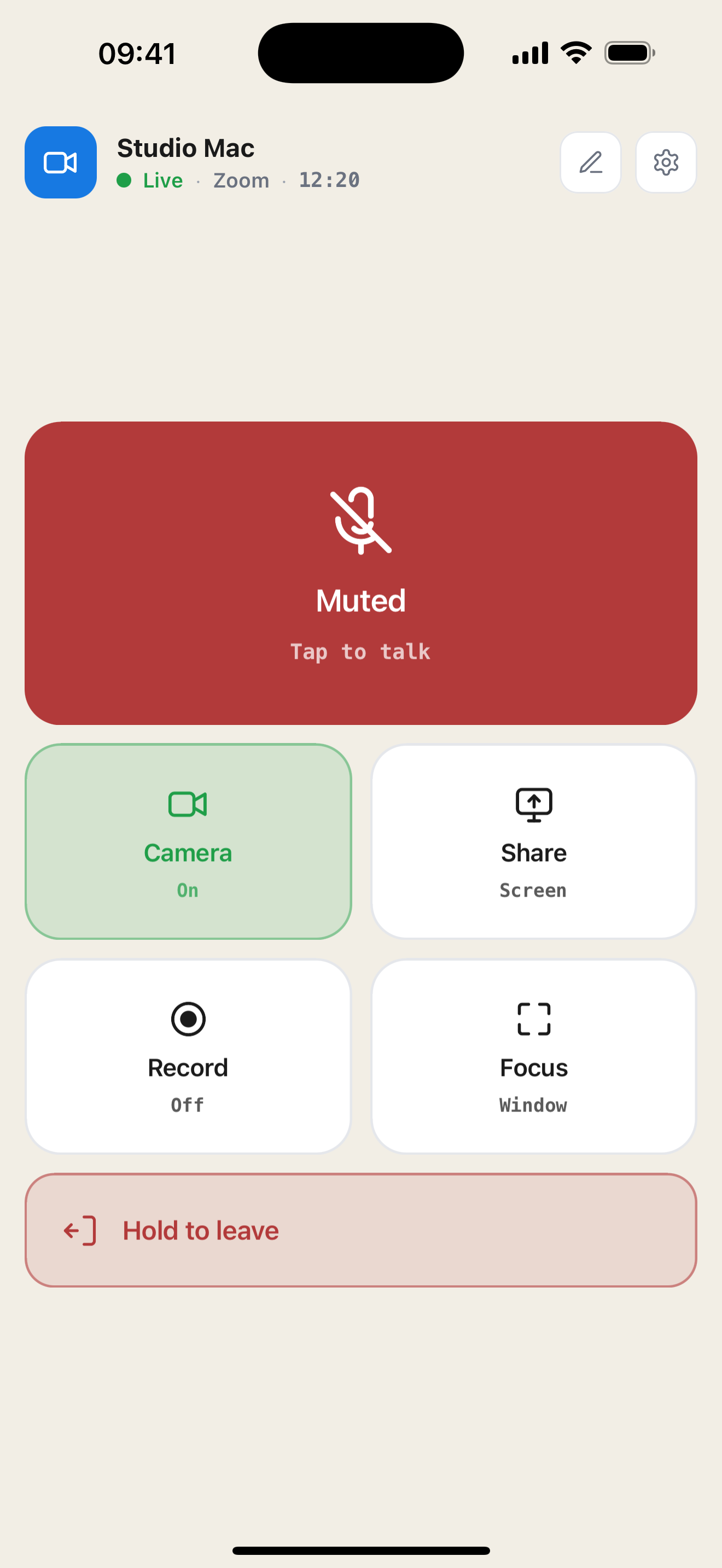
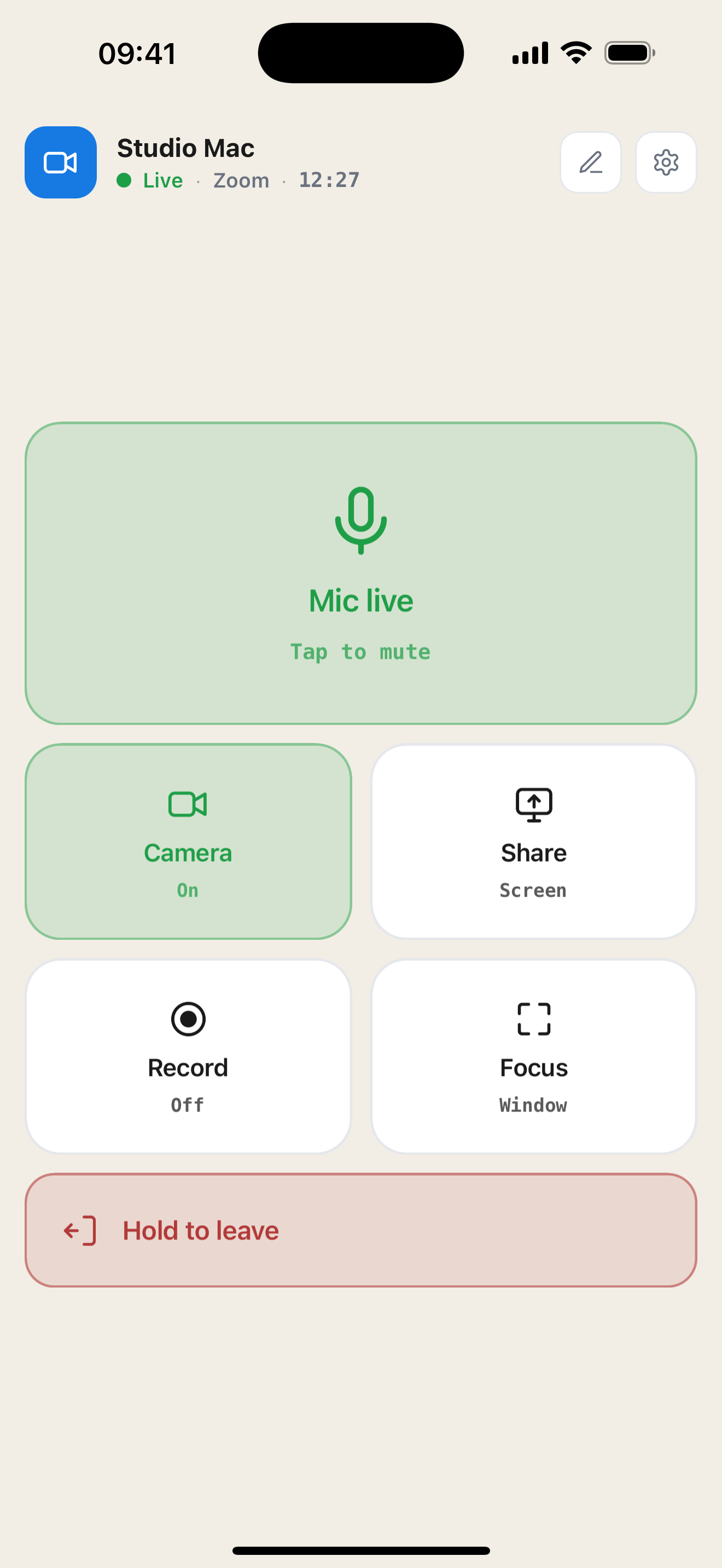
Tap to talk toggles the microphone on. You do not need to keep holding the button; tap again when you want to mute.
Camera, sharing, and recording
| Button | What it does | What the status means |
|---|---|---|
| Camera | Toggle your computer's meeting camera | Green On means the camera is on; Off means it is off |
| Share / Sharing | Start or stop screen sharing | Blue Sharing · Screen live means sharing is active |
| Record / Recording | Start or stop meeting recording | Red Recording · REC means recording is active |
| Focus | Bring the meeting window to the front on your computer | Window identifies the action; this button is not a camera control |
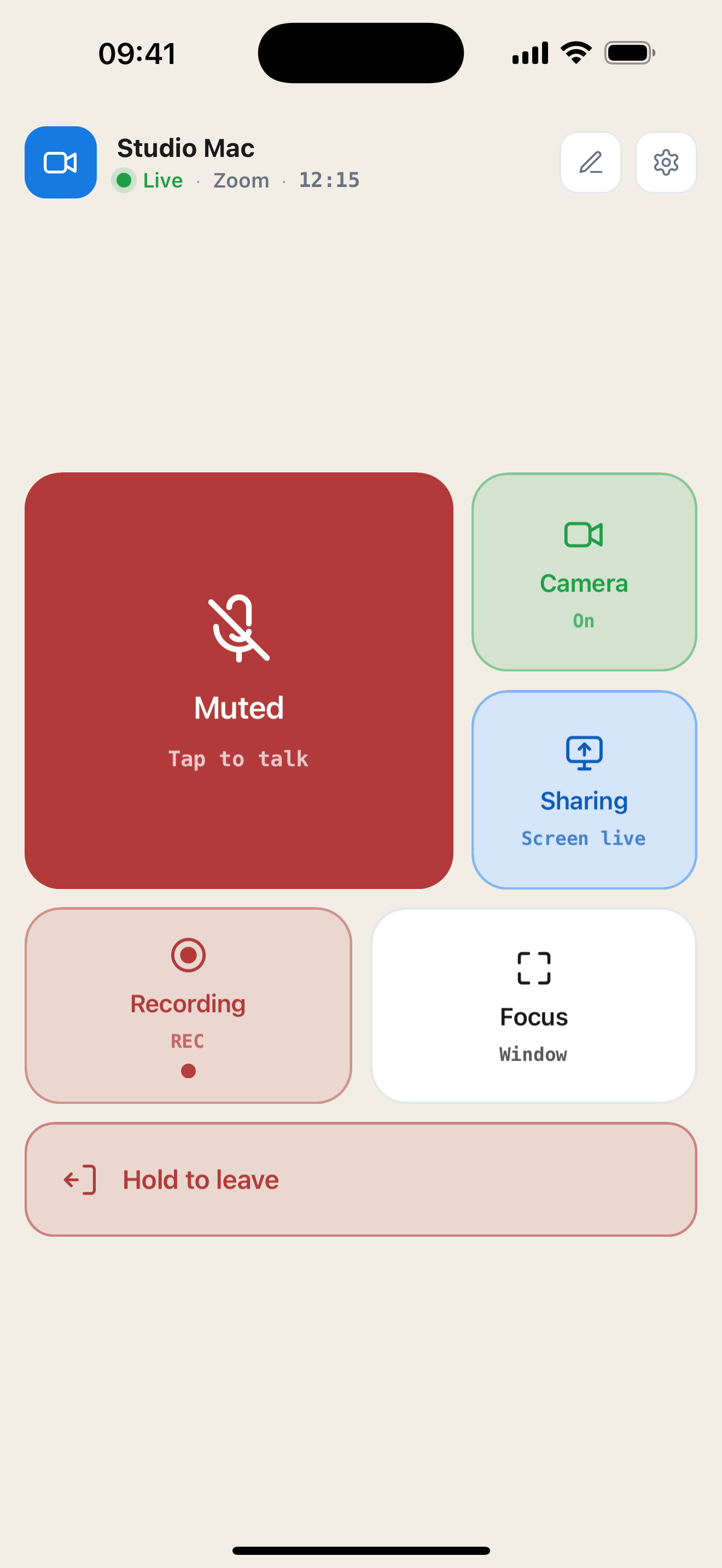
Screen sharing may open a selection dialog on your computer. Choose the screen or window there to complete the action. Recording may require meeting-host permissions and support from the meeting app. Recordings are handled by the meeting app on your computer.
Leave a meeting
By default, press and hold Hold to leave until the progress fill completes. Releasing early cancels the hold.
To leave with a single tap instead, open the gear icon and turn off Settings → Behavior → Hold to leave. The button then reads Leave and one tap sends the leave command.
When you are not in a meeting
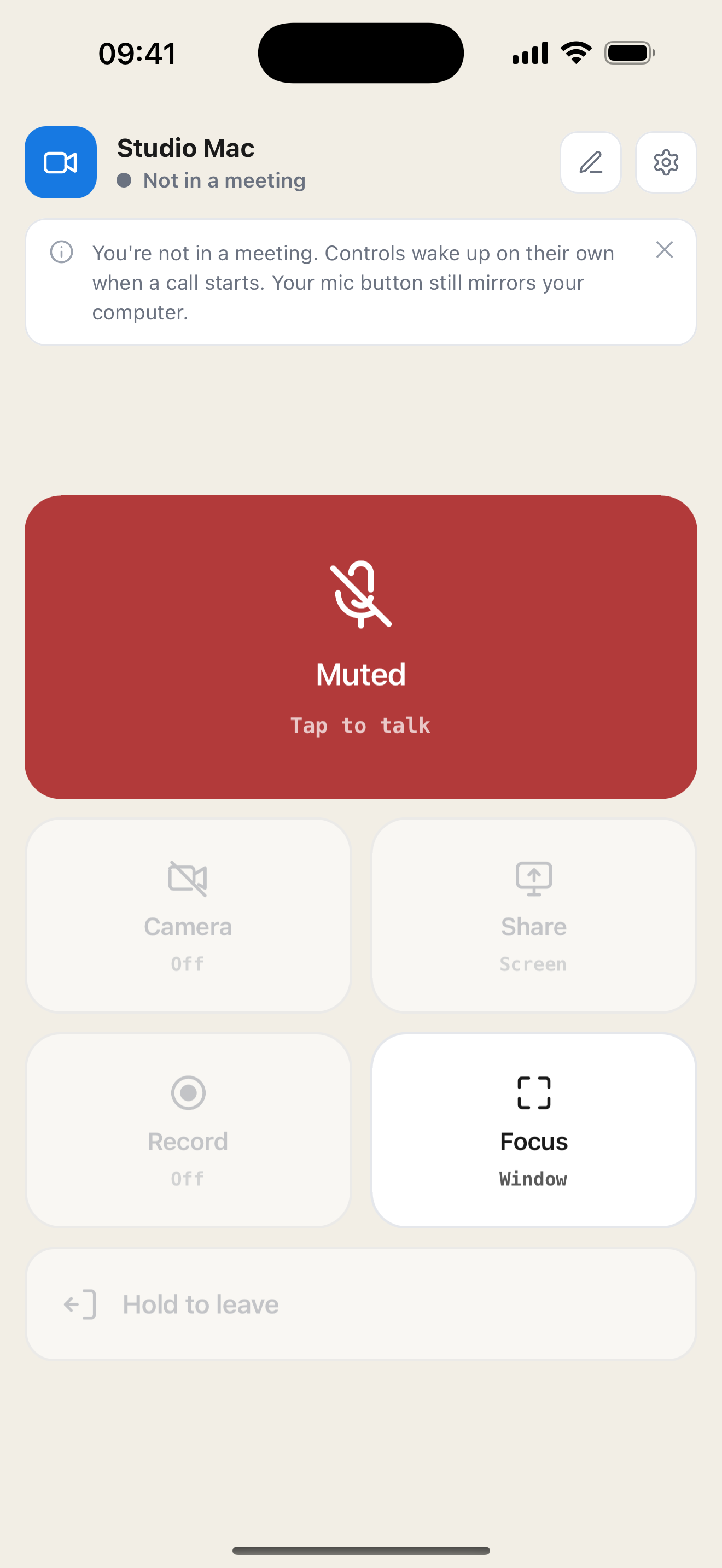
The header changes to Not in a meeting. Camera, sharing, recording, and leaving are disabled until MuteDeck detects a call.
The microphone button can still control the computer's system microphone when the desktop reports that it is available. Focus remains available while connected, but needs a meeting window to bring forward.
If a button does not do what you expect
Check the resulting state on the phone and in your meeting app. Available actions depend on the meeting platform and desktop setup; a button press may still require a choice or permission on the computer.
If the header says Reconnecting…, the controls are unavailable until the connection returns. See Troubleshooting.