Manage Plugins and API Access
From MuteDeck v4.13, Settings → Plugins & API shows the plugins that have connected, lets you manage their access, and creates tokens for scripts that call the MuteDeck API.
Approve a Plugin
Plugins that support authentication ask for approval the first time they connect. Browser extension 7.2.0 is the first release to use this flow.
- Start MuteDeck and the plugin or browser extension.
- In MuteDeck's Allow this plugin? window, check the plugin's name and connection details.
- Click Allow to let it see and control your meetings, or Deny to refuse access.
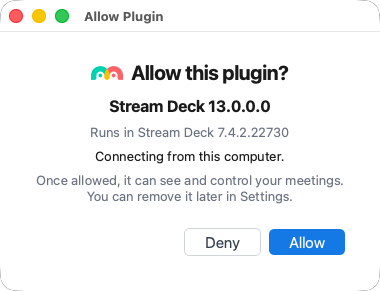
After approval, the plugin reconnects automatically. If you remove its access, it must be approved again.
Approve plugins on this computer without asking skips the prompt for plugins connecting from the same computer. This option is off by default. It is separate from the setting for older plugins below.
Check Connected Plugins
Open Settings → Plugins & API → Connected plugins to see connection status and when a plugin was last seen. Version and host-app details appear when available.
- Connected means the plugin is currently active.
- Last seen shows when an inactive plugin last connected.
- Needs update means the plugin connects without authentication. It does not necessarily mean an updated version is already available.
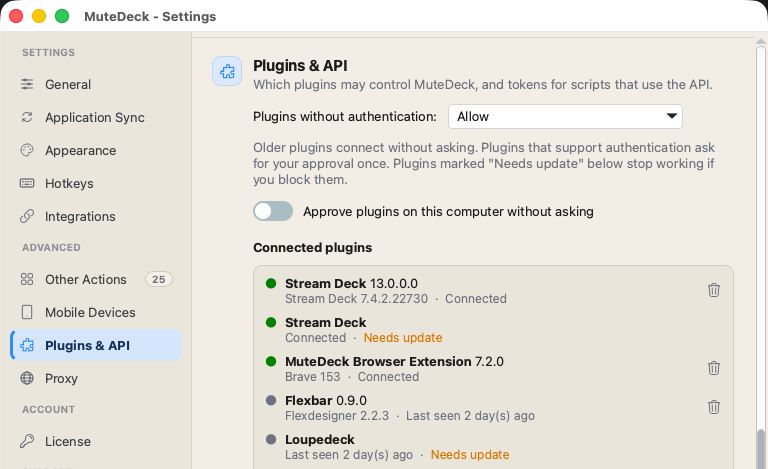
To revoke an approved plugin, click the trash icon beside it. The plugin asks again the next time it connects. Older plugins do not have individual approvals; use Plugins without authentication to control their access.
Older Plugins and Unauthenticated Scripts
Existing plugins continue working by default. Plugins without authentication also applies to API requests that do not include a token.
| Setting | Effect |
|---|---|
| Allow | Keeps existing unauthenticated connections working. This is the default. |
| Allow from this computer only | Allows unauthenticated connections from the computer running MuteDeck. Connections from other computers need authentication. |
| Block | Requires authentication, including for connections from this computer. Plugins marked Needs update stop working. |
If an older plugin stops connecting after changing this setting, install an authentication-capable update if available, or choose a setting that permits that plugin's connection. Scripts can use an API token.
Create an API Token
- Open Settings → Plugins & API.
- Under API tokens, click Create API token.
- Enter a name describing what will use it, such as Home Assistant.
- Click Copy in the token window and save the token in your script or tool before clicking Done.
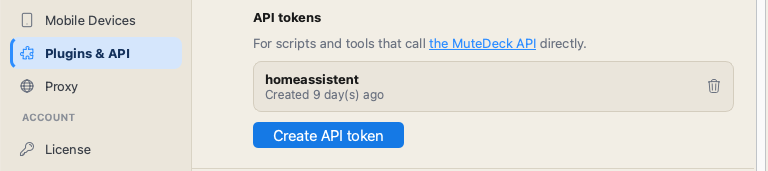
MuteDeck only shows the token once. If you lose it, delete it using the trash icon and create a replacement. Deleting a token stops requests using it from authenticating.
Send the token in the Authorization header:
curl http://localhost:3491/v1/status \
  -H "Authorization: Bearer YOUR_API_TOKEN"
Replace YOUR_API_TOKEN with your token. It grants access to meeting status and controls, so keep it private. See the API documentation for endpoints and more examples.