Pair Your Phone
Pair your phone once. MuteDeck Mobile remembers the computer and reconnects when it is available on your network.
Prepare your computer
- Connect your phone and computer to the same local network.
- Open MuteDeck on your computer.
- Go to Settings → Mobile Devices.
- Turn on Enable mobile devices.
- Click Pair new device and leave that window open while you pair.
Open MuteDeck Mobile on your phone. On iOS, allow local-network access if prompted so the app can find and connect to your computer.
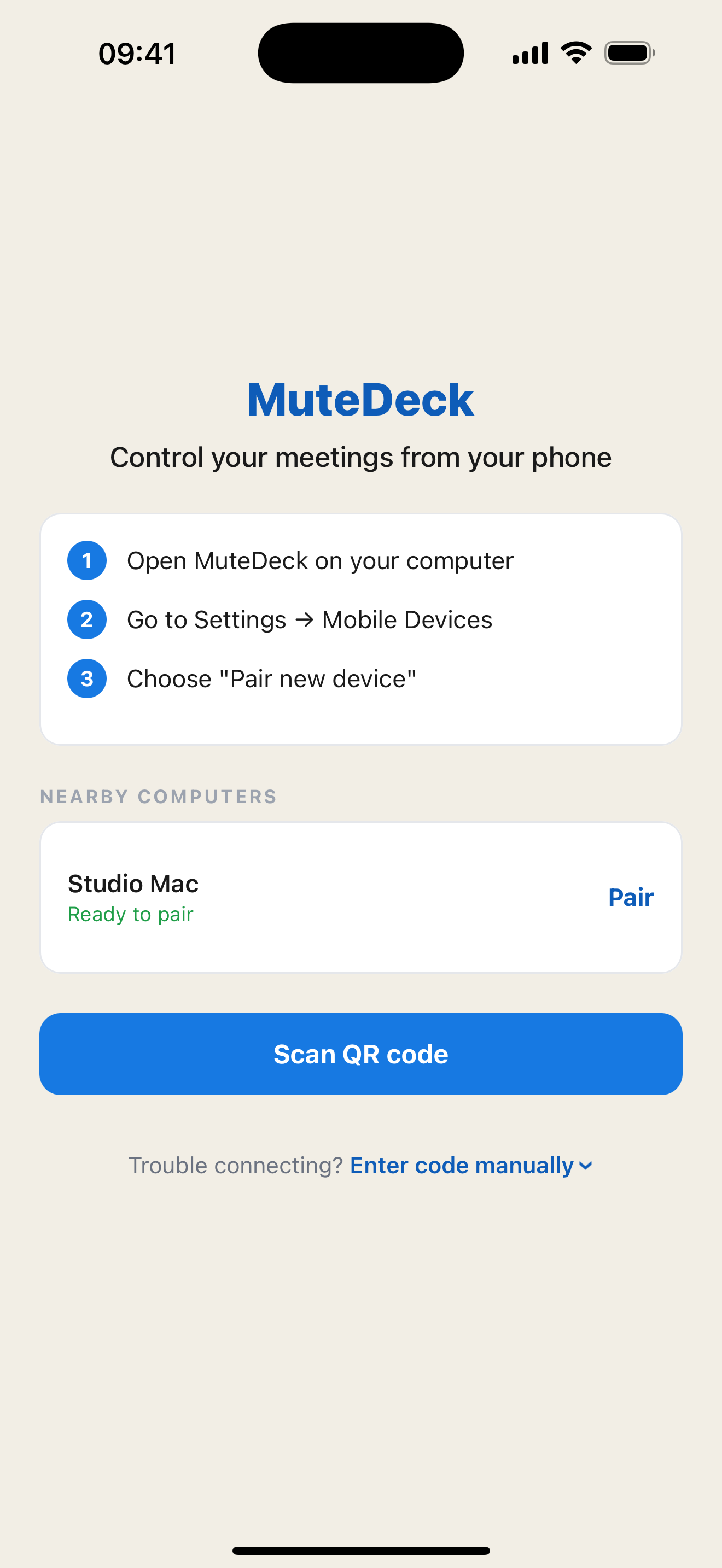
Option 1: Tap a nearby computer
- Under Nearby Computers, tap your computer's name or Pair.
- A four-digit code appears on the phone and computer. Check that both codes match.
- Click Allow on your computer to finish pairing.
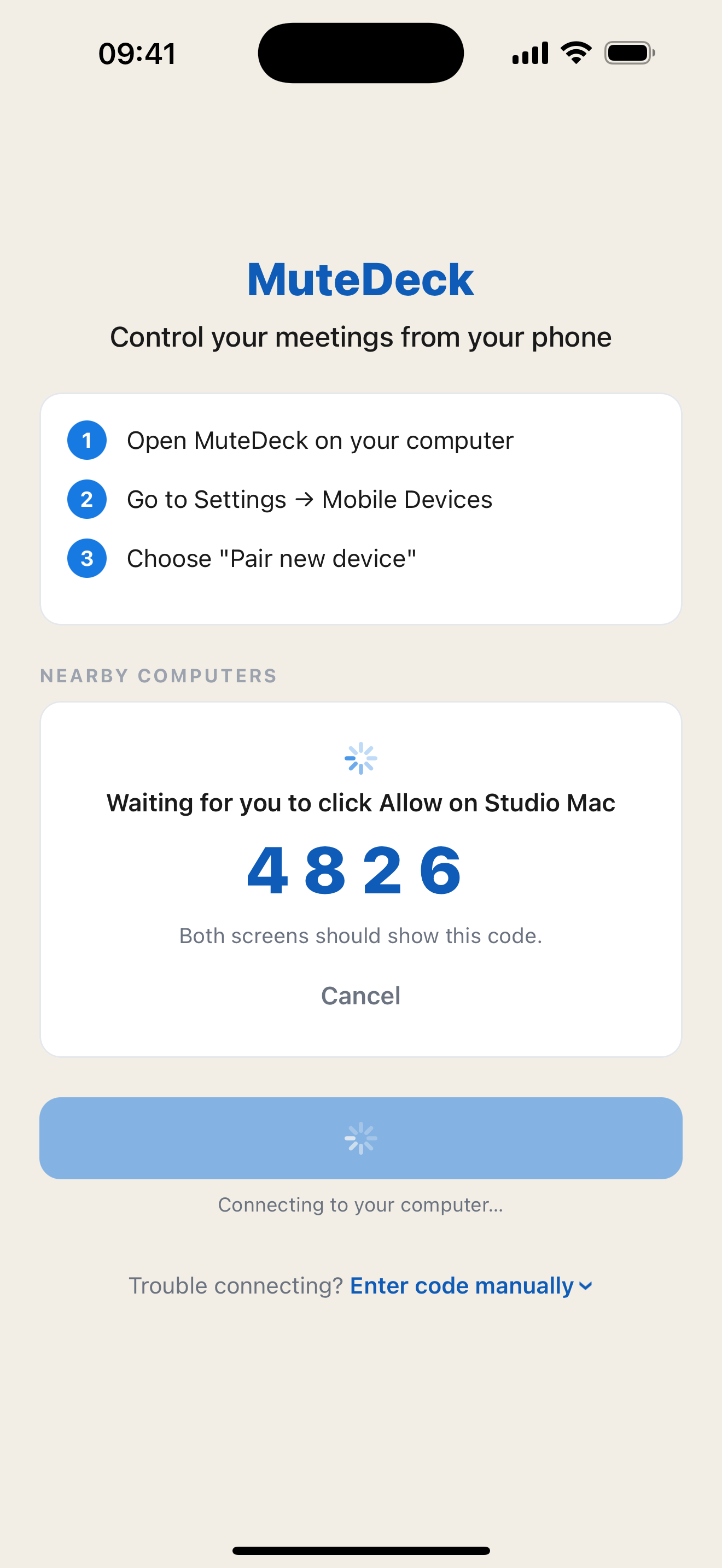
If the codes do not match, cancel the request and start again. The example code in this screenshot is not a code to enter.
If the computer says Open "Pair new device" on this computer, open that window on the desktop and tap the computer again. If the app asks you to update MuteDeck, update the desktop app or use QR pairing.
Option 2: Scan the QR code
- Keep the Pair new device window open on your computer.
- On the phone, tap Scan QR code.
- Allow camera access if asked.
- Point the phone's camera at the QR code in the desktop pairing window.
The app connects after reading the code. You do not need to type the four-digit confirmation code used by the nearby-computer method.
Option 3: Paste pairing data
Use this if you cannot scan the QR code or prefer not to grant camera access.
- In the desktop pairing window, click Copy pairing data.
- Transfer the copied text to your phone using a method you trust.
- On the phone, tap Trouble connecting? Enter code manually to expand the input.
- Paste the complete text into Paste the pairing code here.
- Tap Connect.
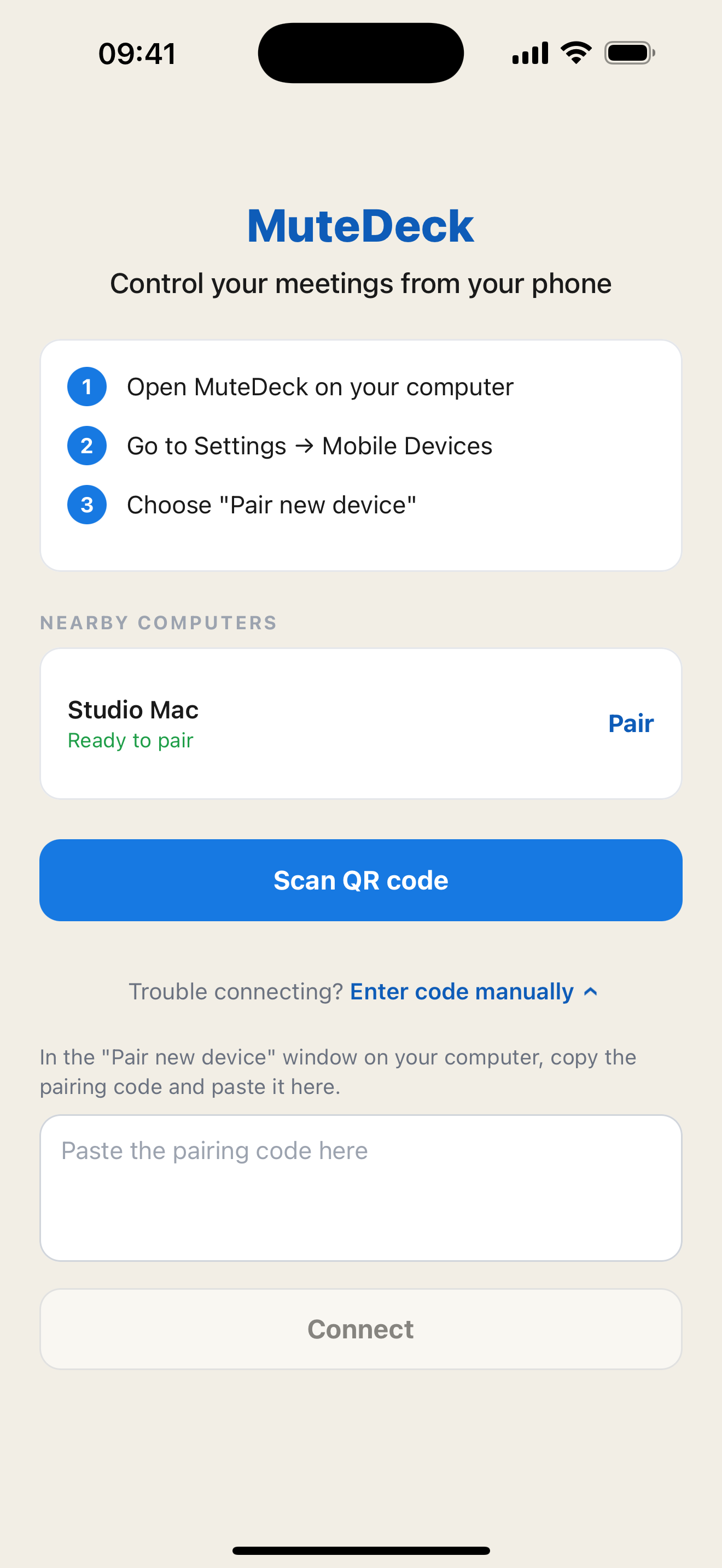
Manual entry opens automatically if camera access is denied or no camera is available.
The pasted text is the complete pairing data copied by the desktop app, not the four-digit confirmation number. Pairing data expires and can only be used once; if it is rejected, reopen the pairing window and copy fresh data.
Check the connection
After pairing, the control screen opens and shows your computer's name at the top.
- Not in a meeting means the connection is working, but MuteDeck has not detected an active meeting.
- Live and a meeting-app name mean MuteDeck has detected a call.
- Connecting… or Reconnecting… means the app is still trying to reach the computer.
Join a meeting on your computer, then try the mobile controls.
If pairing fails
Follow the message on the phone. Troubleshooting covers missing computers, expired codes, local-network permissions, and blocked connections.