Mobile App Troubleshooting
Start by checking that MuteDeck is open on your computer, Settings → Mobile Devices → Enable mobile devices is on, and your phone and computer are on the same local network. From MuteDeck v4.14, also check that Settings → Plugins & API → Allow plugins and API access from other devices is on. While it's off, the phone can't connect.
My computer does not appear
- On the computer, open Settings → Mobile Devices → Pair new device.
- Check the phone's Wi-Fi connection. The computer can use Ethernet on the same network.
- On iOS, check that MuteDeck has Local Network access in the phone's Settings. You can find the permission under Privacy & Security → Local Network.
- Guest, hotel, and some office networks prevent devices from communicating. Try a network that allows local device connections. A VPN on either device can also affect access.
- Try Scan QR code or paste pairing data if nearby discovery does not find the computer.
QR and paste pairing avoid the discovery step, but they still need a working network connection between the phone and computer.
Pairing fails
| Message or symptom | What to do |
|---|---|
| The computer is not ready to pair | Open Pair new device on the desktop, keep it open, then tap the computer again |
| Nobody clicked Allow in time | Tap the computer again, compare the codes, and click Allow within a minute |
| Pairing was declined | If that was a mistake, repeat the request and approve it on the desktop |
| Another device tried to pair at the same time | Finish or cancel the other request, then try again |
| The computer did not accept the pairing code | Reopen the desktop pairing window and scan or copy fresh data; codes expire and work once |
| The app and desktop speak different versions | Update both apps, then pair again |
| Camera access is off | Allow MuteDeck camera access in your phone's Settings, or use nearby pairing or pasted data |
| Could not reach your computer | Check the network, whether the computer is awake, and any VPN or firewall rules |
| The computer is reachable, but nothing accepts connections on the port | Check that desktop MuteDeck is running and mobile devices are enabled; allow its mobile connection through the computer's firewall |
| The pairing code belongs to a different computer, or the secure connection fails | Open a fresh pairing window on the intended computer and scan that code; restart desktop MuteDeck if needed |
Use the mobile port shown by the desktop under Settings → Mobile Devices (normally 3493). The mobile app uses its own secure connection; the desktop's HTTP API port is not the mobile pairing port.
If several attempts fail in quick succession, wait a minute before trying again. If you use pasted pairing data, copy the entire contents from Copy pairing data, not the four-digit confirmation number.
The app keeps reconnecting
The app retries automatically. During Reconnecting…, controls are disabled.
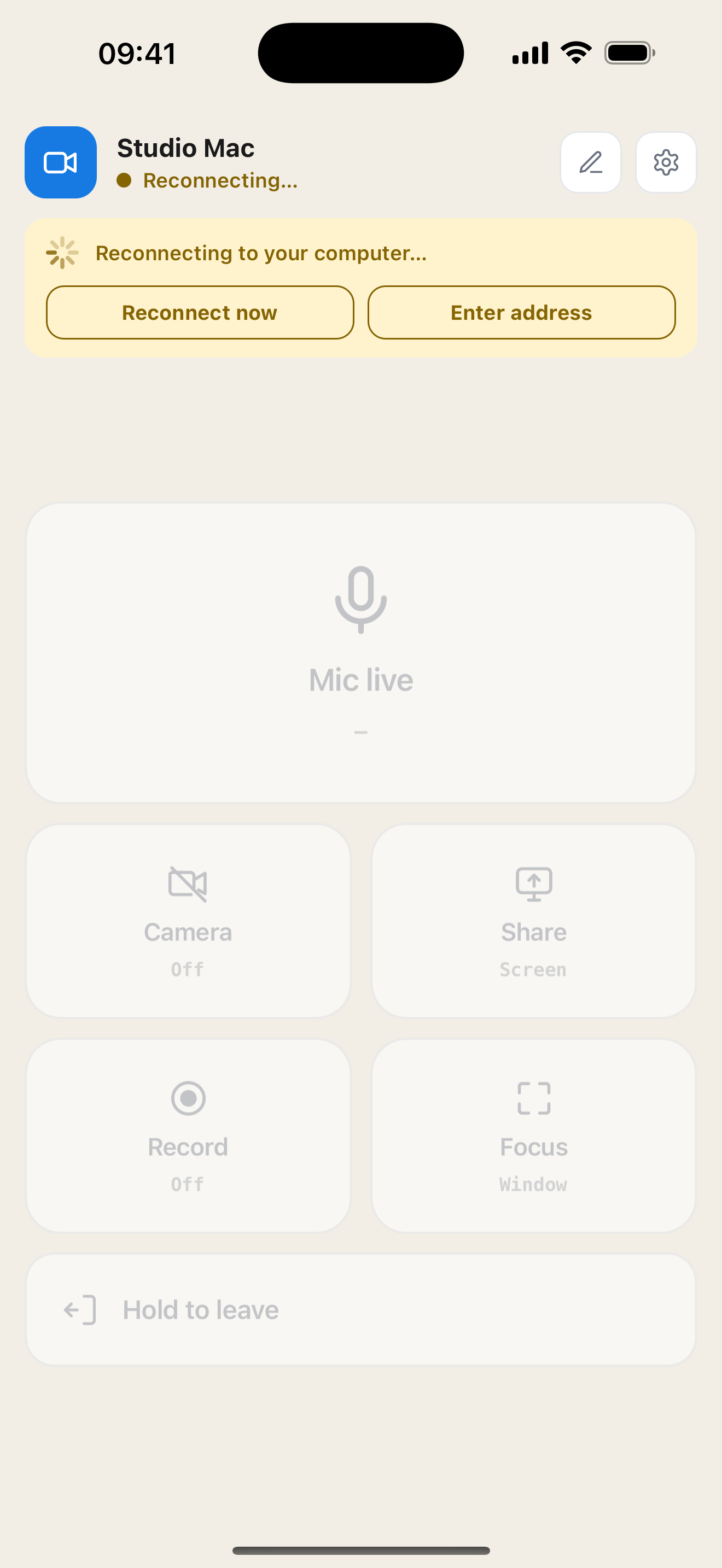
- Wake the computer and check that MuteDeck is running.
- Check that the phone and computer are on the same local network.
- Return to the mobile app and tap Reconnect now.
- If the computer's address has changed and it cannot be found automatically, tap Enter address.
- On the computer, find Settings → Mobile Devices → This computer. Enter that address on the phone and tap Connect. If needed, include the port, for example
192.168.1.20:3493.
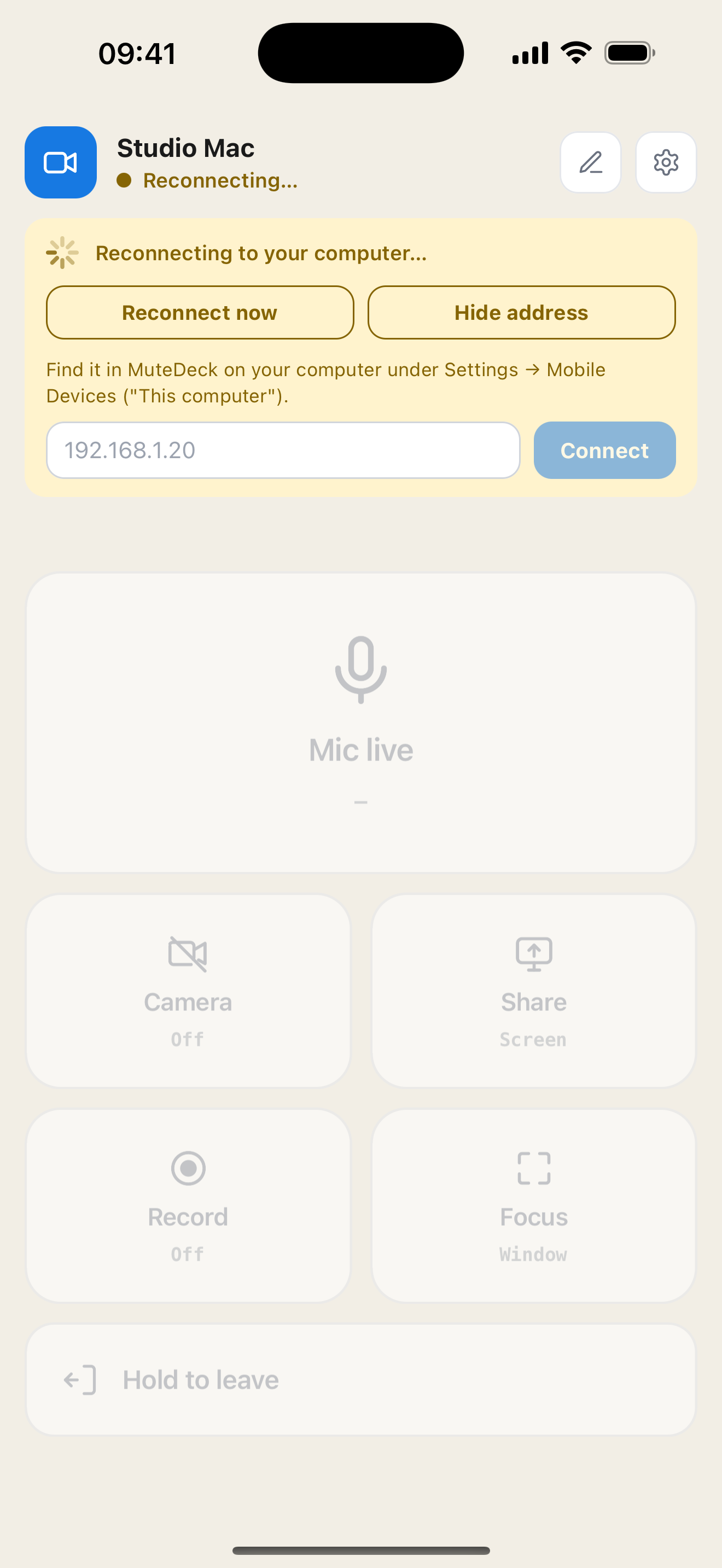
Manual address entry reconnects to the computer you already paired with. To connect to a different computer, unpair and pair again.
It says Not in a meeting during a call
The phone uses the meeting status reported by desktop MuteDeck.
- Check whether MuteDeck on the computer detects your meeting.
- Try the same control directly in desktop MuteDeck.
- If desktop detection also fails, follow App Not Detecting.
- For browser meetings, check the browser extension setup.
The system microphone can remain available even when no meeting is detected. That alone does not confirm that meeting-specific controls are connected.
A control does not respond
- If the pencil icon is selected and the edit instructions are visible, tap Done. Taps resize buttons while editing.
- If the header says Reconnecting…, restore the connection first.
- Camera, sharing, recording, and leaving need a detected meeting. Some actions also depend on the meeting app or your meeting role.
- Check the computer for a screen-selection dialog or meeting-app prompt.
- If the same action fails in desktop MuteDeck, resolve the desktop integration first.
Record shows License or a lock
Activate your MuteDeck license on the computer. Check Settings → Paired Computer → License on the phone. If the license was just activated and the displayed status has not changed, close and reopen the mobile app to reconnect. Recording may also require host permissions in the meeting app.
Tapping Hold to leave does nothing
Press and hold until the progress fill completes, or turn off Hold to leave under Settings → Behavior to use a single tap.
The pairing screen returned unexpectedly
The saved pairing may have been revoked on the computer or rejected when reconnecting. Open Pair new device on the desktop and pair the phone again.
Get help
Reproduce the problem, then open Settings → Support → Share connection log on the phone. Pairing errors with diagnostic details also provide a Share connection log link, even before you finish pairing.
The log contains recent pairing and reconnect activity, app and OS details, and may include computer names and local network addresses. It excludes passwords, pairing codes, and authentication tokens. Review it before sharing; it is kept in memory, so capture it before restarting the app.
Contact MuteDeck support and include:
- What happened and the exact error message.
- Your phone model, OS version, and mobile-app version.
- Your desktop OS and MuteDeck version.
- The meeting app, if the issue is with a control.
- The connection log, if available.