Layouts and Settings
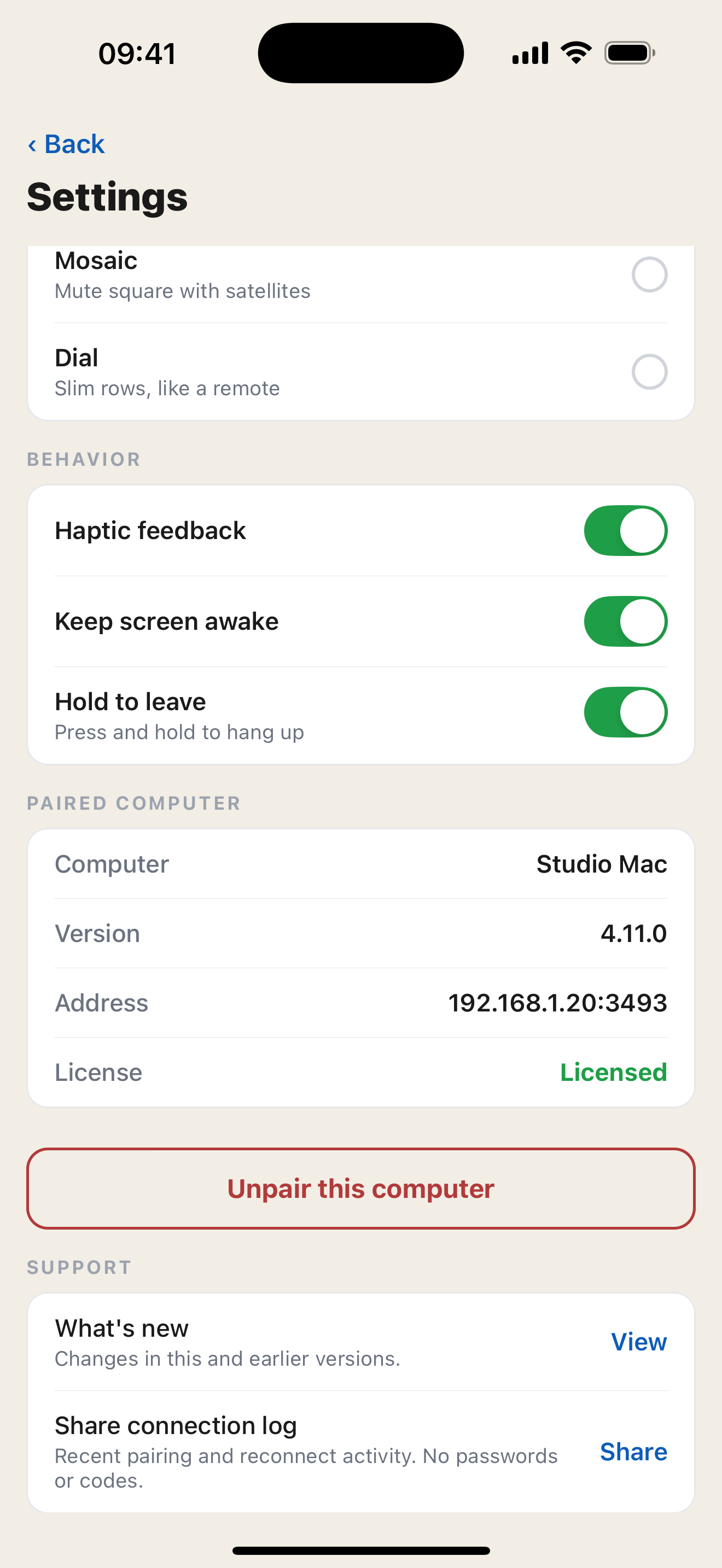
Tap the gear icon at the top right of the controller to open Settings.
Choose a layout
Under Button Layout, tap a layout, then tap Back to return to the controller. Your choice is saved on the phone.
| Layout | Arrangement |
|---|---|
| Hero | A large mute button on top, with a grid of controls below; the default layout |
| Mosaic | A large mute square with smaller controls beside and below it |
| Dial | A large mute button with slim rows below, like a remote control |
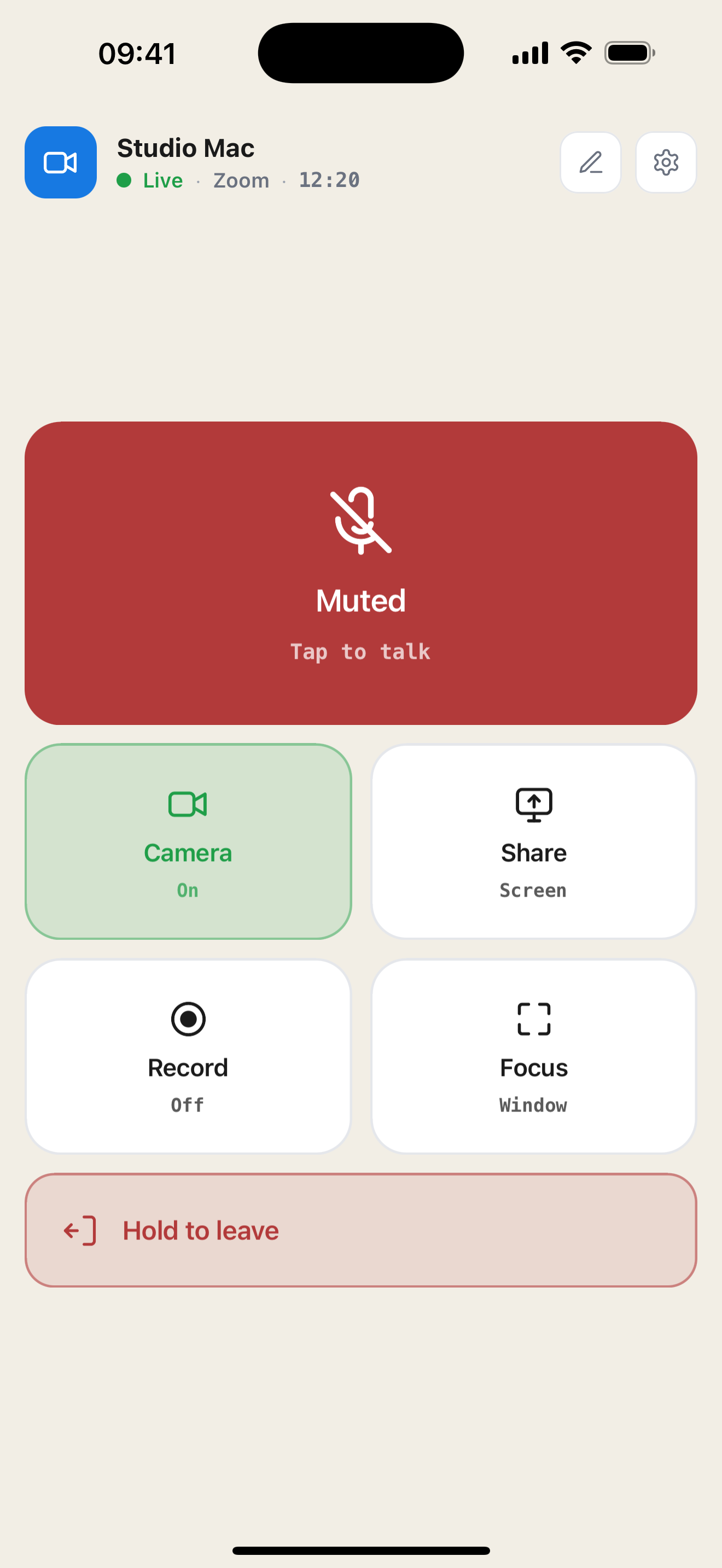
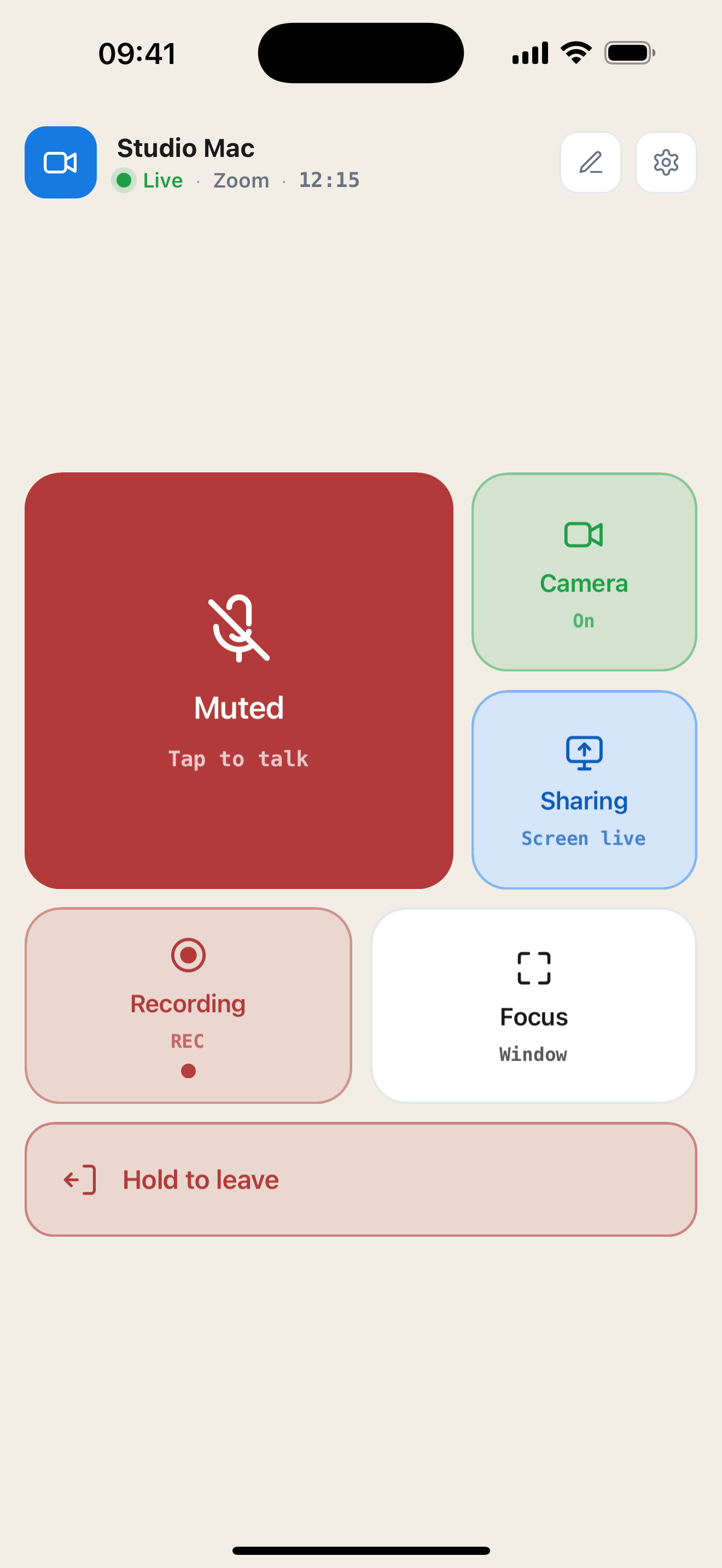
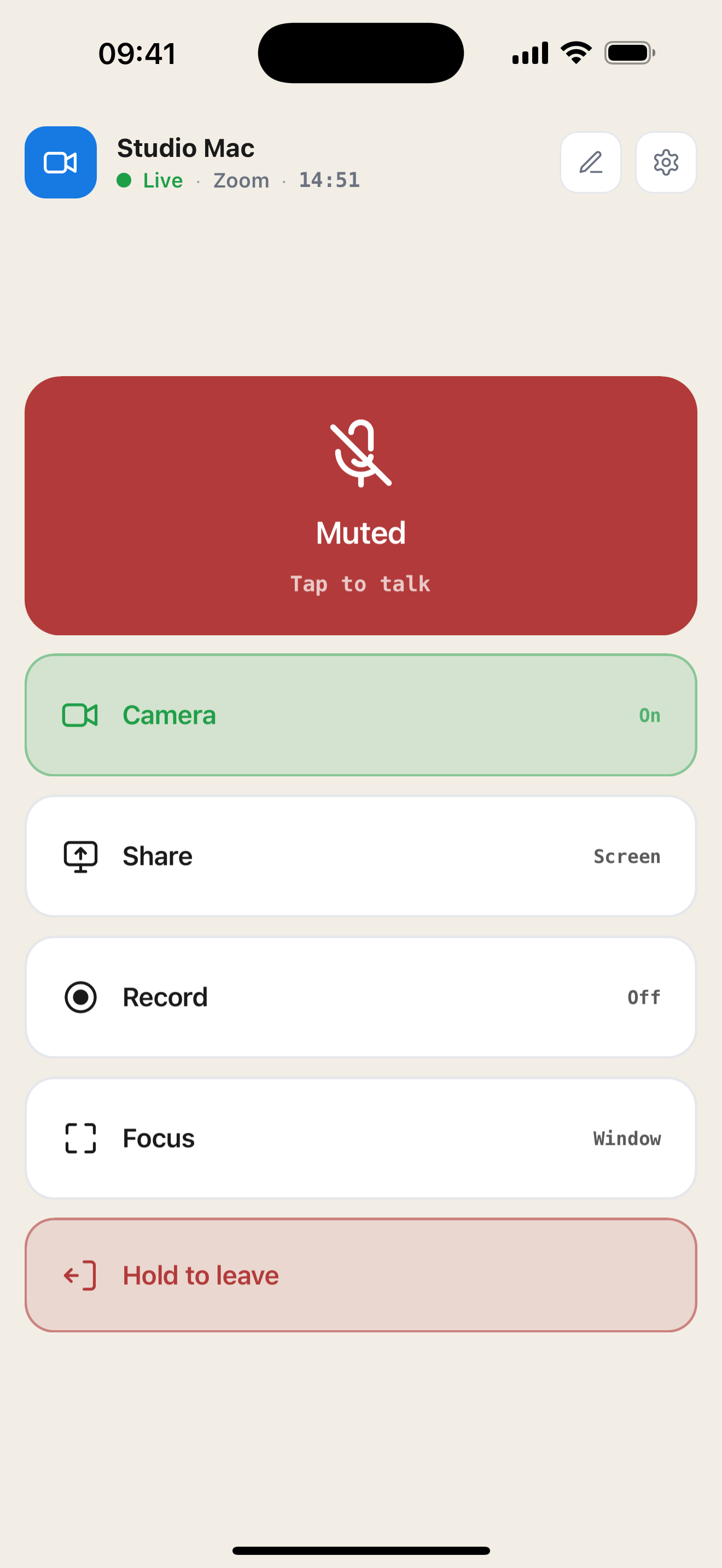
The controls and their meaning stay the same in all three layouts.
Resize buttons
- On the controller, tap the pencil icon next to the gear.
- Tap a button to switch it between big and regular.
- Tap Done or the pencil again to finish editing.
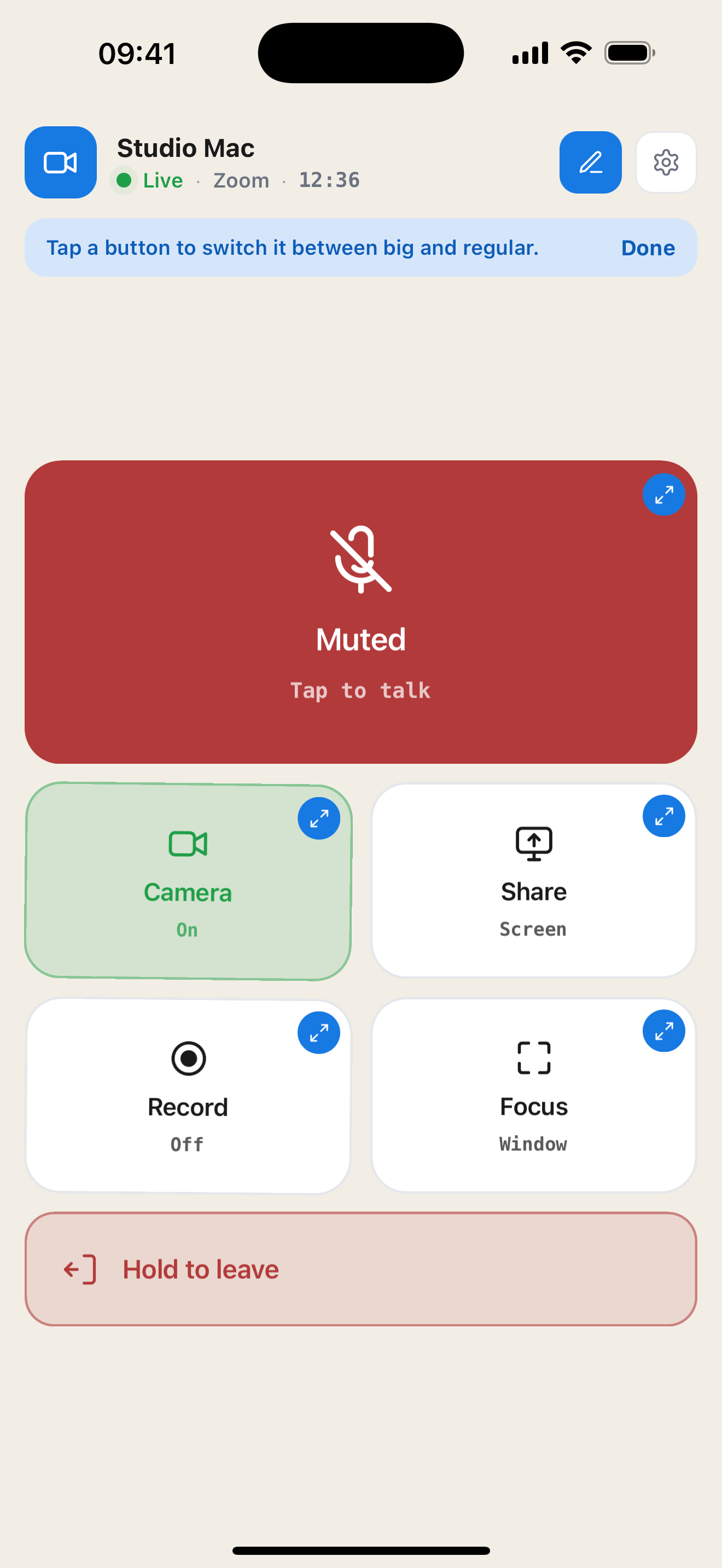
While editing, tapping a button changes its size instead of controlling your meeting. The leave button has a fixed size. Size choices are saved on the phone; you can change them again by returning to edit mode. Editing changes sizes, not button order or which actions appear.
Adjust behavior
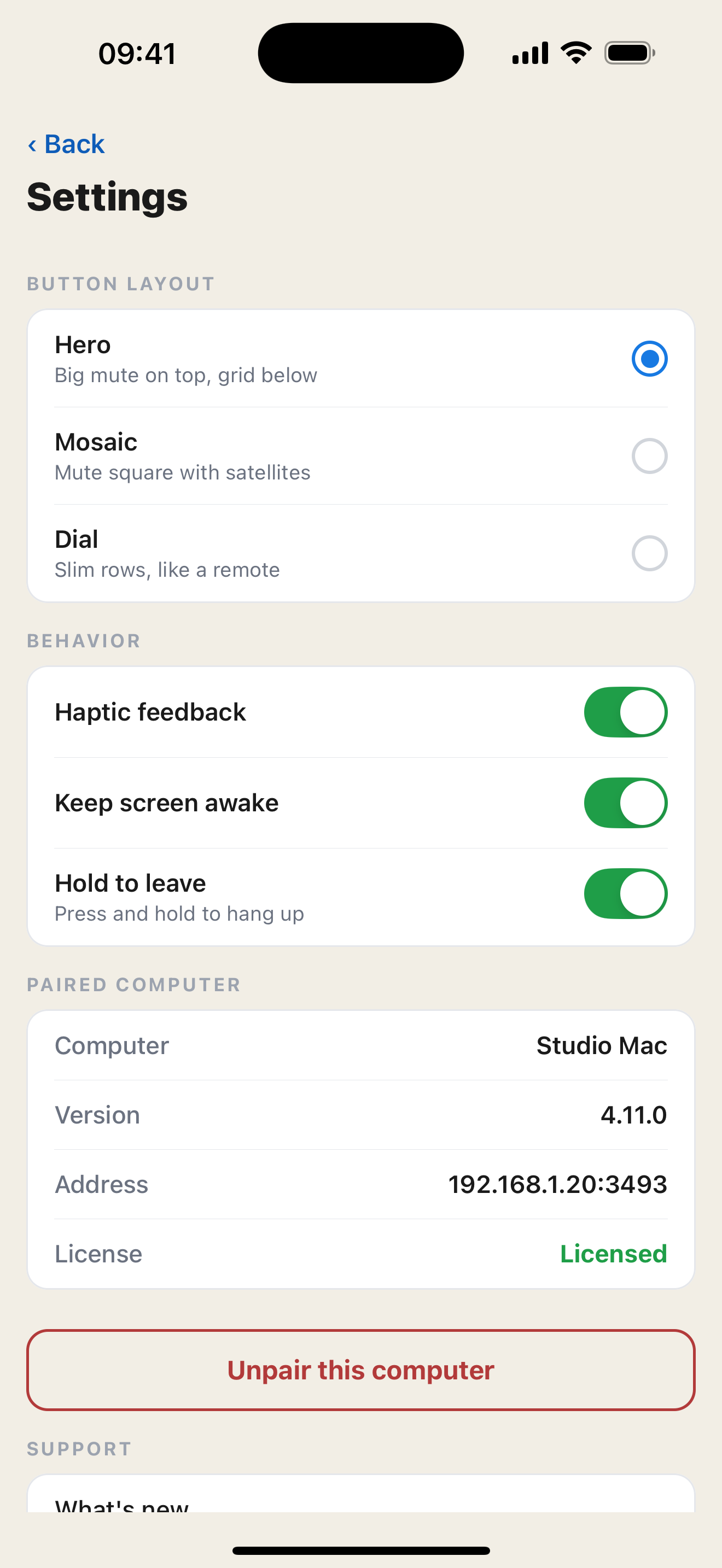
Under Behavior, you can change:
- Haptic feedback: enable or disable vibration feedback for supported interactions. Feedback depends on your device.
- Keep screen awake: keep the controller screen awake while you use it as a remote. Turn this off to let your phone use its normal screen timeout.
- Hold to leave: require a press and hold to leave a meeting. Turn it off for a single-tap Leave button.
All three options are on by default. The app follows your phone's light or dark appearance.
View the paired computer
Under Paired Computer, Settings shows the computer name, MuteDeck desktop version, address, and license status. These details can help when troubleshooting.
Unpair or change computers
- Open Settings on the phone.
- Tap Unpair this computer.
- Confirm Unpair.
The phone forgets its connection and returns to the pairing screen. Pair again to use the same computer or a different one. The mobile app remembers one computer at a time.
Unpairing on the phone clears the phone's saved connection. To remove a phone's authorization from the computer, open MuteDeck → Settings → Mobile Devices on the desktop and use the device's Revoke pairing control (the trash icon).
What's new and support
Scroll to Support in Settings:
- What's new shows changes in this and earlier mobile-app versions.
- Share connection log opens your phone's share sheet with recent connection activity. Use it when contacting support.