Your eyes on the speaker.
Your hands on real keys.
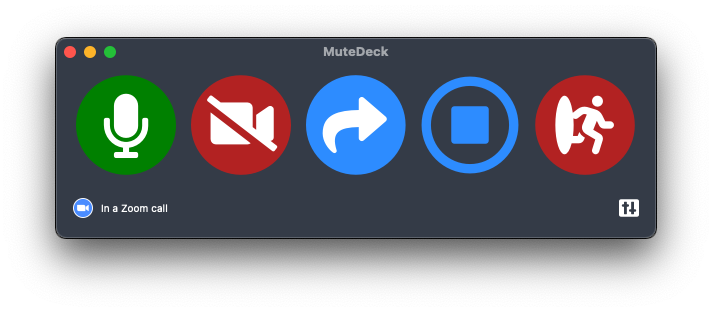
Interpreters spend more hours in meetings than anyone else on the call, and pay a higher price for a fumbled mute or a wrong channel. MuteDeck puts mute, camera, and Zoom's language switch on physical keys with live state, so the controls stop needing your attention.






















Interpreters found us first.
MuteDeck's action library has an entry called "Switching interpreting languages" for Zoom. We noticed a steady stream of people importing that one specific action, and it turned out to be working interpreters, using it to flip their Zoom language channel from a physical key.
That made sense the moment we thought about it. Simultaneous interpretation is about the most demanding thing anyone does inside a meeting app: your full attention on the speaker, your output live, and every control mishap audible to a room that can't understand the floor without you. The meeting platforms were not built with you in mind. Zoom's channel switch doesn't even have a documented keyboard shortcut.
So instead of quietly watching the telemetry, we're doing the useful thing: documenting the shortcut Zoom doesn't document, and making the interpreter setup a first-class use of MuteDeck.
A day in the remote booth
Back-to-back assignments, a boothmate on a WhatsApp backchannel, a glossary that owns your keyboard focus, and a mute state you check twice before every handover. The platforms give you click targets; the job needs muscle memory.
The wider setup, from headsets to handovers, is in the remote interpreting setup guide.
One press to switch
interpretation languages.
Zoom's interpreter console gives you two language buttons to click. MuteDeck turns that into a key: press it, and the channel toggle goes to Zoom while your eyes stay on the speaker.

Under the hood it's Zoom's own channel toggle, Command+Shift+Space
on macOS, undocumented by Zoom but in daily use by interpreters.
The full
story, including Windows.
-
Step one
Install MuteDeck.
Windows or macOS, about two minutes. The 7-day trial needs no account and no card. Get the download.
-
Step two
Import the action.
Open MuteDeck's custom actions, browse the built-in library, and save "Switching interpreting languages" for Zoom. No shortcut to remember, no configuration to invent.
-
Step three
Put it on a key.
Assign the action to a Stream Deck key or a global hotkey, next to your mute and camera keys. The Zoom Stream Deck guide covers the key setup.
A mute state you never
have to go looking for.
An open mic during your rest turn, or a muted one when the handover lands on you: both are the kind of incident interpreters remember for years. MuteDeck shows your live state on the key itself, red when muted, and in a small always-on-top window you can park next to your glossary.
It stays in sync with the meeting, so muting from inside Zoom updates the key too. And because MuteDeck talks to the meeting app directly, the mute key works while your keyboard focus is in your term list, the booth backchannel, or a browser.
Four keys that cover the booth.
The interpreters we see using MuteDeck converge on a small, boring, reliable layout. Boring is the point: the same keys in the same places, assignment after assignment.
-
Key one
Toggle mute
The key you press most. Live state on the key: red means muted, in Zoom, Teams, Webex, and Meet alike.
-
Key two
Switch language
The "Switching interpreting languages" action from the library. One press flips your Zoom output channel at the handover.
-
Key three
Toggle camera
Camera on for the handover wave to your boothmate, off for the rest turn, without hunting through the meeting window.
-
Key four
Leave meeting
Back-to-back assignments mean leaving cleanly matters. One deliberate press, and you're out of the right call.
No Stream Deck? The same four actions work as global hotkeys, and the action library holds over 150 more, from raise hand to recording.
The week never stays
on one platform.
Clients pick the platform, so an interpreter's week hops between Zoom interpretation channels, Teams language pairs, and the odd Google Meet with a second call as the improvised channel. MuteDeck's keys stay the same across all of them: one license, no profile switching.
The honest limits: the language toggle key is Zoom-only, because Teams and Webex offer no channel shortcut for a key to press. What travels everywhere is mute, camera, and leave with live state, which in a two-call Meet workaround is exactly what keeps you from talking into the wrong meeting.
Also Slack huddles, Discord, FaceTime, Jitsi, and more. Browse every guide.
Can MuteDeck switch Zoom interpretation languages?
Yes. MuteDeck's action library includes a ready-made "Switching interpreting languages" action for Zoom. It sends Zoom's undocumented channel toggle shortcut, Command+Shift+Space on macOS, so one press of a Stream Deck key or hotkey flips your outgoing language. The background on that shortcut is on the Zoom interpretation shortcut page.
Is there an official Zoom shortcut for switching interpretation languages?
No. Zoom has never documented one, and interpreters have been asking on Zoom's forums for years. The Command+Shift+Space toggle works today, but it's undocumented, so Zoom could change it in any update. That risk exists whether you press it by hand or from a key.
Can MuteDeck show which language channel I'm on?
No. Zoom doesn't expose interpretation state to other apps, so the language key is a one-press toggle without a state light. Mute and camera are different: MuteDeck reads the live meeting state, so those keys show red or green truthfully, even when you mute from inside Zoom.
Does this work with Microsoft Teams interpretation?
Partly, and we'd rather be precise. Teams supports language interpretation with up to 16 language pairs, but interpreters switch direction by clicking in the meeting window, and Teams has no channel shortcut that a key could press. What MuteDeck gives you in Teams is the rest of the booth: mute, camera, and leave with live state, from the same keys you use in Zoom.
What about Google Meet and Webex?
Webex has native simultaneous interpretation; Google Meet has none, so interpreters usually run a second, parallel call. In both cases MuteDeck controls mute and camera in the app you're in, which matters most in the Meet workaround, where two calls mean two chances to talk into the wrong one.
Do I need a Stream Deck?
No. Global hotkeys do the same job on the keyboard you already have, and every action works from the MuteDeck window itself. If you do use hardware, MuteDeck ships plugins for Stream Deck, Loupedeck, Touch Portal, and Macro Deck, and a mobile app is in the works.
Does the mute key work when Zoom isn't focused?
Yes. MuteDeck's mute, camera, and leave controls talk to the meeting app directly, so they work while you're in your glossary, your notes, or the booth backchannel. That's the difference from Zoom's own Alt+A / Cmd+Shift+A, which need the Zoom window focused.
Does this work on Windows and macOS?
MuteDeck runs on Windows 10+ and macOS 11+. One caveat for interpreters: the Zoom language toggle action is macOS-only, because Zoom's undocumented shortcut is only confirmed there. The Windows situation is covered on the shortcut page.
How much does MuteDeck cost?
A one-time purchase per computer, not a subscription. There's a 7-day trial with no account and no card. Current pricing is on the pricing page.
The interpreter reading list.
- Install MuteDeck on Windows or macOS · the download page
- The undocumented Zoom interpretation shortcut · what it does and where it stops
- Remote interpreting setup guide · connection, audio, platforms, handovers
- Set up the Zoom Stream Deck keys · plugin install and button layout
- Custom actions and the action library · how importing actions works
- Ask a human · a one-person shop, so it's me
Set up your booth row before the next assignment.
Free for seven days, no account and no card. Windows or macOS, with or without a Stream Deck.

Meeting controls for interpreters
A mute key you can trust and a language toggle for Zoom interpretation, on keys that show live state.