Webex on your Stream Deck:
no menus, no hunting.
Webex's shortcuts are decent but version-dependent and mostly focus-bound. A physical key with live state is simpler: red means muted, press to change it.
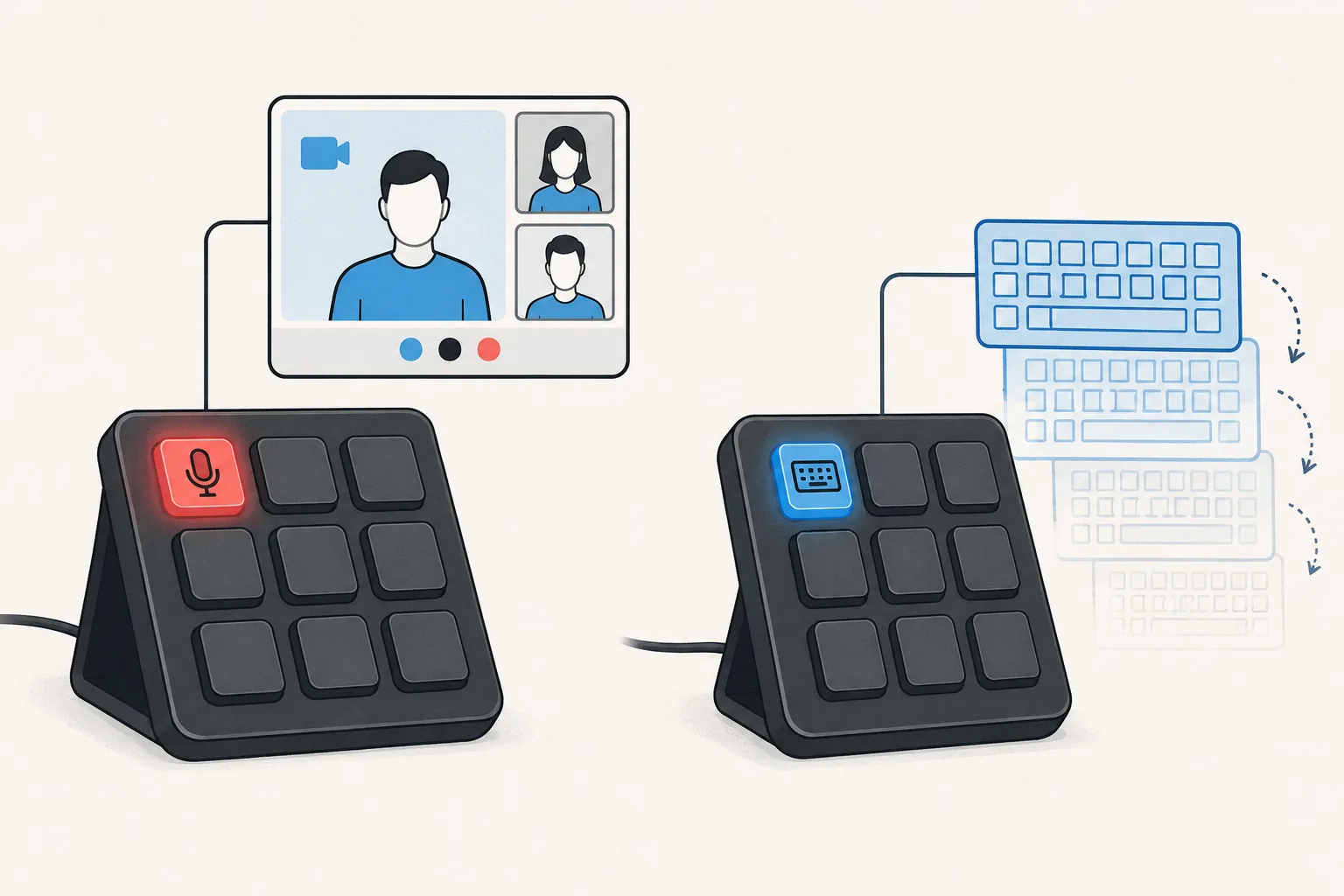
Physical keys on your Stream Deck for Webex meetings: toggle mute, toggle your camera, share your screen, and leave the meeting. Each key shows the live state, so a red key means muted before you trust your voice to it. The same keys work in every other meeting app MuteDeck supports, with no profile switching.
- Install MuteDeck on your computer from the downloads page. The 7-day trial needs no account or card.
- Open Webex. No configuration needed: MuteDeck detects the Webex Meetings desktop app automatically.
- Install the MuteDeck plugin from the Elgato marketplace (one click in the Stream Deck app).
- Drag the buttons onto your deck: Toggle Mute, Toggle Camera, Share Screen, Leave Meeting. They live in the MuteDeck group in the actions list.
- Join a Webex meeting and test. The keys light up with your live state; press to toggle.
Cisco has moved Webex's keyboard shortcuts around between releases, which is exactly the kind of churn a physical button makes irrelevant. The key does the same thing this year as last year, whatever the current binding is.
Most people settle on one meeting row: mute on the bottom-left key (biggest muscle-memory target), camera next to it, leave meeting on the far right where you won't hit it by accident. If you run a Stream Deck profile per context, put the MuteDeck keys in your default profile. Meetings interrupt everything, so the buttons should be everywhere.
Your Stream Deck already has the buttons.
MuteDeck is the engine that connects them to Webex and every other meeting app you use. Everything runs locally on your machine: no cloud, no account.
Does the Stream Deck key work when Webex isn't focused?
Yes. Webex's own shortcuts mostly need the window active (its global-shortcut option varies by version); the Stream Deck key through MuteDeck works from any app.
Does it control Webex's real mute state?
Yes. MuteDeck toggles the meeting mute inside Webex, so other participants see the proper muted state, and the key mirrors whatever Webex says.
Do I need to configure anything in Webex?
No. MuteDeck detects the Webex Meetings desktop app automatically when a meeting starts.
What about my headset's mute button?
Headset mute is a separate hardware layer that Webex doesn't always reflect. Using the app-level mute consistently (which the Stream Deck key does) avoids the two layers disagreeing.