Granola
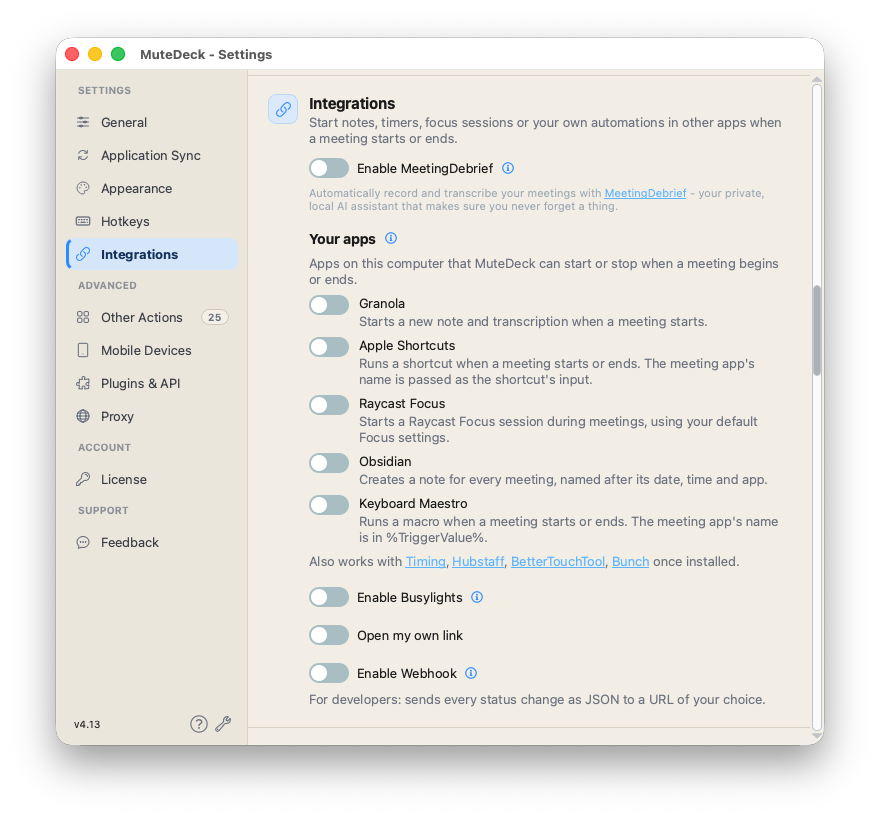
Starts a new note and transcription when a meeting begins. MuteDeck does not send an end action.
Install and set up Granola first.
Setup guide →Start a note, track your time, or run an automation when you join a call. Choose what happens at the start and end, and let MuteDeck handle the timing.
App automations respond to meeting starts and ends. Webhooks can also respond to individual mute, camera, sharing, and recording changes.
Have a place for your notes ready when the conversation starts.
Starts a new note and transcription when a meeting begins. MuteDeck does not send an end action.
Install and set up Granola first.
Setup guide →Creates a note named after the date, time, and meeting app when the call begins.
Choose your vault by name. This integration creates a note; it does not transcribe the call.
Setup guide →Starts recording when MuteDeck detects a meeting and stops when it ends.
Install MeetingDebrief and copy its API token into MuteDeck.
Setup guide →Let the meeting start and stop the timer so you do not have to remember.
Starts a timer named after the meeting app and stops it when the call ends.
Requires the Timing Expert plan.
Setup guide →Starts tracking time on your chosen project when a meeting begins and stops at the end.
Enter the Hubstaff project ID.
Setup guide →Connect the automations you already use to the start and end of a call.
Runs your chosen shortcut at the start and end. The meeting app’s name is passed as text input.
Enter the shortcut names. Leave either field blank to skip that action.
Setup guide →Starts a Focus session using your default Focus settings and completes it when the meeting ends.
Separate from the Raycast extension that lets you control MuteDeck.
Setup guide → Looking for the control extension?Runs a macro when the meeting starts or ends. The meeting app’s name is available as %TriggerValue%.
Enter the start and end macro names.
Setup guide →Runs a named trigger at the start and end, passing the meeting app’s name in the meeting_app variable.
Enter the named triggers you want to run.
Setup guide →Opens a Bunch when the meeting starts and closes it when the meeting ends.
Enter the name of your meeting Bunch.
Setup guide →Use a link, send status changes to another service, or build your own controls.
Open a URL or app link at the start, the end, or both. Use {app}, {date}, and {time} to fill in the details.
The destination app must support the link you enter.
Setup guide →Send meeting, mute, camera, sharing, and recording status changes to an HTTP endpoint. Use them to run your own home automations.
Configure a webhook URL that accepts POST requests.
Setup guide →Show other people when you are in a meeting. Choose colors and test how your light will look.
Requires a compatible light and the companion software for your operating system.
Setup guide →Read meeting status and control MuteDeck from your own scripts, dashboards, or tools.
Create an API token in Settings → Plugins & API.
Read the API reference →The app automations are available from MuteDeck v4.13. MuteDeck for Mac requires macOS 13 Ventura or later and runs natively on Apple silicon and Intel Macs.
MuteDeck shows switches for supported apps it detects on your computer. Install and set up the app, then reopen Settings → Integrations. The available apps also depend on your operating system.
Yes. App integrations have Test, Test start, or Test end buttons. They perform the real action, such as creating a note or starting a timer.
MuteDeck does not charge separately for these integrations. The connected apps have their own licenses and plans. For example, the Timing integration requires Timing Expert.
A plugin lets you control your meeting from another device or app. These integrations let MuteDeck trigger actions in your other apps when a meeting starts or ends. You can use both together.
Seven days free. Set up your meeting controls, then connect the apps you already use.
Download MuteDeck
Notes, timers, focus sessions, and your own automations with MuteDeck.