Microsoft Teams on your
Stream Deck, done properly.
Teams has no global mute shortcut, and its meeting window loves to hide. Physical keys fix that. Since Microsoft retired the third-party API, MuteDeck is what connects the two.
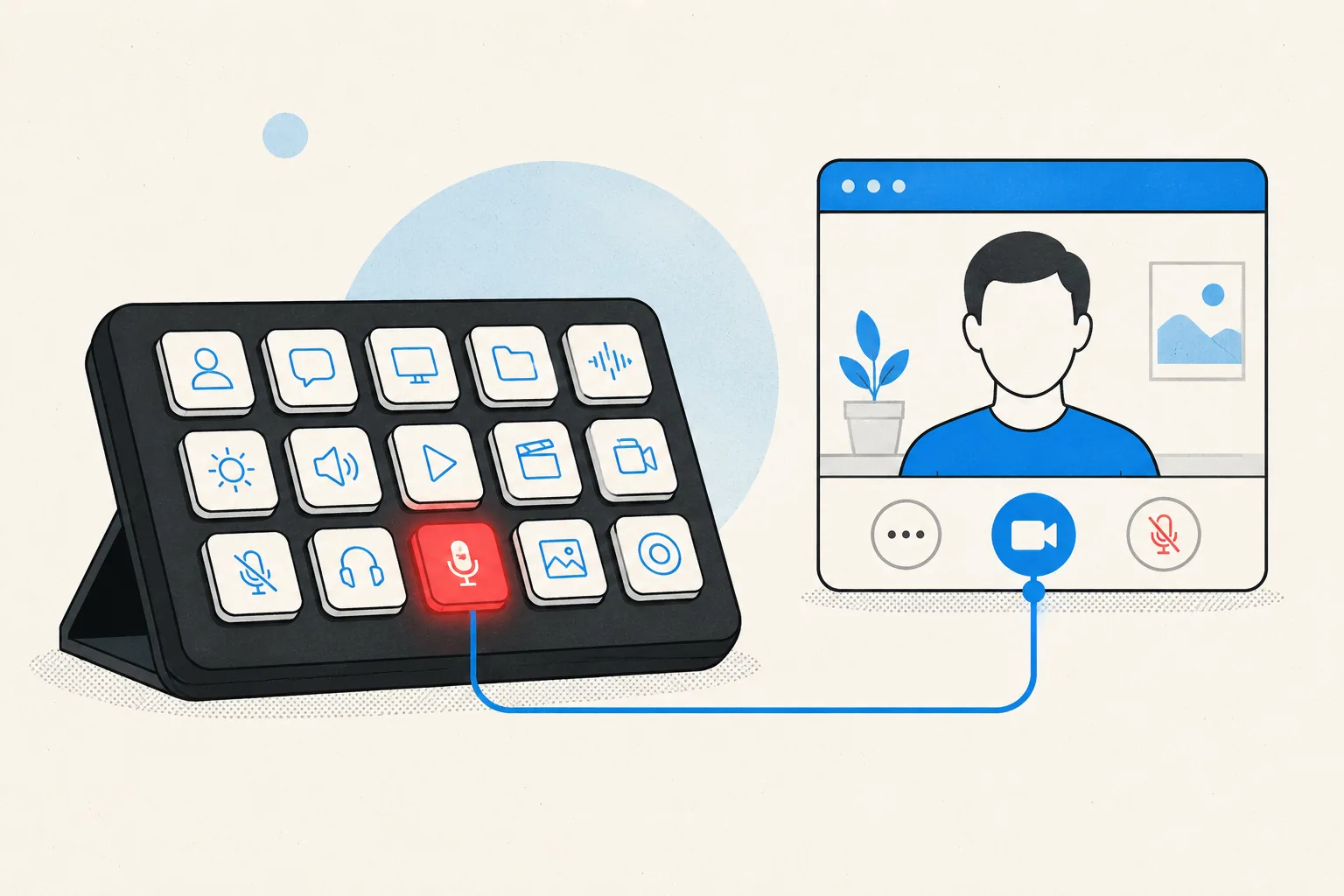
Physical keys on your Stream Deck for Microsoft Teams meetings: toggle mute, toggle your camera, share your screen, and leave the meeting. Each key shows the live state, so a red key means muted before you trust your voice to it. The same keys work in every other meeting app MuteDeck supports, with no profile switching.
- Install MuteDeck on your computer from the downloads page. The 7-day trial needs no account or card.
- Turn on Microsoft Teams in MuteDeck under Application Sync in the settings. No token, no Teams setting to flip: see the Teams setup article for the current notes.
- Install the MuteDeck plugin from the Elgato marketplace (one click in the Stream Deck app).
- Drag the buttons onto your deck: Toggle Mute, Toggle Camera, Share Screen, Leave Meeting. They live in the MuteDeck group in the actions list.
- Join a Microsoft Teams meeting and test. The keys light up with your live state; press to toggle.
If you have read older guides, you may remember a Teams API token. Teams used to expose a third-party app API under Settings → Privacy, MuteDeck could pick that token up, and meeting state came straight from Teams. Microsoft has since removed the whole thing, which is also why the official Teams Stream Deck plugin disappeared.
MuteDeck kept working through it. It detects and controls Teams with interface discovery, so there is nothing to enable and nothing to pair. The full story is on the API token page, and if you landed here because your old Stream Deck keys went dead, start with replacing the Teams Stream Deck plugin.
The one thing that does matter is language. Reading the interface means MuteDeck needs to recognise what it is looking at, so run Teams in one of the supported languages. If your mute key does nothing during a meeting, check that first.
Most people settle on one meeting row: mute on the bottom-left key (biggest muscle-memory target), camera next to it, leave meeting on the far right where you won't hit it by accident. If you run a Stream Deck profile per context, put the MuteDeck keys in your default profile. Meetings interrupt everything, so the buttons should be everywhere.
Your Stream Deck already has the buttons.
MuteDeck is the engine that connects them to Microsoft Teams and every other meeting app you use. Everything runs locally on your machine: no cloud, no account.
Do I need a Microsoft Teams API token?
No. Teams used to offer an API token for third-party devices, and MuteDeck could use it. Microsoft has removed that system, so there is nothing to enable and nothing to generate. MuteDeck controls Teams through interface discovery instead. The short explainer covers what changed.
Isn't there an official Teams Stream Deck plugin?
There was. It was built on the third-party API Microsoft retired, so it stopped working and was pulled. MuteDeck is the way to get those keys back: see replacing the Teams Stream Deck plugin.
Does this work with the new Teams client?
Yes. MuteDeck reads the Teams interface rather than a Teams setting, so the current desktop client is fine.
Does my Teams language matter?
It does. Because MuteDeck reads the Teams interface, your Teams language has to be one MuteDeck supports. The Teams setup article lists them.
Does the key work when Teams isn't focused?
Yes. Teams' own Ctrl+Shift+M needs the Teams window active; the Stream Deck key through MuteDeck doesn't care what window you're in.
Does the key show my live mute state?
Yes, red means muted. Muting from inside Teams updates the key too, so the two never disagree.