Switch Zoom interpretation
languages from the keyboard.
Zoom's interpreter console wants you to click. Its official shortcut list has nothing for interpreters. There is a shortcut anyway, and since nobody documents it, we will.
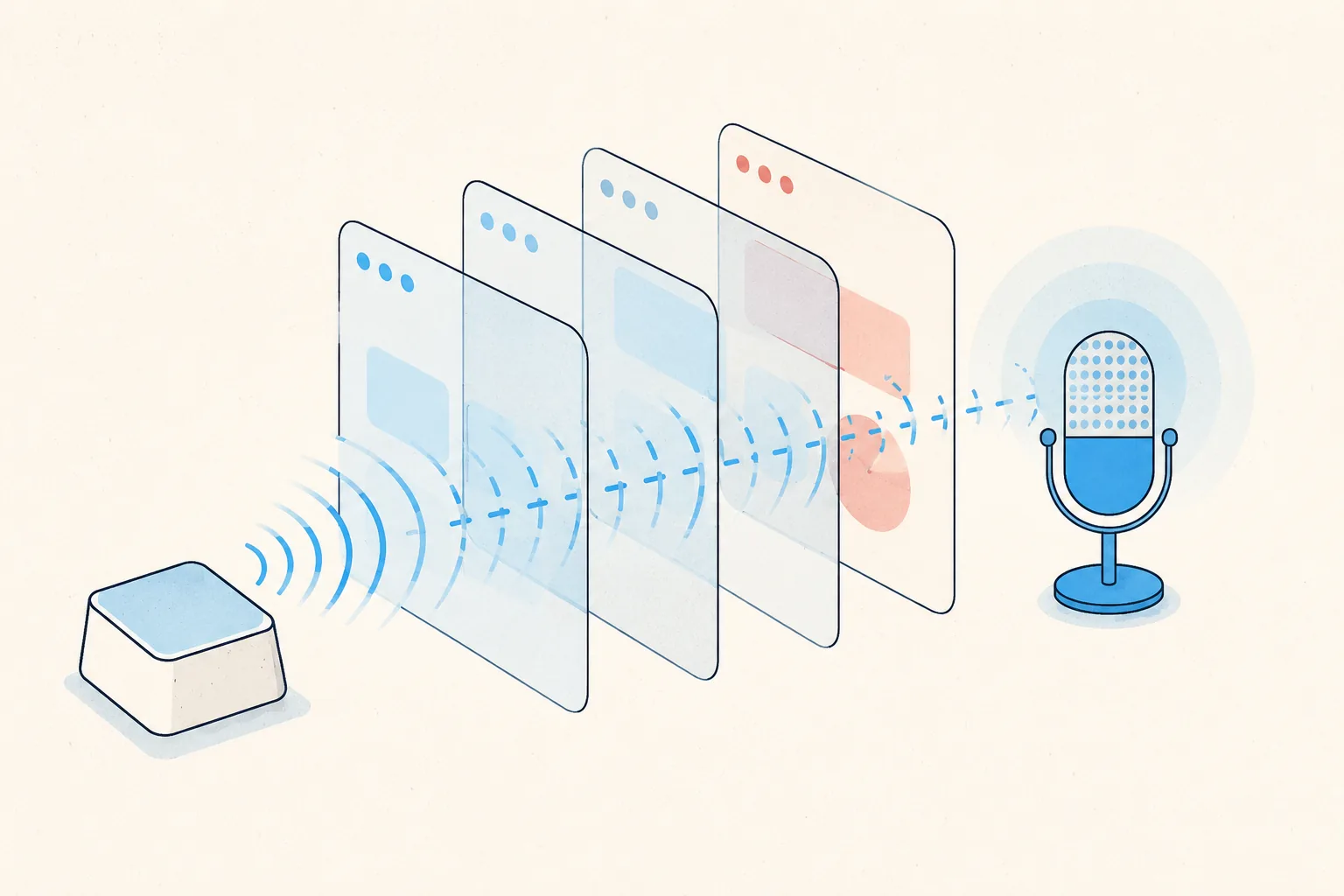
The shortcut Zoom doesn't document
When a host assigns you as an interpreter, Zoom gives you two language buttons at the bottom of the meeting window. Clicking the other one switches your outgoing channel. That works, right up until you're mid-sentence in a handover, your eyes are on the speaker, and the button is a small target in a window you're not looking at.
On macOS, Command+Shift+Space switches your active interpretation language. That's the
Command key, not Control. It doesn't appear in Zoom's shortcut settings, and it has never
appeared in Zoom's official keyboard shortcut documentation. We can still say it works with some
confidence: we ship it as an action in MuteDeck's action library, and interpreters use it every
working day.
The fine print, because undocumented means undocumented:
- It toggles between your two assigned languages. It doesn't pick from a longer list, and it does nothing if you're not assigned as an interpreter.
- Zoom has made no promises about it. Any update could change or remove it. It has been stable for a long time, but that's an observation, not a guarantee.
- Like Zoom's other shortcuts, it's aimed at the Zoom window. During interpretation that's usually where you are anyway.
What about Windows?
We can't confirm an equivalent. Practicing interpreters have reported that
Ctrl+Shift+C followed by the left and right arrow keys moves between channels, along
with the honest caveat that it doesn't behave consistently across machines. Zoom's own community
forums hold years of threads asking for a real shortcut, including one titled "urgent and
urgent," and a 2022 developer forum request to add one. None got an official answer.
If you're on Windows, test the reported combo in a practice session before a real assignment, and treat whatever you find as a bonus rather than a contract.
The shortcuts Zoom does give you
Interpreters get the same documented shortcuts as everyone else: Alt+A on Windows
and Cmd+Shift+A on macOS toggle mute, and holding the spacebar temporarily unmutes.
The catch is the usual one: they only work while a Zoom window has keyboard focus. The moment you
click into your glossary, your term list, or the booth chat, those keystrokes go there instead.
That focus problem has its own pages: why
the Zoom mute shortcut stops working and
muting Zoom from anywhere.
Put it on a key instead
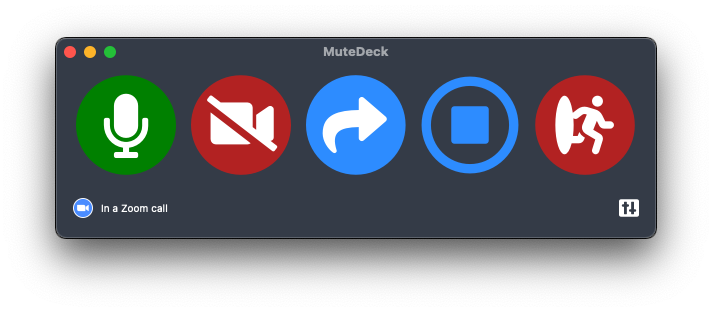
A keyboard combo you have to remember mid-handover is better than a mouse target, but a physical key is better than both. MuteDeck's action library includes a ready-made Switching interpreting languages action for Zoom: import it once, assign it to a Stream Deck key or a hotkey, and one press sends the shortcut to Zoom for you.
It sits naturally next to the keys MuteDeck is actually built around: a mute key and a camera key that show live state, red when you're muted, in Zoom and every other meeting app. The full setup, including a suggested key layout for interpreting work, is on MuteDeck for interpreters. If you work across platforms, the remote interpreting setup guide covers how Zoom, Teams, Webex, and Meet compare for interpretation.
Stop hunting for the mute button.
MuteDeck gives you one mute button that works in every meeting app: Zoom, Teams, Meet, Webex, and a dozen more. Same button, same place, whether the meeting window has focus or not. On a global hotkey, your Stream Deck, or your phone.
- ✓ Always-visible mute status, so you know before you speak
- ✓ Works when the meeting app doesn't have focus
- ✓ Everything runs locally, no cloud, no account
Does Zoom have a keyboard shortcut for switching interpretation languages?
Not officially. Zoom's keyboard shortcut documentation and its in-app shortcut settings list nothing for interpreters. There is an undocumented one, though: on macOS, Command+Shift+Space toggles your active interpretation language.
What does Command+Shift+Space do in Zoom?
When you're assigned as an interpreter in a meeting with language interpretation running, it switches your outgoing audio to your other assigned language channel. It's the keyboard equivalent of clicking the other language button in the interpreter console. Note that it's the Command key, not Control, even on a Mac.
Is there a Windows shortcut for switching interpretation channels?
Nothing we can confirm. Practicing interpreters have reported that Ctrl+Shift+C followed by the left and right arrow keys moves between channels on Windows, with the caveat that it doesn't behave the same on every machine. Treat it as something to test, not something to rely on.
Why isn't the shortcut in Zoom's documentation?
Only Zoom knows. Interpreters have been asking for an official channel-switching shortcut on Zoom's own forums for years, and there's even a 2022 feature request for one on the developer forum. None of those threads got an official answer, and the shortcut has never appeared in the documented list.
Can the shortcut disappear in a Zoom update?
Yes. That's the honest downside of anything undocumented: Zoom has made no promise about it, so any update could change or remove it. It has been stable for a long time, and interpreters use it daily through MuteDeck's action library, but there's no guarantee attached.
Can I put the language switch on a Stream Deck key?
Yes. The official Elgato Zoom plugin has no interpretation actions, but MuteDeck's action library ships a ready-made "Switching interpreting languages" action for Zoom. Import it, assign it to a Stream Deck key or a hotkey, and one press flips your channel. The interpreters page walks through the setup.
Can MuteDeck show which language channel I'm on?
No, and we'd rather say that plainly than imply otherwise. Zoom doesn't expose interpretation state to other apps, so the language key is a one-press toggle without a state light. MuteDeck's mute and camera keys do show live state, because Zoom's meeting state is something MuteDeck can read.
What are Zoom's documented shortcuts for interpreters?
The same ones every participant gets: Alt+A (Windows) or Cmd+Shift+A (macOS) to toggle mute, and holding the spacebar to temporarily unmute. Both only work while a Zoom window has keyboard focus, which is exactly when you're not looking at your glossary.