Google Meet on your Stream Deck,
tab focus not required.
Meet lives in a browser tab, so its shortcuts die the moment you click elsewhere. The MuteDeck extension gives your Stream Deck a direct line to the meeting.
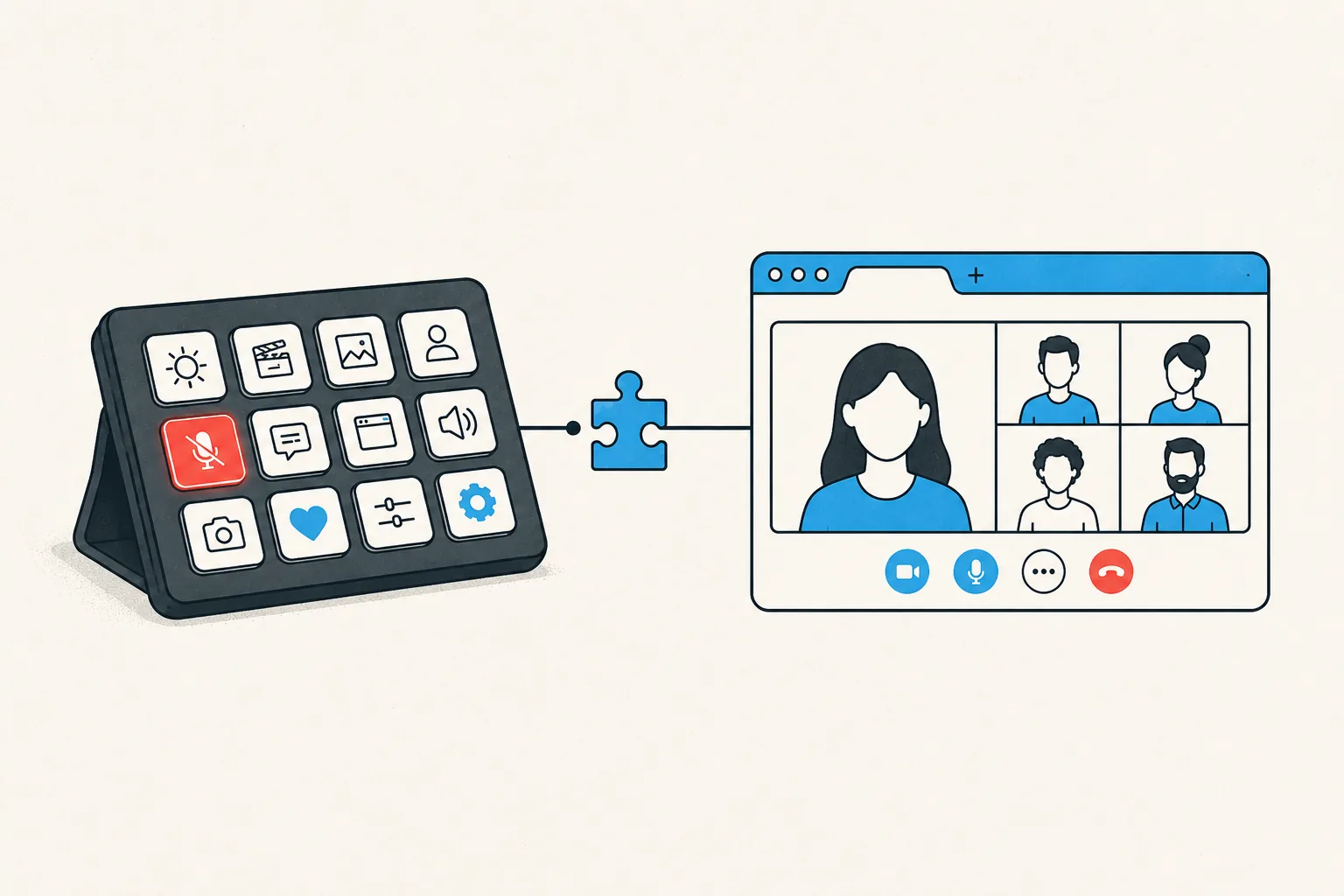
Physical keys on your Stream Deck for Google Meet meetings: toggle mute, toggle your camera, share your screen, and leave the meeting. Each key shows the live state, so a red key means muted before you trust your voice to it. The same keys work in every other meeting app MuteDeck supports, with no profile switching.
- Install MuteDeck on your computer from the downloads page. The 7-day trial needs no account or card.
- Install the MuteDeck browser extension for Chrome, Firefox, or Safari. It connects the Meet tab to MuteDeck automatically.
- Install the MuteDeck plugin from the Elgato marketplace (one click in the Stream Deck app).
- Drag the buttons onto your deck: Toggle Mute, Toggle Camera, Share Screen, Leave Meeting. They live in the MuteDeck group in the actions list.
- Join a Google Meet meeting and test. The keys light up with your live state; press to toggle.
The extension reads and controls the meeting through the Meet page itself, so the Stream Deck key reflects the real meeting state: red key, muted in Meet, muted icon next to your name. Everything stays between your browser and the MuteDeck app on your machine.
The extension also covers the web versions of Zoom and Teams, so one install handles every "this meeting opens in the browser" surprise.
Most people settle on one meeting row: mute on the bottom-left key (biggest muscle-memory target), camera next to it, leave meeting on the far right where you won't hit it by accident. If you run a Stream Deck profile per context, put the MuteDeck keys in your default profile. Meetings interrupt everything, so the buttons should be everywhere.
Your Stream Deck already has the buttons.
MuteDeck is the engine that connects them to Google Meet and every other meeting app you use. Everything runs locally on your machine: no cloud, no account.
Why does Google Meet need a browser extension?
Meet is a web app with no desktop client to talk to. The MuteDeck extension (Chrome, Firefox, or Safari) connects the Meet tab to the MuteDeck app, which your Stream Deck controls.
Does the key work when the Meet tab isn't focused?
Yes. That's the main win: Meet's own Ctrl+D shortcut needs the tab focused, and in the wrong tab it bookmarks the page instead. The Stream Deck key works from any app or tab.
Which browsers are supported?
Chrome, Firefox, and Safari. Chromium-based browsers that install Chrome extensions (Edge, Brave, Arc) generally work with the Chrome extension.
What if I have multiple Meet tabs open?
MuteDeck controls the active meeting. Joining from a second tab while another meeting runs is where every Meet setup gets weird; one live meeting per browser is the reliable configuration.