One Button Mute All Meeting Apps: Build a Universal Stream Deck Page
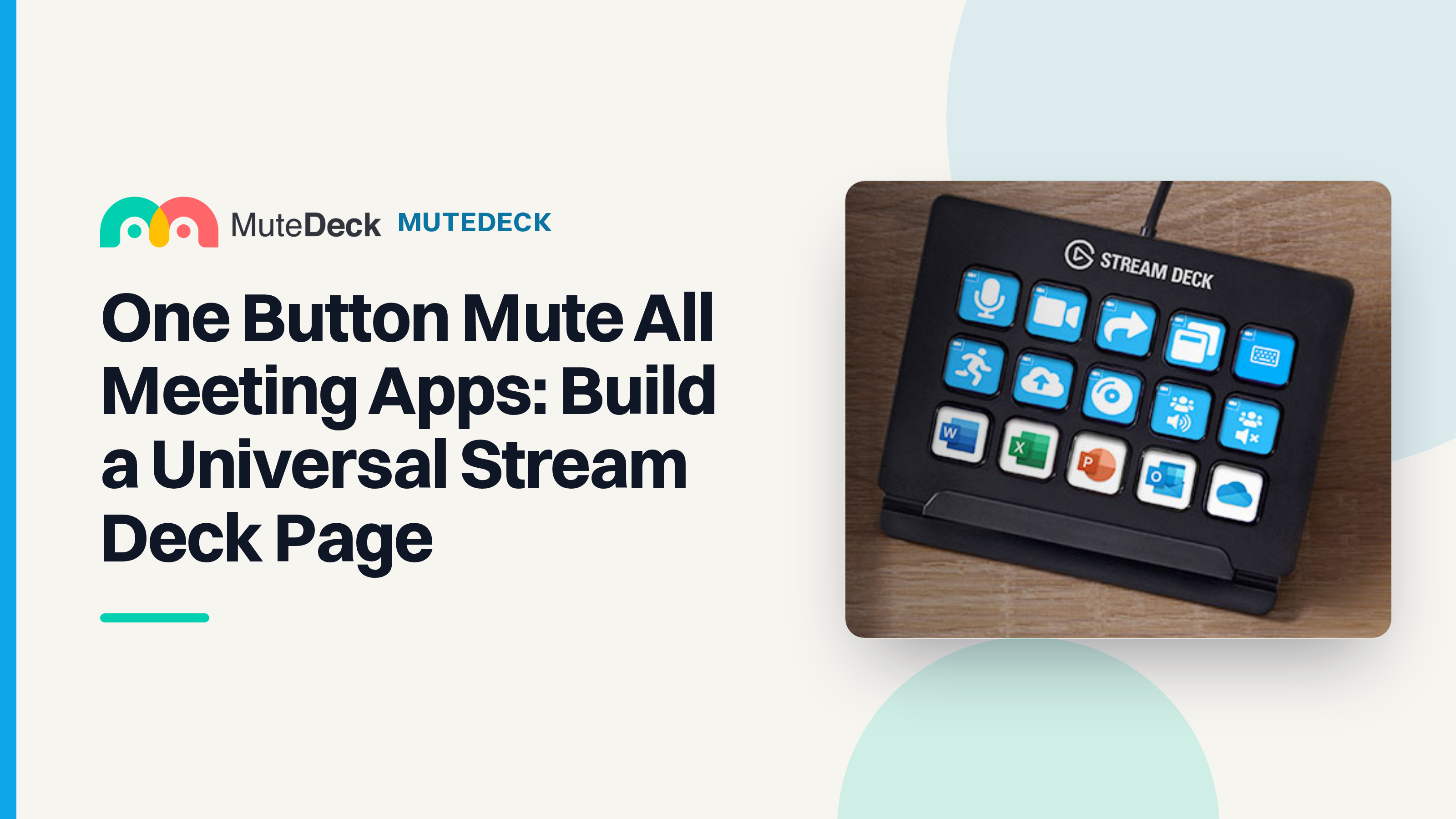
One Stream Deck page for Zoom, Teams, Google Meet, and Discord
You can use the same Stream Deck mute key for a client’s Zoom call, an internal Teams meeting, Google Meet, and Discord without switching profiles. MuteDeck controls your microphone in the supported meeting app as you move between calls.
“One button mute all meeting apps” needs a qualification: this setup doesn’t mute several simultaneous calls. It gives you one familiar layout, with core meeting controls and a Raise Hand key that sends the right shortcut for the active app.
Know what your mute button changes
Microphone mute stops others hearing you; you can still hear them. Muting incoming meeting audio does the reverse: you stop hearing the call, but your microphone may still be transmitting. Muting all computer sound also silences music and notifications. Quiet speakers don’t mean you’re muted.
MuteDeck’s Mute control changes the supported app’s own microphone state, so other participants see its muted icon. If no supported call is detected, it falls back to the system microphone and reflects that microphone’s state instead.
Build your default page
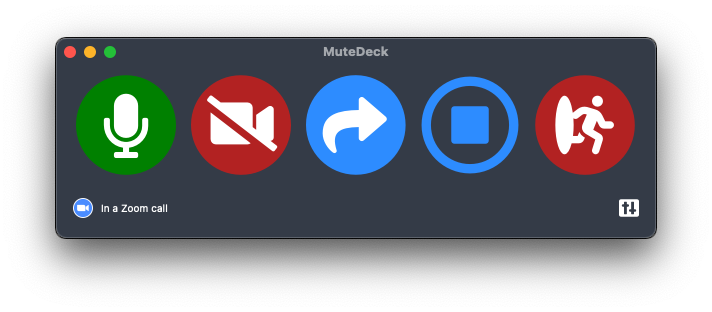
Install the main MuteDeck plugin from the Stream Deck Marketplace and keep the MuteDeck desktop app running. On your default page, place Mute at bottom left with Video beside it. Add Share and Record, then put Leave Meeting far right, away from frequently pressed keys. Reserve a key for Other Action.
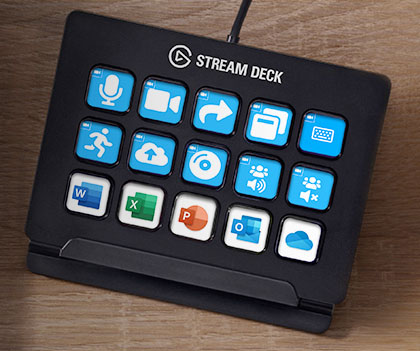
Leave Meeting leaves immediately, with no confirmation dialog. Share may open a screen-selection dialog, and Record may require host permissions, so those buttons won’t always complete their action with one press.
The keys reflect live meeting state, including changes made inside the meeting app:
- Bright: active, such as an unmuted microphone or camera on.
- Red strike-through: inactive.
- Gray: no meeting, an unavailable feature, or MuteDeck isn’t running.
Check those states rather than relying on your last button press.
Do the one-time setup for each app
Use desktop Zoom, Teams, and Discord for this setup. Google Meet connects through the MuteDeck browser extension.
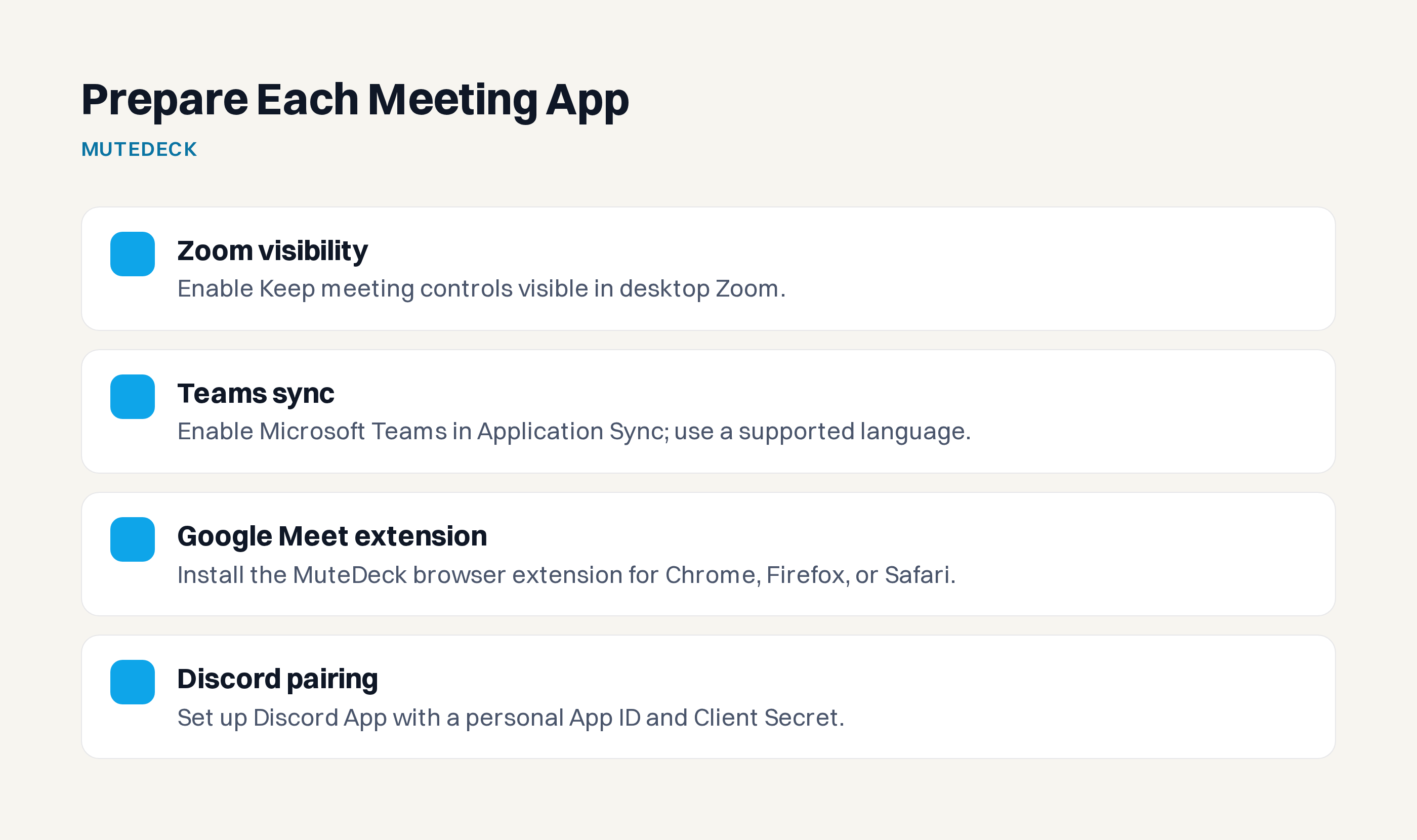
- Zoom: Desktop meetings are detected automatically, but enable Settings → Meetings & Controls → Keep meeting controls visible in Zoom. Without it, detection can be intermittent or fail. Before Zoom 6.0, the setting is Settings → General → Always show meeting controls. See the Zoom guide.
- Teams: In MuteDeck, open Settings → Application Sync → Enable Microsoft Teams. Teams must use a supported language. Auto (system language) follows your operating system; select the language explicitly if Teams uses a different one. Follow the Teams setup guide.
- Google Meet: Install the required MuteDeck browser extension for Chrome, Firefox, or Safari.
- Discord: Open MuteDeck Settings → Discord integration → Setup Discord App. Pair MuteDeck with a personal Discord application using its App ID and Client Secret, following the Discord pairing guide.
Add one Raise Hand key
Open MuteDeck Settings → Other Actions. Each entry needs an application, an action name, and a keyboard shortcut. Use exactly the same name for each app’s version:
- Select Zoom, name the action
raise-hand, and enter its Raise Hand shortcut for your operating system. - Create entries for Teams and Google Meet, also named
raise-hand, using each app’s Raise Hand shortcut. - In Stream Deck, drag Other Action onto the reserved key. Choose
raise-handfrom Action Name and set Title to Raise Hand.
MuteDeck selects the matching shortcut for the active meeting app. You don’t need separate Zoom and Teams keys.
If the new action doesn’t appear in Action Name, temporarily select another Stream Deck action, then switch back to refresh the list.
Test before a client call
Join a test call in each app. With another window focused, press Mute, then unmute. Check that the Stream Deck key, MuteDeck, and the meeting app agree. Then mute inside the meeting app to test updates in the other direction. Allow about half a second for the key to update; if the states disagree, revisit that app’s setup.
On macOS, Teams briefly comes forward while MuteDeck presses the control, then you’re returned to your previous app. Expect that flash during testing.
In an unsupported app, No Call Detected means there’s no per-app control. Video controls are gray or disabled; don’t expect camera or sharing controls in fallback mode.
Before your next call, close unused meeting apps. Give the page a normal workday before adding more custom keys, then choose extras based on the controls you actually used.
To try this layout, download MuteDeck and start the 7-day free trial, then install the Stream Deck plugin and, if you use Google Meet, the browser extension.