Stream Deck Microsoft Teams: Replace the Retired Plugin

If your Microsoft Teams Stream Deck buttons stopped working, Microsoft retired the third-party meeting API that powered the official Teams plugin. The plugin stopped working and was removed from the Elgato Marketplace. Your Stream Deck setup didn’t suddenly go wrong, and reinstalling the plugin won’t bring the controls back.
MuteDeck provides replacement controls for mute, camera, screen sharing and leave, with live meeting state on your keys. It controls the Teams desktop app without a Teams API token.
Does the old Teams plugin still exist?
The official plugin is no longer available in the Marketplace. You can also skip older guides that send you to Teams → Settings → Privacy → Third-party app API to generate a token. Microsoft removed that setting and its tokens, so there’s nothing to regenerate or reauthorize.
If a tutorial depends on a Teams API token, those instructions no longer apply.
Can I use Teams shortcuts on Stream Deck instead?
Native Teams shortcuts still work, but only when Teams has keyboard focus: its window must be receiving your keystrokes. If you’re editing a spreadsheet when you press a Stream Deck hotkey, the shortcut goes to the spreadsheet instead. To assign a mute/unmute key, use the action under System > Hotkey and assign Ctrl+Shift+M on Windows or Cmd+Shift+M on macOS.
Hotkeys are a quick option if you keep Teams active during calls. MuteDeck is better suited to controlling meetings while you work in other apps.
| What you need | Teams shortcut on Stream Deck | MuteDeck action on Stream Deck |
|---|---|---|
| Mute while another app is active | Ctrl+Shift+M on Windows or Cmd+Shift+M on macOS only reaches Teams when Teams has focus | Works without manually switching to Teams |
| Live meeting state on the key | The hotkey button can’t read changes made inside Teams | The key follows changes made inside Teams |
| A button that always mutes | A toggle shortcut can unmute if you’re already muted | Desired-state behavior can always request mute |
The MuteDeck plugin’s button options let you choose toggle or desired-state behavior for each key.
On macOS, MuteDeck briefly brings Teams to the front to press the control, then returns you to your previous app. You don’t need to switch windows yourself, but Teams will flash into view.
How do I set up the replacement?
Install the MuteDeck desktop app and its main Stream Deck plugin, then enable Teams in Application Sync. On macOS, MuteDeck also needs Accessibility and Automation permissions:
-
Install and open MuteDeck on your Windows PC or Mac. On macOS, grant MuteDeck Accessibility and Automation permissions when prompted. If Teams buttons do nothing, check those permissions under System Settings → Privacy & Security → Accessibility / Automation. Keep the desktop app running while you use the Stream Deck controls.
-
Install the main MuteDeck plugin. In Stream Deck software, open Stream Deck Marketplace using the colorful icon at the top right. Search for MuteDeck and install the main plugin, which contains the core meeting controls. Restart Stream Deck software if prompted.
-
Enable Teams. Open MuteDeck Settings → Application Sync and turn on Enable Microsoft Teams.
-
Match the language to Teams. In Settings → Application Sync → Language, choose Teams’ display language. Supported languages are English, Dutch, French, German, Hungarian, Italian, Japanese, Polish, Spanish and Swedish.
-
Place the controls on your keys. In Stream Deck software’s right-hand Actions panel, find MuteDeck. Drag Mute, Video, Share and Leave Meeting onto four keys.
Check the language: MuteDeck’s Teams Auto (system language) option uses your Windows or macOS language. If your computer uses English but Teams uses German, select German explicitly in MuteDeck.
In Teams, open Calendar → Meet now and join a test call. Press Mute and Video, checking the corresponding controls inside Teams. Press Share to open the sharing picker. Test Leave Meeting last so you don’t end the call before checking the other keys.
The Teams setup guide documents the Application Sync options if you need to revisit a setting.
What do the button states mean, and what if a button does nothing?
Bright means active, such as an unmuted microphone or video on. A red strike-through means inactive: muted or video off. Gray means no meeting, an unavailable feature or MuteDeck not running. A gray microphone key does not confirm that you’re muted.
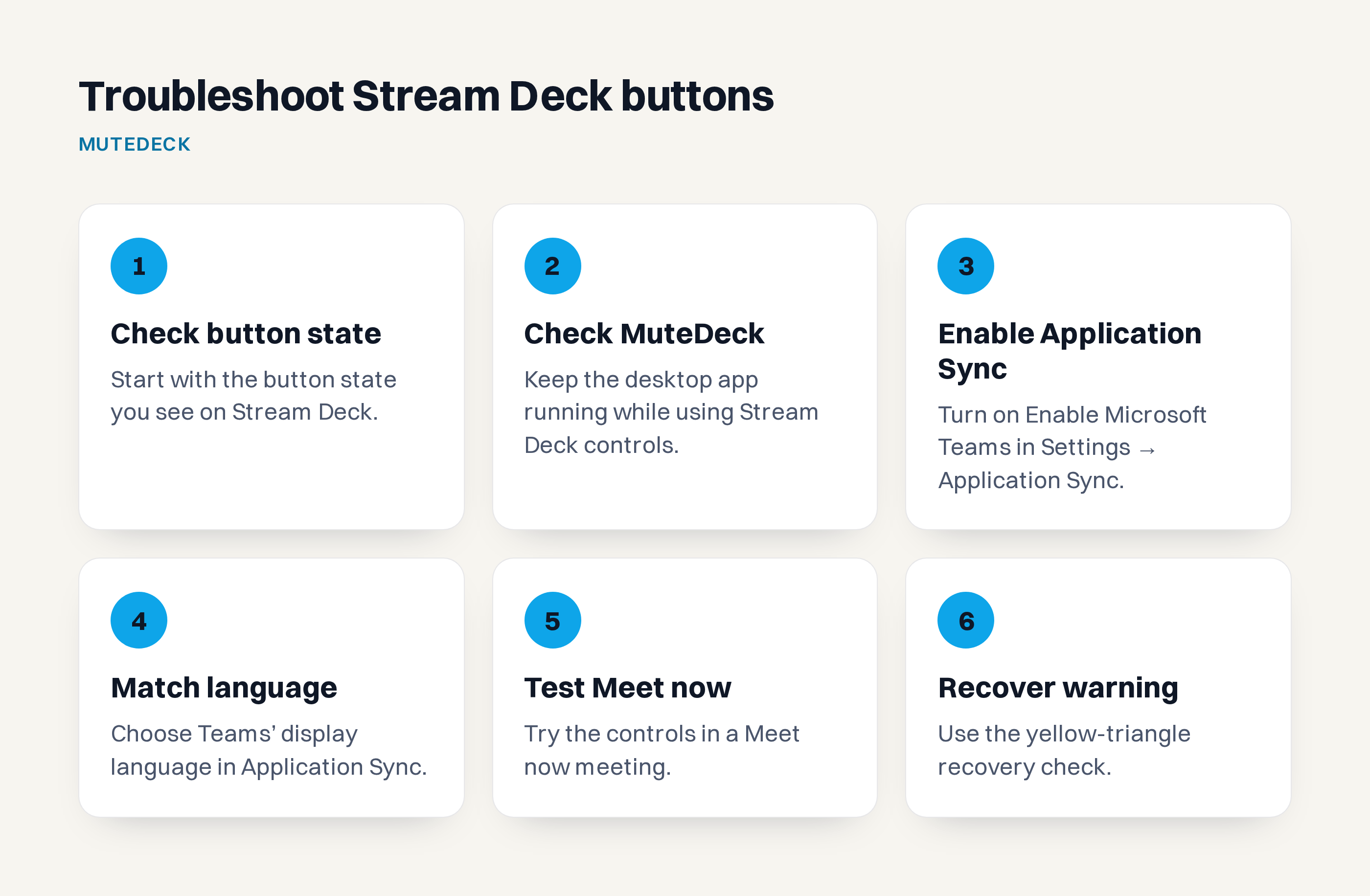
A roughly 0.5-second delay is normal. Give the key a moment to update before pressing again, especially with a toggle button that could undo your first press.
For an unresponsive button, confirm MuteDeck is running, then restart Stream Deck software. Verify Enable Microsoft Teams is on under Settings → Application Sync and check whether MuteDeck shows the meeting status during your test call.
If MuteDeck detects the call but can’t read its controls, check that the language setting matches Teams’ display language.
A yellow triangle usually means the plugin can’t reach MuteDeck. Follow the checks above and reinstall the plugin only if the warning persists. The Stream Deck troubleshooting guide covers this connection warning.
Before your next real meeting, rehearse the four-button setup in a Teams Meet now call. Download MuteDeck and start the 7-day free trial, no card required.