Google Meet's mute shortcut,
and why it keeps failing.
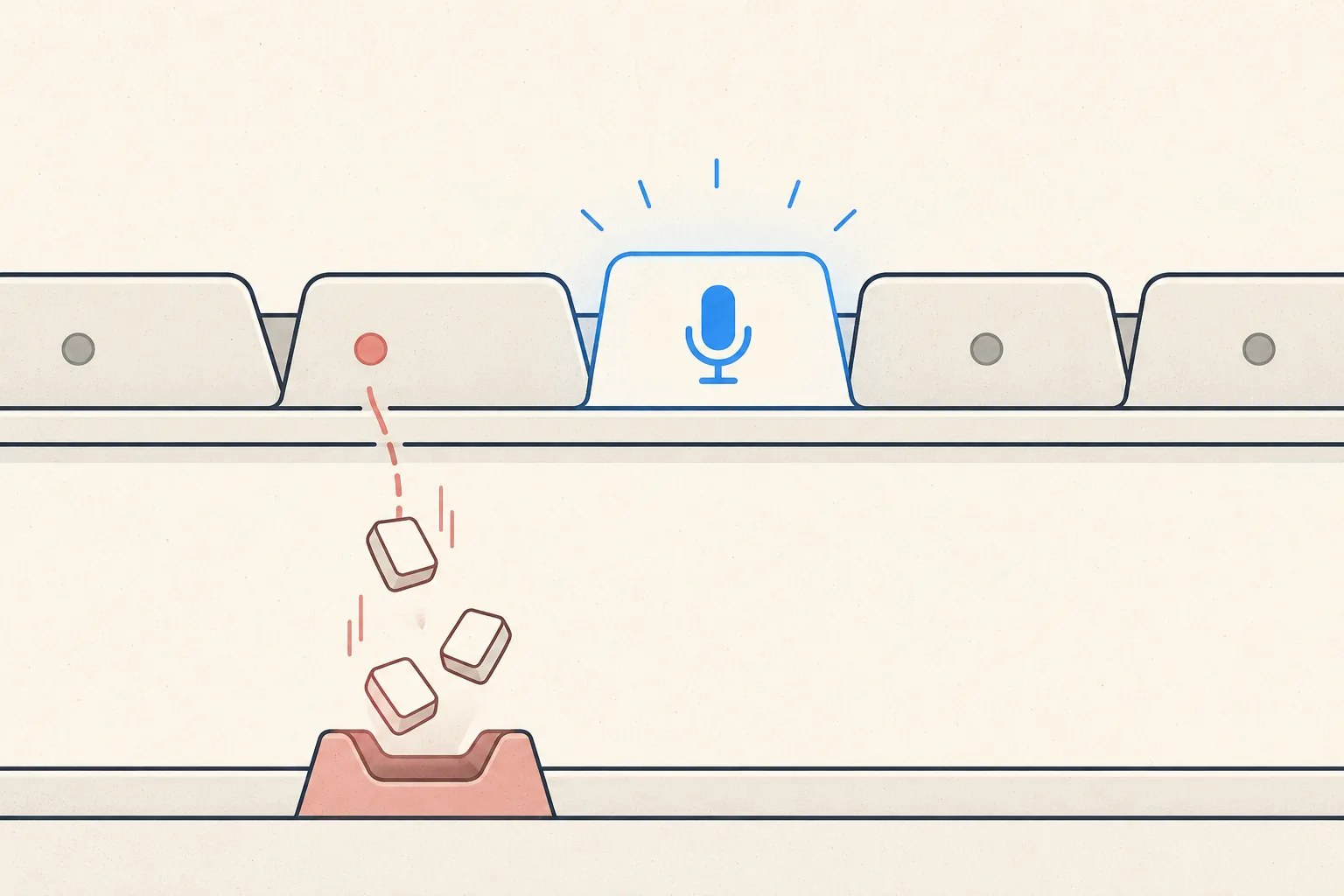
Meet lives in a browser tab, and that's both the convenience and the whole problem: its shortcuts only exist inside that tab.
The shortcuts
- Mute/unmute mic:
Ctrl+D(Windows/ChromeOS),Cmd+D(Mac) - Camera on/off:
Ctrl+E/Cmd+E - Push-to-talk: hold
Spacewhile muted to talk
Why they stop working
Google Meet is a web app, so its shortcuts are captured by the browser tab, and only when that tab is focused. Three ways this bites you:
- You're in another app. Notes, Slack, your IDE: the keystroke goes there, not to Meet.
- You're in another tab. Same browser, wrong tab:
Ctrl+Dbookmarks the page you're on instead. A worse outcome than nothing. - You're typing in the Meet chat. Focus is in a text field, so the "shortcut" is just… typing the letter d.
The free workarounds
Pin the Meet tab and learn Ctrl+Tab-to-it muscle memory, or keep Meet in its own
dedicated browser window so Alt+Tab/Cmd+Tab finds it fast. Some
people pop the meeting into picture-in-picture to at least see their state. All of
these reduce the pain; none of them remove it.
Muting Meet from anywhere
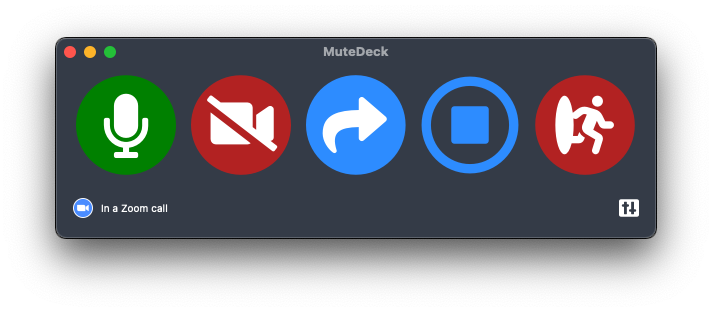
Because Meet is browser-based, no built-in option can give you a true global mute. MuteDeck solves it with a lightweight browser extension (Chrome, Firefox, or Safari) that connects the Meet tab to the MuteDeck app on your desktop. From there you get everything the desktop apps get: a global hotkey, Stream Deck and Loupedeck buttons, phone control, and an always-visible indicator with your live mute state, no matter which tab, window, or app you're in.
Stop hunting for the mute button.
MuteDeck gives you one mute button that works in every meeting app: Zoom, Teams, Meet, Webex, and a dozen more. Same button, same place, whether the meeting window has focus or not. On a global hotkey, your Stream Deck, or your phone.
- ✓ Always-visible mute status, so you know before you speak
- ✓ Works when the meeting app doesn't have focus
- ✓ Everything runs locally, no cloud, no account
What is the mute shortcut in Google Meet?
Ctrl+D on Windows/ChromeOS, Cmd+D on Mac, toggles your microphone. Ctrl+E / Cmd+E toggles the camera. The Meet tab must be focused.
Why doesn't Ctrl+D work in Google Meet?
Either the Meet tab isn't focused (the shortcut goes to whatever app or tab is), or your cursor is in the meeting chat where keystrokes are treated as typing. Click the meeting area first, then try again.
Can I mute Google Meet while working in another window?
Not with Meet's own shortcuts. It's a web app, and browser shortcuts need the tab focused. You need an external controller: MuteDeck with its browser extension gives you a global hotkey, Stream Deck button, or phone control for Meet.
Does Google Meet have push-to-talk?
Yes. While muted, press and hold the spacebar to talk, release to re-mute (enable it in Meet's settings if it doesn't respond). Tab focus required, as always.