MuteDeck v4.14: Push to Talk, and Hotkeys for Everything
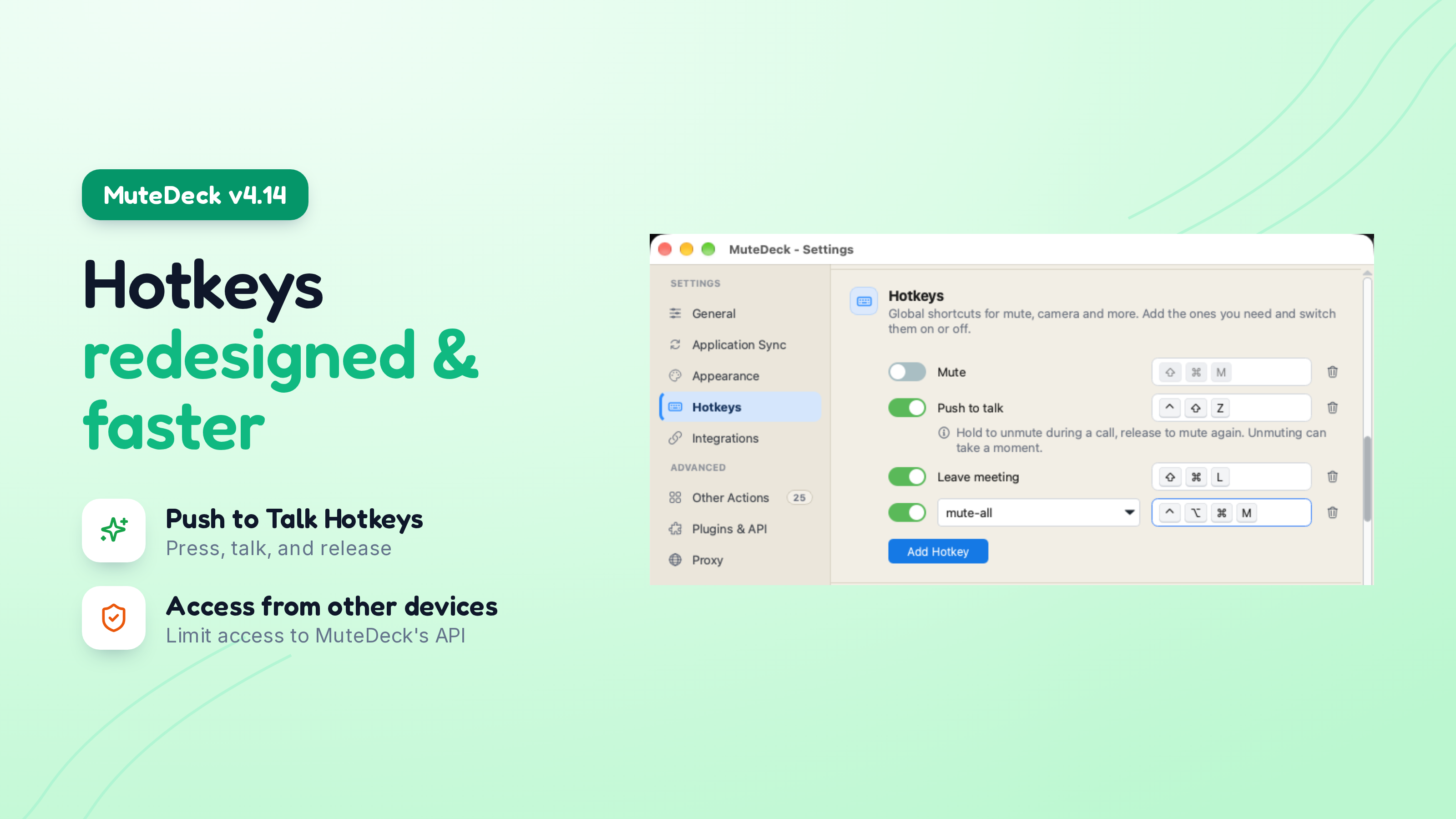
MuteDeck v4.14 is out, and this one is all about hotkeys. There's a new push-to-talk hotkey, you can now run your Other Actions from a global hotkey, and the Hotkeys settings are redesigned so they tell you when a shortcut can't work, and how to fix it. 😊
Slack Huddles, Webex and FaceTime also move to MuteDeck's newer, lighter detection, so they're quicker, and FaceTime works again on macOS 27.
Push to Talk
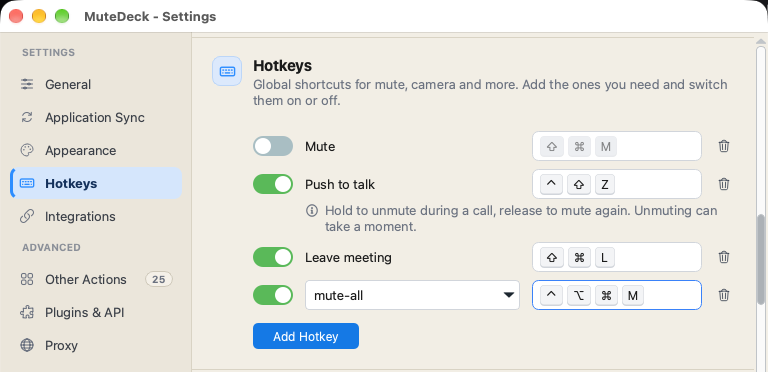
Add a Push to talk hotkey in Settings → Hotkeys. Hold it to unmute during a call, and let go to mute again.
It works with the meeting app you're in. MuteDeck presses the app's own mute button, so everyone in the call sees you unmute and mute, just like when you click it yourself.
Other Actions on a Hotkey
Other Actions are the shortcuts you set up for things MuteDeck doesn't have a button for: raising your hand, opening the chat, switching your layout. Until now you could only run them from your Stream Deck or the API.
Now you can give them a global hotkey too. Choose Add Hotkey → Other Action…, pick one of your own Other Actions or a built-in one, and record a shortcut. Pressing it runs that action in the meeting app you're in, the same way your Stream Deck does. If you change the action later, the hotkey uses the new version, so there's nothing to set up twice.
Redesigned Hotkeys
With push to talk and Other Actions, the Hotkeys section would have become a very long list. So it now shows only what you use:
- Only what you use: The Hotkeys section starts with just Mute. Use Add Hotkey to add Video, Share, Record, Leave meeting, Push to talk or an Other Action. Removing a hotkey turns it off but remembers its shortcut, in case you want it back.
- Hotkeys that don't work tell you why: A hotkey that does nothing is frustrating, and until now MuteDeck didn't tell you why. If another app already uses a shortcut, Windows reserves it, or it clashes with a macOS keyboard shortcut, MuteDeck now says so next to the hotkey and offers a fix, like opening Keyboard Shortcuts in System Settings. If two MuteDeck hotkeys share the same shortcut, you'll see that too.
- Secure Keyboard Entry (macOS): When an app such as a password manager or Terminal turns on Secure Keyboard Entry, macOS pauses all global hotkeys, not just MuteDeck's. MuteDeck now shows a banner telling you which app is doing it, so you know what to close.
- At startup: If a hotkey can't be registered when MuteDeck starts, you'll get one notification and a tray menu entry that takes you straight to Settings.
Slack, Webex and FaceTime: Lighter, Quicker, and More Reliable
Over the last few releases, Zoom and Teams moved to MuteDeck's newer detection engine. Now Slack Huddles, Webex and FaceTime have moved too.
The new detection runs in the background instead of on the main window, is quicker, and uses less CPU. Every mute, video, share and record command is now checked against the app afterwards, instead of being sent blind and hoping for the best. And FaceTime's controls, which stopped working on macOS 27, work again.
Settings
- About: The new Settings → Support → About section shows your MuteDeck version, when it last checked for updates, and a Check for Updates button. No more digging through the tray menu.
- Access from other devices: MuteDeck's API and plugin connections could always be reached from other devices on your network, which is handy if you control MuteDeck from another computer or Home Assistant. The new Allow plugins and API access from other devices option in Settings → Plugins & API lets you decide. It's on by default, as before. Turn it off to allow connections from this computer only.
A Few More Things
- macOS 27 renamed the Accessibility settings to Privacy & Security → Device Control and Data Access. MuteDeck's permission instructions now use the new name, so you can find where to allow MuteDeck.
- Proxy: If you use a manual proxy, Stream Deck and browser integrations no longer stop working after a restart. Updates now use your manual proxy too, including installs under Program Files on Windows.
- Zoom shortcuts (macOS): Other Actions and shortcut-based reactions in Zoom did nothing when MuteDeck didn't recognize Zoom's meeting window. Fixed.
- Show window during meetings: A minimized MuteDeck window now comes back when a meeting starts, and minimizes again when it ends.
- Windows crashes: Fixed crashes when Webex changed its window during a call, when a microphone was unplugged or disabled, and one caused by an outdated runtime library. Thanks to the crash reports from v4.13, I could find these much faster!
Check for updates in MuteDeck to get v4.14. The full changelog is at mutedeck.com/changelog.
How do you use push to talk? Let me know at support@mutedeck.com, or through Settings → Feedback. And as always, if you run into issues, let me know!