# Zoom Breakout Rooms Tutorial for Hosts
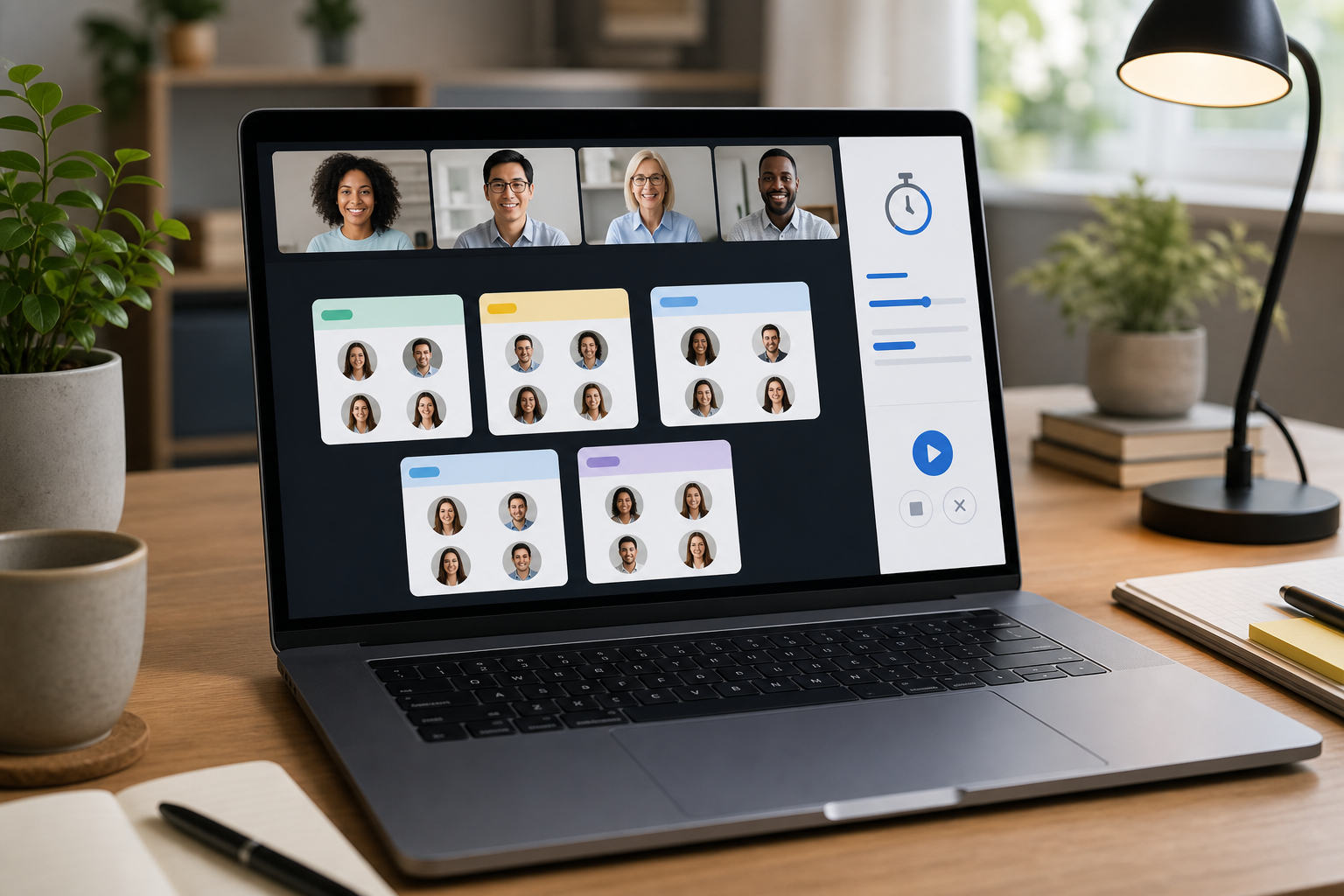
A Zoom breakout rooms tutorial should help you do three things quickly: prepare room settings before the call, move people without losing the main session, and give participants clear signals when it is time to return. The host work is less about finding the button and more about reducing confusion while everyone watches you manage the room list.
Zoom breakout rooms split one meeting into smaller sessions for discussion, exercises, interviews, or workshop tasks. Hosts and co-hosts can create rooms, assign participants, broadcast messages, move between rooms, and close the rooms when the activity ends. The cleaner your control plan, the less time the group spends waiting while you play spreadsheet roulette in a tiny modal.
# When breakout rooms are the right meeting control
Breakout rooms work best when the meeting needs short, focused participation from smaller groups. They fit workshops, training sessions, interviews, classroom discussions, customer advisory boards, and team retrospectives. They work poorly when the meeting only needs one or two quick comments. In that case, chat, reactions, or a poll usually costs less attention.
Use breakout rooms when you need one of these outcomes:
- More people speaking than a single room can handle.
- Parallel exercises with a defined output.
- Private discussion between groups.
- A facilitator visiting rooms to unblock teams.
- A timed activity that returns to a main-room summary.
The risk is control overhead. Every extra room adds assignment decisions, timing calls, participant questions, and host context switching. If the session already has heavy screen sharing, chat monitoring, and recording notes, build a simpler room plan. A host who has to manage every control at once becomes the meeting bottleneck.
For the broader host stack, pair this guide with MuteDeck's meeting controls checklist (opens new window), Zoom host controls guide (opens new window), and screen share controls guide (opens new window). Breakout rooms are only one control surface. Audio, camera, screen share, chat, and recording still need a plan.
# Zoom breakout rooms tutorial: setup before the meeting
Do the quiet setup before anyone joins. Zoom's own support article on managing meeting breakout rooms (opens new window) explains the core capability: meeting hosts and co-hosts can split a meeting into separate sessions, assign participants manually or automatically, and manage the rooms while the meeting runs.
For scheduled workshops, prepare these decisions in advance:
- Room count. Pick a group size before you open the room tool. Three to five people per room often gives enough discussion without creating a silent corner.
- Assignment method. Use automatic assignment for low-stakes discussion. Use manual assignment when role, customer, team, or skill mix matters.
- Timing. Decide the room duration and the warning period before closing rooms.
- Instructions. Write the task in one or two sentences. Put it on a slide, in chat, or in both places.
- Return format. Tell groups what they should bring back: one decision, one question, one risk, or one action.
If the meeting depends on exact group membership, keep a separate participant list nearby. Do not rely on memory while people join late, rename themselves, or dial in from a second device. That is how "Alex from finance" becomes a philosophical category.
# Host decision table for room setup
| Meeting goal | Room setup | Host control risk | Recommended move |
|---|---|---|---|
| Quick discussion | Automatic assignment | Low | Create rooms live and keep the timer short. |
| Training exercise | Manual or preplanned assignment | Medium | Prepare instructions and assign a co-host. |
| Customer workshop | Manual assignment | High | Use a participant list and test room flow before the call. |
| Interview loop | Fixed rooms | High | Name rooms clearly and keep one coordinator in the main session. |
| Large webinar activity | Many rooms with co-hosts | Very high | Use facilitators, written instructions, and a longer return buffer. |
The table matters because breakout rooms are a live production choice. More control gives you better group design, but it also adds failure points. If the host must present, answer chat, manage rooms, and troubleshoot audio alone, choose the simplest room design that still supports the activity.
# How to open and manage breakout rooms during the call
Once the meeting starts, open the Breakout Rooms control from the Zoom meeting toolbar. Create the number of rooms, choose automatic or manual assignment, and review the assignments before opening rooms. If you have a co-host, confirm who will stay in the main session and who will visit rooms.
A clean live sequence looks like this:
- Explain the activity before opening rooms.
- Put the task and return time in chat.
- Open the room panel and confirm assignments.
- Start the rooms.
- Broadcast a reminder halfway through.
- Visit rooms only when useful, not as a surveillance tour.
- Send a final warning before closing rooms.
- Close rooms and give participants time to return.
- Capture the output in the main session.
Zoom documents that hosts can broadcast messages to all rooms, join rooms, move participants, and close rooms from the breakout room controls. Use those controls sparingly. A broadcast every minute makes the activity feel like a cooking show with an anxious producer.
The strongest host habit is narration. Tell the main room what you are doing before you click. Say, "I am opening four rooms now. You will have eight minutes. Bring back one decision and one concern." Participants forgive small delays when the plan is visible.
# Co-host roles, late joiners, and reassignment
Co-host support matters in larger sessions. Zoom allows hosts and co-hosts to help manage breakout rooms, depending on account settings and meeting configuration. Before the meeting, confirm that the co-host has the permissions they need and knows the room plan.
Assign one person to participant flow. That person watches for late joiners, people who return to the main session, and participants who ask for help. The presenter should avoid doing this while explaining content. Splitting those jobs keeps the meeting from stalling.
For late joiners, use a simple rule:
- If the activity has less than two minutes left, keep them in the main room and brief them there.
- If the activity is still active, assign them to the smallest suitable room.
- If they need a specific group, move them manually and send the room a short context note.
Microsoft Teams and Google Meet use similar room concepts, but the control details differ. Microsoft documents breakout room management in Teams (opens new window), while Google documents how organizers and participants use breakout rooms in Google Meet (opens new window). If your team switches platforms often, do not train hosts on memory alone. Keep a platform-specific checklist close by.
# Mute, camera, and screen share controls while rooms are active
Breakout rooms add pressure to the controls you already use. You may need to mute yourself before joining a room, turn the camera on for a facilitator check-in, stop a share before sending people out, or resume the share when everyone returns. Those actions sound small until they happen in the wrong order.
MuteDeck helps by keeping common meeting controls in one place across supported meeting apps. For a breakout-heavy session, build a small control set for the host:
- Mute and unmute.
- Camera on and off.
- Screen share status.
- Leave or return focus to the meeting app.
- A reminder to check recording and chat before rooms open.
This is useful because breakout room work is already modal. The host is staring at a room manager, a participant list, a shared deck, and chat. A consistent control surface reduces the amount of window hunting during the live portion of the call.
If audio is the fragile part of your setup, review the microphone troubleshooting guide (opens new window) before a workshop day. Breakout sessions make audio failures harder to detect because the person with the problem may be outside the main room.
# Checklist for a cleaner breakout session
Use this checklist before any meeting where room management matters.
- Confirm breakout rooms are enabled for the Zoom account and meeting.
- Decide room count and assignment method before the call.
- Write one short instruction block for participants.
- Name rooms clearly if the names affect the task.
- Assign a co-host for participant flow in sessions with more than 20 people.
- Test screen share, mute, camera, and recording controls before attendees join.
- Tell participants how long they have and what to bring back.
- Broadcast one midpoint reminder and one closing warning.
- Leave enough time for return friction.
- Capture outputs immediately after everyone returns.
The return buffer deserves more respect than it gets. People finish sentences, find the Leave Room button, or wait for Zoom to pull them back. If the agenda says rooms close at 2:40, plan the main-room discussion for 2:42. Those two minutes are where dignity lives.
# Common breakout room mistakes
The most common mistake is opening rooms before giving instructions. Once participants leave the main room, you lose the easy shared moment. Broadcast messages help, but they should reinforce the task, not introduce it for the first time.
The second mistake is overfitting the groups. Manual assignment can support a better workshop, but it can also burn five minutes while everyone watches the host drag names around. If the exact mix does not matter, automatic assignment is usually better.
The third mistake is forgetting the main-room experience. Someone may arrive late, have a device problem, or get dropped from a room. Keep the main session staffed if the meeting is important. A silent main room feels abandoned fast.
The fourth mistake is assuming every platform behaves the same. Zoom, Teams, and Google Meet all support breakout-style workflows, but settings, organizer roles, and participant controls vary. For recurring cross-platform meetings, keep separate runbooks instead of one generic memory palace.
# A practical host runbook
Here is a simple runbook for a 45-minute training call with breakout discussion:
- Minute 0 to 5: welcome, audio check, agenda.
- Minute 5 to 12: explain the concept and show the task slide.
- Minute 12 to 13: confirm room instructions and output format.
- Minute 13 to 25: open rooms for discussion.
- Minute 19: broadcast a midpoint reminder.
- Minute 23: broadcast a two-minute warning.
- Minute 25 to 27: close rooms and let people return.
- Minute 27 to 38: collect one output per group.
- Minute 38 to 43: summarize decisions and action items.
- Minute 43 to 45: confirm next steps and close.
For post-meeting follow-up, capture the outputs while the conversation is fresh. MuteDeck handles the live meeting control layer. If your team also needs private recap evidence after the call, MeetingDebrief can help turn local meeting material into a summary and action list without making the live host juggle another task.
# Final takeaways
A good Zoom breakout rooms tutorial gives hosts a control plan, not just a button path. Decide the room design before the call, explain the task before opening rooms, use co-hosts when the room count grows, and keep your core meeting controls within reach.
Breakout rooms can make large meetings feel smaller and more useful. They also expose every weak part of the host workflow. Prepare the room plan, keep the controls simple, and give participants clear instructions before they disappear into their little rectangles of accountability.
KEEP EXPLORING
More guides & tips