# Why Isn't My Microphone Working in Meetings?
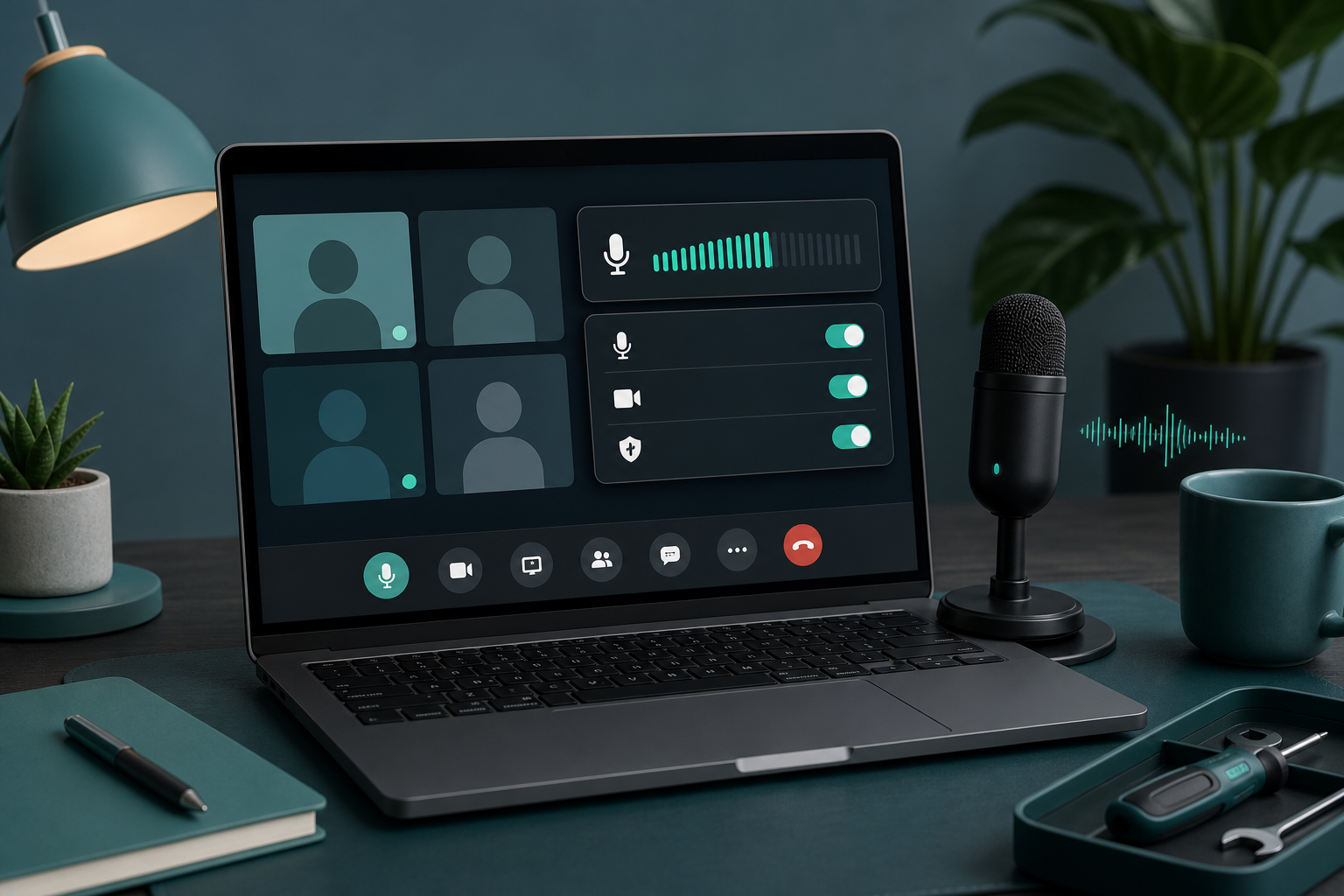
If you are asking, "why isn't my microphone working?" during a live meeting, check four layers in order: the meeting app mute button, the selected input device, operating system permissions, and browser or app access. Most meeting audio failures come from one layer silently disagreeing with another. The fastest fix is to stop toggling random buttons and run a short path from visible meeting controls down to system settings.
This guide is written for hosts, presenters, trainers, and anyone who cannot afford five minutes of ritual clicking while twenty people wait. It works for Zoom, Microsoft Teams, Google Meet, browser calls, external microphones, laptop microphones, and hardware control setups.
# The fast microphone failure map
A meeting microphone problem usually sits in one of these buckets. Start at the top because each row is quicker to test than the row below it.
| Failure layer | What it looks like | Fast check | Likely fix |
|---|---|---|---|
| Meeting mute | The app shows you as muted, or others see your muted state | Look at the meeting toolbar and participant list | Unmute in the app, then confirm the mic indicator moves |
| Wrong input | You are unmuted, but no sound reaches the call | Open the meeting audio menu | Choose the active microphone, not a monitor, dock, webcam, or disconnected headset |
| OS privacy | The app cannot access the microphone at all | Check system privacy permissions | Allow microphone access for the meeting app or browser |
| Browser block | Meet or web calls cannot hear you | Check the address bar permission icon | Allow microphone access for the meeting site |
| Device ownership | Another app has the microphone, or the driver is stuck | Close recorder, camera, streaming, and voice apps | Restart the meeting app, reconnect the device, or reboot if needed |
| Hardware path | The microphone is muted on the headset, dock, keyboard, or interface | Check physical mute lights and switches | Unmute the physical device or switch inputs |
This order matters. A host who jumps straight into driver settings can miss a browser permission block that takes ten seconds to fix.
# Start with the meeting app mute state
The first question is simple: are you muted in the meeting app, or is the microphone unavailable?
In Zoom, Teams, Google Meet, and most webinar tools, the mute button only controls what the meeting sends to other people. It does not prove the app is using the correct microphone or has system access.
Use this quick sequence:
- Find the meeting app mute button.
- Unmute once.
- Speak at a normal volume.
- Watch for an input meter, speaking indicator, or participant highlight.
- Ask one person to confirm audio only after you see local input activity.
If the local meter moves and people still cannot hear you, the problem may be meeting permissions, host controls, or output routing on their side. If the meter does not move, keep troubleshooting locally.
For mute-specific recovery across apps, use the MuteDeck guide on how to unmute yourself in any meeting app (opens new window). The rest of this guide handles the deeper case where the mute button looks correct but the microphone still fails.
# Check the selected input device
The most common live-call failure is also the least dramatic: the meeting app selected the wrong microphone.
This happens after:
- docking or undocking a laptop
- joining with Bluetooth headphones
- switching from a webcam mic to a headset
- plugging in a USB microphone
- changing rooms
- restarting a browser
- opening a meeting link from a different app
Open the audio menu inside the meeting app and check the selected microphone. Do not trust the device name blindly. Many setups expose several plausible inputs: laptop microphone, webcam microphone, display audio, USB headset, dock audio, virtual audio device, and conferencing speakerphone.
Say a short test phrase while watching the input meter. Pick the device that moves consistently when you speak and stays quiet when you stop. If two devices move, choose the one closest to your mouth. A webcam microphone across the desk can work in a pinch, but it also captures keyboard noise and fan noise.
Once the correct device works, set it as your default in the meeting app if the app supports that. Then update your meeting controls checklist so the same device gets checked before important calls. The MuteDeck meeting controls checklist (opens new window) gives a practical pre-call pattern for that.
# Verify operating system microphone permissions
A meeting app can show the right microphone and still receive nothing if the operating system blocks access.
On macOS, open System Settings, then Privacy and Security, then Microphone. Confirm that your meeting app or browser has permission. Apple documents camera access in the same privacy area in Control access to the camera on Mac (opens new window), and microphone access follows the same practical pattern: the app needs permission before it can use the device.
On Windows, open Settings, then Privacy and security, then Microphone. Confirm microphone access is on, app access is on, and your desktop app or browser has access. Microsoft documents the related app-permission model in Manage app permissions for a camera in Windows (opens new window); microphone permissions live in the same settings family.
Permission checks matter after operating system updates, browser profile changes, security policy changes, and new meeting app installs. If your company manages devices, policy can also disable access. Gather the app name, operating system, browser, and error message before asking IT.
# Fix browser microphone access for Google Meet and web calls
Browser-based meetings add one more permission layer. The operating system can allow microphone access while the browser blocks the specific meeting site.
For Google Meet, check the lock or settings icon in the browser address bar. Confirm microphone access is allowed for the site. Google documents this in Use your camera and microphone in Chrome (opens new window). Google also maintains Meet guidance for improving audio and video quality in Improve your video and audio experience (opens new window).
Use this browser sequence:
- Open the meeting site permission menu.
- Set microphone to Allow.
- Refresh the meeting tab.
- Rejoin if the app does not pick up the change.
- Recheck the meeting app input device after the refresh.
Refreshing matters because some browser meeting apps do not apply permission changes to an active tab cleanly. The UI may say access is allowed while the call still uses the old state.
If you use multiple Chrome profiles, check the profile that opened the meeting link. Work and personal profiles keep separate site permissions.
# Separate microphone volume from microphone access
Low microphone volume feels similar to a broken microphone, but it has a different fix.
If people can hear you faintly, the microphone is working. Do not reinstall drivers yet. Check input gain, microphone placement, headset boom position, and meeting noise suppression first.
A clean test looks like this:
- Speak at normal meeting volume.
- Watch the input meter.
- Move the microphone closer.
- Raise input volume in the operating system or device app.
- Disable aggressive noise suppression only if it cuts off speech.
- Record a short local sample if the meeting app still sounds wrong.
External microphones and headsets often include their own gain controls. Webcams and laptop microphones depend more on system input level, distance, and room noise. If the issue is volume rather than access, use the MuteDeck guide to microphone volume booster choices for meetings (opens new window) before adding extra audio software.
# Account for physical mute controls and hardware shortcuts
A physical mute button can override the meeting app in ways that look confusing. Headsets, USB microphones, speakerphones, docks, keyboards, and control surfaces can all expose mute state.
Check for:
- a red light on a headset boom
- a muted USB microphone button
- a speakerphone mute ring
- a laptop function key mute indicator
- a dock audio mute state
- a Stream Deck or control pad action mapped to the wrong app
Physical controls are useful when they are predictable. They become risky when the hardware mute state and meeting app mute state drift apart. If you use a control surface, map the action to the meeting app you are actually using and test it before the call.
MuteDeck helps here because it gives heavy meeting users one control layer for mute, camera, sharing, and meeting actions across supported apps.
# Close apps that may be holding the microphone
Some failures come from device ownership. Recording tools, camera utilities, streaming software, browser tabs, voice chat apps, and previous meeting clients can keep audio devices busy or leave drivers in a stale state.
Close anything that might touch the microphone:
- previous Zoom, Teams, or Meet windows
- voice chat apps
- screen recording tools
- camera control utilities
- streaming software
- audio routing tools
- browser tabs using microphone access
Then disconnect and reconnect the microphone. For Bluetooth devices, turn Bluetooth off and back on if the headset appears connected but does not pass audio. If the input still fails, restart the meeting app. If multiple apps fail to see the microphone, restart the computer.
A restart also clears stuck device sessions faster than twenty minutes of dignified suffering.
# Use a two-minute recovery script during live meetings
When the meeting is already live, you need a recovery script, not a full investigation.
Use this exact order:
- Unmute in the meeting app.
- Open audio settings and select the known microphone.
- Say, "Testing audio," and watch the input meter.
- If the meter is dead, switch to the laptop microphone or webcam microphone.
- If the browser blocks access, allow microphone permission and refresh.
- If the call still fails, dial in by phone or hand hosting to a co-host.
- After the meeting, fix the root cause with the full checklist.
The temporary fallback does not need to sound perfect. It needs to restore speech fast enough for the meeting to continue.
For recurring hosted meetings, assign a backup path in advance: co-host permissions, phone dial-in, alternate headset, or laptop microphone. The backup path should be written down where you can see it during the call.
# Build a pre-call microphone checklist
A reliable microphone setup comes from repetition. Run this checklist before client calls, webinars, training sessions, interviews, and recorded meetings.
- Open the meeting app five minutes early.
- Confirm the selected microphone.
- Speak and watch the input meter.
- Check OS microphone permission after updates.
- Check browser site permission for web meetings.
- Confirm headset or hardware mute state.
- Close old meeting apps and recorder tools.
- Keep one backup input ready.
- Put mute, camera, and share controls where you can reach them without hunting.
This is where MuteDeck fits naturally. If you run meetings across Zoom, Teams, Google Meet, and browser tools, a dedicated control layer reduces the number of places you need to click under pressure. It does not replace permissions or device setup. It makes the live controls easier to hit once the audio path works.
# Conclusion
When your microphone is not working in a meeting, diagnose the layers in order: meeting mute, input device, operating system permission, browser permission, device ownership, and physical mute state. That sequence fixes the common failures quickly and keeps you from treating every audio problem like a driver disaster.
Before important calls, test the exact microphone, app, browser profile, and control setup you plan to use. If you host meetings often, add MuteDeck to keep mute, camera, sharing, and recovery controls in one predictable place. The best microphone fix is the one you run before everyone joins.
KEEP EXPLORING
More guides & tips