# Zoom Host Controls for Cleaner Meetings
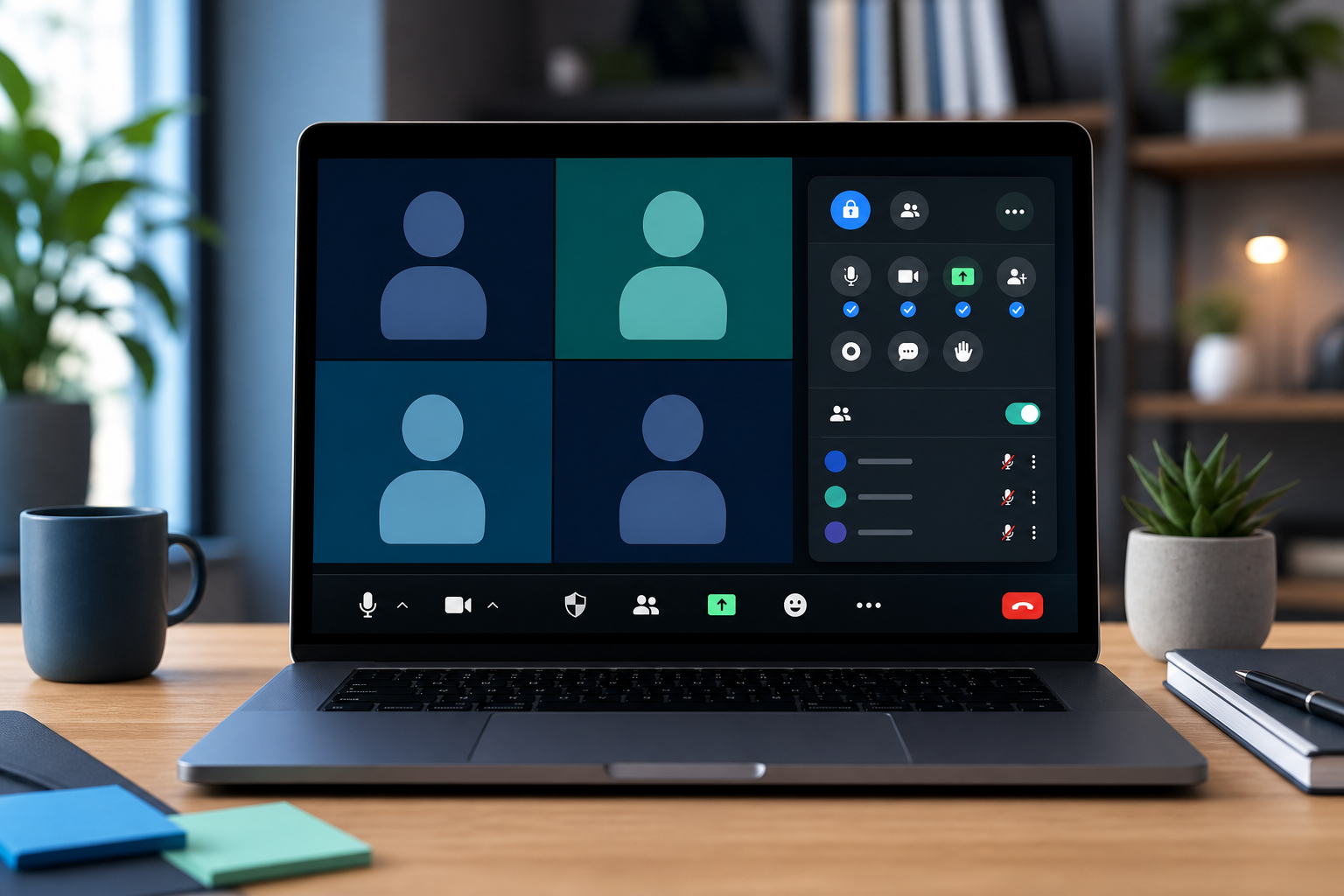
Zoom host controls are the meeting permissions and in-call actions that let a host manage audio, video, screen sharing, participants, chat, recording, and handoff to co-hosts. A cleaner setup puts the highest-risk controls in reach before the call starts: mute, camera, share, participant management, and a recovery path when focus moves to another app.
That sounds basic because it is. Most Zoom control problems happen when the host waits until the room is already noisy, the wrong window is on screen, or the co-host cannot act.
# What Zoom host controls should cover
Zoom documents host and co-host actions in its guide to using host and co-host controls in a meeting (opens new window). The host can manage participants, mute controls, screen sharing, security settings, recording options, and meeting flow. Zoom also separates meeting responsibilities by role, which matters if you assign a co-host during workshops or client calls. Its page on roles in a Zoom meeting (opens new window) explains the host, co-host, alternative host, and participant model.
For day-to-day meetings, treat host controls as an operating surface rather than a menu to explore live. The useful setup answers five questions before anyone joins:
- Who can mute, admit, remove, or rename participants?
- Who can share a screen, and under what conditions?
- Which control handles the first audio problem?
- Which control handles the first screen sharing problem?
- What does the host do when keyboard focus is in the wrong app?
If those answers live only in memory, the meeting inherits your current caffeine level. Write them into your control layout.
# The Zoom host controls checklist
Use this checklist before recurring team meetings, webinars, client reviews, and remote workshops. It keeps the host focused on the controls that interrupt the call when they fail.
| Control area | Set before the meeting | Keep within reach during the meeting | Failure pattern |
|---|---|---|---|
| Audio | Know the mute shortcut and input device | Mute all, ask to unmute, device picker | Someone joins from a noisy room |
| Video | Confirm camera and virtual background | Camera toggle, stop incoming video if needed | Camera starts late or wrong camera appears |
| Sharing | Decide who can share | Share screen, stop share, pause share | A presenter shares the wrong window |
| Participants | Assign co-hosts early | Admit, rename, remove, lock if needed | Host gets pulled into presenting |
| Chat and reactions | Decide whether chat needs moderation | Open chat, disable if needed | Side channel distracts from the call |
| Recovery | Keep a manual path visible | Bring Zoom forward, open participants, stop share | Shortcut goes to the wrong app |
The recovery row earns its place. A perfect shortcut layout still fails if Zoom does not have focus, the browser steals attention, or the host is presenting from another app. Meeting controls need a fallback that works while your brain is busy.
# Map controls by risk, not by feature count
Zoom has more controls than a normal meeting needs. A dense layout looks capable in a quiet room, then turns into a scavenger hunt when someone says, “We can still hear your hallway.”
Start with four primary controls:
- Mute or unmute yourself.
- Open participants.
- Start or stop screen sharing.
- Bring Zoom to the front.
Add secondary controls only after the primary layer works without looking. Useful secondary controls include chat, captions, recording, reactions, and a button for opening audio settings. For hosts who present often, a “stop share” control deserves a safer location than “start share.” Accidentally starting a share is awkward. Accidentally failing to stop one is how private notes become public theatre.
Zoom provides keyboard shortcuts for many meeting actions in its guide to using hot keys and keyboard shortcuts (opens new window). Shortcuts are useful, but they depend on operating system behavior and app focus. Build around that constraint. If a control could expose content, change meeting state, or silence a speaker, pair it with visible confirmation.
# Give co-hosts real jobs
A co-host should not be a ceremonial badge. Assign the role when the meeting has enough moving parts that one person cannot present, monitor participants, and fix audio at the same time.
Good co-host jobs are specific:
- Admit participants from the waiting room.
- Watch chat for blockers and hand raises.
- Mute background noise when the host is presenting.
- Stop accidental screen shares.
- Manage breakout timing or participant movement.
- Confirm that recording started when recording is required.
For internal standups, a co-host may be unnecessary. For customer calls, interviews, training sessions, and webinars, co-host coverage reduces the number of moments where the host has to stop speaking and hunt through controls.
If you use hardware controls, give the co-host a software path too. A Stream Deck, Loupedeck, or keyboard shortcut setup helps the person sitting at that desk. It does not help the teammate on another machine unless the role and procedure are clear. For tactile control ideas, compare the trade-offs in our guide to Loupedeck vs Stream Deck for meetings (opens new window).
# Build a focus-safe Zoom control layer
The most common control failure has little to do with Zoom itself. The host presses a shortcut while the wrong app is active. Slides advance, a browser tab changes, or nothing happens. The room waits while the host tries again with more conviction, a strategy with a mixed record.
A focus-safe layer uses three habits:
- Put Zoom in a predictable desktop location.
- Use one control that brings Zoom forward before sending meeting shortcuts.
- Keep MuteDeck or the Zoom toolbar visible when possible so state changes are easy to confirm.
This matters most for mute, camera, and screen sharing. A mute shortcut that lands in the wrong app may do nothing. A share control that runs while the wrong window is active may expose the wrong content. Visible state beats trust.
For a keyboard-first setup, see our guide to building a practical mute button on keyboard (opens new window) workflow. The same principle applies to Zoom host controls: the button should reduce attention cost, not create a second system to babysit.
# Use meeting type to choose the layout
A weekly team call, a customer demo, and a training session do not need the same control surface. Use the meeting type to decide what belongs on the first layer.
| Meeting type | First-layer controls | Useful co-host role | Setup note |
|---|---|---|---|
| Team standup | Self mute, camera, participants, chat | Usually none | Keep it simple and avoid over-automation |
| Customer demo | Self mute, share, stop share, Zoom focus | Watch chat and participants | Put stop share where it cannot be missed |
| Workshop | Participants, chat, share, breakout controls | Admit people and manage questions | Assign jobs before the meeting starts |
| Interview | Mute, camera, recording, participants | Confirm recording and timing | Test audio before the guest joins |
| Webinar-style call | Participants, mute all, chat, security | Moderate chat and admission | Keep host speaking controls separate from moderation |
This table is also a useful way to avoid control bloat. If a control does not support the meeting type, move it to a second page or leave it out.
# Where MuteDeck fits
MuteDeck works best as the calm layer around your meeting controls. Zoom gives you the meeting actions. MuteDeck helps you keep the controls visible and reachable across the apps you use while the meeting is running.
That distinction matters. Meeting hosts rarely spend the whole call staring at Zoom. They move between slides, notes, calendars, browsers, terminals, design files, and docs. The control problem is not only whether Zoom has a mute button. The problem is whether the host can find and verify the right action while doing the actual work of the call.
A practical MuteDeck and Zoom setup can look like this:
- Keep MuteDeck visible for meeting state and quick action access.
- Use Zoom host controls for participant and sharing decisions.
- Use a hardware controller only for actions that benefit from touch.
- Keep a mouse path available for high-risk actions such as stopping share or removing a participant.
If your meetings run in Google Meet as often as Zoom, the same workflow thinking applies. Our guide to Stream Deck Google Meet controls (opens new window) covers focus, confirmation, and fallback paths for browser-based calls.
# A simple setup flow for the next call
Use this setup flow before your next recurring Zoom meeting:
- Open Zoom and confirm the correct microphone, speaker, and camera.
- Decide whether participants or only the host can share.
- Assign a co-host if the meeting includes customers, training, interviews, or more than one presenter.
- Put mute, participants, share, stop share, and Zoom focus on the first control layer.
- Test the mute control while another app has focus.
- Test screen sharing with a harmless window before the real call.
- Keep a visible fallback path open through the Zoom toolbar or MuteDeck.
Do not optimize the layout after one quiet meeting. Wait until it survives a noisy join, a presenter handoff, and a screen share recovery. Then move controls based on what actually caused friction.
For audio-specific cleanup, our Zoom noise suppression settings (opens new window) guide covers background noise decisions that pair well with host mute controls.
# Keep the host boring
The point of Zoom host controls is not to turn the host into a control-room operator. The point is to make the meeting feel uneventful. Mute is easy to find. Sharing starts deliberately and stops quickly. Co-hosts know their jobs. Recovery does not require a public tour through menus.
Start with the five controls that fail loudly: mute, camera, participants, share, and Zoom focus. Add co-host coverage for meetings with guests or presenters. Keep visible confirmation for anything that changes what other people can hear or see.
A host who can fix the first problem in two seconds usually prevents the second one. Meetings rarely need more drama than the agenda already brought.
KEEP EXPLORING
More guides & tips