# Meeting Controls Checklist for Reliable Calls
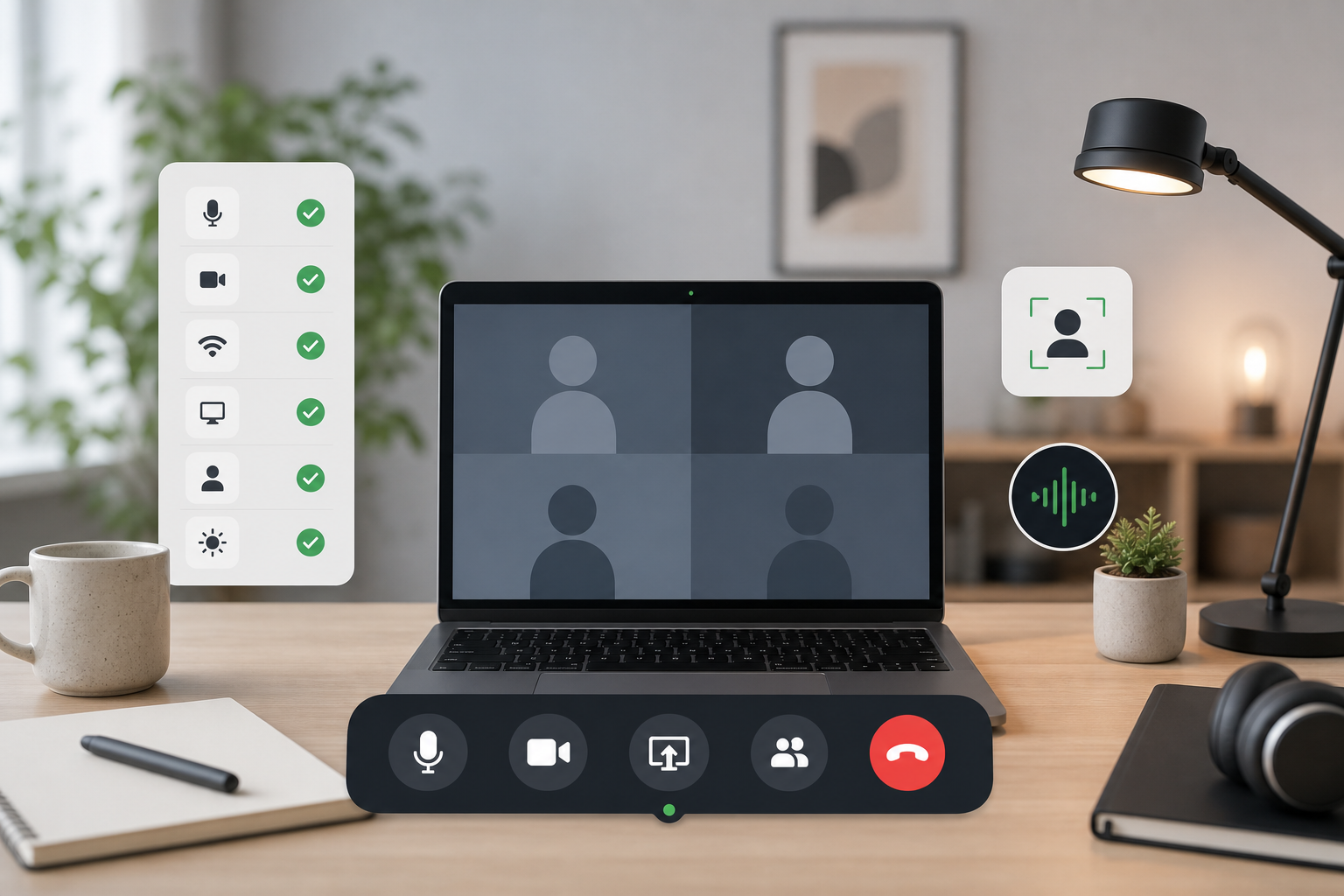
A meeting controls checklist is a short, repeatable set of controls for mute, camera, screen sharing, app focus, and recovery. It helps hosts fix common call problems before they become the meeting. The useful version is simple: know which app owns the call, confirm the right devices, keep the highest-risk actions close, and test what happens when another window has focus.
Most people treat meeting controls as buttons they will find when needed. That works until a browser tab steals focus, a presenter shares the wrong screen, or the mute shortcut lands in the wrong app. A checklist gives you fewer decisions at the exact moment you have less attention to spend.
# Start with the five controls that fail loudly
Every meeting app has more controls than a normal call needs. Zoom, Microsoft Teams, and Google Meet all provide menus for audio, video, sharing, participants, chat, captions, and layout. The host does not need every option on the first layer.
Start with the controls that create the most visible interruption when they fail:
- Mute or unmute yourself.
- Turn the camera on or off.
- Start or stop screen sharing.
- Bring the meeting app to the front.
- Open the participant or people panel.
That last control is easy to underrate. Participant controls matter when someone joins from a noisy room, a guest needs admitting, or the host needs to confirm who is still present before continuing. Zoom documents host and co-host actions in its guide to host and co-host controls (opens new window). Microsoft lists common Teams shortcuts in its keyboard shortcuts for Microsoft Teams (opens new window) page. Google explains presenting behavior in its guide to present during a video meeting (opens new window).
Use those vendor controls as the source of truth. Then build your own layer around how meetings actually break.
# The meeting controls checklist
Use this checklist before recurring team calls, customer demos, interviews, workshops, and webinars. It keeps setup practical without turning your desk into a small cockpit.
| Control area | Check before the call | Keep within reach | Failure it prevents |
|---|---|---|---|
| Microphone | Correct input device, sensible input level | Mute, unmute, audio settings | People hear noise, or nobody hears you |
| Camera | Correct camera, useful framing, clean background | Camera toggle, meeting app focus | Wrong camera appears, or video starts late |
| Screen sharing | Decide which window is safe to share | Share, stop share, pause if available | Private notes or the wrong tab go public |
| App focus | Know which app should receive shortcuts | Bring meeting app forward | Keyboard shortcuts go to the wrong app |
| Participants | Know who admits, mutes, or removes people | People panel, host controls | The host loses the room while presenting |
| Recovery | Keep one manual path visible | Toolbar, MuteDeck, mouse fallback | A shortcut fails and the host freezes |
The recovery row earns its place. It is the difference between a clean fix and the familiar little ritual where everyone watches the host click through menus while narrating the problem. Meetings already have enough live commentary.
# Make mute reliable before you automate anything else
Mute is the first control to stabilize because it has the lowest tolerance for ambiguity. If the host thinks they are muted and they are not, everyone learns about the keyboard, the dog, or the snack wrapper. If the host thinks they are unmuted and they are not, the room gets a silent performance art piece.
A reliable mute workflow needs three checks:
- The correct microphone is selected in the meeting app.
- The operating system input device matches what the meeting app expects.
- The mute state is visible somewhere you can confirm quickly.
On macOS, Apple documents where to change input devices in Sound input settings (opens new window). Windows users should make the same check in system sound settings and inside the meeting app. The point is not platform trivia. The point is avoiding a setup where the meeting app listens to one microphone while your shortcut or hardware controller assumes another.
If mute reliability is the main problem, use our guide to a mute button on keyboard (opens new window) as the deeper workflow. The same idea applies here: the control should be easy to trigger and easy to verify.
# Separate meeting shortcuts from meeting state
Keyboard shortcuts are useful, but they are not the same thing as meeting state. A shortcut sends an instruction. State tells you what actually happened.
Zoom lists its shortcuts in using hot keys and keyboard shortcuts (opens new window). Teams has its own shortcut model. Google Meet runs in the browser, which adds another layer because the browser, tab, and web app can all affect where focus goes.
That is why a good meeting controls checklist includes app focus. If a shortcut only works when the meeting app is active, the checklist should say so. If a control can bring the app forward first, test that path. If the action changes what other people hear or see, keep a visible confirmation path.
A practical control sequence looks like this:
- Bring the meeting app to the front.
- Trigger the action.
- Confirm the visible state.
- Use the manual toolbar if the shortcut fails.
This sequence sounds slower than a single hotkey. In a live call, it is often faster because it removes guessing. Pressing the same broken shortcut four times with increasing confidence remains a popular but limited troubleshooting method.
# Choose controls by meeting type
A weekly standup, a customer demo, and a training session do not deserve the same layout. Start with the meeting type, then choose the controls that protect the flow.
| Meeting type | First-layer controls | Useful fallback | Setup note |
|---|---|---|---|
| Internal standup | Mute, camera, meeting focus, chat | Manual mute in toolbar | Keep the surface small |
| Customer demo | Mute, camera, share, stop share, app focus | A harmless test window | Put stop share where you can find it fast |
| Interview | Mute, camera, recording, participants | Written recording check | Confirm devices before the guest joins |
| Workshop | Participants, chat, share, breakout or room controls | Co-host with defined jobs | Assign moderation before the call |
| Webinar-style call | Mute all, participants, chat, share, security | Co-host and host toolbar | Separate speaking controls from moderation |
This is also how you avoid control bloat. A button that matters once a month should not sit beside a button you need every call. Put rare actions on a second page, in a menu, or in the meeting app itself.
For host-heavy calls, our Zoom host controls (opens new window) guide goes deeper on co-hosts, participant management, and share recovery. For browser-based calls, our Stream Deck Google Meet controls (opens new window) guide covers the extra focus issues that show up when the meeting lives in a tab.
# Keep screen sharing deliberately boring
Screen sharing should require more care than mute because the cost of a mistake is higher. A bad mute moment is awkward. A bad share moment can show private notes, customer information, internal chat, or the wrong deck. The audience may forgive it. The screenshot will not.
Use a screen sharing mini-checklist:
- Share a window instead of the entire screen when possible.
- Close or move private notes before the call.
- Keep stop share within reach.
- Test sharing with a harmless window before an important demo.
- Decide who can share before a larger meeting starts.
The most useful non-obvious tip is to create a safe test window. Open a plain document or browser page with no private content and use it to test the share path. This confirms the meeting app, display permissions, and focus behavior without risking the real material. It also gives the host something boring to recover to if a demo app crashes.
For recurring demos, place start share and stop share in different physical or visual locations. The controls are related, but the risk is asymmetric. Accidentally starting a share is bad. Failing to stop one usually gets worse with every second.
# Where MuteDeck fits in the checklist
MuteDeck works as a visible control layer for people who move between meeting apps, slides, notes, browsers, and other work during calls. The meeting app still owns the actual call features. MuteDeck helps keep common actions and state close while attention moves elsewhere.
That matters because most meeting control failures happen outside the clean demo environment. The host is reading notes, checking a document, answering a chat, or moving through slides. The meeting window may be behind everything else. A control that assumes perfect focus will fail exactly when the host is busiest.
A practical MuteDeck setup for this checklist is simple:
- Put mute, camera, share, and app focus on the first layer.
- Keep state visible so you can confirm what changed.
- Use separate pages for Zoom, Teams, Google Meet, and other recurring tools if your workflow needs them.
- Keep a manual fallback through the meeting toolbar.
- Review the layout after a real meeting, not after a quiet test.
If you use hardware controls, keep the same discipline. Stream Deck, Loupedeck, Touch Portal, and keyboard shortcuts all help when the layout reflects real meeting risk. For hardware trade-offs, see our guide to Loupedeck vs Stream Deck for meetings (opens new window).
# A two-minute setup before the next call
Use this before the next meeting where control mistakes would be costly:
- Open the meeting app before the call starts.
- Confirm microphone, speaker, and camera devices.
- Test mute and unmute while another app has focus.
- Test camera on and off.
- Open the participant panel once.
- Test screen sharing with a harmless window.
- Confirm stop share is easy to reach.
- Put the meeting app, MuteDeck, or toolbar where you can see state.
- Assign a co-host if the meeting includes guests, presenters, or moderation.
- Remove any first-layer control you will not use in this meeting.
The last step keeps the checklist honest. More controls can feel safer while you are setting up. During a call, extra controls mostly add searching.
# Keep the controls dull
A meeting controls checklist should make the host less interesting. Mute works. Camera changes are visible. Sharing starts deliberately and stops quickly. App focus does not become a public guessing game. Recovery has a path that does not depend on memory.
Start with mute, camera, sharing, app focus, participants, and recovery. Map those controls to the meeting type. Test the path while another app has focus. Then use the same layout long enough to learn from real friction.
The best meeting control setup is the one nobody notices. Everyone came for the discussion, which was ambitious enough already.
KEEP EXPLORING
More guides & tips