# Video Conferencing Keyboard Shortcuts for Hosts
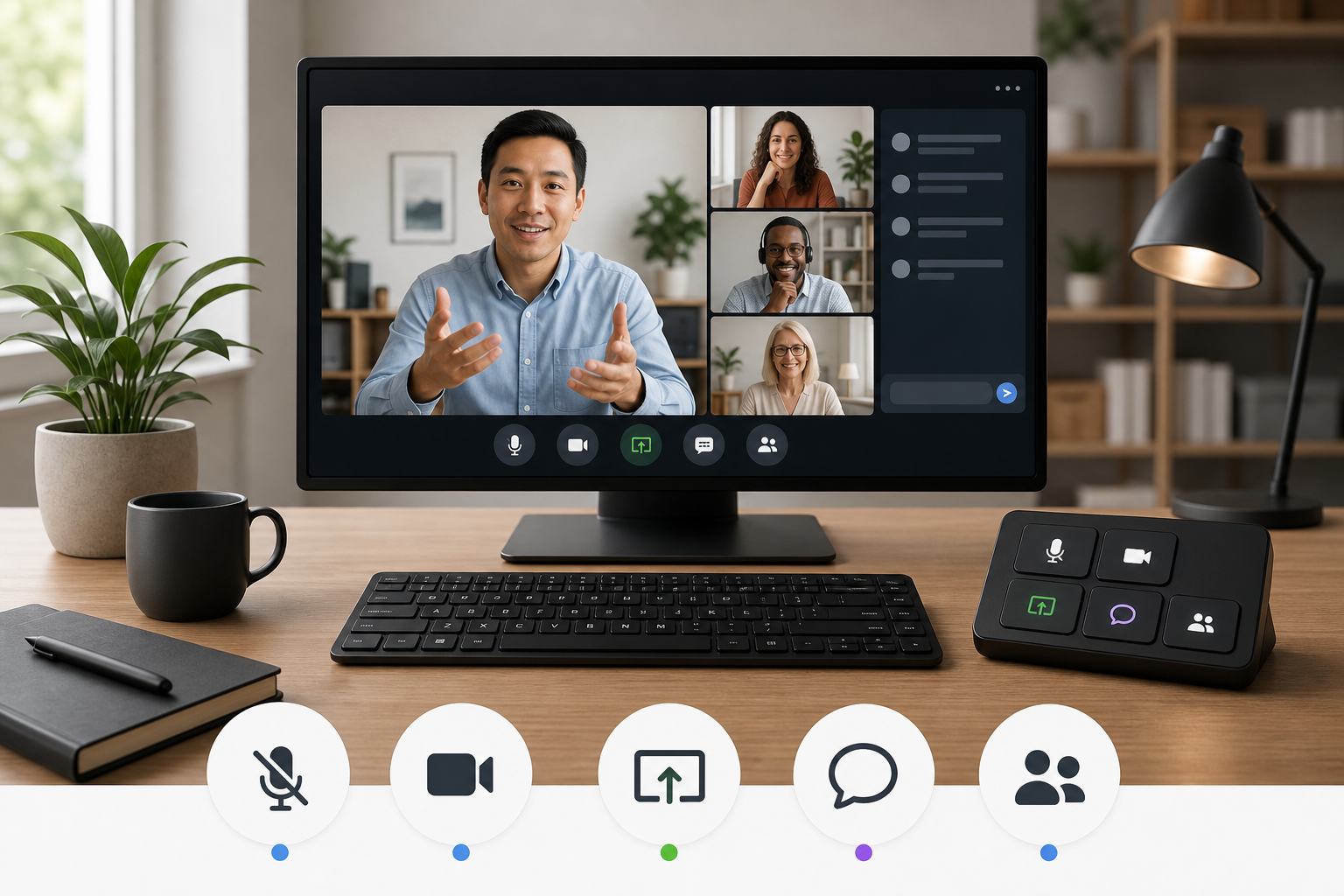
Video conferencing keyboard shortcuts help hosts recover control faster when they cover a few repeatable actions: mute, camera, screen share, chat, participants, and window switching. The useful goal is not memorizing every shortcut. The useful goal is building a small control set that works under pressure when you are presenting, troubleshooting audio, or managing a room that keeps finding new ways to create tiny chaos.
For meeting-heavy teams, shortcuts should become part of the meeting setup rather than a trivia list. Use the defaults from Zoom, Microsoft Teams, and Google Meet where they are reliable. Then put the highest-risk actions on visible controls, stream decks, or MuteDeck profiles so you can act without hunting through a toolbar.
# The meeting shortcut set worth learning first
Most hosts only need a short list. The table below is a practical starting point before you get into app-specific details.
| Control | Why it matters | Best place for it | Pre-call check |
|---|---|---|---|
| Mute and unmute | Prevents accidental talk-over and dead air | Keyboard, headset button, or MuteDeck | Confirm the meeting app and hardware mute states match |
| Camera on and off | Lets you recover from freezes, interruptions, or bandwidth issues | Meeting app shortcut or visible control | Check camera permission and framing |
| Screen share start and stop | Reduces the delay before presenting | App shortcut plus toolbar awareness | Confirm the correct screen or window |
| Participants panel | Helps hosts admit people, watch hands, and manage noise | App shortcut | Know where host controls live |
| Chat panel | Keeps questions visible without stealing the whole screen | App shortcut or second display | Decide whether chat is monitored live |
| Raise hand and reactions | Gives presenters lightweight feedback cues | App shortcut when available | Tell attendees which signal to use |
| Switch windows | Keeps slides, notes, and the call reachable | Operating system shortcut | Close unrelated windows before the call |
This set covers the moments where hosts lose time in real meetings. A long shortcut sheet can wait. Start with the controls that prevent awkward pauses, exposed windows, and the classic sentence, "I was muted for that whole part." It belongs in a museum, ideally one with no audio guide.
# How to choose shortcuts by meeting role
A participant can survive with mute and camera. A host needs more structure because the host owns recovery when something goes wrong.
For a status meeting, learn mute, camera, chat, and window switching. That is enough to move between notes, the meeting, and a browser without dragging the toolbar around.
For a presentation, add screen share, pause or stop share, and the participants panel. Test shortcuts in the browser window or slide app you actually use because focus can swallow a meeting shortcut if the app does not receive it.
For training, webinars, or customer calls, add reactions, hand management, recording status, and a fallback mute control. These meetings punish tiny delays because the audience cannot tell whether you are thinking, frozen, or trying to find a button.
For IT and enablement teams, standardize fewer shortcuts. Pair a six-control cheat sheet with a pre-call workflow like the MuteDeck meeting controls checklist (opens new window) so shortcuts become part of readiness.
# Zoom keyboard shortcuts to prioritize
Zoom publishes a full list of hot keys and keyboard shortcuts (opens new window), and the exact list can vary by operating system. For hosts, prioritize the actions you use while speaking or sharing.
Start with mute, video, screen share, participants, chat, invite, and meeting controls. These are the shortcuts that reduce toolbar hunting. If you host with one monitor, screen share deserves special attention because the meeting window, slides, speaker notes, and chat can compete for focus.
Zoom also has host controls that are separate from keyboard shortcuts. Keyboard shortcuts help you reach actions faster, but they do not replace knowing where host permissions, waiting room controls, mute controls, and share permissions live. If your meetings involve external guests, read the MuteDeck guide to Zoom host controls (opens new window) and decide which controls you need before the call starts.
A practical Zoom setup looks like this:
- Put mute and camera on muscle memory.
- Put screen share and participants on a visible control surface if you present often.
- Keep chat visible on a second display or assign a co-host to monitor it.
- Test shortcuts while slides, browser tabs, and notes have focus.
- Keep a mouse fallback for controls that change location after Zoom updates.
Shortcuts are fast until another app owns focus. A visible MuteDeck control gives you a second path for meeting actions when your keyboard is busy with slides, forms, or browser shortcuts.
# Microsoft Teams keyboard shortcuts for live meetings
Microsoft maintains a current list of keyboard shortcuts for Microsoft Teams (opens new window). Teams hosts should focus on mute, camera, share, reactions, hand raise, chat, and calendar or meeting navigation.
Teams can be especially focus-sensitive because meetings often sit beside chat, channels, files, and browser windows. If your shortcut does nothing, check whether the meeting window is active. The problem may be window focus, not the shortcut itself.
Hosts who switch between Teams and Zoom should avoid assuming the same shortcut does the same thing everywhere. A safer pattern is to standardize the intent, not the key. For example, your MuteDeck profile can show "mute," "camera," and "share" as visible actions while the underlying app mapping changes by platform. That keeps the control language consistent for the human who is already trying to run the meeting.
Teams also benefits from a simple audio recovery habit. If a shortcut says you unmuted but nobody hears you, do not keep pressing it. Check the selected microphone, device permissions, and hardware mute state. The MuteDeck guide on why a microphone is not working in meetings (opens new window) gives the deeper troubleshooting path.
# Google Meet shortcuts and browser focus
Google documents Meet shortcut behavior in its guide to Google Workspace keyboard shortcuts (opens new window). Meet runs in the browser for many users, so browser focus matters more than people expect.
If the cursor is inside a document, chat field, address bar, or web app, a shortcut may affect the browser or page instead of the meeting. That is why Meet hosts should test shortcuts with the actual meeting layout they use: slides open, notes open, chat visible, and any screen share workflow ready.
For Meet, prioritize mute, camera, captions if your team uses them, chat, people, and screen sharing. If you host recurring calls from Chrome, keep the meeting tab pinned or placed predictably. A shortcut that requires you to first locate the right tab loses most of its value.
Google Meet also pairs well with Stream Deck style controls because the browser can make keyboard focus slippery. The MuteDeck article on Stream Deck Google Meet controls (opens new window) covers the hardware angle for hosts who want meeting actions in one place instead of scattered across browser tabs.
# Operating system shortcuts still matter
Meeting app shortcuts handle meeting actions. Operating system shortcuts handle the space around the meeting: switching windows, moving between displays, opening settings, taking screenshots, and recovering a lost app.
Apple's guide to macOS keyboard shortcuts (opens new window) is worth scanning if you present from a Mac. Windows users should build the same habit around task switching, window snapping, display switching, and quick settings.
The most useful operating system habits for hosts are simple:
- Switch to the meeting window without searching for it.
- Move between slides, notes, and chat predictably.
- Open sound input settings quickly.
- Hide or close private windows before screen sharing.
- Move a window to the correct display before sharing.
These actions do not look like meeting controls, but they prevent meeting control problems. A host who can instantly return to the meeting window can mute, stop sharing, admit someone, or answer chat faster. That is the whole point of shortcuts: fewer seconds spent spelunking through a desktop with twelve urgent rectangles.
# Build a shortcut workflow instead of a shortcut collection
A shortcut workflow turns individual keys into a repeatable operating pattern. Use this checklist before important calls.
- Pick six core actions for the meeting type.
- Confirm each action works in the app you will use.
- Test them while slides, notes, and browser tabs are open.
- Check microphone, camera, and screen share before attendees arrive.
- Put risky actions, such as mute and screen share, on visible controls.
- Keep one manual fallback path through the meeting toolbar.
- Remove shortcuts you do not use from your cheat sheet.
The visible controls point matters. Keyboard shortcuts are powerful, but they are invisible. Under pressure, invisible controls rely on memory. A small MuteDeck profile can make meeting intent visible: mute, camera, share, record, captions, chat, and app switching. The keys can change by app. The action labels stay consistent.
This also helps shared desks and training rooms. A presenter who did not set up the machine can still understand a visible meeting control panel faster than a custom keyboard map. That is useful for hybrid rooms, workshops, and rotating hosts.
# Common shortcut failure modes
When video conferencing keyboard shortcuts fail, the cause usually sits in one of five places.
First, the wrong window has focus. Click the meeting window, then try again. If that fixes it, design your workflow around predictable window placement.
Second, the shortcut conflicts with the operating system, browser, presentation software, or another meeting app. Change the shortcut if the app supports it, or move the action to a visible control.
Third, the meeting app changed its shortcut list after an update. Vendor support pages are the source of truth.
Fourth, hardware mute and app mute disagree. A headset mute button can keep you silent even when the app shows unmuted. Test actual audio input, not just the icon.
Fifth, accessibility or security settings block control behavior. On macOS especially, meeting apps and control tools may need permission for microphone, camera, screen recording, accessibility, or automation.
# A practical starter map for MuteDeck users
If you use MuteDeck, create a meeting profile around actions rather than apps. A clean starter profile could include mute, camera, screen share, leave meeting, chat, participants, record, captions, and a status check. Add app-specific actions for Zoom, Teams, and Meet only where the behavior differs.
Then test the profile in three conditions:
- A normal internal meeting.
- A presentation with screen sharing and speaker notes.
- A recovery drill where the wrong microphone or camera is selected.
That last test sounds fussy until the day it saves a client demo. Meeting control systems earn their keep during recovery, not during perfect conditions.
Keep the profile small enough that you can use it without reading. If every button has a clever label, nobody has time for your tiny control-room crossword. Use direct labels, consistent colors, and icons that match the action.
# Final recommendation
Use video conferencing keyboard shortcuts as a control layer, not a memorization project. Learn the six actions that keep your meetings moving: mute, camera, screen share, participants, chat, and window switching. Verify the current app-specific shortcuts against vendor documentation, then place your highest-risk actions on visible controls so you can recover when focus, permissions, or hardware mute states get weird.
For MuteDeck users, the best setup is simple: keep app shortcuts current, make core meeting actions visible, and run a short pre-call check before the meeting starts. The fewer buttons you have to hunt during a live call, the more attention you keep on the people in it.
KEEP EXPLORING
More guides & tips