# Stream Deck Google Meet Controls That Hold Up
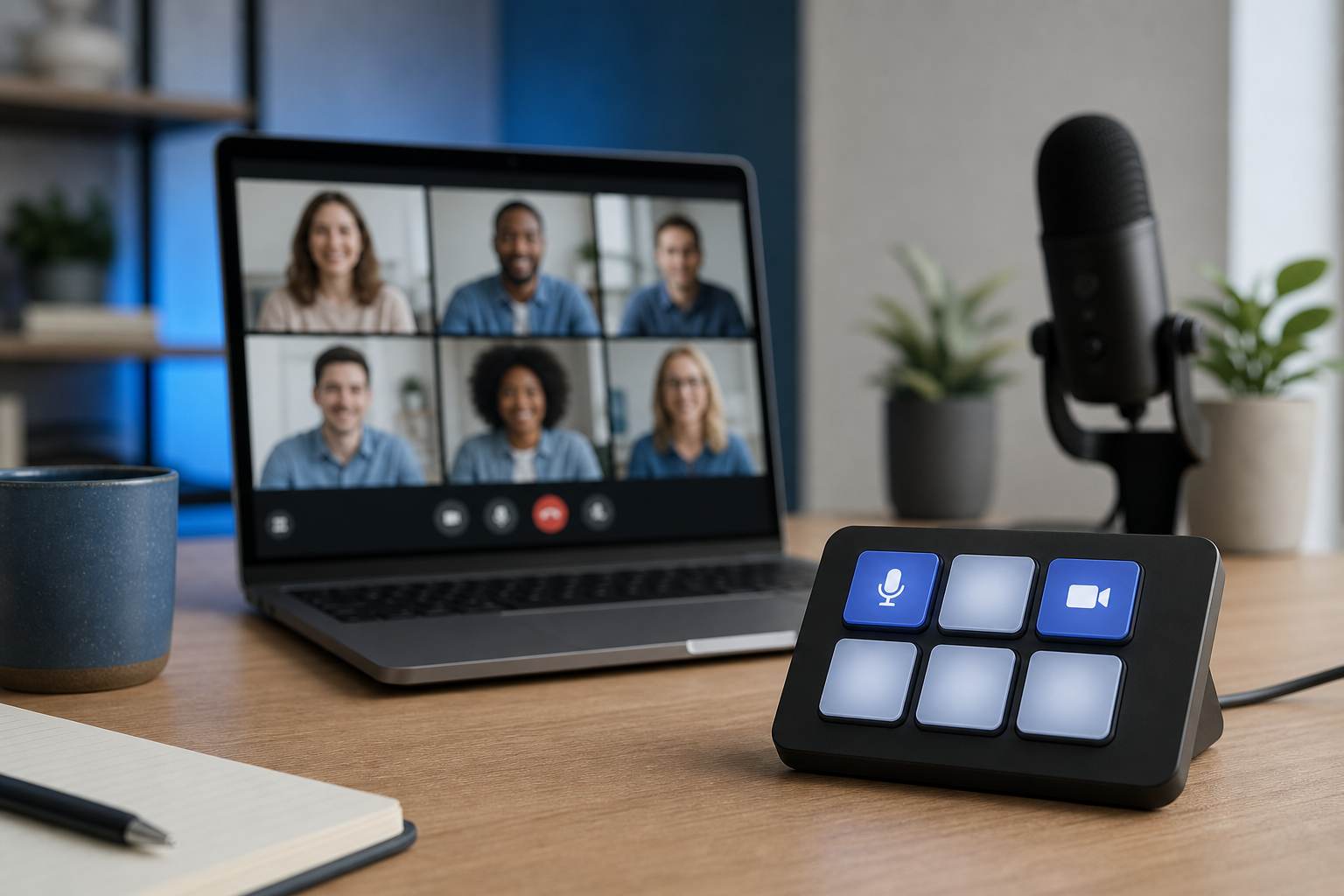
A Stream Deck Google Meet setup works best when it controls the meeting tasks that happen under pressure: mute, camera, captions, screen sharing, window focus, and recovery when the wrong tab has attention. Treat it as a meeting control panel, not a novelty keypad. The reliable setup maps Google Meet shortcuts to simple buttons, adds visual labels, avoids fragile browser state, and keeps a fallback control path open through MuteDeck or the Meet toolbar.
That sounds plain. Good. Meeting controls should feel boring during the call.
# Why Stream Deck Google Meet setups fail in real meetings
Most failed setups start with a reasonable idea: put every Google Meet action on a button. Then the first client call arrives, Chrome focus moves to a document, the keyboard shortcut goes to the wrong place, and the host does the tiny panic dance with the mouse.
The problem usually sits in one of four places:
- The Stream Deck button sends a hotkey to the active app, but Google Meet is not active.
- The shortcut works on one operating system and changes on another.
- The host cannot see whether mute or camera state actually changed.
- The setup optimizes for rare actions while burying the controls used every week.
Google documents Meet keyboard shortcuts for core actions such as mute, camera, captions, and participant controls in its Google Meet keyboard shortcuts help (opens new window). Stream Deck can send hotkeys through actions such as Elgato's documented Hotkey action (opens new window). Those two pieces fit, but the workflow needs guardrails.
For meeting hosts, the useful question is not “Can Stream Deck control Google Meet?” It can. The useful question is “Which controls stay dependable when the browser, operating system, and meeting app all want focus?”
# The best Stream Deck Google Meet layout
Start with one page. If the first page cannot run a normal call, extra folders will mostly add hunting.
| Control | Stream Deck action | Reliability note | When to use it |
|---|---|---|---|
| Mute or unmute | Google Meet mute shortcut or MuteDeck control | Needs Meet focus unless routed through meeting-aware software | Every call |
| Camera on or off | Google Meet camera shortcut | Keep visual confirmation in Meet visible | Camera-first calls |
| Captions | Meet captions shortcut | Low risk, easy to verify on screen | Noisy rooms, accents, accessibility |
| Present screen | Open Meet toolbar or send shortcut if stable | Needs deliberate confirmation | Demos and reviews |
| Open chat | Meet shortcut or toolbar focus | Useful, but lower priority than audio | Webinars, workshops |
| Panic reset | Bring browser to front, open Meet tab, center cursor | Reduces recovery time | When focus goes sideways |
Put mute in the easiest physical location to hit without looking. On a 15-key Stream Deck, that usually means a lower corner or the center key, depending on your hand position. Camera belongs nearby, but not adjacent enough that a quick mute press can turn video off by mistake. Captions and chat can live on the second row.
Screen sharing deserves a deliberate button. Accidental screen sharing is a spectacularly efficient way to make a room quiet. Use a label that says exactly what happens, such as “Present tab” or “Present window,” and avoid one-button flows that start sharing without a confirmation step.
If you already use MuteDeck, keep it visible as the status layer. Stream Deck can be the tactile trigger; MuteDeck can be the meeting-aware view that helps you confirm the call state across apps. For a broader control baseline, see our guide to building a reliable mute button on keyboard (opens new window) workflow.
# Map shortcuts around focus, not wishful thinking
Keyboard shortcut setups succeed when the target app has focus. Google Meet often runs in a browser tab while the host works in slides, docs, calendars, terminals, design tools, or a second browser profile. A hotkey sent at the wrong moment may do nothing, or it may trigger a completely different command in the active app.
Use this rule: any button that can embarrass the host needs either visible confirmation or a focus step.
For example, a basic mute button can send the Meet mute shortcut. A stronger version first brings the meeting browser to the front, then sends the shortcut, then leaves focus where the host expects it. That can involve Stream Deck multi-actions, operating system shortcuts, window management tools, or meeting-control software.
Do not hide the Meet toolbar forever. Minimal windows look tidy in screenshots, but the toolbar gives you a readable truth source during live calls. If the hardware button fires and the visual state does not change, the toolbar tells you before the room does.
Google's Meet documentation also notes that keyboard shortcuts can be opened and reviewed inside Meet. Build your Stream Deck profile from the shortcuts shown in the app on the machine you actually use. macOS, Windows, browser choice, and keyboard layout can all change the last mile.
If audio state is already messy on the machine, fix that before adding hardware. The workflow in How to Unmute Computer: Meeting Audio Fix Guide (opens new window) gives you a system-level check before you blame Meet, Stream Deck, or the poor USB hub sitting in the line of fire.
# A practical setup flow
Build the profile in this order.
- Confirm Google Meet works without Stream Deck. Join a test call, verify microphone and camera selection, then test mute, camera, captions, chat, and present controls manually.
- Create one Stream Deck profile for meetings. Avoid mixing meeting controls with music, build scripts, app launchers, and system toggles on the same page.
- Add mute, camera, captions, chat, and present controls. Use clear labels. Icons help, but text wins when the call is already moving.
- Test focus changes. Open a document, spreadsheet, and slide deck. Press each button while those apps have focus. Note which actions require Meet to be active.
- Add focus recovery. Create a button that brings the meeting window forward or opens the Meet tab you use for calls.
- Add a fallback. Keep MuteDeck or the Meet toolbar visible enough that you can recover without debugging your control stack live.
This is also the point where many hosts discover that the “control panel” they wanted was really a “control and status panel.” Stream Deck handles tactile input. Google Meet shows state. MuteDeck can sit between them by keeping meeting controls and visibility closer to the surface.
For Google Meet specific microphone issues, keep our Google Meet microphone not working (opens new window) runbook handy. A hardware button cannot fix a blocked browser permission, a wrong input device, or an operating system privacy setting.
# What to put on page two
Page two should contain setup and recovery actions, not everyday controls. Good candidates include:
- Open Google Calendar.
- Open the standing team Meet link.
- Open audio settings.
- Open camera settings.
- Toggle Do Not Disturb.
- Launch MuteDeck.
- Open a meeting notes template.
- Start a local timer.
These actions reduce pre-call friction without crowding the live-call controls. They also give you a cleaner split between “before the meeting” and “during the meeting.” That split matters because your attention is cheaper before the call starts.
Do Not Disturb deserves special treatment. Notification leaks are meeting-control failures, even when the microphone behaves perfectly. Our Do Not Disturb during meetings (opens new window) runbook covers the host-side version of that problem.
# Stream Deck, MuteDeck, or both?
Use Stream Deck when you want a physical surface with labeled buttons. Use MuteDeck when you want meeting-aware controls and clearer software-level visibility. Use both when your desk workflow benefits from tactile triggers and you still need confidence about the actual meeting state.
| Need | Better fit | Why |
|---|---|---|
| Physical buttons for repeated actions | Stream Deck | Dedicated keys reduce mouse travel |
| Clear view of meeting state | MuteDeck | Meeting controls stay visible on screen |
| Cross-app meeting control habits | MuteDeck | The workflow follows the call, not a single browser tab |
| Custom launchers and macros | Stream Deck | Strong general-purpose automation surface |
| Host recovery during client calls | Both | Hardware trigger plus software visibility is easier to trust |
This is the same reason hardware comparisons need exact context. A Stream Deck model, a browser, an operating system, and a meeting app create a workflow. Change one piece and the advice can change. We covered that model-specific thinking in Loupedeck vs Stream Deck for meetings (opens new window).
# Non-obvious implementation tips
Use verbs on buttons. “Mute” is better than a microphone icon if you ever share the desk with another host. “Camera” is fine for you; “Video off” is better for someone covering a meeting while you refill coffee and reconsider your calendar choices.
Keep destructive or visible actions away from each other. Mute, camera, leave call, and present screen should not form a neat little disaster cluster. Muscle memory gets less elegant when someone asks a question mid-click.
Prefer confirmation for screen sharing. A button that opens the present menu is safer than a button that attempts to drive the whole flow. Browser permission prompts, multiple monitors, and tab selection all change too often for blind automation to deserve trust.
Create one “meeting focus” button. Its job is boring: bring the Meet window forward. That one button saves more calls than elaborate macros because focus is the hidden dependency behind most shortcut failures.
Review browser support and device basics before blaming the control surface. Google's Meet system requirements (opens new window) and browser help pages are dry reading, but dry reading beats debugging permissions while nine faces stare at a frozen toolbar.
# Testing checklist before you rely on it
Run this test before using the profile in a client call:
- Join a test Google Meet room.
- Switch focus to a document, then press mute.
- Switch focus to slides, then press camera.
- Turn captions on and off.
- Open chat without losing track of the main call.
- Start the present flow, then cancel it.
- Trigger your meeting focus button from another app.
- Confirm MuteDeck or the Meet toolbar shows the state you expect.
- Restart the browser and test again.
If one action fails twice, simplify it. A meeting control that works 80 percent of the time trains you to distrust the whole panel. Remove fragile macros and keep the actions that survive boring tests.
# Final take
A Stream Deck Google Meet profile should make the common host actions easier to hit and easier to recover from. Start with mute, camera, captions, chat, present, and focus recovery. Keep status visible through Google Meet or MuteDeck. Test from the apps you actually use during calls, because focus decides whether most hotkey-driven controls work.
The cleanest setup feels almost too simple. That is the point. When the meeting gets lively, nobody awards points for macro complexity. They notice whether you muted the leaf blower before the sentence ended.
KEEP EXPLORING
More guides & tips