# How to Unmute Computer: Meeting Audio Fix Guide
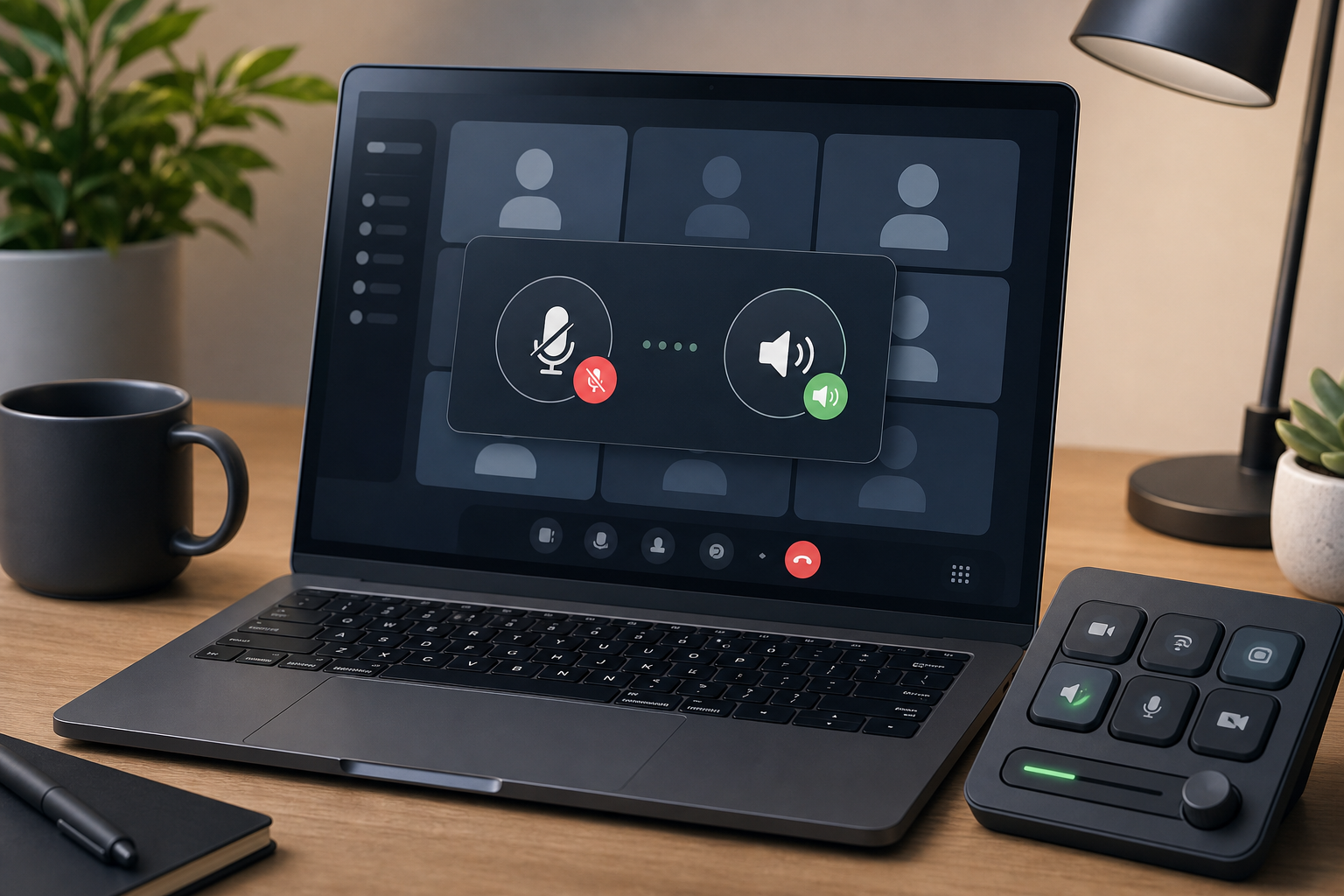
Knowing how to unmute computer audio before a meeting means checking four layers in order: the physical device, operating system sound settings, the meeting app, and the selected microphone or speaker route. Start with the visible mute button, then confirm input and output devices in Windows or macOS, test audio inside Zoom, Teams, or Google Meet, and keep a reliable mute control ready for the call.
That order saves time because meeting audio failures rarely live in only one place. A headset can be muted while the app looks live. Windows can route sound to a monitor with no speakers. A browser can block microphone access while Google Meet quietly waits for permission. By the time three people say, “we cannot hear you,” the host has already entered the tiny toolbar archaeology phase of the meeting.
This guide gives hosts, presenters, and remote operators a practical way to unmute computer audio without guessing.
# What “unmute computer” usually means
To unmute a computer, you need to identify which audio layer is muted. There are two separate signals:
- Speaker output, which controls what you hear.
- Microphone input, which controls what others hear from you.
A meeting can fail in either direction. If you cannot hear the room, fix speaker output first. If others cannot hear you, fix microphone input first. If both are broken, start with the physical device and operating system before changing app settings.
Use this decision table before you start clicking through every menu in sight.
| Symptom | Likely layer | First fix | Meeting risk |
|---|---|---|---|
| You cannot hear anyone | Speaker output | Check volume, output device, and headset connection | You miss decisions and talk over people |
| Others cannot hear you | Microphone input | Check hardware mute, app mute, and selected microphone | The room loses the presenter |
| Audio works outside the meeting only | Meeting app | Check app device picker and permissions | The issue returns in each call |
| Audio works in one app only | Browser or app permission | Regrant microphone access and restart the app | Troubleshooting becomes inconsistent |
| Sound comes from the wrong device | Routing | Select the intended headset or speakers | Private audio can leak into the room |
The fastest repair comes from matching the symptom to the layer. Random toggling works sometimes, mainly by accident.
# Start with hardware mute and volume
Physical controls win over software. Many headsets, microphones, webcams, keyboards, docks, and conference speakers have their own mute button. Some show a red light. Some show a tiny icon designed by someone who has never hosted a call under pressure.
Check these first:
- Headset boom position. Some headsets mute when the boom is raised.
- Inline cable mute switch.
- Keyboard mute key for speakers.
- Microphone mute button on USB mics or speakerphones.
- Dock or monitor audio controls.
- Bluetooth headset battery and connection state.
If your computer shows normal audio settings but nobody hears you, a physical mute is a strong suspect. Move the headset boom down, press the hardware mute button once, then speak at normal volume while watching the meeting app input meter.
For weak input rather than a full mute, use the workflow in MuteDeck’s microphone volume booster for meetings (opens new window) guide. Boosting audio helps only after you confirm the correct microphone is active.
# How to unmute computer audio on Windows
On Windows, separate speaker volume, microphone input, privacy permission, and per-app routing. A Windows meeting audio fix should move through those layers without skipping ahead.
For speaker output:
- Click the speaker icon in the taskbar.
- Raise the main volume slider.
- Select the output device you actually use, such as headphones, built-in speakers, or a USB speakerphone.
- Open Settings, then System, then Sound, and confirm the output device there.
- Play a short system sound or video to confirm you can hear audio outside the meeting.
For microphone input:
- Open Settings, then System, then Sound.
- Under Input, choose the intended microphone.
- Speak and watch the input level move.
- Open Privacy & security, then Microphone.
- Confirm microphone access is enabled for the meeting app or browser.
- Restart the meeting app if the permission changed.
Microsoft documents the operating system layer in its Windows sound settings guidance (opens new window). Keep that path handy when supporting users across different Windows 11 builds.
A common Windows trap is the monitor output route. HDMI and DisplayPort monitors can appear as audio devices even when nobody expects sound to come from them. If the selected output says display, monitor, or dock, switch back to the headset before reopening the meeting.
# How to unmute computer audio on macOS
On macOS, check Control Center first, then System Settings. The goal is to verify both volume and device selection before the meeting app gets involved.
For speaker output:
- Open Control Center from the menu bar.
- Raise Sound volume.
- Click Sound and choose the intended output device.
- If you use Bluetooth headphones, confirm they are connected and selected.
- Test audio outside the meeting.
For microphone input:
- Open System Settings.
- Go to Sound, then Input.
- Select the intended microphone.
- Speak and watch the input level.
- Go to Privacy & Security, then Microphone.
- Confirm the meeting app or browser has access.
- Quit and reopen the app if you changed access.
Apple’s macOS Sound settings (opens new window) and microphone privacy controls (opens new window) cover the official paths.
If you use an external webcam with a built-in microphone, macOS may select it automatically. That can work in a quiet room, but it often places the microphone farther from your mouth than a headset. For meetings, select the microphone that gives clean speech, then leave the camera choice alone unless video is also failing. If video is part of the same preflight, MuteDeck’s MacBook camera not working in meetings (opens new window) guide uses the same outside-in troubleshooting pattern.
# Check mute inside Zoom, Teams, or Google Meet
After the operating system works, check the meeting app. Each platform has its own mute button, device picker, and test flow. The app can mute you even when the computer input is live.
In Zoom, open the arrow next to the microphone icon. Confirm the selected microphone and speaker. Use the audio test before joining when possible. Zoom also has noise controls that can change how your voice sounds. For host audio tuning, see the Zoom noise suppression settings (opens new window) guide.
In Microsoft Teams, open Device settings before or during the call. Confirm the audio device, speaker, and microphone. Teams can also use a different device than Windows if you changed settings in only one place.
In Google Meet, open Settings, then Audio. Confirm the microphone and speaker, then speak and watch the meter. Browser meetings add one more layer: site permission. If the browser asks for microphone access, grant it for the meeting site and refresh the tab.
Google documents Meet audio setup in its Meet microphone and speaker help (opens new window). For browser calls, Chrome’s site permission controls often explain why the app cannot hear a microphone that works elsewhere.
# Use a pre-meeting unmute checklist
A repeatable checklist prevents most audio failures because it catches routing before people join. Use this five-minute version before client calls, webinars, interviews, and team meetings where you own the room.
- Connect the headset, microphone, or speakerphone you plan to use.
- Confirm the physical mute switch is off.
- Check system speaker output and microphone input.
- Open the meeting app device settings.
- Select the same intended devices in the app.
- Speak at normal volume and watch the input meter.
- Join a test room if the platform offers one.
- Turn on Do Not Disturb before screen sharing.
- Keep mute, camera, and screen share controls visible or tactile.
The notification step belongs in audio prep because meeting recovery often happens during screen sharing. If you troubleshoot while presenting, a visible alert can become the most memorable part of the call. MuteDeck’s Do Not Disturb during meetings (opens new window) guide covers that part of the operator routine.
# Build a host control routine
Meeting audio fixes should become muscle memory. Hosts need a routine that works while people are waiting, not a perfect diagnostic diagram that requires a quiet afternoon and emotional support coffee.
Use this sequence when a live call starts with silence:
- Confirm whether you cannot hear them or they cannot hear you.
- Check the meeting app mute button.
- Check the selected microphone or speaker in the app.
- Check hardware mute on the headset or microphone.
- Check operating system input or output.
- Switch to a known-good fallback device.
- If needed, leave and rejoin the meeting after changing devices.
Fallback devices matter. A laptop built-in microphone may sound worse than a headset, but it can rescue a call. A phone join can rescue a customer demo while the computer handles screen sharing. The practical goal is continuity first, quality second.
MuteDeck helps by keeping meeting controls close to hand across supported apps. That does not replace correct audio routing, but it reduces the time between noticing a problem and taking the next control action. For hosts, that time gap is where meetings get weird.
# When unmuting does not fix the problem
If unmuting does not restore audio, look for a routing, permission, driver, or device failure.
Common causes include:
- The wrong microphone or speaker is selected.
- The app lacks microphone permission.
- A browser tab has stale permission state.
- Bluetooth connected to the wrong device profile.
- Another app is holding the microphone.
- A USB hub or dock is dropping the device.
- The headset battery is low.
- Noise suppression is hiding quiet speech.
- The meeting app needs a restart after device changes.
Change one variable at a time. If you switch devices, change the app selector too. If you grant permission, restart the app or browser tab. If a Bluetooth headset behaves oddly, disconnect and reconnect it, then test the built-in microphone as a fallback.
For repeated failures, write down the exact device names that work. “Use Jabra Link 380 for speaker and microphone” beats “use my headset,” especially on machines with docks, monitors, virtual audio tools, and a suspicious number of devices named default.
# Make unmute checks part of meeting operations
The best answer to how to unmute computer audio is a small operating habit: check the physical device, operating system, meeting app, and route before the call starts. That habit turns audio troubleshooting from public improvisation into a private preflight.
For everyday meetings, keep the routine short. For customer calls, webinars, interviews, and executive meetings, add a test room and fallback device. Pair that with visible mute and camera controls so recovery stays fast when something changes mid-call.
MuteDeck fits that host workflow by keeping common meeting controls within reach. Start with clean routing, then use the control surface to run the meeting without chasing buttons across the screen.
KEEP EXPLORING
More guides & tips