# Do Not Disturb During Meetings: Host Notification Runbook
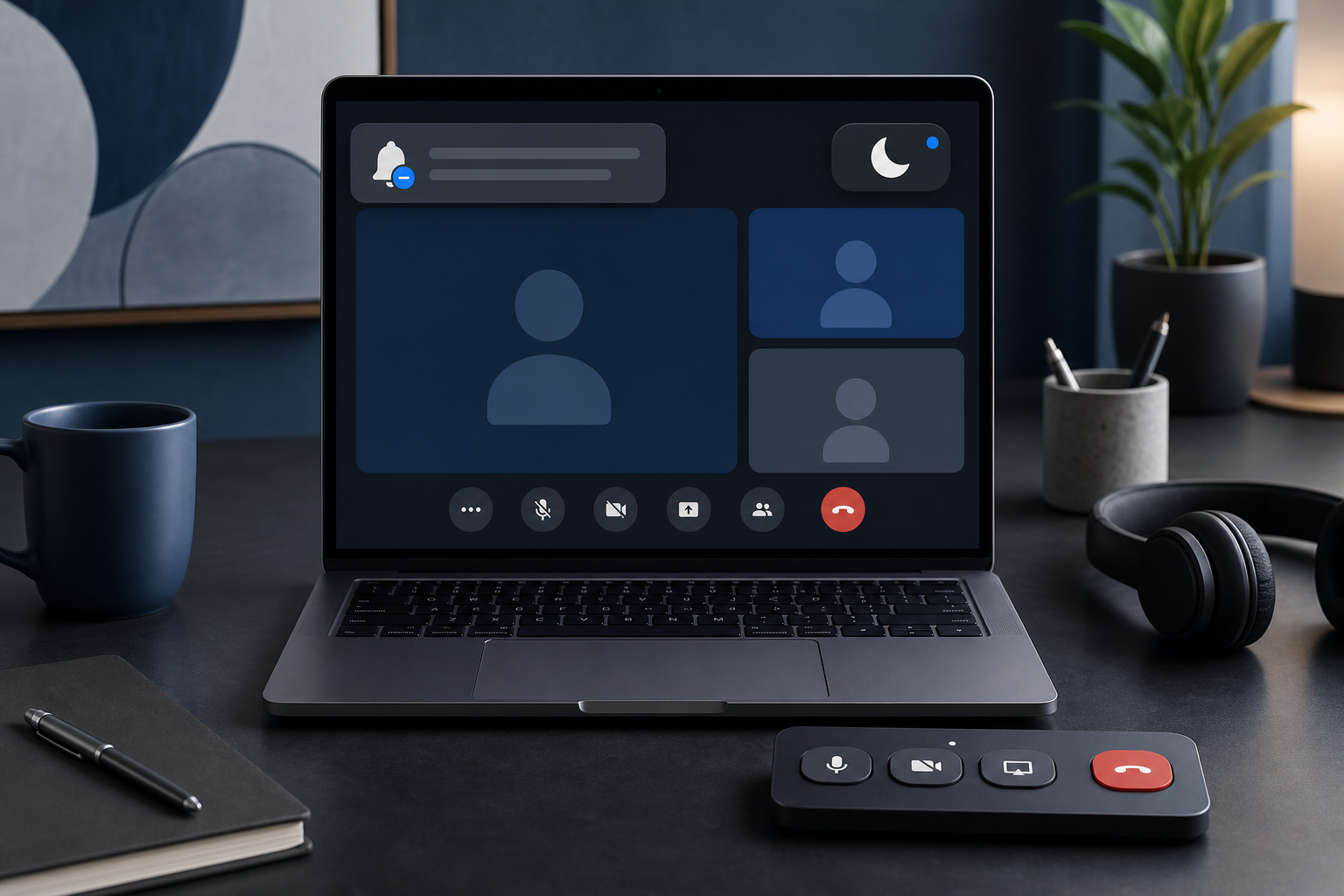
Do Not Disturb during meetings means turning off visible and audible interruptions before a call starts, then pairing that setting with a repeatable host workflow. The practical setup is simple: enable your operating system's Focus or Do Not Disturb mode, close risky apps, share only the window people need, and keep meeting controls within reach so you can recover quickly if something leaks through. The goal is fewer alerts, fewer privacy surprises, and less frantic clicking while everyone watches.
Notifications feel small until one arrives during a customer demo with a subject line nobody asked to see. Hosts, presenters, and IT operators need a routine that works across Zoom, Microsoft Teams, Google Meet, macOS, and Windows. This guide gives that routine, with decision points for screen sharing, calendar status, chat tools, and MuteDeck control surfaces.
# What Do Not Disturb controls in a meeting
Do Not Disturb or Focus mode changes how your computer handles notifications. Depending on the operating system, it can hide banners, silence sounds, pause notification badges, and limit which people or apps can break through. Apple documents this under Focus on macOS (opens new window), and Microsoft covers similar behavior in Focus on Windows (opens new window).
Meeting tools also add their own signals. Teams can set your presence to busy or presenting. Zoom can show host controls, chat alerts, and waiting room notices. Google Meet can show browser permission prompts and participant notifications. A clean meeting setup treats these layers as one system rather than a pile of toggles.
For MuteDeck users, the control principle is consistent: keep high-risk actions visible and tactile. Mute, camera, sharing, and status checks belong where the host can confirm them without hunting through overlapping windows.
# Use the right notification mode for the meeting type
The best setting depends on what people can see and how much interruption you can tolerate. A one-on-one internal call may only need chat sounds muted. A board presentation needs a stricter setup because the cost of a visible notification is higher.
| Meeting situation | Notification mode | Screen sharing choice | Operator note |
|---|---|---|---|
| Internal status call | Basic Do Not Disturb | Usually no sharing | Let urgent people through only if needed |
| Customer demo | Focus mode with strict app allowlist | Share one window or browser tab | Close mail, chat, and ticket queues first |
| Webinar or livestream | Full notification lockdown | Dedicated presentation desktop | Assign a second operator for chat and Q&A |
| Pair work or troubleshooting | Selective alerts | Share app window | Keep incident chat visible on a second device |
| Executive or board meeting | Full lockdown plus calendar busy status | Share only the deck or prepared window | Test the exact display before people join |
The pattern is simple. If participants can see your screen, tighten the notification policy. If participants can hear your speakers, silence notification sounds. If the meeting has external attendees, use the stricter choice. Nobody loses status because Slack had to wait twenty minutes. Slack will cope bravely.
# Build a five minute notification preflight
A notification preflight should happen before any meeting where your screen, audio, or attention matters. It does not need theater. It needs repetition.
- Turn on Do Not Disturb, Focus, or the equivalent operating system mode.
- Confirm the setting hides banners and silences sounds.
- Close email, chat, ticketing, calendar detail views, password managers, and private notes.
- Open only the windows you plan to share.
- Set calendar and chat presence to busy, presenting, or unavailable.
- Choose the exact Zoom, Teams, or Meet sharing target.
- Check mute, camera, and share status before admitting guests.
- Keep a physical or software control surface ready for fast recovery.
Run the check in that order. Operating system first, app cleanup second, meeting controls third. If you reverse it, you may start the meeting with the right mute state and the wrong desktop state, which is how a harmless alert becomes a tiny compliance seminar.
This workflow pairs well with screen sharing discipline. MuteDeck's guide to Zoom screen sharing not working (opens new window) covers the permission and display side of the same problem. Notification hygiene handles what should stay invisible; screen sharing hygiene handles what should be visible.
# Share fewer surfaces, not just fewer alerts
Do Not Disturb reduces risk, but it should not carry the whole meeting. The safer habit is to expose fewer surfaces.
When possible, share a single application window, a single browser tab, or a dedicated presentation display. Avoid sharing the full desktop during demos unless the workflow truly requires it. Full desktop sharing turns every dock badge, file name, browser tab, and system prompt into meeting content.
For recurring presentations, create a dedicated meeting desktop or browser profile. Keep only the deck, demo app, documentation, and required meeting window there. Log out of personal accounts. Disable browser extensions that throw popups. Clear downloads and desktop clutter before the call.
Windows and macOS both support multiple desktops or Spaces. Use one as the presentation surface and another as the operator surface. The presentation surface gets shared. The operator surface holds chat, notes, and controls. This split keeps private tools available without placing them in the audience's line of sight.
MuteDeck fits the same model. Put mute, camera, share, and leave controls on a Stream Deck or Loupedeck profile so the presenter can operate the call without dragging the shared window into view. The less the mouse travels, the fewer awkward little tours through your notification ecosystem.
# Coordinate calendar, chat, and meeting presence
Do Not Disturb works better when your status tells people what is happening. Most interruptions start because someone outside the meeting thinks you are available.
Calendar status should mark the meeting as busy. Chat status should show in a meeting, presenting, or unavailable. If your company uses Slack, Microsoft Teams, or Google Chat, set the status before external calls and demos. Slack documents status and availability in its status help guide (opens new window), and Microsoft explains Teams presence in its presence guide (opens new window).
Use a short status message when the meeting is sensitive: “Presenting until 2:30” or “Customer demo, urgent calls only.” That message gives teammates a routing rule. They can decide whether to wait, escalate, or contact a backup.
For high-stakes meetings, assign an operator outside the presentation machine. That person watches chat, filters urgent messages, and relays only what matters. This prevents the presenter from weakening notification settings mid-call because they fear missing something important.
# Recover when a notification still appears
Even a strict setup can fail. A browser permission prompt can appear. A meeting app can update. A teammate can use an allowed channel. Recovery should be boring and fast.
Use this sequence:
- Stop speaking for one beat rather than narrating the problem.
- Hide the notification or stop sharing if private content appeared.
- Switch to the prepared window or backup display.
- Confirm mute and camera state.
- Continue from the last useful sentence.
- After the call, identify the source and update the preflight.
Do not over-explain the incident. A short “One moment” is enough. The audience came for the meeting, not the director's commentary on your notification stack.
If the interruption came from meeting audio, use the same layered approach: identify whether the source is the operating system, browser, device, or meeting platform. MuteDeck's Google Meet microphone not working (opens new window) runbook uses that diagnostic order for audio failures. The same method works for notifications because the problem usually sits in one layer, not all of them.
# Use MuteDeck as the meeting control layer
Notification hygiene reduces distractions before the call. MuteDeck helps during the call, where status changes need to be fast and visible.
A practical profile should include:
- Mute and unmute.
- Camera on and off.
- Leave call or hang up, placed away from common controls.
- Meeting app focus.
- Screen share status checks where supported.
- Visual feedback for microphone and camera state.
The non-obvious implementation tip is to separate presentation controls from cleanup controls. Mute and camera belong near your fingers. Leave call, close app, and destructive actions need distance or confirmation. A tidy control surface should prevent the exciting genre of mistake where a presenter ends the meeting while trying to mute a cough.
For Teams-heavy teams, pair this with platform shortcuts as a backup. MuteDeck's Teams keyboard shortcuts for meeting hosts (opens new window) guide gives the keyboard layer. Hardware buttons and shortcuts should agree with each other, so the host has two paths to the same safe state.
# Create a default host policy for repeat meetings
Teams get better results when notification control becomes a shared policy rather than a personal superstition. Write a short host standard and reuse it for customer calls, webinars, interviews, and leadership meetings.
A workable policy can fit in six lines:
- Hosts turn on Do Not Disturb before external meetings.
- Presenters share windows or tabs unless full desktop sharing is required.
- Sensitive meetings use a dedicated presentation desktop or browser profile.
- Calendar and chat status must show busy or presenting.
- One operator monitors chat during webinars and customer demos.
- Post-call notes capture any notification or sharing incident for process improvement.
Keep the policy practical. People will ignore a ritual that takes longer than the meeting setup itself. Five minutes is acceptable. Twenty minutes becomes folklore.
If unstable network conditions are causing meeting alerts or reconnect prompts, handle that separately. The notification workflow should not hide genuine call health problems. Use MuteDeck's unstable internet connection guide (opens new window) when connection warnings appear during calls.
# Conclusion
Do Not Disturb during meetings works when it becomes part of a full host routine: operating system Focus mode, clean sharing surfaces, accurate presence, and fast meeting controls. Start with the strictest setup for external presentations, then relax only what the meeting requires.
MuteDeck gives hosts a visible control layer for the live call, while Focus mode and app cleanup reduce the interruptions before they happen. Build the preflight once, use it every time, and your next presentation has one less way to become memorable for the wrong reason.
KEEP EXPLORING
More guides & tips