# Zoom screen sharing not working: operator fix guide
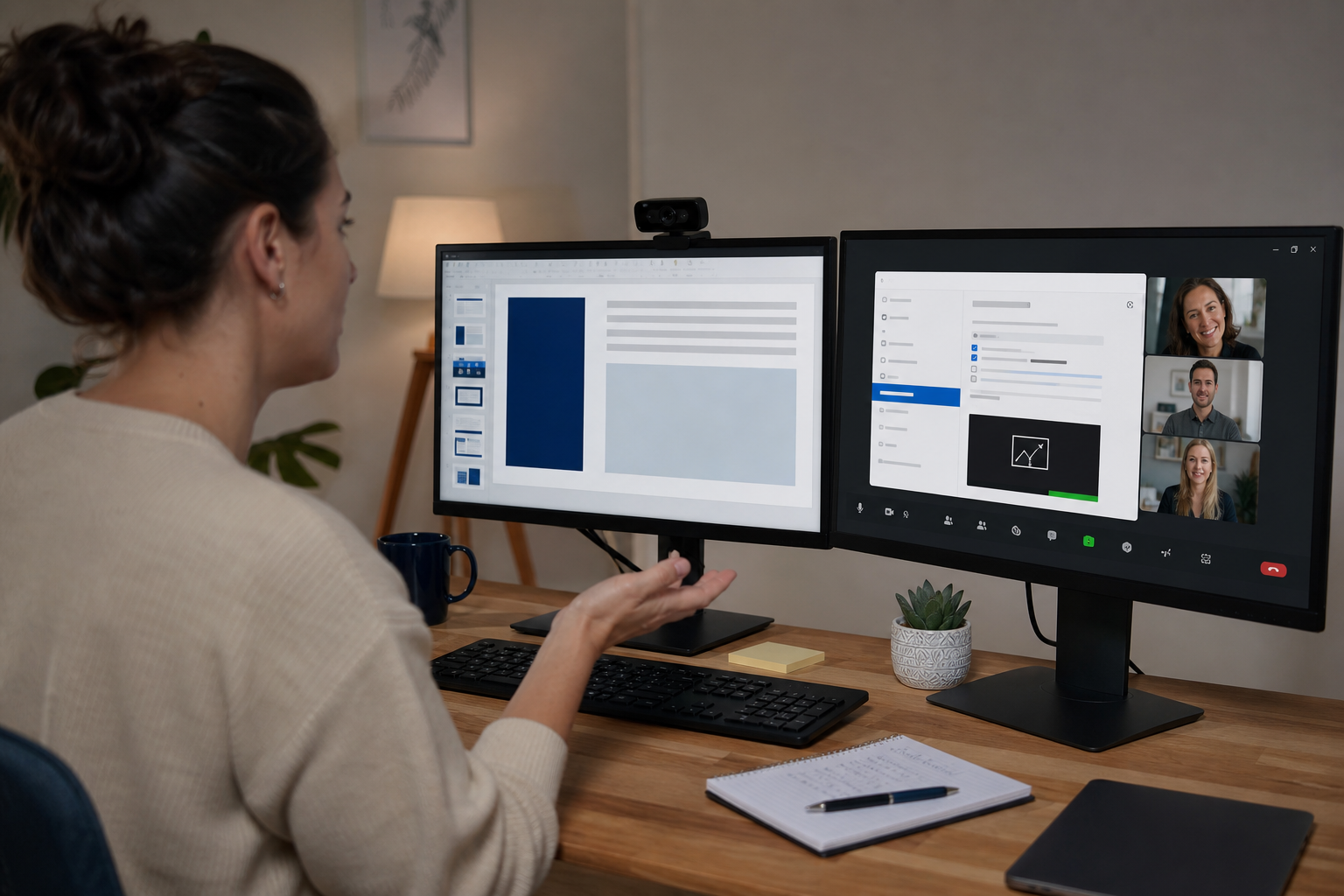
If Zoom screen sharing is not working, the fastest path is to check four layers in order: meeting permissions, desktop permissions, graphics path, and network quality. Most failures come from host level share restrictions or operating system capture permissions. Black screen cases usually point to GPU acceleration conflicts or app specific capture limits. Audio share failures usually come from selecting the wrong share mode or missing system audio routing. Use the workflow below to identify the failing layer in under ten minutes.
Screen sharing issues look random to participants, but they are usually deterministic once you map symptoms to causes. The key is to stop trying one off fixes and run a sequence that narrows the problem quickly.
# Symptom to cause map for Zoom screen sharing
Start with the visible symptom. Each symptom narrows the likely fault domain.
| Symptom | Most likely cause | First check | Expected fix time |
|---|---|---|---|
| Share button is disabled | Host restricted participant sharing | Meeting controls in Zoom | 1 to 2 minutes |
| Participants see black screen | GPU acceleration or protected content path | Advanced video settings and what app is shared | 3 to 8 minutes |
| Participants see no motion, frozen frame | Bandwidth spike or encoder stall | Network stats and switch from window to screen share | 5 to 10 minutes |
| Share without audio works, with audio fails | Incorrect share mode or device routing | Share Sound toggle and OS output selection | 2 to 5 minutes |
| Mac prompts for screen recording every call | Missing persistent OS permission | macOS Privacy and Security settings | 3 to 6 minutes |
This map keeps the investigation short. Pick one row, run one branch, confirm, then move on.
# Step 1: Verify meeting level controls before local debugging
Meeting level checks solve a large share of incidents because users often join sessions where sharing is intentionally limited.
- Open the Zoom meeting controls.
- Select the arrow near Share Screen.
- Confirm who can share. Set to All Participants when collaboration is required.
- If only host can share, either grant co host rights or temporarily lift the restriction.
- Confirm no active waiting room handoff or role transition is in progress.
If you operate mixed platforms, remember host controls differ between desktop clients and web clients. A co host on one client can believe sharing is enabled while the host policy still blocks participants.
For teams that switch between Zoom and Teams, role confusion is common. Keep role and control expectations explicit during handoff. If your team also works in Teams, this shortcut workflow reduces context switching in multi platform days: Teams keyboard shortcuts for operators (opens new window).
# Step 2: Confirm desktop capture permissions
If users can click Share but participants see nothing, check desktop permissions next.
# macOS
On macOS, Zoom needs Screen Recording permission for full screen capture. Go to System Settings, Privacy and Security, Screen Recording. Ensure Zoom is enabled. Then fully quit and relaunch Zoom.
Apple documents the permission model here: Control app access to screen recording on Mac (opens new window).
Common operator pitfall: users toggle permission while Zoom is running and assume the setting applies immediately. It often requires a full process restart.
# Windows
On Windows, check Privacy and Security settings for camera and microphone first, then verify the app can capture desktop content through graphics stack settings.
Reference: Windows privacy controls for camera and microphone (opens new window).
If capture works only for full screen and fails on specific windows, the issue can be app level rendering mode in the target app, not Zoom itself.
# Step 3: Resolve black screen during share
Black screen is usually the highest friction incident because it can appear intermittent.
Use this short checklist:
- Switch from sharing a specific app window to sharing the full desktop.
- Disable hardware acceleration in Zoom video advanced settings.
- Disable hardware acceleration in the browser or app you are sharing.
- If sharing DRM protected video, test with non protected content.
- If you run external GPUs or docks, test with direct display connection.
Why this works: modern apps can render with protected or accelerated pipelines that screen capture tools cannot sample consistently. Moving to full desktop share often bypasses app specific rendering constraints.
Zoom publishes known behavior for advanced share and optimization options in its support docs: Zoom screen sharing help center (opens new window).
# Step 4: Fix share audio failures
Users often think screen sharing failed when the visual share works but meeting audio does not transmit.
Check these items in order:
- Open Share Screen dialog.
- Enable Share Sound before confirming the share.
- For video clips, use Optimize for video clip only when needed.
- Confirm system output device is stable and not switching between headset and speaker.
- Run a quick local recording test to verify source audio path.
If your org uses audio processors or virtual devices, route complexity rises quickly. Keep one approved meeting profile with known device mapping and have users switch to it before executive meetings.
For teams who frequently bounce between Zoom and Teams audio paths, this incident pattern often overlaps with echo and device routing drift: How to stop echo in Microsoft Teams (opens new window).
# Step 5: Handle lag, stutter, and frozen shares
When participants see delayed or frozen frames, you are usually dealing with bandwidth and encoding pressure.
# Quick triage
- Ask the presenter to stop incoming HD video tiles during share.
- Close background uploads and sync clients.
- Move from Wi Fi to wired connection when possible.
- Share a single window instead of full desktop when content is static.
- Reduce animation heavy slides.
# Deeper operator checks
- Validate upstream packet loss and jitter on the presenter side.
- Confirm no local VPN policy is forcing congested routes.
- Check CPU saturation on older laptops during simultaneous camera plus share.
If the same host sees repeated quality drops across platforms, treat it as endpoint network health, not meeting software behavior. This ties closely to unstable call quality incidents: Your internet connection is unstable in meetings (opens new window).
For reference on network quality metrics that affect real time media, see WebRTC in the real world (opens new window).
# Decision framework: who should own the fix
Operators lose time when the wrong team gets paged first. Use this assignment matrix.
| Trigger | Primary owner | Secondary owner | Escalation condition |
|---|---|---|---|
| Share button disabled for participants | Meeting host or facilitator | IT collaboration admin | Policy blocks remain after host change |
| Mac or Windows permission prompts | End user with runbook support | IT endpoint team | Permission resets after reboot |
| Black screen on one app only | User plus app owner | IT endpoint team | Repro across multiple apps |
| Share audio missing across all calls | IT endpoint team | Audio device vendor support | Repro on clean profile |
| Lag and frozen frames in specific network segment | Network operations | IT endpoint team | Packet loss sustained above baseline |
This division keeps collaboration admins out of endpoint debugging unless policy signals point there.
# A concrete scenario: executive review meeting five minutes out
A program manager starts an executive review. Share button works. Participants report black screen. Audio comes through. The user is on macOS with an external monitor and browser based dashboard.
Operator run:
- Ask presenter to switch from browser window share to full desktop share.
- If black screen persists, disable Zoom hardware acceleration and relaunch.
- If still broken, move the browser window to the built in laptop display and retry.
- Keep a backup path ready by having a co host share the deck while presenter narrates.
Result pattern: this usually resolves at step one or two. Step three catches display path edge cases with external monitor routing.
Operational lesson: always keep a backup presenter assigned for high stakes meetings. It turns an incident into a minor interruption.
# Non obvious implementation tip: preflight macro before high stakes calls
Most teams run preflight checks for camera and microphone. Very few run a screen share preflight with role validation. Add a 90 second macro:
- Host confirms participant sharing policy.
- Presenter shares one static slide and one moving element.
- Presenter toggles Share Sound on and off with a short clip.
- Co host confirms visible motion and audio.
This catches permission and rendering issues before the room fills. It also avoids live role confusion when co hosts rotate.
If your operators rely on hardware keys for mute and camera control, pair the preflight with a stable control layer so switching apps does not break workflow state. MuteDeck guidance on role and control consistency is useful here: Zoom waiting room settings for smoother facilitation (opens new window).
# Prevention baseline for recurring screen share incidents
Adopt this lightweight standard across teams:
- Approved Zoom client version window with monthly review.
- Endpoint profile with known good audio and display settings.
- Pre meeting macro for share visibility and audio validation.
- Backup presenter protocol for executive sessions.
- Incident tag taxonomy so repeated root causes are searchable.
Track incident tags by category:
- Permission
- Policy
- Rendering
- Network
- Device routing
After two weeks, your top two causes usually account for most disruptions. Prioritize runbook improvements there first.
# What to do if nothing works in the live meeting
When time pressure is high, optimize for continuity:
- Switch to backup presenter.
- Share exported PDF instead of live app view.
- Move discussion to verbal walkthrough while operator runs side channel fixes.
- Capture logs after the meeting for root cause, not during critical decision time.
Then run structured post incident review with a short template:
- What failed first.
- Which layer was responsible.
- Which detection step would have caught it earlier.
- What permanent fix changed the next meeting outcome.
This turns one incident into process improvement instead of repeated firefighting.
# Conclusion
Zoom screen sharing failures become manageable when you treat them as layered incidents. Check host policy first, then OS permissions, then rendering path, then network. Use a clear ownership matrix so the right team handles each class of issue quickly. Add a short share preflight to high stakes meetings and keep a backup presenter ready. If your team operates across multiple meeting platforms, standardizing controls and runbooks reduces incident load and response time.
For teams that run dense meeting schedules, a stable control surface plus disciplined preflight process keeps collaboration predictable and cuts avoidable interruptions.
KEEP EXPLORING
More guides & tips