# Teams Keyboard Shortcuts for Meeting Hosts
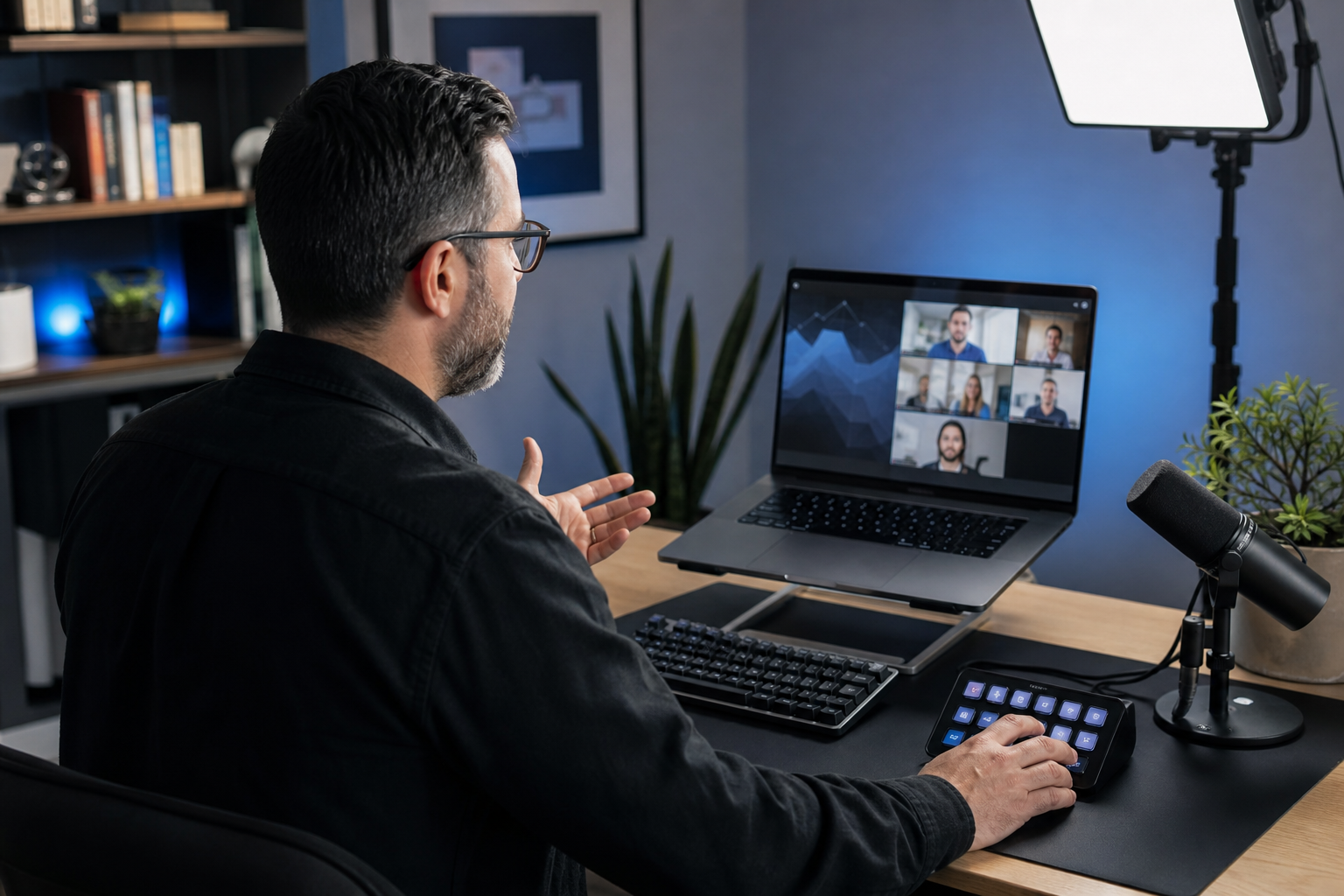
Teams keyboard shortcuts let meeting hosts run calls with less context switching and fewer missed controls. The fastest path is to memorize a small set for mute, camera, share, chat, and hand raise, then map those actions to one repeatable pre meeting routine. This reduces audio accidents, awkward screen share delays, and host fatigue in long meeting blocks.
This guide covers the shortcut set that carries most meetings, the cases where shortcuts break, and a host workflow that stays stable across Teams updates.
# The core Teams keyboard shortcuts that matter most
If you only learn one layer, learn this one. These shortcuts cover the controls hosts use most often in live calls.
- Toggle mute:
Ctrl+Shift+M - Toggle camera:
Ctrl+Shift+O - Raise or lower hand:
Ctrl+Shift+K - Toggle blur background:
Ctrl+Shift+P - Open chat pane:
Ctrl+Shift+C - Open people pane:
Ctrl+Shift+U - Accept incoming call:
Ctrl+Shift+S - Decline incoming call:
Ctrl+Shift+D
Microsoft publishes the full and current list in the official documentation. Keep that page bookmarked because key behavior can vary by client version and operating system.
External references:
- Microsoft Teams keyboard shortcuts (opens new window)
- Microsoft Teams support (opens new window)
- Microsoft Teams meetings help (opens new window)
# Why hosts miss shortcuts even when they know them
Most shortcut failures in live meetings come from state problems, not memory problems.
Three patterns show up often:
- The Teams window is not focused, so a shortcut goes to another app.
- The keyboard layout or OS level remapping changed the key behavior.
- The host switched from desktop client to browser client and shortcut support differs.
Teams keyboard shortcuts work best when you treat focus and client consistency as part of the workflow. Hosts who jump between browser and desktop during the same week usually see more misses.
# Decision checklist for choosing your host shortcut set
Use this checklist before standardizing a team runbook.
| Decision area | Recommended default | Why it works | When to pick another option |
|---|---|---|---|
| Teams client | Desktop app | Most complete shortcut behavior | Browser only environments with strict install policies |
| Mute action | Ctrl+Shift+M | Fast and low finger travel | Hardware key if you lead webinars daily |
| Camera action | Ctrl+Shift+O | Works well in presenter transitions | Camera lock policy requires app level control only |
| Share workflow | App buttons plus one pre share routine | Share states vary by content type | Dedicated share deck when using complex demos |
| Hand raise | Ctrl+Shift+K | Clear social signal in large meetings | Small internal standups where verbal cues are enough |
| Recovery path | One backup control method | Prevents freeze during key conflicts | Highly locked VDI where key hooks are restricted |
This table is enough for most teams to avoid over engineering. A short list beats a long cheat sheet during live calls.
# A practical host workflow for Teams keyboard shortcuts
The workflow below fits internal meetings, customer calls, and webinars. It is built for repeatability, so each meeting starts with the same control checks.
# Step 1: Run a 90 second control check before joining
Before you enter the room:
- Open Teams and click into the meeting window.
- Tap mute and confirm the icon state changes.
- Tap camera and confirm on or off state matches your plan.
- Open chat with
Ctrl+Shift+Cand close it. - Raise and lower hand with
Ctrl+Shift+K.
This check catches focus issues early. It also primes muscle memory before the meeting starts.
# Step 2: Use a two mode control model during the meeting
Use keyboard for high frequency controls and mouse for low frequency controls.
High frequency controls:
- Mute toggle
- Camera toggle
- Hand raise
- Open chat
Low frequency controls:
- Participant admit or remove actions
- Recording options
- Meeting options and policy changes
This split avoids accidental clicks in crowded UI panels while keeping your most used actions instant.
# Step 3: Add one backup path for every critical action
For each critical action, keep one fallback:
- Mute fallback: hardware mute key or headset control
- Camera fallback: Teams toolbar click
- Chat fallback: side panel click
The fallback prevents dead time when shortcuts fail due to focus or client updates.
# Teams keyboard shortcuts by meeting scenario
# Scenario 1: Daily standup with camera on
Goal is speed and clarity.
Recommended set:
Ctrl+Shift+Mfor quick mute transitionsCtrl+Shift+Ofor camera control at start and endCtrl+Shift+Cto drop links in chat without losing speaking flow
Tip: keep chat closed by default, then open only when posting updates. This preserves attention on speakers.
# Scenario 2: Customer demo with screen sharing
Goal is smooth transitions and zero audio mistakes.
Recommended set:
- Mute before share transition
- Camera toggle when moving between intro and demo segments
- Chat open for question triage
Non obvious implementation tip: stage your demo assets in one desktop workspace and keep Teams in another. Shortcut control then stays consistent while you switch context with fewer wrong window events.
# Scenario 3: Webinar or training session
Goal is authority and pacing.
Recommended set:
- Mute toggle used as punctuation between teaching segments
- Hand raise control for Q and A management
- People pane shortcut to monitor participation quickly
For larger events, pair shortcut use with a co host who handles chat and participant management. The presenter keeps speaking flow, the co host keeps room flow.
# Common shortcut issues and fixes
# Shortcut does nothing
Likely cause is focus drift.
Fix sequence:
- Click once inside Teams meeting window.
- Retry the shortcut.
- Close competing apps that capture global keys.
- Restart Teams client if behavior persists.
# Shortcut triggers wrong action
Likely cause is keyboard remap, language layout shift, or macro software conflict.
Fix sequence:
- Check active keyboard layout in OS.
- Disable macro layers temporarily.
- Test shortcut in a new Teams meeting.
- Restore only required remaps.
# Browser Teams shortcuts differ from desktop
Likely cause is client variation.
Fix sequence:
- Confirm which client you are using for the call.
- Use desktop client for meetings where shortcut reliability matters most.
- Document a browser specific fallback set for restricted devices.
# How MuteDeck fits into Teams keyboard shortcuts
MuteDeck helps when you want one consistent control surface across apps. Teams keyboard shortcuts are strong on their own, and hardware mapped controls reduce cognitive load further when you switch between Teams, Zoom, and Google Meet.
A practical pattern:
- Keep native Teams shortcuts as baseline.
- Map the same actions on hardware keys for cross platform consistency.
- Use identical button placement for mute, camera, and hand raise across all meeting apps.
Related MuteDeck reading:
- Google Meet control behavior and host workflow (opens new window)
- Assign microphone mute to a mouse button in Windows (opens new window)
- Logitech camera recovery workflow for live meetings (opens new window)
This combination gives you speed from shortcuts and consistency from hardware layout.
# Example runbook for IT teams standardizing Teams controls
IT teams can deploy a simple policy that improves host outcomes without heavy training.
Policy skeleton:
- Standardize on Teams desktop client for hosted meetings.
- Train hosts on five primary shortcuts only.
- Require a 90 second pre meeting control check.
- Publish one fallback path for each critical control.
- Review incidents monthly and update the runbook.
Concrete example:
A training team with 18 weekly sessions saw repeated mute accidents and delayed screen share starts. They implemented the five shortcut baseline, added pre meeting checks, and moved presenters to a fixed desktop client build. Within one month, incident logs showed fewer control errors and shorter recovery time when issues occurred.
The benefit came from process consistency, not from adding more tools.
# Advanced tip for heavy presenters
If you host many sessions per week, create a dedicated meeting profile at both OS and app levels.
Meeting profile setup:
- A keyboard layout with no experimental remaps.
- A Teams desktop client kept on stable channel.
- Minimal background apps during meetings.
- One hardware profile for meeting controls.
This setup isolates meeting behavior from development tools, design tools, and gaming overlays that often capture key combos. It also makes troubleshooting reproducible across machines.
# Internal adoption checklist for managers
Use this checklist for team rollout.
- Define the five shortcut baseline and publish it in onboarding docs.
- Require hosts to run the 90 second control check before important meetings.
- Keep one page with fallback controls for desktop and browser clients.
- Run one quarterly refresher with live shortcut drills.
- Track incident categories: mute errors, camera errors, share delays, chat misses.
You can run this as a lightweight operating practice with no extra software spend.
# Conclusion
Teams keyboard shortcuts give hosts faster control and fewer meeting errors when applied as a repeatable workflow. Start with a small core set, standardize client usage, and pair each critical shortcut with a fallback path. Then run a short pre meeting control check every time. If your team uses multiple meeting platforms, combine native Teams shortcuts with MuteDeck hardware mappings for a consistent control layout across calls.
KEEP EXPLORING
More guides & tips