# Stop Echo in Microsoft Teams Meetings
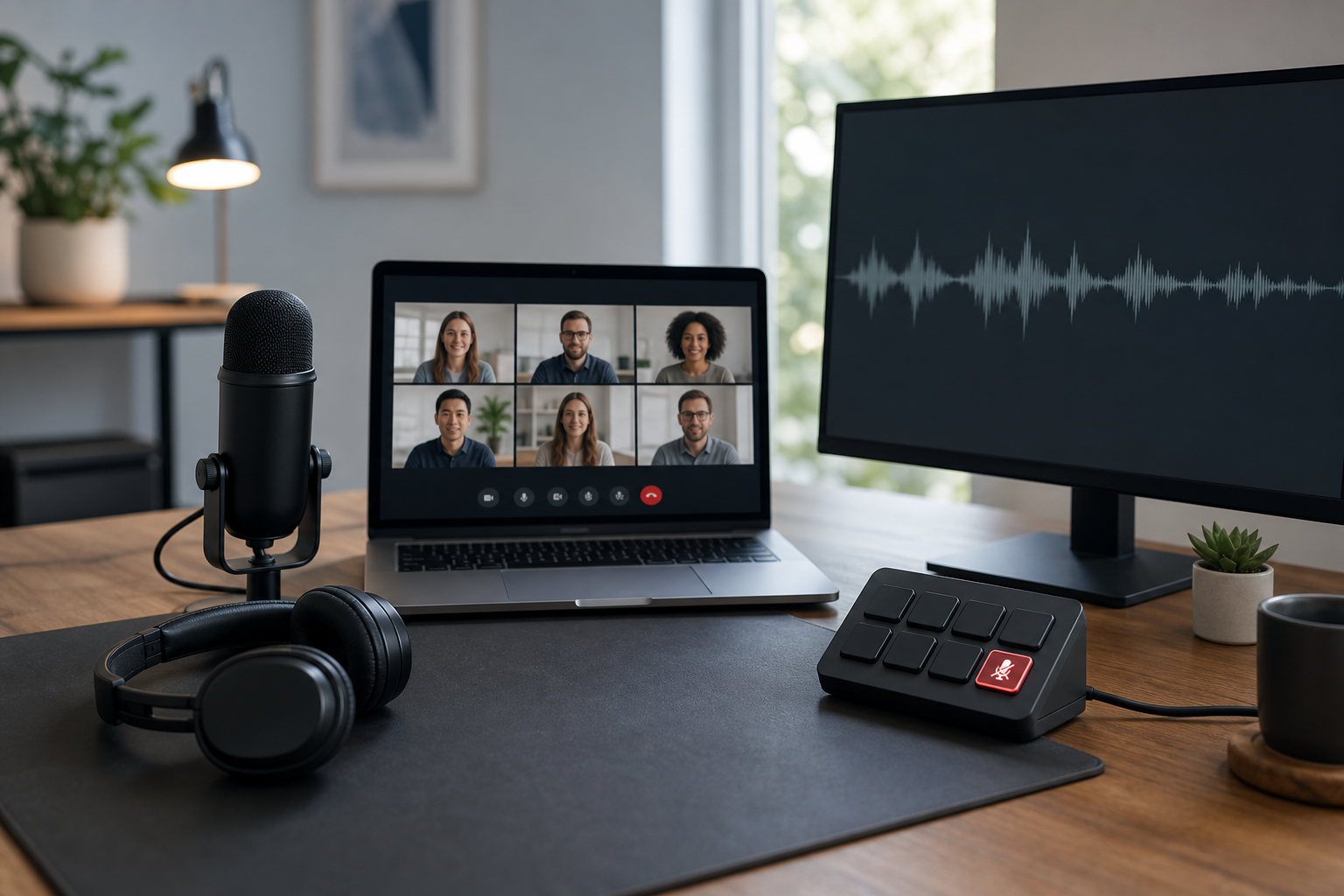
If you need to stop echo in Microsoft Teams, start with one rule: only one microphone and one speaker path should be active per room or workstation. Most echo comes from duplicate audio paths, open speakers near live microphones, or incorrect Teams device routing. A fast fix is to mute extra devices, switch to a headset, confirm the selected Teams devices, and run a short test call before live meetings.
Echo incidents waste time and reduce trust in meeting operations. This guide gives a practical runbook for hosts, IT admins, and remote operators. You will get a decision table, a concrete incident scenario, and implementation details that prevent repeat failures.
# What causes echo in Teams
Echo is a feedback loop between output and input. In Teams, that usually means speaker audio returns into a microphone with enough gain to be heard by participants.
Common root causes:
- Laptop speakers active while an external USB microphone is open.
- Two joined devices in one room, both with unmuted microphones.
- Wrong playback or recording device selected in Teams settings.
- Docking station audio profile changed after reconnect.
- Room speakers placed too close to a microphone array.
- Browser and desktop clients open at the same time with different audio routes.
Microsoft documents core device behavior and call quality guidance in its support resources. Use those references for baseline controls and client specifics.
- Microsoft Teams audio and video settings (opens new window)
- Microsoft Teams troubleshooting for calls (opens new window)
- Microsoft network and media optimization guidance (opens new window)
# Fast triage checklist for live meetings
Use this in order. The sequence matters because it isolates loop sources quickly.
- Confirm who hears the echo. If everyone hears it, the source is likely a host or room device.
- Ask participants to mute all devices except the active speaking endpoint.
- In Teams, open Settings > Devices and verify the chosen microphone and speaker.
- Temporarily switch the suspected user to a wired headset.
- Disable secondary audio apps that can capture or route sound.
- Remove duplicate joined devices in the same room.
- Run a short Teams test call after each change.
If echo stops after one step, log the fix and keep the rest of the setup unchanged for that meeting.
# Device routing decision table
This table helps operators choose the right setup before meetings start.
| Meeting context | Preferred microphone path | Preferred speaker path | Why this works | Risk to monitor |
|---|---|---|---|---|
| Single remote user at desk | Headset mic | Headset output | Physical isolation between input and output | User switches back to laptop speakers mid call |
| Host in a small meeting room | One boundary mic or certified room device | Room speakers from same room system | A single controlled audio chain | Extra laptop joins and opens second mic |
| Hybrid team call with one presenter | Presenter headset mic | Headset output | Stable voice pickup and low spill | Presenter unplug event reverts to laptop devices |
| Webinar or training session | Dedicated USB mic with monitoring | External headphones for host | High voice clarity with controlled return path | Gain too high on USB interface |
| Shared hot desk environment | Dock mic if certified, else headset | Dock output if stable, else headset | Repeatable hardware profile for rotating users | Dock profile drift after firmware updates |
Use one default profile per team. Ad hoc device changes during a meeting create most recurring incidents.
# A concrete scenario and resolution workflow
Scenario: a customer success manager starts a weekly QBR in Teams. Participants report a strong echo within the first minute. The host is connected to a USB microphone and laptop speakers. A second laptop in the same room joined the meeting for screen sharing and has its microphone active.
Resolution workflow:
- Mute the second laptop microphone and disable its speakers.
- In the host Teams client, lock microphone to the USB mic and lock speaker to a headset.
- Confirm the second laptop shares content only, with audio disabled.
- Run a 20 second voice check with one remote attendee.
- Keep a single control operator for mute and unmute actions.
Outcome: echo stops immediately after step one, then remains stable after headset routing. The durable fix is policy based. Join secondary devices in companion mode with mic and speaker off by default.
# Teams settings that matter most for echo control
Most operators overfocus on advanced toggles and underfocus on device certainty. Start with deterministic settings.
# 1) Lock input and output devices before each meeting block
In Teams device settings:
- Select exact microphone by device name.
- Select exact speaker by device name.
- Avoid Same as system default for high stakes meetings.
System defaults are convenient and unstable in docked or Bluetooth heavy workflows.
# 2) Run test calls after hardware changes
Any cable swap, dock reconnect, or Bluetooth reconnect can change routing. Use Teams test call immediately after those events. One minute of validation prevents live incident handling.
# 3) Keep one active meeting client
Running desktop and browser clients in parallel can split routing state. Use one client per host workstation for production meetings.
# 4) Reduce microphone gain before adding suppression layers
Aggressive gain often amplifies room spill. Lowering gain at the source produces cleaner speech than relying on post processing alone.
# Non obvious implementation tip for operators
Standardize a pre meeting audio macro workflow on hardware keys. With MuteDeck, map a one tap sequence that opens Teams, toggles mute state to known baseline, and triggers your preflight checklist. The value is consistency during context switching between calls.
Related MuteDeck guides:
- Teams Keyboard Shortcuts for Meeting Hosts (opens new window)
- Your Internet Connection Is Unstable in Teams Calls (opens new window)
- Increase Microphone Volume in Teams Meetings (opens new window)
The operational pattern is simple. Use hardware actions for fast controls, then keep Teams settings fixed for the full meeting block. Teams UI clicks are slower and easier to miss under pressure.
# Room setup adjustments that reduce echo before software changes
Physical setup usually decides whether software controls can hold steady. Two room tweaks produce outsized impact in small and mid sized spaces.
First, place speakers forward of microphones, not behind them. Microphones should point toward voices and away from playback sources. Even small angle changes reduce reflected pickup from walls and desks.
Second, lower room playback volume and ask remote participants to increase local volume. This keeps the room quieter while preserving audibility for remote listeners. Lower room volume means less acoustic energy reaches microphones.
If the room has glass or hard surfaces, add soft absorption where practical. A rug, curtains, or acoustic panels reduce reflections that create delayed repeats. These changes are simple and measurable. Run a short test recording before and after each adjustment and keep whichever setup yields cleaner speech.
# Team policy template for preventing repeat echo incidents
Adopt a short policy and apply it to every recurring meeting.
- One room, one active microphone chain.
- Secondary joined devices default to mic off and speaker off.
- Headset required for hosts in open office spaces.
- Mandatory 60 second preflight before external calls.
- Incident owner logs root cause and fix in runbook notes.
A short policy reduces troubleshooting variance across teams. It also improves onboarding for new hosts.
# Troubleshooting by symptom
# Symptom: echo appears only when one person speaks
Likely cause is local speaker spill into that person’s microphone. Move that user to headset and reduce mic gain.
# Symptom: echo appears when screen share starts
Often a second joined device activated audio. Validate that companion devices share content without microphone or speaker.
# Symptom: intermittent echo after dock reconnect
Device defaults changed after reconnect. Re select microphone and speaker manually in Teams and rerun test call.
# Symptom: echo in larger rooms only
Room acoustics and placement are driving feedback. Increase distance between speakers and microphones, then reduce room playback volume.
For larger deployments, Microsoft’s admin documentation on call quality and certified devices gives useful baseline controls for policy design.
- Teams certified devices directory (opens new window)
- Call quality dashboard overview (opens new window)
- Prepare your organization’s network for Teams (opens new window)
# Implementation sequence for IT and operations leads
Use this sequence for rollout across teams:
- Define approved audio device profiles by role.
- Publish one page host preflight checklist.
- Train meeting owners on companion device rules.
- Add quarterly audits for device routing drift.
- Track echo incidents with root cause categories.
Suggested root cause categories:
- Duplicate joined endpoints
- Wrong Teams device routing
- Speaker spill due to room layout
- Dock or Bluetooth profile drift
- Mixed client usage on one workstation
Categorization creates usable trend data. Trend data drives targeted fixes instead of broad retraining.
# Final operator checklist
Use this quick checklist before every high value meeting:
- Confirm one active microphone path.
- Confirm one active speaker path.
- Validate Teams device selections by name.
- Run test call after any hardware event.
- Keep secondary devices in companion mode with audio disabled.
- Keep a single operator responsible for mute control.
When teams apply these controls, echo incidents drop and meeting recovery time improves. The fix pattern is consistent across remote desks, small rooms, and hybrid sessions.
For teams that run frequent live calls, pair this runbook with a hardware control layer. MuteDeck gives hosts predictable one tap controls that align with the policy above and reduce in meeting device hunting.
KEEP EXPLORING
More guides & tips