# Google Meet "Give Control" Button: Host Runbook for Smooth Handovers
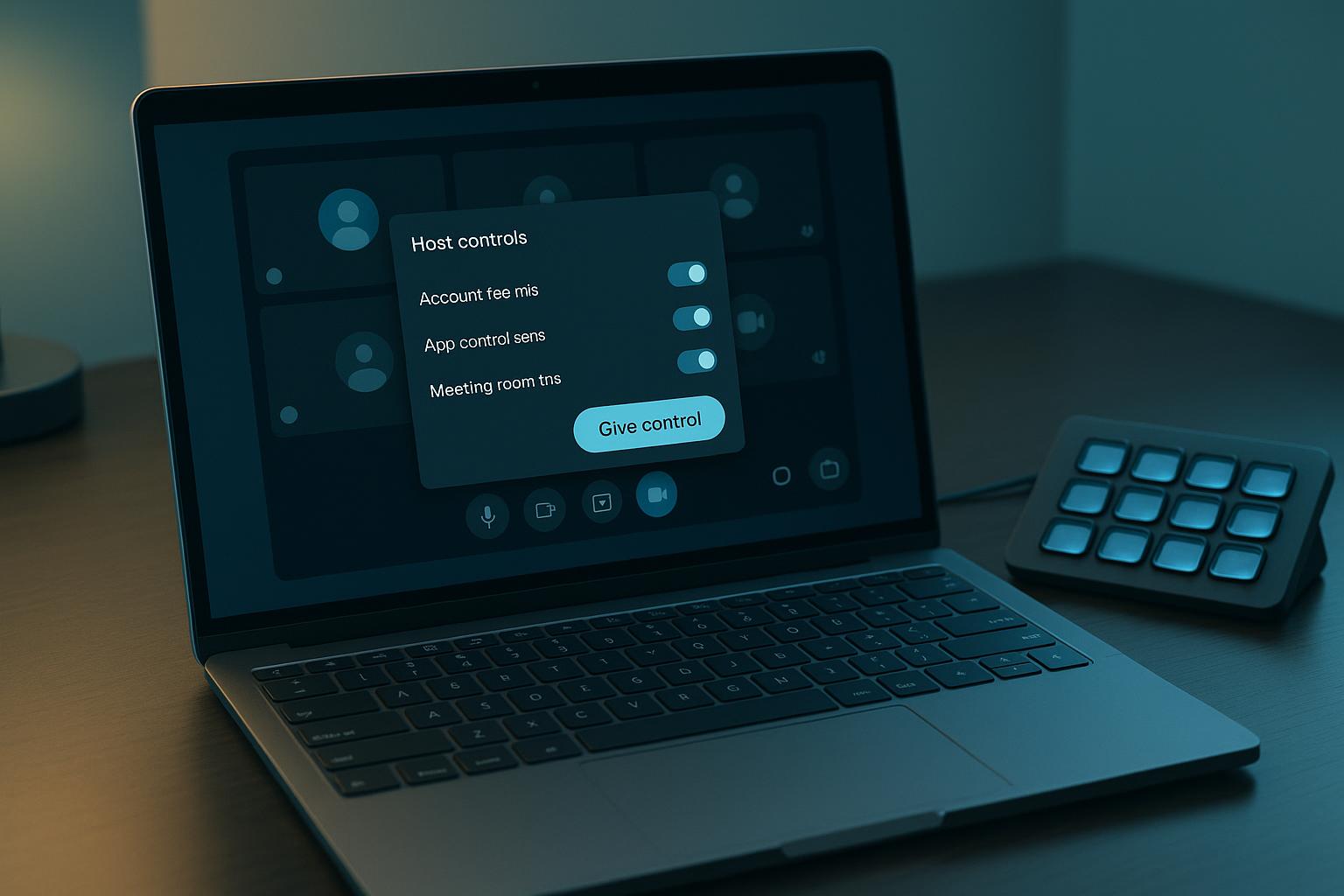
Most handover mistakes in live meetings are not technical failures. They are timing and control failures:
- presenter asks for control too early,
- host grants access without framing next action,
- and the room pauses while everyone figures out who is driving.
This guide turns the Google Meet "give control" moment into a repeatable host workflow.
# When to use a control handover (and when not to)
Use handover when the presenter needs to actively navigate a live demo. Avoid it when they only need to talk over static slides.
| Situation | Use "Give control"? | Better option |
|---|---|---|
| Live product walkthrough with clicks/filters | Yes | Grant control for a time-boxed segment |
| One-off slide change | No | Host advances slides |
| New presenter joining late | Maybe | Re-share ownership after a quick audio/video check |
| High-stakes webinar with strict script | Usually no | Keep host-operated controls and pre-staged scenes |
Rule of thumb: grant control only when it removes real friction for attendees.
# 8-minute host runbook before the meeting
# 1) Pre-assign handover moments in your agenda for team meeting
In the agenda, mark each section as:
- Host-driven (you keep control), or
- Presenter-driven (you hand over).
This keeps control decisions planned instead of improvised.
# 2) Define a handover script
Use one sentence every time:
"You have control for this section. I’ll take it back at the Q&A marker."
That line prevents awkward overlap and helps participants follow transitions.
# 3) Prepare a fallback path
If the presenter loses control or connection, decide in advance:
- who resumes sharing,
- which slide marks the restart point,
- and what phrase signals the switch.
# 4) Keep control actions one tap away
Whether you use keyboard shortcuts or a Stream Deck setup with MuteDeck, keep these actions ready:
- mute/unmute,
- camera toggle,
- open participant panel,
- return to host-led flow.
Fast access matters more than feature depth during live handovers.
# Concrete scenario: trainer handoff during cross-team onboarding
A training lead runs onboarding with 40 attendees. They use Google Meet for delivery, but three subject-matter experts rotate through demos.
Old pattern:
- ad-hoc control grants,
- no verbal cue,
- dead time between presenters,
- repeated "Can you take control?" interruptions.
Updated pattern:
- Agenda marks each owner and handoff point.
- Host reads the same handover line each time.
- Each presenter gets a fixed 7-minute control window.
- Host reclaims control before Q&A and summary.
Result: transitions become predictable, Q&A starts on time, and the host keeps authority over pacing.
# Non-obvious implementation tip: time-box control by section, not by person
Many teams assign control to a presenter for the entire session. That works until they drift off script or run over.
A better approach is to assign control to agenda sections:
- Section A (demo): Presenter controls
- Section B (discussion): Host controls
- Section C (decision recap): Host controls
This preserves flow and prevents control sprawl when meetings run long.
# Handover checklist for operators
Before every presenter transition:
- Announce who controls the next segment.
- Confirm the exact goal of that segment.
- Time-box the segment (for example, 7 or 10 minutes).
- Keep host controls immediately accessible.
- Reclaim control before open discussion.
MuteDeck fits best here as the consistency layer: one control surface for repeatable meeting actions, even when your team switches between Meet, Teams, and Zoom across the week.
If your handovers feel messy, the fix is rarely "more meeting tools." It is a tighter control protocol tied to your agenda and executed the same way every time.
KEEP EXPLORING
More guides & tips