# Assign Microphone Mute to a Mouse Button on Windows: Operator Workflow for Meetings
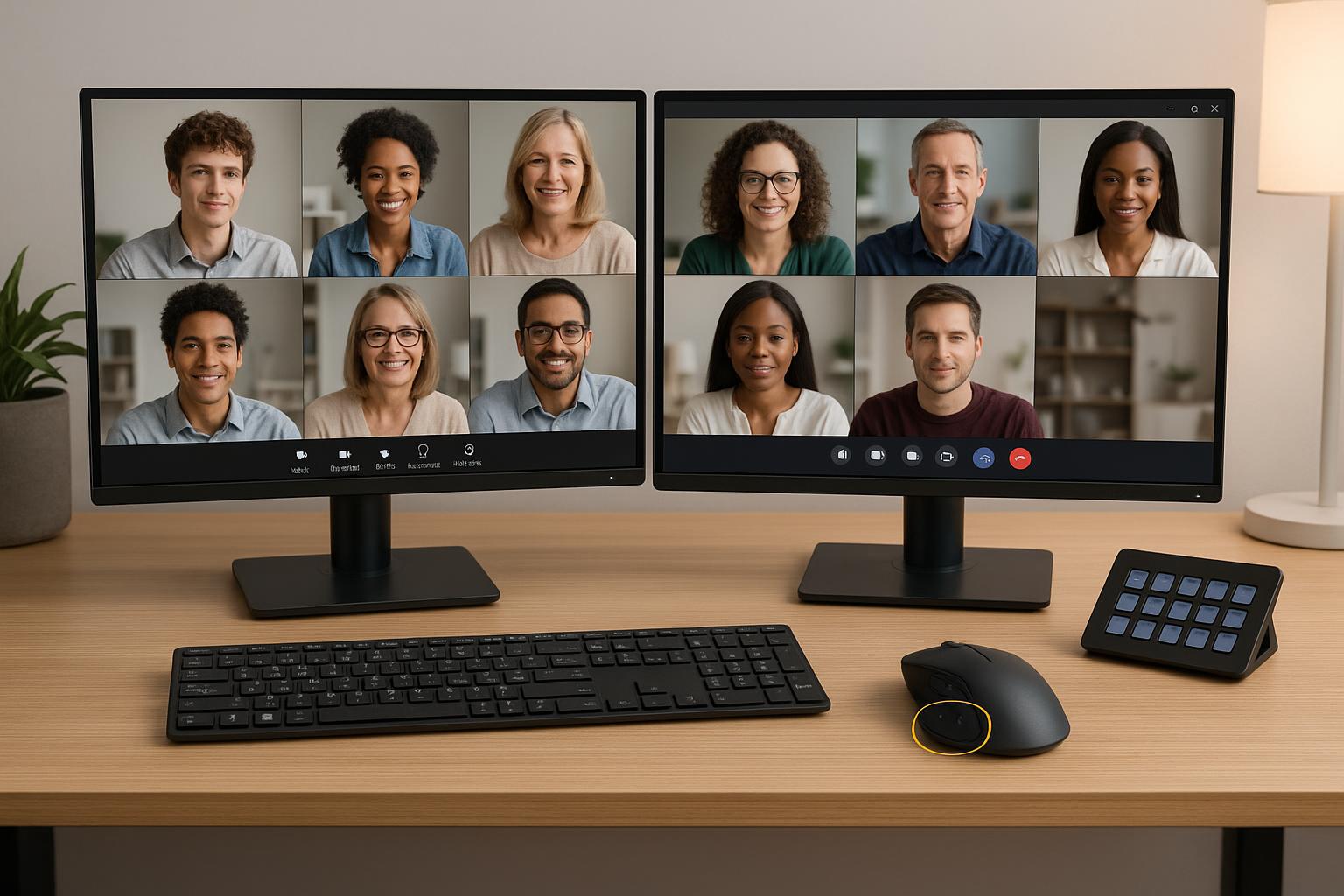
If you host a lot of meetings, keyboard-only mute control eventually breaks down.
You are screen sharing, moving between windows, answering chat, and trying to mute quickly when side noise hits. That is exactly where a dedicated mouse-button mute action helps: one physical control, available no matter which app is in focus.
This guide shows a practical setup for Windows operators running Zoom, Teams, and Meet.
# When a mouse-button mute setup is worth it
Use this setup if you often run into any of these:
- You miss mute timing while switching apps.
- Your hotkeys conflict across Zoom, Teams, and browser tabs.
- You present with one hand on the mouse most of the time.
- You run workshops or webinars where audio mistakes are expensive.
If that sounds familiar, treat mute as an input-device workflow, not just an app shortcut.
# Control model: app mute vs hardware mute
Before setup, choose the right control path:
| Control path | What it does | Best for | Tradeoff |
|---|---|---|---|
| App-level mute (Zoom/Teams/Meet shortcut) | Toggles mute inside the meeting app | Regular hosting, co-hosting, fast context switching | Depends on app focus/shortcut routing |
| Device-level mute (vendor utility or OS path) | Mutes mic input before app receives audio | High-noise environments, strict privacy | Participants may still see app as “unmuted” |
For most operators, app-level mute is the primary path, with a hardware fallback.
# 15-minute setup runbook (Windows)
# 1) Pick one mouse button and reserve it
Choose a side button you do not use for browser back/forward during meetings.
- Good default: rear side button = meeting mute
- Keep front side button for navigation or push-to-talk if needed
Consistency matters more than clever mapping.
# 2) Create one unified mute trigger
Use your mouse software (Logi Options+, Razer Synapse, Corsair iCUE, etc.) to map that button to a single keystroke you rarely use elsewhere.
Example: Ctrl + Alt + M
Then configure your meeting stack:
- Zoom: map mute/unmute to
Ctrl + Alt + M - Teams: map or align to same combination where possible
- Meet: use extension or control layer (like MuteDeck) to route the same action
Goal: one physical input, one expected behavior.
# 3) Add profile switching for meeting apps
Create a dedicated Meeting Operator mouse profile that activates for:
zoom.exems-teams.exe/ new Teams client- your primary browser for Meet
This prevents accidental remaps in normal desktop use.
# 4) Validate with a cross-app test
Run this sequence before relying on it in live calls:
- Join a Zoom test call and toggle mute 5 times via mouse button.
- Repeat in Teams.
- Run Meet in browser and confirm mute response under screen share.
- Switch between apps while speaking and verify state change is immediate.
If one app misses inputs, prioritize that app in your control tool or remap with a less-contended key combo.
# Concrete scenario: trainer with dual-platform day
A trainer runs internal sessions on Teams and customer sessions on Zoom. They were using different shortcuts in each app and occasionally spoke while “thinking they were muted.”
After moving mute to a single mouse side button:
- accidental open-mic moments dropped,
- handoff transitions became smoother,
- and they stopped hunting for app-specific controls mid-session.
The win was not speed alone; it was reduced cognitive load while presenting.
# Non-obvious tip: split toggle and hold-to-talk behaviors
Most people only configure toggle mute.
A better operator setup is:
- Button A: toggle mute (default hosting)
- Button B or press-and-hold modifier: push-to-talk for interruptions/Q&A
That second behavior is useful when you need fast, temporary voice access without changing your default muted state.
# Where MuteDeck fits
MuteDeck helps when you need one control approach across Zoom, Teams, and Meet, especially if you already use Stream Deck-style workflows.
Instead of memorizing per-app differences, you can standardize your meeting controls so the same operator habit works across platforms.
# Final checklist
Before your next important meeting, confirm:
- one mouse button is dedicated to mute,
- one unified trigger is configured,
- app profiles are active,
- and cross-app tests are clean.
That small setup change usually pays back in the first week of heavy meetings.
KEEP EXPLORING
More guides & tips