# Logitech Camera Not Detected in Meetings: Host Fix Guide
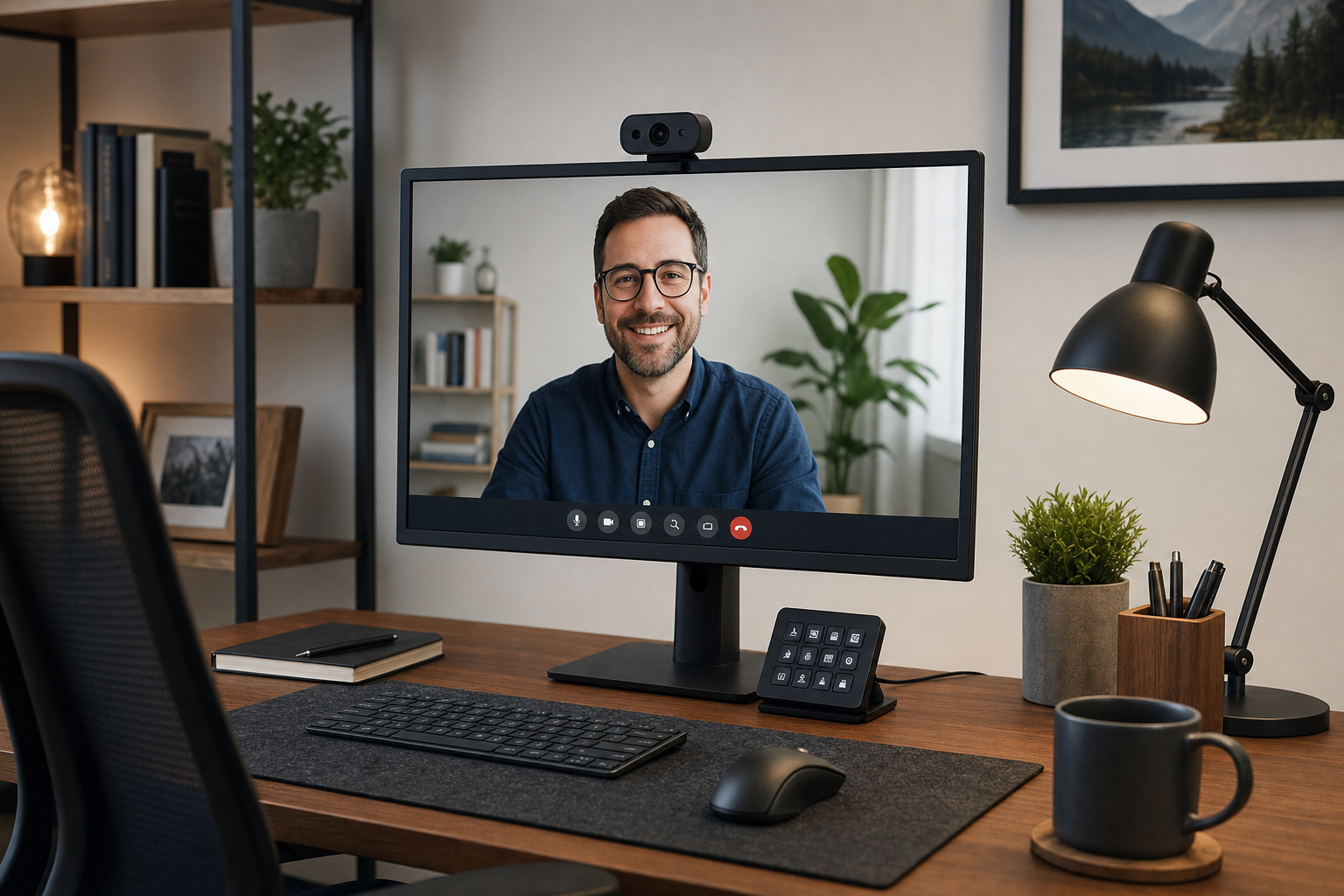
Logitech camera not detected errors in Zoom, Teams, or Google Meet usually trace to four causes: the wrong USB path, blocked camera permissions, broken driver state, or another app holding the device. Fixing it fast means checking those causes in order instead of random restarts. This guide gives a host friendly workflow you can run in under ten minutes, then harden into a repeatable setup with MuteDeck so your camera state is visible before every meeting.
If your meeting starts in five minutes, use the quick triage checklist first, then return for the stable setup section.
# Quick triage checklist for the next meeting
Use this order. It reduces dead ends.
- Confirm power and data path
- Unplug and reconnect the webcam directly to the laptop, not a passive hub.
- If available, switch to another USB port.
- On Mac, avoid low power adapters during video meetings.
- Confirm the OS can see the camera
- Open system camera settings or a simple camera app.
- If the camera app fails, fix OS or hardware first.
- Confirm privacy permission for the meeting app
- Allow camera access for Zoom, Teams, or browser.
- Restart the meeting app after changing permissions.
- Close conflicting apps
- Quit OBS, Loom, Snap Camera, browser tabs with camera tests, and old meeting processes.
- Re select the camera inside the meeting app
- Open Video settings and explicitly choose the Logitech device.
- Reboot only after steps 1 to 5
- Reboot clears stuck driver handles; it should be step six, not step one.
# Why Logitech camera not detected happens
Hosts often treat this as one bug. It is usually a chain problem across hardware, OS permissions, and app state.
# Layer 1: USB and bandwidth path
A webcam can show as connected but still fail in meetings when the bus is unstable. USB hubs with multiple devices, long cables, and mixed adapters create intermittent failures. This is common with 1080p or 4K webcams that need sustained throughput.
# Layer 2: OS privacy and security controls
Modern macOS and Windows builds gate camera access by application. If Zoom was denied once, the webcam appears available in system tools but blank in Zoom. Browser based meetings can fail separately if browser permission is blocked.
# Layer 3: Driver and firmware state
Windows updates, vendor driver updates, or stale USB descriptors can leave the camera in a bad state. Logitech firmware can also lag behind host OS changes.
# Layer 4: App level camera lock
Only one app can hold the camera stream in many setups. If Teams has a background process still running, Zoom can report no camera even while the device is healthy.
# Decision framework: fastest stable fix path
| Symptom | Most likely cause | First action | Second action | Long term prevention |
|---|---|---|---|---|
| Camera missing in every app | USB path or hardware | Move to direct USB port | Try a short known good cable | Keep webcam on dedicated port |
| Camera works in system app but not Zoom | Privacy or app lock | Check Zoom camera permission | Quit conflicting apps and relaunch Zoom | Pre meeting permission check |
| Camera appears then drops mid meeting | Hub power or bandwidth | Remove hub from path | Reduce resolution to 720p for test | Powered dock and cable standard |
| Works in Teams but not browser Meet | Browser permission | Re allow browser camera access | Clear site permission and retest | Browser profile for meetings only |
| Device name visible but black feed | Driver or firmware state | Replug and restart app | Update driver or firmware | Monthly maintenance checklist |
# Platform steps that actually matter
# Windows 11 steps
- Open Settings, Privacy and security, Camera.
- Enable Camera access and Let desktop apps access your camera.
- Confirm Zoom, Teams, or browser has permission.
- Open Device Manager, Cameras, right click Logitech camera, then Disable and Enable.
- If issue persists, uninstall device and Scan for hardware changes.
For Microsoft baseline guidance, review the camera privacy and troubleshooting docs:
- Manage app permissions for camera in Windows (opens new window)
- Camera doesn’t work in Windows (opens new window)
# macOS steps
- Open System Settings, Privacy & Security, Camera.
- Enable camera access for Zoom, Teams, and your browser.
- Fully quit the app, then reopen it.
- Remove USB hubs and connect webcam directly.
- Test with FaceTime or Photo Booth to isolate app versus OS.
Apple camera permission behavior is documented here:
# Browser meeting steps for Google Meet
- In Chrome, open Site settings for meet.google.com.
- Set Camera to Allow.
- In Meet settings, choose your Logitech device explicitly.
- Close extra tabs that may request camera access.
Google Meet camera troubleshooting reference:
- https://support.google.com/meet/answer/9302964
# App specific checks for Zoom and Teams
# Zoom
- Open Settings, Video.
- Select your Logitech camera from the drop down.
- Disable HD for a test call if bandwidth or USB is unstable.
- Check for virtual camera plugins that can take priority.
Zoom reference:
- https://support.zoom.com/hc/en/article?id=zm_kb&sysparm_article=KB0060732
# Microsoft Teams
- Open Settings, Devices.
- Select the Logitech camera.
- Sign out and sign back in if the device list is stale.
- Kill residual Teams processes before relaunch on Windows.
Teams camera reference:
# Meeting host scenario: five minutes before a webinar
A trainer runs a webinar from a laptop dock, external monitor, USB microphone, and Logitech webcam. Teams opens with camera unavailable. The host follows this order:
- Moves webcam from dock hub to laptop USB C port.
- Confirms camera feed in system camera app.
- Reopens Teams and re selects Logitech camera.
- Closes OBS that was open from a prior recording.
- Runs a 30 second prejoin check.
Total recovery time is under four minutes. The key was path first, permission second, app lock third. Random reboot would have taken longer and could still fail if the hub remained in path.
# Build a repeatable pre meeting camera control workflow
Fixing once helps today. Repeatable control helps every day.
# Pre meeting runbook
Use this runbook 10 minutes before important calls:
- Verify camera feed in the target app preview.
- Confirm expected resolution and framing.
- Confirm mic mute and camera toggle buttons map to hardware keys.
- Confirm backup camera option is known.
- Run a private test room join for 30 seconds.
# Hardware hygiene
- Reserve one direct port for webcam.
- Use one certified short cable and keep a spare in your bag.
- Avoid changing hub topology right before live sessions.
- Keep webcam firmware and Logitech software current.
Logitech support and downloads:
- https://support.logi.com
# Use MuteDeck to reduce camera state surprises
MuteDeck helps hosts keep control state visible and reachable while presenting. For camera reliability, practical use includes:
- Dedicated keys for mute, camera, and hand raise across platforms.
- One consistent control layout for Zoom, Teams, and Meet.
- Faster recovery when app windows are hidden during screen share.
Related MuteDeck guides:
- Google Meet "Give me control" button explained (opens new window)
- "Your internet connection is unstable" meeting recovery guide (opens new window)
- Assign microphone mute to a mouse button on Windows (opens new window)
# Non obvious implementation tip: separate meeting browser profile
Many teams debug camera issues in the default browser profile that has many extensions, old permissions, and experimental flags. A dedicated meeting profile isolates camera permissions and lowers conflict probability.
Set up one clean browser profile with:
- Meet and calendar bookmarks only.
- Minimal extensions.
- Camera and mic pre allowed for meeting domains.
- Hardware acceleration tested once, then kept stable.
This isolates one major variable and makes troubleshooting faster when incidents happen.
# Prevent repeat incidents with a monthly check
Run this short monthly check on host machines:
- Firmware and app updates applied in non meeting hours.
- Camera tested in system app and each meeting app.
- USB cable and port check with your normal desk layout.
- Backup path documented, laptop webcam or secondary USB camera.
- Control keymap reviewed for Zoom, Teams, and Meet.
Store the checklist in your team onboarding docs and run it before large events.
# Fast FAQ for recurring camera incidents
# Why does the camera fail only in the first meeting of the day?
This pattern usually points to app lock or startup race conditions. A background app can grab the camera during login, then release it later. Start your meeting app after closing recording tools and run one short prejoin preview.
# Should you reinstall webcam software every time this happens?
No. Reinstalling is a late step. Most incidents clear through USB path correction, permission checks, and app restart. Reinstallation helps when driver metadata is corrupted, which is less frequent than permission or lock conflicts.
# Is a dock always bad for webcams?
A powered, quality dock can work well. Problems come from overloaded hubs, weak cables, or mixed adapters. Treat the dock as a variable to test quickly. If direct connection is stable, you have isolated the root cause.
# Conclusion
Logitech camera not detected issues resolve faster when you diagnose in order: USB path, OS permission, driver state, then app lock. That sequence cuts recovery time and reduces guesswork. For teams that host often, pair the troubleshooting flow with a stable pre meeting runbook and hardware mapped controls in MuteDeck. You get fewer live surprises and faster recovery when a camera state does drift.
KEEP EXPLORING
More guides & tips