# Stream Deck vs Keyboard Shortcuts for Meetings
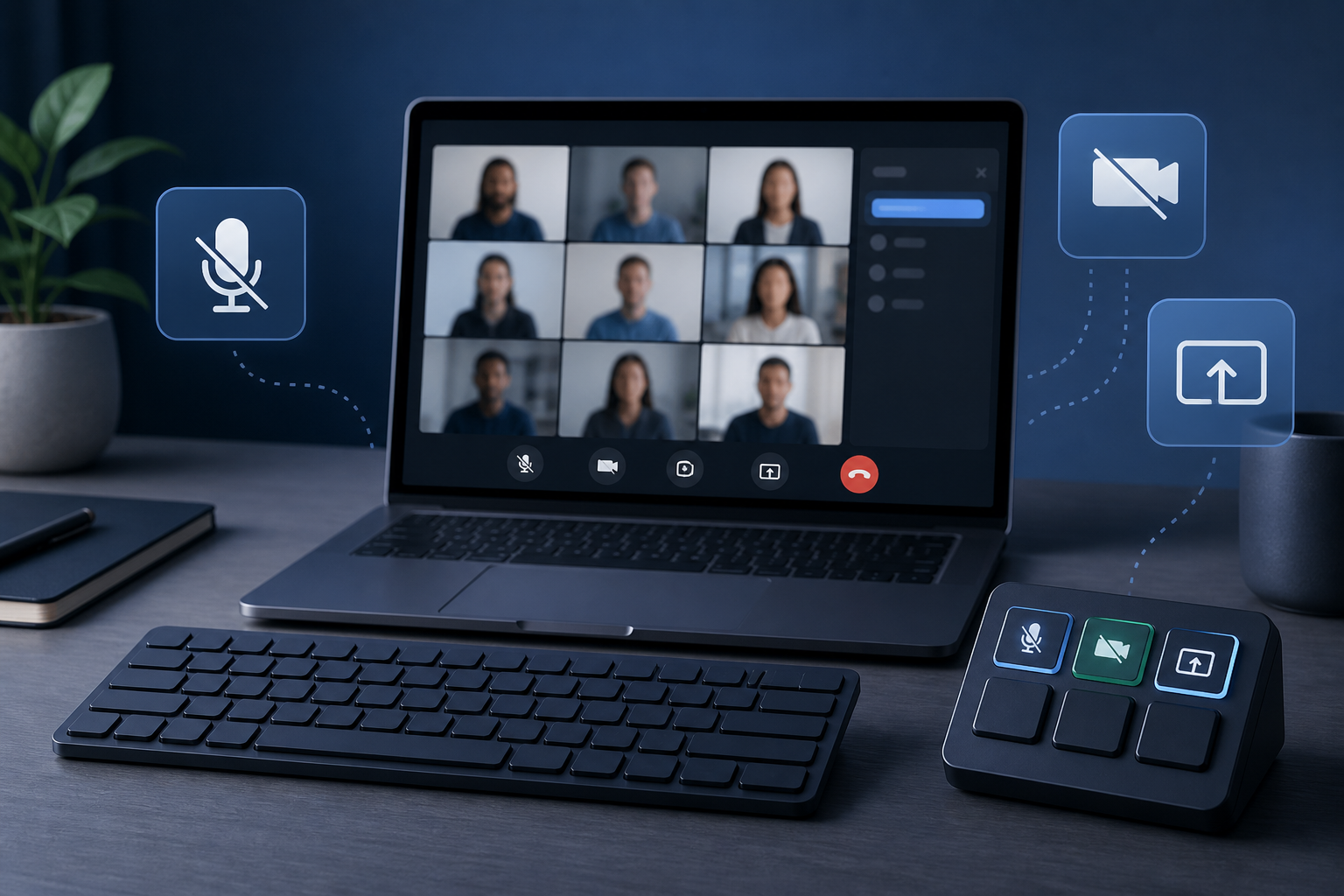
Stream Deck vs keyboard shortcuts for meetings is a choice between visible controls and memorized commands. Keyboard shortcuts are fastest when you know the app, the window is focused, and your hands are already on the keyboard. A Stream Deck is stronger when you want labeled, repeatable buttons for mute, camera, screen share, recording, and reactions across recurring calls. MuteDeck fits between them by giving meeting-first controls that stay focused on the call instead of the active window.
This guide compares the three approaches for hosts, presenters, trainers, and remote teams who move between Zoom, Microsoft Teams, Google Meet, and screen sharing. The goal is simple: choose the control setup that reduces missed mutes, wrong-window panic, and the tiny silence after someone says, "Can you share the deck?"
# The real problem is meeting focus
Most meeting control problems start with focus. The meeting app accepts a shortcut only when the right window, browser tab, or app context is ready for it. That sounds small until you are presenting a dashboard, answering chat, checking notes, and trying to mute before the espresso machine joins the call as a guest speaker.
Keyboard shortcuts work well for simple, repeated actions. Zoom documents hot keys for actions such as mute, video, screen share, and meeting controls in its keyboard shortcuts guide (opens new window). Microsoft lists shortcuts for Teams in its keyboard shortcuts for Microsoft Teams (opens new window) support page. Google also documents Workspace shortcuts for Meet in Google Meet keyboard shortcuts (opens new window).
The catch is operational. Shortcuts depend on memory, app differences, keyboard layout, browser behavior, and focus. A host who runs one app all day can learn them. A host who changes between Zoom, Teams, Meet, slides, browser tabs, and notes has more moving parts.
Stream Deck changes the interface. It turns commands into visible buttons. Elgato describes Stream Deck as a customizable control surface with LCD keys, and the Stream Deck product page shows meeting uses such as muting, camera control, and Zoom workflows on the Stream Deck Mk.2 page (opens new window). That visibility helps when the host needs repeatable actions without remembering platform-specific keys.
MuteDeck takes a more meeting-specific route. It focuses on live call controls such as microphone, camera, sharing, reactions, and app switching. If your main pain is wrong-window meeting control, the guide on controlling Zoom without switching windows (opens new window) explains the same problem from the Zoom host side.
# Stream Deck vs keyboard shortcuts: decision table
Use this table to choose the control layer for your meeting style.
| Meeting need | Keyboard shortcuts | Stream Deck | MuteDeck |
|---|---|---|---|
| Fast mute while typing | Strong if the meeting window listens globally | Strong with a dedicated mute button | Strong because mute is the primary workflow |
| Presenting from slides or browser tabs | Can fail when focus changes | Reliable if the action is mapped correctly | Reliable for meeting-specific controls and app switching |
| Training a shared team setup | Harder because people must memorize keys | Strong because labels are visible | Strong because controls match meeting intent |
| Switching between Zoom, Teams, and Meet | Requires app-specific habits | Possible, but setup depends on profiles and plugins | Designed around multi-app meeting control |
| Low setup effort | Strong for native shortcuts | Moderate because profiles need configuration | Low if the goal is meeting control rather than custom automation |
| Complex desk automation | Limited | Strong for broad device and app workflows | Focused on live meeting actions |
The short version: use keyboard shortcuts when one person uses one app often. Use Stream Deck when you want visible buttons and broader desk automation. Use MuteDeck when the job is specifically to control meetings across apps with less window chasing.
# When keyboard shortcuts are enough
Keyboard shortcuts are enough when the meeting setup is predictable. If you host the same recurring Zoom call, use the same laptop, and rarely switch context while presenting, native shortcuts may cover the basics.
A good shortcut setup includes:
- One mute shortcut you can hit without looking.
- One camera shortcut.
- One screen share or present shortcut if the app supports it cleanly.
- One chat or participant shortcut if you moderate calls.
- A quick pre-call test to confirm the shortcut works in your current app context.
The hidden requirement is practice. A shortcut you use once a month is a trivia question. A shortcut you use every day becomes muscle memory.
Keyboard shortcuts also work best for individual contributors. You can adapt them to your own keyboard, layout, and meeting app. The system gets weaker when a team needs the same workflow. A new host may not remember that one shortcut is different in Teams, another changes in the browser version, and one only works when the app is in focus.
If you use shortcuts, document the tiny set that matters. Do not build a laminated museum of every possible command. Pick the actions that save meetings: mute, camera, share, stop share, raise hand, chat, and leave. For a broader host setup, the MuteDeck post on video conferencing keyboard shortcuts (opens new window) covers a practical shortcut baseline.
# When Stream Deck is the better meeting tool
Stream Deck is useful when visible controls beat memorized controls. The advantage is not magic. It is a labeled surface that can reduce hesitation. A host can see "mute," "camera," "share," or "record" instead of remembering which modifier key belongs to which platform today.
That matters in shared and high-pressure contexts:
- Webinars with a producer and presenter.
- Online workshops where the host manages slides, chat, breakout moments, and Q&A.
- Training rooms where different people use the same desk.
- Hybrid meeting rooms where the control surface stays on the table.
- Creators or consultants who also control lights, audio, scenes, or recording.
Stream Deck also helps when meeting actions sit next to non-meeting actions. A trainer might keep buttons for Zoom mute, camera, a timer, a note template, and a lighting scene. Keyboard shortcuts cannot present that mixed workflow as clearly.
The trade-off is configuration. Someone must choose actions, name buttons, arrange profiles, and maintain the setup when meeting apps change. If the setup grows into twenty buttons that nobody understands, it becomes a very expensive way to hesitate.
Keep Stream Deck meeting profiles small. Start with one row: mute, camera, share, stop share, record. Add a second row only when a repeated meeting actually needs it. If your current problem is only mute reliability, read Stream Deck mute channel setup for meetings (opens new window) before building a full command center.
# Where MuteDeck fits
MuteDeck is the meeting-control layer for people who need the right call action without caring which window currently has focus. It avoids the biggest weakness of shortcuts and the setup overhead of broad hardware automation.
That makes it useful in three cases.
First, you move between meeting apps. Zoom, Teams, and Google Meet expose similar actions, but the interaction details differ. MuteDeck keeps the mental model closer to the meeting: mute, camera, share, react, switch.
Second, you present often. Presenters lose control when slides, notes, chat, and browser tabs compete for attention. A visible meeting control interface keeps the call state available while the content stays on screen.
Third, you want a backup control layer. Even if you already use keyboard shortcuts or Stream Deck, MuteDeck can handle the meeting-specific state. The hardware or shortcut layer can stay focused on broader desk actions.
A practical setup often combines tools:
- Keyboard shortcuts for actions you use constantly and know cold.
- Stream Deck for visible shared controls and mixed desk automation.
- MuteDeck for live meeting controls that should not depend on window focus.
This layered approach prevents one tool from carrying every job. It also keeps the setup understandable for the next person who sits down at the desk and just wants the microphone to behave like a microphone.
# A simple setup for hosts and trainers
Start with the meeting actions that cause visible disruption. Do not start with the full feature list. Nobody loses confidence because the host lacks a shortcut for opening settings. People notice when mute, camera, and screen share go sideways.
Build this baseline:
| Priority | Control | Why it matters | Best default |
|---|---|---|---|
| 1 | Mute and unmute | Prevents background noise and awkward recovery | MuteDeck or a dedicated Stream Deck button |
| 2 | Camera on and off | Helps presenters recover when camera state is wrong | MuteDeck or native shortcut |
| 3 | Start and stop screen share | Reduces window switching during presentations | MuteDeck plus platform practice |
| 4 | Raise hand or reaction | Useful for workshops and webinars | Stream Deck or app shortcut |
| 5 | Chat or participants | Helps moderation without hunting panels | Native shortcut or Stream Deck button |
Then test the setup in the exact meeting app you use. A shortcut that works in the desktop app may behave differently in a browser tab. A button profile that works for Zoom may not map cleanly to Teams. A shared desk may need labels that make sense to someone who did not build the profile.
For webinar-style hosting, keep a run sheet beside the controls. The MuteDeck guide to webinar host controls (opens new window) shows how to map live meeting controls to a practical agenda.
# Non-obvious tip: separate panic controls from convenience controls
Hosts often put every useful command in one place. That creates clutter. Separate controls by consequence instead.
Panic controls are actions you need when the room is watching: mute, stop share, camera off, leave, and switch back to the meeting app. They should be large, visible, and hard to confuse.
Convenience controls are actions that save time but rarely rescue a live moment: open notes, launch a timer, paste an agenda, toggle a light, or open a file. They can sit behind a folder, secondary page, or keyboard shortcut.
This split works for Stream Deck, keyboard shortcuts, and MuteDeck. Put panic controls where your hand goes first. Put convenience controls where they do not steal attention. Meeting control design is mostly the art of making boring buttons available before the interesting mistake happens.
# Final recommendation
For most meeting-heavy professionals, the best answer to Stream Deck vs keyboard shortcuts for meetings is a small combination. Learn a few native shortcuts for your main app. Use Stream Deck when visible buttons, shared desks, or broader automation matter. Use MuteDeck when live meeting control needs to stay consistent across Zoom, Teams, Google Meet, and whatever window currently stole focus.
Start with mute, camera, and screen share. Test them before a real call. Then add only the controls that solve a repeated meeting problem. The winning setup is the one you can use while presenting, listening, and silently wondering why someone scheduled a 25-person status update.
KEEP EXPLORING
More guides & tips