# How to Unmute Yourself in Any Meeting App
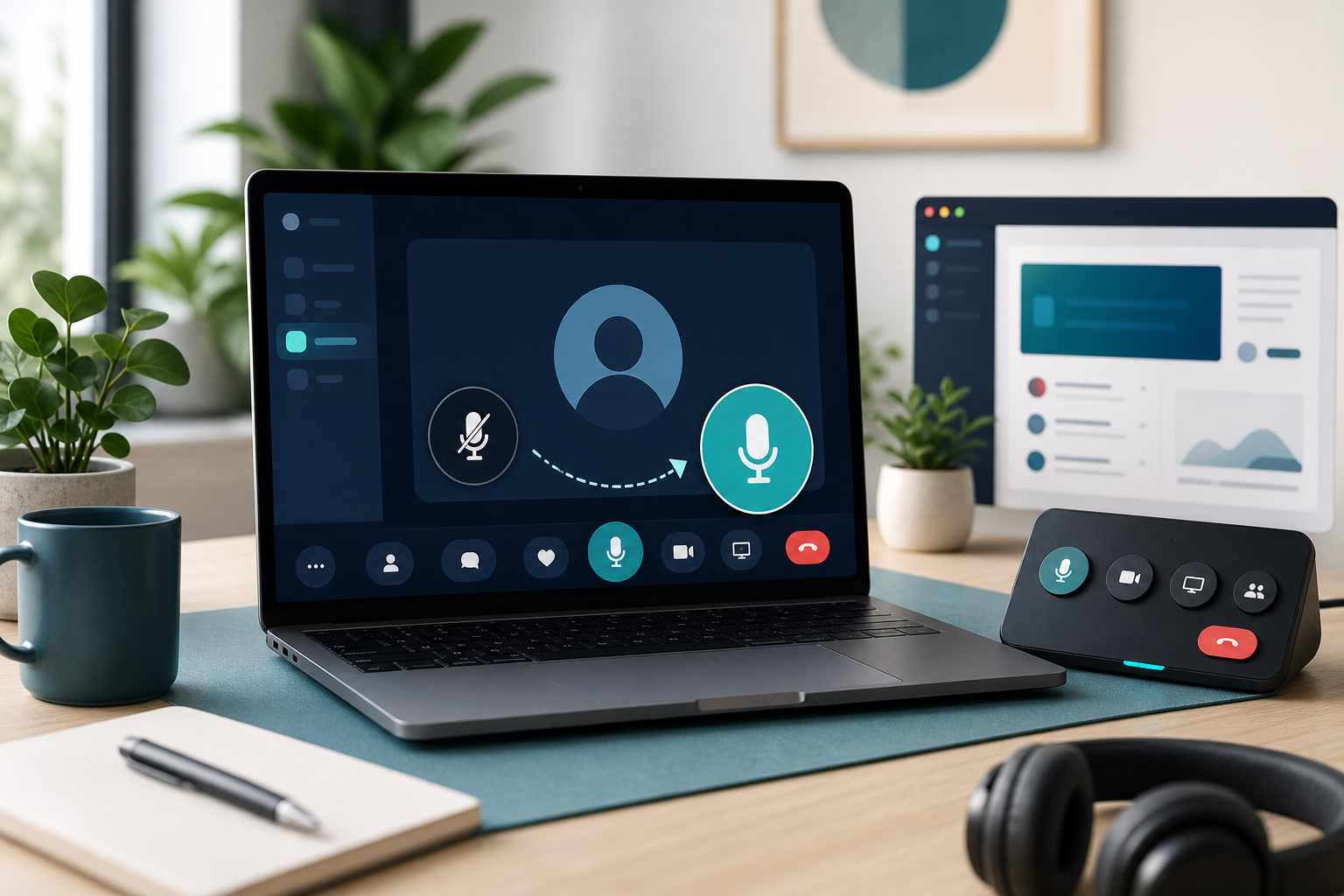
Knowing how to unmute in a meeting means checking the mute layer that actually owns your audio: the meeting app, the browser tab, the operating system, the selected microphone, or a hardware control. Start inside Zoom, Teams, or Google Meet. If people still cannot hear you, confirm the right microphone is selected, then check system input settings and permissions.
That order matters because mute problems often look identical from the outside. The room hears nothing. The fix changes depending on whether the call app muted you, the wrong microphone is active, the browser lost permission, or a shortcut landed in the wrong window.
This guide gives you a practical unmute sequence for live calls and a setup checklist that makes the next meeting less theatrical.
# The fast answer for how to unmute
Use this sequence when someone says they cannot hear you:
- Look at the meeting toolbar and click the microphone button.
- Confirm the meeting app shows you as unmuted.
- Open the app audio menu and select the microphone you are actually using.
- Check your computer sound input and microphone permission.
- If you use a keyboard shortcut or controller, bring the meeting app to the front and try again.
The important detail is sequence. Do the app check first because it is the most common and visible layer. Then move outward to device, operating system, browser, and hardware controls. Random clicking feels faster, right up until the whole team watches you troubleshoot live audio like a small public infrastructure project.
For a broader pre-call setup, use our meeting controls checklist (opens new window). If your issue is specifically the physical or keyboard mute key, read our guide to a mute button on keyboard (opens new window).
# Why unmute fails during calls
Unmute fails because modern meeting audio has several control layers. Each layer can block or redirect your microphone before other people hear you.
| Layer | What to check | Common symptom | Best first fix |
|---|---|---|---|
| Meeting app | Zoom, Teams, or Meet mute button | App shows a muted microphone | Click unmute in the toolbar |
| Audio device | Selected microphone | You unmute, but nobody hears you | Pick the correct input device |
| Operating system | Sound input and privacy permission | App cannot access the mic | Allow microphone access and set input |
| Browser | Site permission and tab focus | Meet or web app cannot hear you | Allow mic access for the site |
| Hardware or shortcut | Keyboard, headset, Stream Deck, MuteDeck | Button works sometimes | Confirm app focus and visible state |
The visible mute icon only tells you what one layer thinks. A meeting app can show you as unmuted while listening to the wrong microphone. A headset can be muted while the app says the microphone is open. A browser can block microphone access before Google Meet receives anything.
Treat mute as a signal path, not a single button.
# How to unmute in Zoom
In Zoom, use the microphone button in the meeting toolbar first. Zoom also documents keyboard shortcuts in its guide to using hot keys and keyboard shortcuts (opens new window), including mute and unmute controls.
A reliable Zoom sequence looks like this:
- Move the pointer to show the meeting toolbar.
- Click the microphone icon if it shows you are muted.
- Open the arrow next to the microphone.
- Confirm the correct input device is selected.
- Speak and watch the input meter if Zoom shows one.
If the shortcut does not work, check focus before blaming the key. A shortcut can go to the wrong app when your notes, browser, chat tool, or presentation window is active. Hosts feel this more than attendees because they switch between slides, notes, participant panels, and screen sharing.
If Zoom audio keeps failing during host duties, map the action in a way that brings Zoom forward or gives you a visible state check. MuteDeck is useful here because meeting controls should sit in one predictable surface instead of depending on which window happens to be active.
# How to unmute in Microsoft Teams
In Microsoft Teams, start with the microphone control in the meeting toolbar. Microsoft lists Teams meeting shortcuts in its official keyboard shortcuts for Microsoft Teams (opens new window) documentation.
Use this sequence:
- Open the meeting toolbar.
- Select the microphone button to unmute.
- Open device settings if people still cannot hear you.
- Confirm the selected microphone and speaker.
- Check whether a headset or external mic has its own mute switch.
Teams can feel inconsistent when you move between the desktop app, browser version, and different tenant policies. The safest operating habit is simple: use the toolbar as the source of truth, then verify the selected device.
For recurring Teams meetings, set up one manual fallback. Keep the toolbar visible, know where device settings live, and avoid relying only on a global shortcut. Global controls are convenient, but the toolbar gives you the evidence you need when a call is already moving.
# How to unmute in Google Meet
Google Meet runs in the browser for many users, so browser permissions matter. Google documents common fixes in Fix audio issues in Google Meet (opens new window), including checking the microphone and permissions.
Use this sequence:
- Click the microphone button in Meet.
- Open Meet settings and check the microphone device.
- Check the browser permission icon near the address bar.
- Allow microphone access for Meet if it is blocked.
- Reload the meeting only after you confirm permission and device selection.
Browser focus adds another failure point. If you use a shortcut, make sure the Meet tab is active or use a control method that targets the meeting more deliberately. This matters during screen sharing because the active window may be your deck, spreadsheet, or notes instead of the meeting tab.
If your Meet problem is part of a broader call setup issue, our Google Meet microphone not working (opens new window) runbook goes deeper into device and permission checks.
# Check your computer microphone settings
When the meeting app says you are unmuted and nobody hears you, move to system settings.
On macOS, Apple explains input selection in Change the sound input settings on Mac (opens new window). Check that the selected input matches the microphone you expect. If you use a dock, monitor, webcam, USB microphone, or headset, your computer may see several devices with similar names.
On Windows, check sound input and microphone privacy settings. The meeting app needs permission to use the microphone, and the selected input should match your actual device. If a browser hosts the meeting, check both Windows permissions and browser site permissions.
A clean test uses one variable at a time:
- Select the intended input device.
- Speak and watch the system input meter.
- Open the meeting app and select the same device.
- Speak again and watch the app input indicator.
- Join the call and verify with one short sentence.
That last step matters. A test tone or moving input meter proves the device hears something. It does not prove the meeting app sends your voice to other people.
# Build a reliable unmute workflow
A reliable unmute workflow has two qualities: the control is easy to trigger, and the result is easy to confirm. Most bad meeting controls only solve the first half.
Use this checklist before important calls:
- Select the correct microphone in the meeting app.
- Select the same input device in your operating system.
- Confirm browser microphone permission for web meetings.
- Test your headset or microphone hardware mute switch.
- Put mute, camera, and screen share controls where you can reach them without hunting.
- Keep one manual fallback visible.
The fallback deserves attention. If you use MuteDeck, a Stream Deck, keyboard shortcuts, or headset buttons, keep the meeting toolbar available as evidence. Hardware controls help most when they reduce search time, not when they hide state.
For meeting hosts, pair unmute with camera and screen-share readiness. Audio is usually the first failure people notice, but the fix often happens while you are also presenting, admitting guests, or answering chat. Our guide to Zoom host controls (opens new window) covers that broader operator layer.
# When a mute shortcut works only sometimes
Intermittent mute shortcuts usually point to focus, app support, or conflicting controls.
Start with focus. If a shortcut only works when the meeting app is active, treat it as an app shortcut rather than a reliable global control. Bring the meeting app forward before triggering it, or use a control setup that targets the meeting app directly.
Then check conflicts. A headset mute button, meeting app mute state, and operating system input setting can all exist at the same time. If two controls disagree, you need a visible confirmation path. The toolbar, participant tile, or input meter gives you that confirmation.
Finally, check whether the meeting app changed. Desktop apps, browser versions, and updates can alter shortcut behavior. Test before the call if the meeting matters. Five seconds of preflight beats forty seconds of everyone saying your name into the void.
# A practical unmute routine for hosts
Use this routine before customer calls, interviews, webinars, and team meetings where you lead the room:
- Join early with the microphone muted.
- Confirm the selected input device.
- Unmute and say a short test phrase.
- Mute again and confirm the visible muted state.
- Test your preferred shortcut or control surface.
- Keep the manual toolbar path visible.
This routine catches the three failures that make unmute messy: wrong device, missing permission, and unreliable control focus. It also gives you a calm fallback. Calm is underrated when a room of people is staring at your avatar.
If you use MuteDeck, place mute, camera, screen share, and app focus controls together. The point is not to add more buttons. The point is to keep the controls that affect other people in one place, with fewer context switches during the call.
# Conclusion
The best way to learn how to unmute is to stop treating mute as one button. Check the meeting app first, then the selected microphone, system settings, browser permission, and any hardware or shortcut layer. That sequence fixes the live problem and shows you where the weak link sits.
For recurring calls, turn the sequence into a small preflight routine. Put mute where you can reach it, keep the meeting toolbar as your confirmation path, and test the actual microphone before people arrive. MuteDeck fits that workflow when you want meeting controls in one predictable surface instead of scattered across apps, tabs, and hardware switches.
KEEP EXPLORING
More guides & tips