# Increase Microphone Volume for Meetings: Operator Runbook for Zoom, Teams, and Meet
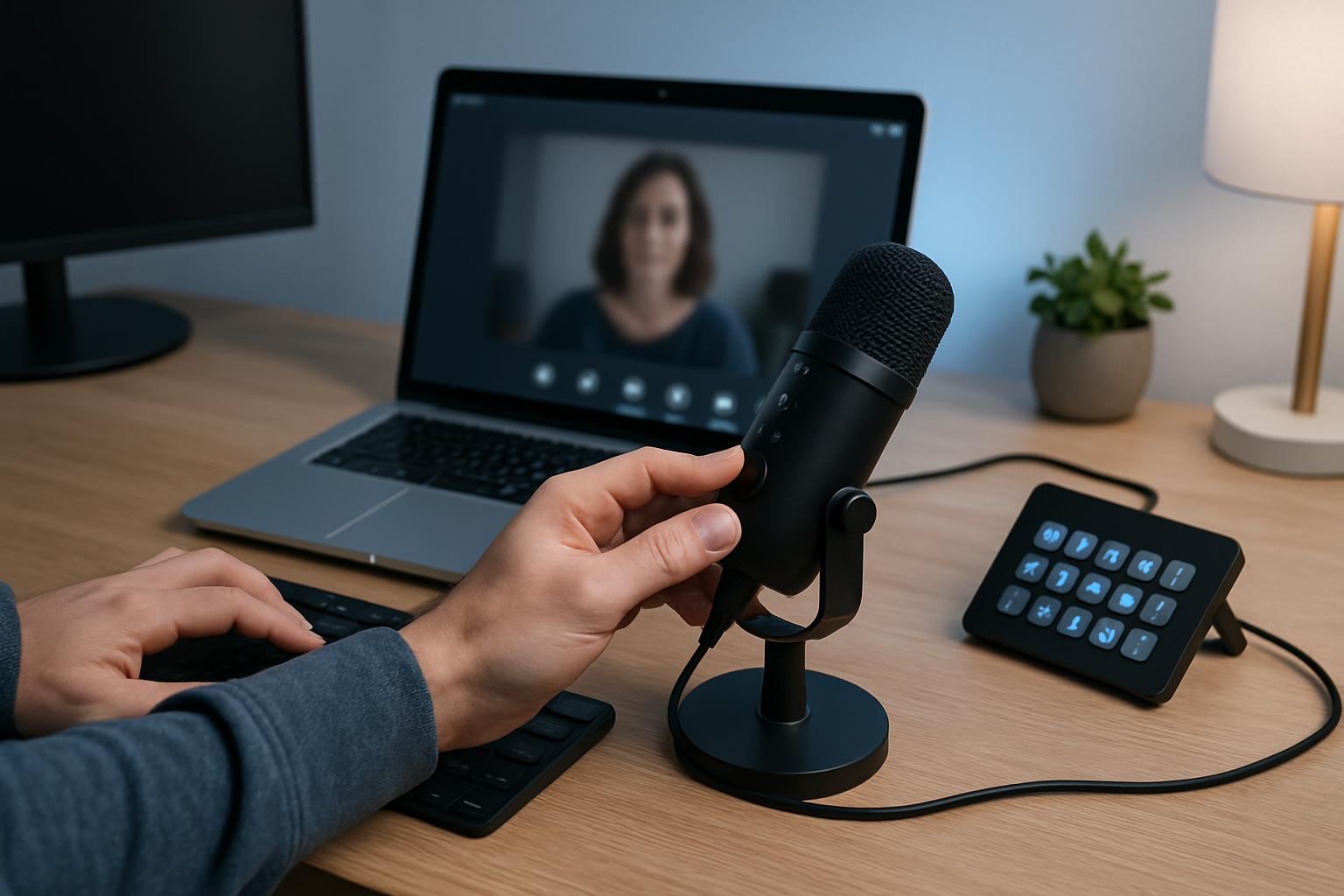
If people keep saying "you sound quiet," the fix is usually not "turn everything to 100%."
In meeting-heavy workflows, that causes a different problem: distortion, noise pumping, and inconsistent volume between Zoom, Teams, and Meet.
This runbook gives you a controlled way to increase microphone volume while keeping speech clear.
# Why quiet audio happens in real meeting setups
Quiet mic audio is usually a gain staging issue across multiple layers:
- Input gain (OS or audio interface)
- App-level processing (Zoom/Teams/Meet)
- Distance and mic position
- Noise suppression and auto-level features
If you only crank one layer, you often increase noise more than voice.
# Decision framework: where to raise level first
Use this order before changing hardware or buying a new mic:
| Layer | What to change | Best first move | What to avoid |
|---|---|---|---|
| Mic position | Distance + angle | Move mic 10-20 cm from mouth, slightly off-axis | Speaking across the room into a laptop mic |
| OS input level | System input gain | Raise in small steps (5-10%) and test | Jumping straight to maximum |
| Meeting app settings | Auto-adjust / suppression | Keep one app profile per platform and test there | Different random settings every call |
| Control layer | Shortcut/profile consistency | Use one repeatable meeting profile (for example with MuteDeck + deck keys) | Ad-hoc fixes during live sessions |
The practical rule: fix physical placement first, then input gain, then app processing.
# 12-minute operator runbook
# 1) Baseline your current level
Record a 15-second speech sample (normal speaking voice, not "test voice").
Use one sentence you can repeat daily, such as: "Quick audio check for the 10 a.m. planning call."
That gives a reliable A/B reference when you adjust settings.
# 2) Set microphone position before touching gain
- Place the mic closer than you think you need.
- Aim it slightly off-axis to reduce breath pops.
- Keep keyboard noise out of the direct pickup path.
This alone often solves "too quiet" better than aggressive software gain.
# 3) Increase OS input in controlled increments
Raise input level 5-10% at a time and repeat the same test sentence.
Stop when:
- words are clearly audible at normal speaker volume,
- background noise is still acceptable,
- and loud words do not crackle.
# 4) Align meeting app behavior per platform
For each app (Zoom, Teams, Meet), set one deliberate profile:
- Decide whether auto-level is ON or OFF.
- Keep noise suppression consistent for your environment.
- Retest with screen share active (CPU load can change audio behavior).
# 5) Lock your meeting control workflow
Use a dedicated meeting profile so you can recover quickly when audio drifts:
- one key/action for mute toggle,
- one action to open audio settings fast,
- one pre-meeting checklist flow.
MuteDeck fits here by keeping meeting controls predictable across platforms instead of re-learning each app’s panel during live calls.
# Concrete scenario: trainer moving between Teams and Zoom
A trainer running internal sessions in Teams and customer webinars in Zoom got repeated "can you speak up?" feedback.
The issue was not a bad microphone. The issue was inconsistent gain strategy:
- Teams used auto-level,
- Zoom had manual input set too low,
- and mic distance changed throughout the day.
After standardizing:
- fixed mic position,
- +10% OS input,
- one tested profile per app,
- and a single control workflow for quick adjustments,
participants stopped reporting low volume, and session starts became smoother.
# Non-obvious implementation tip: tune for your third sentence
Most people tune audio using the first two seconds of speech.
That misses what happens when your voice naturally settles. Instead:
- test a full 15-second clip,
- listen to sentence 3-4,
- and optimize for stable, comfortable loudness there.
This catches settings that sound fine initially but drop off once suppression kicks in.
# Pre-meeting checklist
Before important calls:
- Mic position is fixed and repeatable.
- Input gain is in your tested range (not maxed).
- Zoom/Teams/Meet profile is selected intentionally.
- Mute and audio-settings controls are one action away.
- 15-second speech check sounds clear at normal playback volume.
If you run lots of meetings, these small controls save more time than endless "Can you hear me now?" retries.
KEEP EXPLORING
More guides & tips