# How to Set Up a Keyboard Mute Button for Zoom, Teams & Meet
A dedicated keyboard mute button is a physical key or a reliable shortcut that mutes your microphone across every meeting app you use, from Zoom and Teams to Google Meet. It’s the fix for fumbling to find the software mute icon while juggling other windows.
# Why You Need a Dedicated Mute Button
You're bouncing between Zoom, Teams, and Meet. Each has its own interface, shortcuts, and way of hiding the mute button. This friction pulls you out of the conversation.
The "you're on mute" interruption is more than a running joke; it's a symptom of a design problem.
You’re presenting a slide deck or deep in a document, and your meeting app is in the background. The app’s built-in hotkey won’t work unless that window is active. So you stop, Alt+Tab your way back to the right window, find your cursor, and then click a tiny microphone icon. That context-switching breaks your flow and makes you look unprepared.
# The Real Cost of Fumbling for Mute
The small interruptions add up. A 2023 survey from Owl Labs revealed that 92% of remote workers are in calls for over five hours a week. Nearly half (47%) admit to fumbling for the mute button, a clumsy dance that causes interruptions in 28% of all meetings. This is no surprise, as only about 15% of laptops come with a dedicated hardware mute key.
A universal mute button isn't about convenience. It's about maintaining focus and control. A single, reliable, tactile button that works everywhere eliminates the mental load of managing different apps.
# Beyond Muting Your Mic
Mastering your audio is key to effective remote work. A physical mute button gives you instant control over your mic. Other skills can streamline your workflow, too. For instance, knowing how to transcribe a Zoom meeting (opens new window) ensures no critical information gets lost.
A physical keyboard mute button gives you the power to participate without breaking your stride.
# The Problem with Default Mute Shortcuts
Windows and macOS have some system-level options, and every major platform—Zoom, Teams, Meet—has its own hotkey for muting.
They all share one deal-breaking flaw.
They only work when the meeting app is the active window.
If you’re clicking through a PowerPoint presentation or taking notes in a separate document, pressing the app's mute shortcut does nothing. This single limitation is why so many people hunt for a better way—a button that works no matter what you're doing.
# A Quick Look at Standard Mute Shortcuts
The default shortcuts are a decent starting point, but they’re a pain to manage. The key combo to mute yourself in Zoom (opens new window) is completely different from the one in Microsoft Teams (opens new window). It's a recipe for confusion.
Here’s a quick rundown of the most common ones.
# Default Mute Shortcuts for Popular Meeting Apps
Trying to keep these straight is a challenge if you switch between platforms for different clients or internal meetings. This table shows how inconsistent they are.
| Application | Windows Shortcut | macOS Shortcut | Notes |
|---|---|---|---|
| Zoom | Alt + A | Command + Shift + A | Toggles your microphone on and off. |
| Microsoft Teams | Ctrl + Shift + M | Command + Shift + M | Toggles your microphone on and off. |
| Google Meet | Ctrl + D | Command + D | Toggles your microphone on and off. |
| Windows System | Windows + Alt + K | N/A | A global mute, but only works in supported apps like Teams. |
| macOS System | N/A | N/A | macOS has no native, system-wide shortcut for muting the mic. |
As you can see, it's a mess. Memorizing different hotkeys for every app is impractical. The Windows global mute (Windows + Alt + K) is a good attempt, but its app support is spotty.
# Where It All Falls Apart in the Real World
Picture this: you're screen-sharing in a Google Meet (opens new window) call, walking a client through a proposal in a PDF. Your dog starts barking at a squirrel.
Your muscle memory kicks in and you hit Ctrl + D to mute. But your PDF reader is the active window, so nothing happens. The barking continues.
Now you have to break your flow, frantically switch back to the Google Meet window, hunt for that tiny microphone icon, and click it. The professional momentum is shattered.
This is the fundamental flaw of application-specific shortcuts. They fail when you need them most—when you are multitasking. A real keyboard mute button has to work independently of whatever window is in focus.
This is where a universal solution becomes a necessity. A single button that controls your mic whether Zoom, Teams, or your browser is front-and-center is a game-changer. MuteDeck has a breakdown on setting up global hotkeys for any meeting (opens new window).
The goal is to turn muting into an unconscious, reflexive action, not a disruptive chore.
# Building Your Universal Mute Button with MuteDeck
Built-in shortcuts are a decent starting point, but they only work when you're in the meeting app. The second you click away to a document or Slack message, they stop working.
This is where a true universal mute button comes in. We need something that works no matter what you're doing. The answer is combining physical hardware with smart software, which is what MuteDeck was built for. It acts as the bridge between your meeting apps and devices like an Elgato Stream Deck (opens new window) or Loupedeck (opens new window).
Once set up, you have a physical, pressable button that reliably mutes and unmutes you across every meeting platform.
# Why This Approach Works Every Time
The problem with native hotkeys is the "active window." If Zoom isn't the window you're focused on, its Cmd+Shift+A shortcut won't do a thing.
This diagram shows the issue.
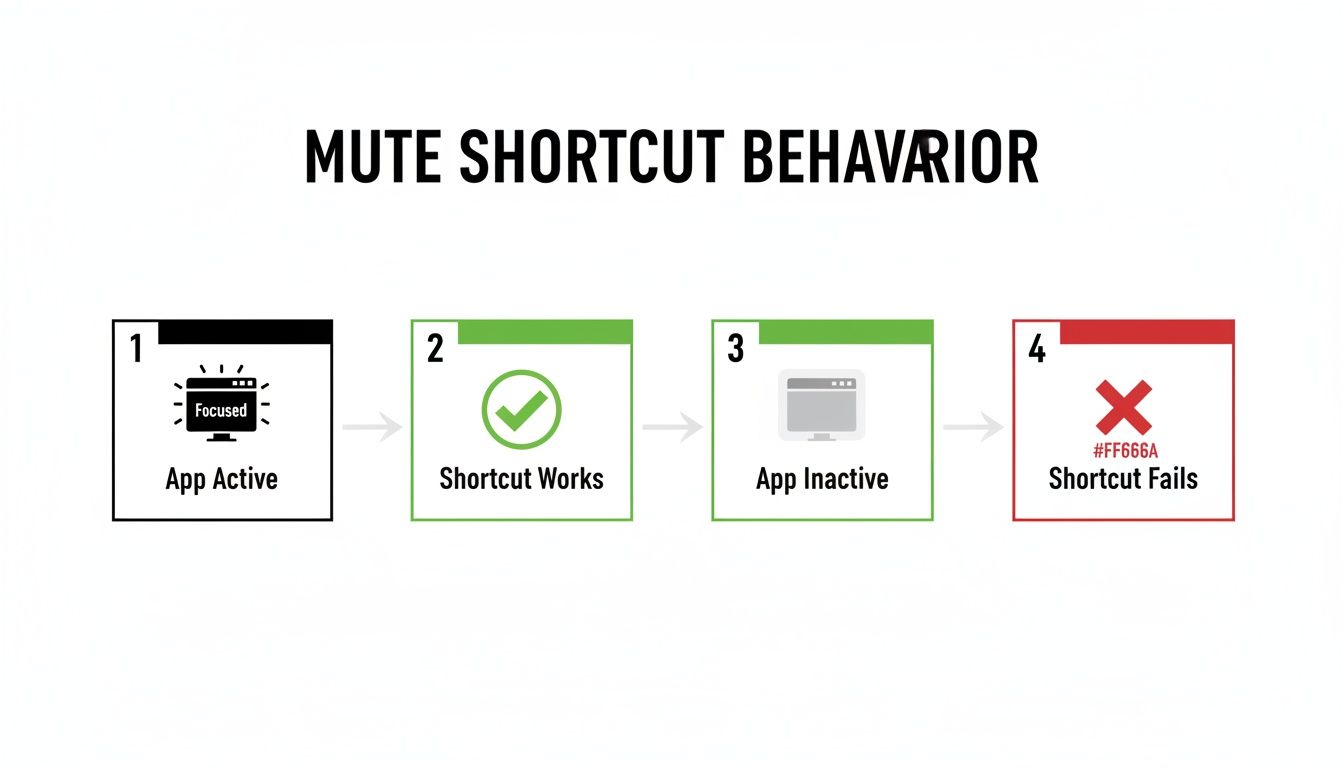
The shortcut breaks the moment you need it most—when you're multitasking, presenting, or taking notes in another app. MuteDeck gets around this by running in the background, talking directly to the meeting software's API. It doesn't care which window is in front.
# Getting Started with MuteDeck
Setting up your own universal mute button is quick. You'll install the main MuteDeck app first, then add the plugin for your hardware.
- Install MuteDeck: Grab the installer for Windows or macOS. It's a lightweight app that lives in your system tray or menu bar.
- Install the Hardware Plugin: Open the software for your device (like the Stream Deck store) and search for the MuteDeck plugin.
- Drag, Drop, Done: Drag the MuteDeck actions—like Mute, Camera, or Screen Share—onto your device's layout. Put them on any key you want.
The key gives you two-way feedback. When you press the button, you're muted. But if you mute yourself inside the Zoom app with your mouse, the physical button on your desk instantly updates its look (for example, turning red) to match.
This constant sync is the key. Your hardware isn't just a trigger; it’s a reliable, at-a-glance status indicator. You always know if your mic is hot without looking at the meeting window.
It turns abstract commands into tangible buttons, eliminating the need to memorize hotkeys for every app.
# Consistent Control Across All Your Apps
The biggest win here is consistency. Your dedicated mute button will work the same way in Zoom as it does in Microsoft Teams, Google Meet, or Webex. No more mental gymnastics trying to remember which shortcut belongs to which platform.
This is more than a minor convenience. For people juggling multiple communication tools, adding a dedicated MuteDeck button to a Stream Deck or Loupedeck can slash the time it takes to mute from an average of 4.2 seconds down to just 0.5 seconds. That's the difference between a seamless interruption and an awkward "you're on mute!" moment.
MuteDeck supports a huge range of platforms. Check the full list of applications supported by MuteDeck (opens new window) to see if yours are covered.
# Advanced Setups for Hands-Free and Automated Muting
A physical button on your desk is a huge step up, but it's not the final word. Once you have a tool like MuteDeck managing your meeting status, you can connect it to other devices for hands-free operation.
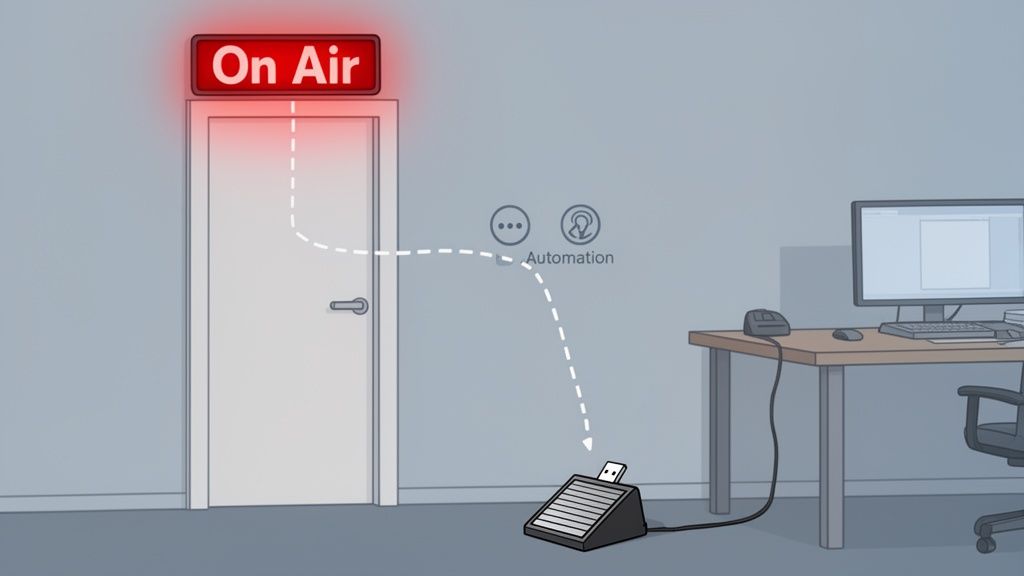
This is where you move beyond a simple keyboard mute button into more sophisticated workflows. Think about presenters who need their hands for a keyboard, or developers who type while speaking on a call. A hands-free mute button becomes essential.
# Go Hands-Free with a USB Foot Pedal
A practical advanced setup is a simple USB foot pedal. These devices are affordable and effective for controlling your mic without interrupting your typing or presentation gestures.
Getting one running with MuteDeck is straightforward. The software just needs to see a keypress from the pedal, and it will translate that into a universal mute/unmute command across all your meeting apps.
Here’s a practical guide:
- Choose a Simple Pedal: You don't need a complex pedal. A single-switch USB foot pedal that can be programmed to send a key combination like
Ctrl+Shift+F12is perfect. - Assign a Hotkey: Use the pedal’s own software to assign a unique, unused hotkey to the pedal.
- Link it in MuteDeck: Go into MuteDeck's settings and set that same hotkey as the global mute trigger.
Now, a quick tap of your foot mutes and unmutes your mic in any meeting, on any platform. It’s an ideal setup for anyone who needs to keep their hands on the keyboard or for presenters who want a discreet way to manage their audio.
For a completely hands-free setup, you could even explore hands-free typing software options (opens new window) that integrate with various input methods.
# Automate Your Workspace with the REST API
For those who love to automate, MuteDeck includes a REST API. This lets other applications and services check your current meeting status—whether your mic is live, your camera is on, or if you're screen sharing.
This opens up many possibilities, especially if you use home automation platforms like Home Assistant.
By connecting MuteDeck to your smart home, your physical environment can react to your virtual one. It's a powerful way to signal to others that you're in a meeting without saying a word.
Imagine these scenarios:
- An "On Air" Light: Hook up a smart light bulb or LED sign outside your office door. When your microphone becomes unmuted in a meeting, a simple script can automatically turn the light red. When you mute yourself again, it goes green. No more interruptions.
- Smart Scene Triggers: You could create a "Meeting Mode" scene. When MuteDeck detects you've joined a call, it could trigger a command to dim your main room lights, turn on your key light for the camera, and pause music on your smart speaker.
Setting this up requires some technical comfort, but it’s a great way to build an integrated remote workspace. The API provides simple endpoints to check your meeting status, which can then trigger actions in most modern automation systems.
It turns your mute status from a simple toggle into a data point that can control your environment.
# Troubleshooting Common Mute Button Issues
You've set up your mute button, but it's not working. When your physical mute button stops cooperating, it's almost always one of a few common issues that are straightforward to fix. The culprit could be a software permission glitch or a quirky hardware bug.
Here are the most frequent problems and how to get your controls back on track.
The most common complaint is a non-responsive button. You tap your key, but nothing happens in your Zoom or Teams call. Before digging into settings, try the simplest fix: restart MuteDeck and your meeting app. This "turn it off and on again" approach often solves temporary connection issues.
# Diagnosing Software and Permission Conflicts
If a restart didn’t do the trick, the problem is likely software permissions or conflicts. This is especially true on a Mac, due to its security settings.
- Check Accessibility Permissions (macOS): For MuteDeck to control apps like Zoom, it needs specific permissions from macOS. Go to
System Settings>Privacy & Security>Accessibility. Find MuteDeck in the list and make sure it’s checked. If it’s already enabled, toggle it off and on again. This often forces the system to re-register the permission. - Resolve Hotkey Conflicts: Your mute button might fail if another app has claimed the same hotkey. For example, if you set
Ctrl+Shift+F12as your mute shortcut in MuteDeck, but a screenshot tool is also using it in the background, only one app can win. The easiest fix is to change the hotkey in MuteDeck to a unique combination that’s less likely to clash.
If the issue seems to be with a specific meeting platform, we have a guide for when MuteDeck doesn’t detect an app is running (opens new window).
# Addressing Hardware-Specific Glitches
Sometimes, the problem isn't MuteDeck—it's the physical hardware. Devices like a Stream Deck (opens new window) or Loupedeck (opens new window) rely on plugins to talk to other software, and those plugins can get out of sync.
A classic example is a Stream Deck key that stops updating its icon. It still mutes you, but the key doesn't turn red to show your status. This is almost always a plugin issue. The first step is to make sure both the Stream Deck software and the MuteDeck plugin are fully updated. Developers constantly push small fixes for these visual bugs.
I've seen a bad firmware update cause issues. Some users found a new firmware version for their device broke the mute button's reliability, forcing them to roll back to a more stable version. Check community forums or release notes before updating firmware if your mute setup is mission-critical.
If a Loupedeck dial or button becomes unresponsive, a quick fix is to reset the connection. Open the Loupedeck software, remove the MuteDeck action from your profile, save it, and then add it right back. This can re-establish a clean link between the plugin and the hardware.
# Your Top Questions Answered
If you're thinking about setting up a physical mute button, you probably have a few questions. Here are the most common ones.
# Can I Control My Camera And Screen Share Too?
Yes. A tool like MuteDeck (opens new window) isn’t just for your microphone. You can build a complete meeting control panel on a Stream Deck (opens new window) or other hardware.
You can set separate, dedicated buttons for your camera, screen sharing, recording, or leaving the call. This gives you a consistent control surface that works the same way across Zoom (opens new window), Teams (opens new window), and Google Meet (opens new window), so you stop hunting for icons in every app.
# Does The Mute Button Work If The Meeting Window Isn't Active?
Yes. This is the whole point. Standard keyboard shortcuts are great until you click away from the meeting app—then they're useless. A MuteDeck-powered button, on the other hand, works globally.
The software runs in the background, so your physical key talks directly to the meeting app, no matter what window is in focus. You can be typing notes in another document or presenting from a different app and still have instant, reliable control over your audio. This is what prevents those "you're on mute" moments.
Your hardware communicates with the meeting app through MuteDeck. This bypasses the "active window" limitation of native hotkeys. Your button just works.
# What Happens If I Mute In The App And On My Keyboard?
They stay in sync. MuteDeck maintains a two-way connection between your hardware and the meeting application.
If you click the mute button inside Zoom, the physical key on your Stream Deck will instantly update its look—maybe it turns red—to show you're muted. Press the physical button again, and you'll unmute in the app while the button's icon changes back. This constant sync means your hardware always shows the correct status, so there's no confusion about whether your mic is live.
# Is A Physical Mute Button More Accessible?
Yes. For many people, a physical, tactile mute button is a significant accessibility improvement. Pressing a large, dedicated key is often easier than trying to hit a tiny on-screen icon with a mouse, especially for users with fine motor control challenges.
You can take it a step further. Integrating a USB foot pedal for mute control creates a hands-free option. The consistent placement and predictable function of a physical button also helps reduce cognitive load, making meetings smoother for everyone.
Ready to eliminate "you're on mute" for good? With MuteDeck, you can create a universal keyboard mute button that works across all your meeting apps. Get your free 7-day trial and take control of your calls (opens new window).