# Meeting Follow Up Recap: A Host Workflow That Sticks
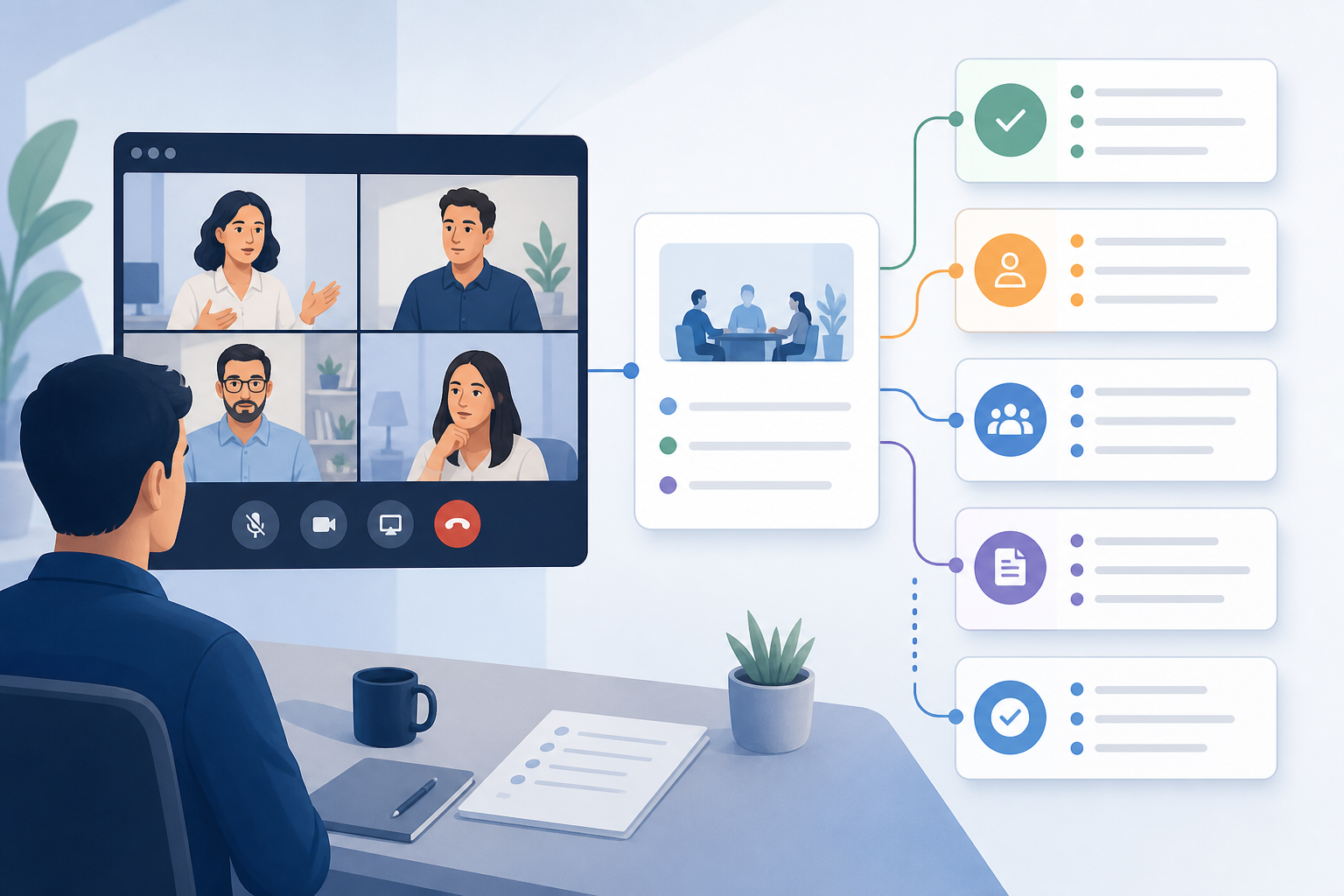
A meeting follow up recap is the short record that turns a finished call into decisions, owners, deadlines, and useful context. For hosts, it works best when the recap starts during the live meeting, not after everyone leaves. Capture decisions as they happen, keep control of mute, camera, screen share, and Q&A, then send a recap that tells people what changed and what happens next.
This guide gives you a practical host workflow for Zoom, Microsoft Teams, Google Meet, and multi-app meeting setups. The goal is simple: fewer mystery action items, cleaner handoffs, and less archeology in chat threads.
# Why meeting follow up recaps fail
Most weak recaps fail before the meeting ends. The host is switching between slides, chat, mute, camera, reactions, screen share, and notes. Someone says the important thing while the host is fighting the wrong window. The decision lands in the room, but never reaches the recap.
The fix is to treat follow-up as part of meeting control. A useful recap depends on three live inputs:
- Clear moments where decisions are confirmed.
- Visible ownership for each follow-up.
- Evidence from the meeting app, transcript, report, chat, or notes.
If those inputs are missing, the recap becomes a polite guess. Everyone gets a tidy message that still leaves the next step unclear. Very professional. Very haunted.
MuteDeck helps with the live control layer because it keeps common meeting actions close at hand. When mute, camera, screen share, and app switching take less attention, the host has more attention left for decisions and follow-up. If your main issue is control during live calls, start with the MuteDeck guide on controlling Zoom without switching windows (opens new window).
# Use a recap structure before the call starts
The best recap template is small enough to use while hosting. Do not wait for a blank document after the call. Create the structure before the meeting, then fill it during decision moments.
Use this order:
- Purpose of the meeting.
- Decisions made.
- Action items with one owner each.
- Open questions.
- Evidence and links.
- Control issues to fix before the next call.
That last line matters. Meeting recaps usually focus on content, but control problems repeat when nobody records them. If screen share was slow, a microphone cut out, the wrong camera joined, or the host lost mute state, write it down. The next meeting improves only when the problem survives long enough to be fixed.
For recurring calls, keep the same recap layout every time. Participants learn where to look. New attendees can catch up quickly. The host also avoids redesigning the recap while tired, which is when humans become formatting gremlins.
# Meeting follow up recap decision table
Use this table to decide what belongs in the recap and what can stay out.
| Recap item | Include when | Best source | Host tip |
|---|---|---|---|
| Decision | The group agreed to change direction, approve work, defer work, or reject an option | Live notes, transcript, chat confirmation | Write decisions as completed facts, not vague discussion themes |
| Action item | Someone must do something after the call | Live owner callout, project tracker, chat | Use one owner, one verb, and one date |
| Open question | The meeting exposed a missing answer | Notes, chat, Q&A | Assign a person to resolve it, even if the answer is not known yet |
| Attendance or participation | Training, webinar, compliance, customer, or handoff context matters | Platform report | Link the report only for people who need it |
| Recording or transcript | Details may be disputed or reused | Recording, transcript, AI summary | Summarize first, link evidence second |
| Control issue | A live meeting control slowed the room down | Host notes, co-host notes | Fix the setup before the next meeting instead of apologizing twice |
Zoom account owners and admins can use Zoom reporting features to review meeting and webinar data after a session. Zoom documents this in its guide to meeting and webinar history reports (opens new window). Microsoft Teams also provides meeting attendance reports (opens new window), and Google Meet documents attendance and live stream reports in its Meet attendance report help (opens new window). Use these as supporting evidence, not as the whole recap.
# Capture decisions while the room still agrees
A recap becomes stronger when the host confirms decisions out loud before moving on. The simplest script is:
"I am writing this as the decision: we will do X, with Y owning the next step by Friday. Is that right?"
That sentence does several useful things. It slows the room for five seconds. It gives people a chance to correct the record. It turns a cloud of agreement into text. It also makes ownership visible before everyone vanishes into calendar fog.
Use this pattern for messy moments:
- Name the decision.
- Name the owner.
- Name the due date or next checkpoint.
- Ask for confirmation.
- Move on only after the room agrees.
For webinars, workshops, and training sessions, pair this with a visible host run sheet. The MuteDeck article on webinar host controls (opens new window) covers how to structure a live control flow so the host can manage questions, screens, and transitions without improvising every minute.
# Separate the recap from the transcript
A transcript is evidence. A recap is judgment. Keep them separate.
The transcript answers what people said. The recap answers what the group should do next. If you paste a raw transcript into the follow-up, you are asking every reader to become their own editor. That works poorly for busy teams, and it works especially poorly after calls where the useful parts were scattered across interruptions, chat, screen share, and side questions.
A better pattern is:
- Use the transcript or recording to verify decisions.
- Write the recap in plain language.
- Link evidence only where it helps.
- Put action items near the top.
- Archive the transcript separately.
MeetingDebrief (opens new window) fits this post-meeting evidence layer. It records meetings, creates transcripts, and generates AI summaries locally on the user's computer, which helps teams work from evidence while keeping meeting content private. Keep MuteDeck focused on live meeting controls, then use MeetingDebrief when you need private post-meeting material for the recap.
# Build a host checklist for the final five minutes
The final five minutes decide whether the recap writes itself or turns into detective work. Put a short closeout checklist in your agenda and actually use it.
- Restate the decision in one sentence.
- Confirm each owner by name.
- Confirm dates or next checkpoints.
- Ask whether any action item lacks an owner.
- Save chat links or shared files.
- Note any mute, camera, or screen share problems.
- Tell the room when the recap will arrive.
This checklist works because it catches ambiguity while people can still answer. A recap sent two hours later cannot easily fix a missing owner. It can only add a question mark and hope the project management system feels generous.
If your meetings often lose time to screen sharing problems, review the MuteDeck guide to screen share controls for cleaner meetings (opens new window). Screen transitions are one of the places where hosts lose track of decisions because attention shifts from the conversation to the interface.
# Make control issues part of the follow-up loop
Every recurring meeting should have a tiny improvement loop. The recap should include a private note for the host or team admin when meeting controls caused friction.
Common examples:
- The wrong microphone was selected.
- The host could not find the mute state quickly.
- Screen share exposed the wrong window.
- A camera failed after joining.
- Chat questions were missed during presentation mode.
- The host had to switch between Zoom, Teams, and Meet controls during back-to-back calls.
Do not put every technical detail in the attendee recap. Most people do not need a public postmortem on the host's input device. Instead, keep a short internal line: "Before next session, test camera picker and assign chat monitor."
This creates a direct path from follow-up to a smoother next meeting. It also keeps the recap practical. The audience gets decisions and owners. The host gets a setup fix. The next call gets fewer little fires wearing tiny headsets.
# Example recap for a project meeting
Here is a compact version you can adapt:
Subject: Recap: onboarding project review, July 31
Purpose: Confirm launch readiness and assign final review work.
Decisions
- We will launch the onboarding flow next Tuesday.
- The help article will ship with the first release, but the video walkthrough will follow one week later.
Action items
- Priya will finish the final copy review by Monday 12:00.
- Sam will check analytics events by Monday 15:00.
- Lena will send customer support notes after the staging review.
Open questions
- Do we need a separate admin setup page? Marcus will decide after testing the first-run flow.
Evidence
- Recording and transcript are stored in the project folder.
- Attendance report is saved for the launch readiness record.
Host setup note
- Screen share started on the wrong display. Test display order before the next review.
The format is plain because plain works. People should be able to scan the recap on a phone and know what they own.
# Where MuteDeck fits in the workflow
MuteDeck supports the part of the workflow that happens while the meeting is live. It gives hosts a more direct way to control mute, camera, screen sharing, and meeting apps, which reduces the interface juggling that causes missed decisions.
A good setup is:
- Use MuteDeck for live controls.
- Use a simple notes template for decisions and owners.
- Use platform reports when attendance or compliance matters.
- Use MeetingDebrief or another transcript workflow when evidence matters.
- Review control issues before the next recurring session.
For teams that run different platforms across the week, this matters more. A host might use Zoom for customer calls, Teams for internal work, and Google Meet with partners. The recap workflow should stay consistent even when the meeting app changes.
# Conclusion
A meeting follow up recap works when it starts before the call ends. Confirm decisions live, assign one owner per action item, save only the evidence people need, and keep a small control-issue loop for the next meeting.
MuteDeck helps hosts keep the live meeting layer under control, so the recap can focus on decisions instead of interface recovery. Keep the structure simple, send it quickly, and make every follow-up clear enough that nobody needs to replay the whole meeting to find their job.
KEEP EXPLORING
More guides & tips