# A Guide to Setting Up a Conference Call Seamlessly
Before you even think about hitting "send" on that calendar invite, let's talk about what actually makes a conference call work. A great call isn't an accident. It's the result of a few smart decisions made upfront.
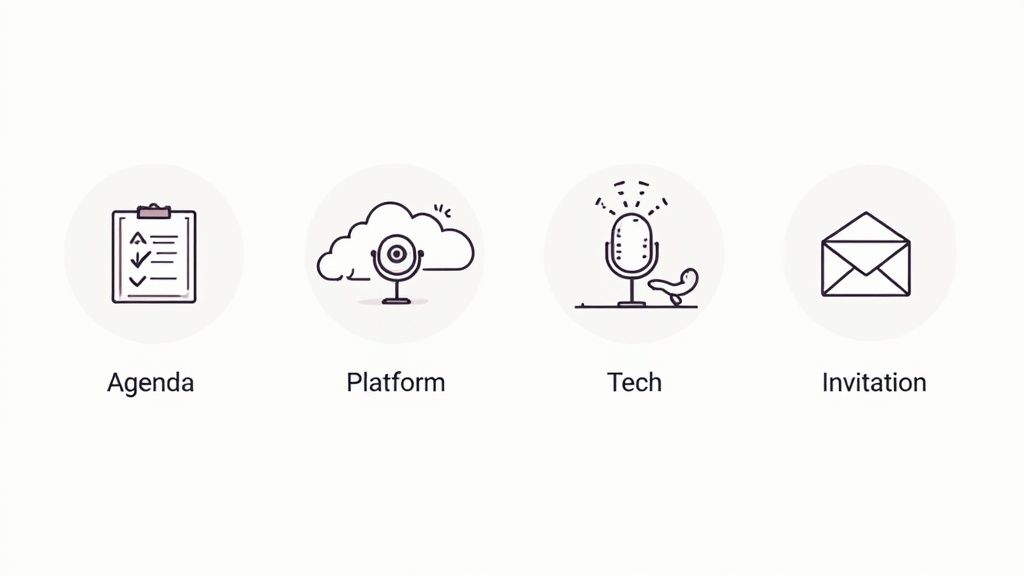
Getting this right boils down to four key things: defining a sharp agenda, picking the right platform, doing a quick tech check, and sending out a clear, detailed invitation. Nail these fundamentals, and you’ll sidestep nearly every common meeting frustration.
# Your Blueprint for Flawless Conference Calls
When you approach a conference call with a solid plan, you're not just being organized; you're showing respect for everyone's time. This initial planning stage is where you get ahead of problems before they even have a chance to start.
With so many of us working remotely or in hybrid setups, these tools are more than just conveniences—they're essential. The market reflects this reality. The global conference call services market is expected to grow from USD 8.56 billion in 2025 to USD 10.55 billion by 2033. That steady climb shows just how deeply embedded these calls are in how we work. You can dig into more conference call market trends on marketresearch.com (opens new window).
This isn't just a passing trend. Knowing how to set up a great call is now a core professional skill.
# The Four Pillars of a Successful Call
Think of your setup process as a foundation built on four essential pillars. If even one is shaky, the whole meeting can feel unstable.
Define a Sharp Agenda: A call without a clear purpose just drifts. Your agenda needs to outline the topics, who's leading each one, and how much time is dedicated. Don't just write "Discuss Q3 Marketing." Instead, try: "Review Q3 Social Media Ad Spend Report (10 mins) - Led by Jane." See the difference?
Pick the Right Platform: The tool you choose really matters. Do you need breakout rooms for a team workshop? Is top-notch security a must-have for a sensitive client discussion? Picking the right platform makes the experience seamless for everyone. A practical example: if you're running a creative brainstorming session, a tool with a robust digital whiteboard feature like Miro or Mural (which integrate with Zoom and Teams) is far better than a basic video chat.
Prep Your Tech and Environment: Nothing kills a meeting's momentum faster than technical glitches. Always test your microphone and camera before the call starts. Find a quiet, well-lit spot with a clean background to keep distractions to a minimum. Practical Tip: Open your meeting app 10 minutes early and use its built-in audio/video test feature to confirm everything works.
Send a Crystal-Clear Invitation: Your invite is the first touchpoint. It needs to have all the critical info in one easy-to-scan place: the agenda, a direct meeting link, dial-in options, and any documents people need to review beforehand.
A well-structured conference call is a direct reflection of your own professionalism and organization. Investing ten minutes in preparation can save an hour of collective confusion and frustration for your entire team.
By making these four pillars a habit, you create a repeatable blueprint for success. This guide will walk you through each element, giving you actionable steps to make sure every conference call you run is smooth, productive, and frustration-free from the moment you schedule it.
# The Pre-Call Checklist for Success
A great conference call doesn't just happen. It's won long before anyone clicks "Join Meeting." Most of the classic frustrations—tech glitches, rambling discussions, and wasted time—are almost always symptoms of one thing: poor preparation. A solid pre-call checklist is your best defense against chaos. It signals respect for everyone's time and sets the stage for a meeting that actually gets things done.
This isn't about just tossing a calendar invite over the fence. It's about turning a vague idea into a concrete, executable plan. Nail this part, and you eliminate the day-of stress, ensuring you're leading a focused, professional session, not just hosting a disorganized get-together.
# First, Define Your Purpose And Agenda
Before you even touch your calendar, ask one simple question: What's the one thing we need to walk away with from this call? A clear answer is the anchor that stops a meeting from drifting aimlessly. Once you have your purpose, you can build a sharp, actionable agenda around it.
- Kill Vague Topics: "Discuss Q4 plan" is a recipe for a rambling conversation. Instead, get specific: "Finalize Q4 marketing budget for social ads (15 mins)." This sets clear expectations from the start.
- Timebox Everything: Assign a specific number of minutes to each agenda item and, if possible, a leader for each topic. This is the easiest way to keep the conversation on track and respect everyone's schedule. Example Agenda Item:
Review client feedback on wireframes (10 mins) - Led by Alex. Goal: Decide on top 3 revisions. - Attach Materials Upfront: Need someone to review a doc or a slide deck? Attach it directly to the calendar invite. Making people scramble through their inbox for a file seconds before a call is a guaranteed way to start late.
Think of your agenda as a roadmap. It guides the conversation and makes sure you arrive at your destination without taking a bunch of pointless detours.
# Strategize Your Guest List And Schedule
Let's be honest: not everyone needs to be in every meeting. Over-inviting is one of the biggest productivity killers out there, leading to disengaged participants and wasted hours across the company. Be ruthless. Identify only the essential stakeholders whose input is absolutely critical to hitting the meeting's goal.
Once your list is tight, scheduling is the next hurdle, especially when your team is spread out.
A little empathy goes a long way with time zones. Using a world clock tool to find a slot that doesn't force someone into a 6 AM or 10 PM call is a small but powerful way to build a great remote culture. Practical Tip: Use a scheduling tool like Calendly or Doodle Poll to let attendees vote on times that work for them, eliminating endless email chains.
Always, always send a formal calendar invitation instead of just dropping a link in Slack. It locks the event onto everyone's schedule and looks far more professional. For more deep-dive strategies on planning, you can check out this detailed guide on achieving pre-meeting success (opens new window).
# Run Your Technical Pre-Flight Check
Nothing derails a meeting faster than a technical meltdown. A few minutes of testing beforehand can save you from major interruptions later. Never assume your gear is working just because it was fine yesterday.
Before you go live, a quick pre-flight check is a must. The following table breaks down exactly what to review to ensure a smooth, professional call every time.
# Pre-Call Preparation Checklist
| Category | Task | Pro Tip |
|---|---|---|
| Logistics | Define a clear meeting outcome. | Write it as a single, actionable sentence. |
| Logistics | Create and share a timed agenda. | Attach all necessary documents directly to the invite. |
| Logistics | Finalize and invite essential participants only. | If someone is "optional," they probably don't need to be there. |
| Technical | Test your microphone and speakers/headphones. | Use your platform's built-in audio test tool. |
| Technical | Check your camera and lighting. | Make sure you're well-lit from the front, not the back. |
| Technical | Tidy your physical or virtual background. | A simple blur or a clean virtual background is always professional. |
| Technical | Run an internet speed test. | You need at least 2-3 Mbps upload speed for stable HD video. |
| Contingency | Include a dial-in phone number in the invite. | This is a lifesaver for anyone with a bad internet connection. |
Running through this list takes less than five minutes but can prevent the most common and disruptive meeting failures.
Here's a little more on the tech side:
- Your Internet Speed Matters: Video conferencing is all about upload speed. If a speed test shows your connection is weak, be prepared to turn off your video to prioritize a clear, stable audio connection. Bad audio is far more disruptive than no video.
- Pick Your Background: A cluttered or distracting background pulls focus from what you're saying. Use a professional virtual background, your platform’s blur feature, or simply sit in front of a clean, simple wall.
- The Backup Dial-In Is Non-Negotiable: Technology will fail someone on the call. It's just a matter of when. Including a traditional phone dial-in number is a crucial backup plan. It’s the simplest way to make your meeting more resilient and inclusive when someone’s Wi-Fi inevitably dies.
# Choosing the Right Conference Call Platform
Picking the right tool for your conference call is one of those things that seems simple until you're faced with a dozen options. The secret isn't finding the platform with the most bells and whistles; it's about finding the one that plugs right into your team's daily grind without causing a fuss.
The best place to start is by looking at the tools your team already lives in. A platform that feels like a natural extension of your existing workflow will always get more love (and cause fewer support tickets) than something that feels like a clunky add-on.
# Match the Platform to Your Workflow
There’s no single "best" platform. A small startup zipping through daily standups has completely different needs than a global corporation handling sensitive client data. Let's break down the big players and see where they fit.
If your company runs on the Microsoft 365 suite, Microsoft Teams is almost always the path of least resistance. Its real power is how deeply it connects to Outlook, SharePoint, and OneDrive. You can schedule a call straight from your Outlook calendar and pull up shared files from a team site without ever leaving the meeting. It’s a huge time-saver.
For teams built on Google Workspace, Google Meet is all about speed and simplicity. It’s woven directly into Gmail and Google Calendar, letting you jump into a video call from an email thread or an event with a single click. It's fantastic for quick huddles and collaborative work where you just need to get things done.
# Consider Your Audience and Security Needs
Who are you actually meeting with? This question changes everything.
Zoom practically built its empire on being ridiculously easy to use. This makes it a go-to for big external events like webinars or client presentations. People outside your company can join with zero friction, which is a massive plus.
On the flip side, if you're discussing confidential information, security jumps to the top of the list. Webex by Cisco has long been the gold standard for enterprise, government, and healthcare for exactly this reason. It offers heavy-duty, end-to-end encryption and granular security controls that let you breathe easier during sensitive talks.
Your platform choice sends a message. Using a simple tool for external guests shows you respect their time. Opting for a high-security platform for internal strategy shows you’re serious about protecting company data.
And don't forget about good old-fashioned audio. While video is king, the global phone conferencing market is still projected to hit $12.3 billion by 2025. There's a reason for that: 84% of enterprises with over 1,000 employees still plan to use dedicated phone conference systems for their reliability and security. You can dig into more of the numbers in these phone conferencing market statistics on amraandelma.com (opens new window).
# A Quick Comparison of Key Features
To help you size things up, here’s a look at how the major platforms stack up side-by-side.
# Conference Call Platform Feature Comparison
| Feature | Zoom | Microsoft Teams | Google Meet | Webex |
|---|---|---|---|---|
| Best For | External webinars and user-friendliness | Companies invested in Microsoft 365 | Teams using Google Workspace | High-security and enterprise needs |
| Key Strength | Intuitive interface and powerful webinar features | Deep integration with Office apps | Simplicity and speed | Rock-solid security and reliability |
| Free Tier Limit | 40-minute meetings, up to 100 participants | 60-minute meetings, up to 100 participants | 60-minute meetings, up to 100 participants | 40-minute meetings, up to 100 participants |
| Integrations | Extensive marketplace with thousands of apps | Seamless with Microsoft 365, growing app list | Deeply integrated with Google Workspace | Strong enterprise app integrations (e.g., Salesforce) |
There's no single right answer here. The best move is to think about your main use case. Are you mostly doing internal check-ins, or are you presenting to new clients? Does your team live in Outlook or Gmail? Answering those questions will point you to the platform that not only works but actually makes your team more productive.
# How to Schedule Calls on Major Platforms
You’ve picked your platform, now it's time to actually get the meeting on the calendar. Scheduling a call might seem like a simple click-and-send task, but the real magic is in the details. Getting the settings right is what separates a smooth, professional call from a chaotic one. This is where you lock down security, set expectations, and make it dead simple for everyone to join.
Let's walk through the specifics for the big three—Zoom (opens new window), Microsoft Teams (opens new window), and Google Meet (opens new window)—so you know exactly where to click and which settings truly matter. Think of this as a practical guide to setting up a secure and efficient meeting, every single time.
# Setting Up a Conference Call in Zoom
Zoom's massive popularity stems from its ease of use, but its real power is buried in the scheduling options that put you in control. It's time to move past the default settings and schedule a call like a pro.
When you're creating a new meeting, don't just gloss over the security section. These aren't just suggestions; they’re your first line of defense against disruptions.
- Passcode: This is non-negotiable. Always, always require a passcode.
- Waiting Room: I’m a huge fan of the Waiting Room. It gives you, the host, total control over who gets into the meeting. You can screen attendees and let them in when you're ready, preventing any early joiners from interrupting your prep.
- Authentication: For internal calls, you can get even stricter and require attendees to be signed into a Zoom account. It’s another simple but effective layer of verification.
Pro-Tip for Recurring Meetings: Got a weekly team sync? Use Zoom's "Recurring meeting" feature. You schedule it once, set the pattern (like every Tuesday at 10 AM), and you’re done. The same link and settings work for the entire series, which saves you a ton of admin time and prevents any "which link is it this week?" confusion.
For bigger events like webinars, you should absolutely explore the Registration feature. It lets you create a simple, branded landing page where people have to sign up. Not only does it look more polished, but it also helps you gather attendee info and get a real headcount.
# Scheduling a Meeting in Microsoft Teams
If your organization lives and breathes Microsoft 365, scheduling a meeting in Teams is beautifully woven into your daily workflow—especially with Outlook. This deep integration is its greatest strength.
Honestly, the most efficient way to schedule a Teams meeting is right from your Outlook calendar. When you create a new event, just click the "Teams Meeting" button in the ribbon. A unique meeting link instantly appears in the invitation body. Simple.
But this does way more than just generate a link. It unlocks some powerful tools:
- Use the Scheduling Assistant: See everyone's availability in real-time (for people in your org), so you can find a time that actually works without a dozen back-and-forth emails.
- Set Presenter Roles in Advance: This is a game-changer for structured meetings. Click on "Meeting options" in the invite before the call starts. From there, you can handpick who can present. Everyone else joins as an attendee with limited permissions, like muted mics and no screen-sharing rights.
Getting this sorted ahead of time means your meeting starts smoothly, with the right controls already locked in. And if you're looking to pair your software skills with hardware, our guide on the Microsoft Teams setup for MuteDeck (opens new window) shows you how to create a completely seamless setup.
# Creating a Google Meet Call
Google Meet is all about speed and simplicity. You have two main ways to kick off a call, depending on whether it's a planned session or a spur-of-the-moment chat.
# For Quick, Unplanned Chats
Sometimes you just need to talk right now. For those moments, you can fire up an instant meeting right from Gmail. Just look for the "New meeting" button in the left sidebar. It spits out a link you can immediately paste into a chat or email. It’s the digital version of popping by someone's desk for a quick question.
# For Formal, Scheduled Sessions
For any meeting that’s planned in advance, Google Calendar is your best friend. As you create a new event, just click the "Add Google Meet video conferencing" button. A unique Meet link gets embedded straight into the calendar invite, neatly packaged with all the event details, attachments, and the agenda. Everything is in one place.
Speaking of efficiency, if you want to seriously improve how your team coordinates, it's worth exploring methods for unlocking productivity with Google Calendar and Slack (opens new window). These workflows can ensure meeting reminders and scheduling updates reach your team right where they’re already working.
# Running a Smooth and Engaging Conference Call

All that planning was the easy part. Now it’s time to actually lead a call that feels productive, not like a painful obligation. Hosting a great conference call is more than just clicking "start"—it’s about actively steering the conversation, wrangling the tech, and making sure everyone feels like they have a voice.
First rule: start on time. It’s non-negotiable and shows you respect everyone’s schedule. As soon as you kick things off, run a quick 60-second tech check. A simple, "Hey everyone, can you hear me okay and see my screen?" is all you need. It catches 90% of the problems before they can kill your momentum.
This kind of active management is becoming mission-critical. The conference call market is exploding, projected to grow from USD 9.4 billion in 2025 to USD 17.3 billion by 2034. That 7% annual growth is fueled by our collective shift to remote and hybrid work. You can dig into the future of conference call services on researchandmarkets.com (opens new window) for more on that.
# Mastering In-Call Moderation
Good moderation is what separates a structured discussion from a chaotic group chat. As the host, you're the facilitator. Your job is to keep the conversation flowing and on-track.
One of the most powerful tools in your arsenal? The mute button. Don't be afraid to hit "Mute All" when someone starts presenting. It’s not rude; it’s just smart. You instantly kill all the background noise—barking dogs, keyboard clatter, side conversations—and let the speaker have the floor.
When it's time for Q&A, teach your team to use the "raise hand" feature. It creates a clean, orderly queue and stops people from talking over each other.
Moderation in Action: Let's say the discussion starts to wander. A gentle but firm redirect is your best move. Try something like, "That's a great point, John. Let's add it to the parking lot for the end of the call. For now, let's get back to the Q3 budget so we can lock in a decision."
# Keeping Participants Engaged
A silent conference call is a failed conference call. You need to create an atmosphere where people feel comfortable jumping in, not just the usual loud voices.
- Call on the quiet ones: If you notice someone hasn't spoken up, invite them in directly. "Sarah, you've done a ton of work on this. What are your thoughts on that timeline?"
- Use the platform's tools: Don't just talk at people. Launch a quick poll to gauge opinions. Use breakout rooms for small-group brainstorming. These features turn passive listeners into active contributors. Practical Example: To kick off a project, ask everyone to share their biggest hope and biggest fear for the project in the chat. Read a few out loud to get the conversation started.
- Vary the pace: Mix it up. A little bit of presentation, some open discussion, and an interactive poll keeps the energy from flatlining. Monotony is the enemy.
Nailing these techniques is a huge part of achieving during-meeting excellence (opens new window) and makes every call more valuable.
# Concluding with Clarity and Purpose
How you end the call is just as important as how you start it. A strong finish turns conversation into action. Never, ever end with a vague, "Okay, thanks everyone, bye."
Instead, use the last few minutes for a structured wrap-up.
- Summarize Key Decisions: Quickly recap what was decided. "Okay, so we're agreed on moving forward with Option B."
- Outline Action Items: Get specific. Who is doing what, and by when? "Tom, you'll send out the revised project plan by EOD Friday." Pro Tip: Type these action items into the chat as you say them, so everyone has a written record before the call even ends.
- Confirm Next Steps: Let everyone know what to expect. Announce when the follow-up notes are coming and if another meeting is on the books.
This kind of clear ending provides accountability and makes the entire call feel worthwhile.
# Got a Question? Let's Troubleshoot
Even with perfect planning, things go sideways. A distracting echo pops up, someone shares the wrong screen, or a weird name appears in the waiting room. It happens.
Knowing how to handle these little hiccups on the fly is what separates a smooth meeting from a frustrating one. Here’s a quick-fire guide to the most common problems you'll face.
# How Do I Kill That Awful Echo or Background Noise?
Nothing derails a conversation faster than a bad echo or the sound of someone’s dog going wild in the background. Thankfully, these are usually easy fixes.
Most of the time, that echo is just a feedback loop. Someone's microphone is picking up the audio coming out of their own speakers. It's a classic.
The fastest, most effective fix? Just ask everyone to pop in some headphones or earbuds. Seriously. This one move isolates the audio, stops the feedback loop, and kills the echo instantly.
For all the other random noises, you have a few tools in your host arsenal:
- Embrace the Mute Button: Don't be shy about using "Mute All," especially right before a presentation. It's standard practice and ensures the speaker gets everyone's undivided attention.
- Flip on Noise Suppression: Modern platforms are surprisingly good at filtering out junk audio. Dig into your audio settings in Zoom (opens new window) or Microsoft Teams (opens new window) and crank up the noise suppression to its highest setting. It's a game-changer for killing keyboard clicks and fan noise.
- Set the Stage: A simple, "Hey everyone, if you can, please try to join from a quiet spot," at the very beginning of the call works wonders. It just sets a more professional tone.
# What's the Safest Way to Share My Screen?
Screen sharing can feel like a high-wire act. One wrong click and you're broadcasting your personal emails or DMs to the entire company. A little prep makes all the difference.
Before you even think about hitting that share button, do a quick cleanup. Close any apps or browser tabs you don't absolutely need for the presentation. This not only protects your privacy but also frees up your computer’s resources so things run a lot smoother.
When you're ready to go live, you’ll get a choice: share your entire screen or just a specific app window.
Always, always choose to share a specific window. This is the golden rule. It locks the view to only that application, meaning no surprise notifications or other desktop clutter will pop up for all to see.
Once you’ve started sharing, get verbal confirmation. A quick, "Alright, can everyone see the Q3 sales dashboard?" saves you from the classic mistake of talking for five minutes to a screen nobody else can see.
# How Do I Make My Calls More Secure?
In a remote-first world, "Zoombombing" is a real thing. Leaving your meeting open is like leaving your front door unlocked. Luckily, the platforms give you all the tools you need to lock things down.
First rule: never post a public meeting link on social media or a public website. That's just asking for trouble. Stick to direct calendar invites for the people who actually need to be there.
From there, make these features part of your standard setup routine:
- Always Use the Waiting Room: Think of it as a virtual bouncer for your meeting. You see who’s trying to get in and can personally approve each one. Total control.
- Require a Passcode: This is a simple but surprisingly effective barrier. Most platforms turn this on by default now, but it never hurts to double-check.
- Check Your Permissions: For internal calls on platforms like Teams, you can set it so only people in your organization can bypass the lobby. Everyone else waits for your approval.
And if you see a name you don't recognize in the waiting room? Don't just let them in. Shoot them a quick private message through the chat to see who they are before giving them access.
Juggling all these controls across Zoom, Teams, and Google Meet is a pain. The mute button is never where you think it is. MuteDeck puts universal, one-touch controls for your mic, camera, and more right on your desktop or a physical Stream Deck. Stop hunting for buttons and start owning your meetings. Take back control and try MuteDeck for free (opens new window).