# Internet Connection Not Stable: Quick Fix Tips
When your internet sputters and dies, the cause usually isn't some deep, dark mystery. It often boils down to a few usual suspects, like an overloaded WiFi channel or a router that just needs a good, old-fashioned reset. The trick is to start with the easiest fixes before you assume the worst. A practical tip is to always start with the device closest to you and work your way outwards towards the ISP.
# Diagnosing Your Unstable Internet Connection
We’ve all been there. That soul-crushing moment your video freezes mid-sentence or a file upload gives up for the third time. An unstable connection can ruin everything from a critical work meeting to a chill movie night. Before you resign yourself to an hour on the phone with customer support, a few quick checks right at home can often pinpoint the problem.
The first move is always the simplest one: the classic "turn it off and on again." But there's a right way to do it that actually works. Don't just yank the power cord from the router; you need to reset the entire connection chain.
- Unplug both your modem and your router from the wall.
- Wait a full 60 seconds. This isn't just for show—it gives the internal components time to fully discharge and clear out any glitches. As a practical tip, use your phone's timer to ensure you wait the full minute; it's longer than you think.
- Plug the modem in first. Let it do its thing. Wait for all the lights to go solid and stable (usually power, receive, send, and online).
- Then, plug the router back in. Wait for its lights to signal that it's up and running again.
Following this exact sequence gives each device a clean slate to establish a fresh, stable connection, which is often all it takes to fix those frustrating, intermittent drops.
# Is It Your Device Or Your Network?
After a proper reboot, your next job is to figure out how widespread the problem is. Is the internet out for everyone in the house, or is it just you? This one distinction is your most powerful diagnostic tool.
Grab another device, like your phone, and make sure its cellular data is turned off. Try connecting to the WiFi. If your phone connects just fine while your laptop is still struggling, the problem is almost certainly with your laptop—not your internet service. But if nothing can hold a stable connection, the issue is more likely with your router or your Internet Service Provider (ISP). Even small cues can help; knowing how to identify when your browser is offline (opens new window), for example, is a quick way to confirm a total outage on one machine.
To help you run through these initial checks quickly, here’s a simple table to guide you.
# Quick Diagnostics Checklist for Unstable Internet
This checklist summarizes the first few troubleshooting steps to help you rapidly narrow down the source of your connection woes.
| Symptom | Potential Cause | First Action Step |
|---|---|---|
| Only one device is offline or slow | Local device issue (software, WiFi card) | Restart the affected device and its WiFi connection. |
| All devices are offline or slow | Network-wide issue (router, modem, ISP) | Power cycle your modem and router in the correct order. |
| Connection drops intermittently | WiFi interference or overloaded router | Check for physical obstructions or too many connected devices. |
| No internet on any device, wired or wireless | ISP outage or modem failure | Check your ISP’s status page or app for reported outages. |
Think of diagnostics as a process of elimination. By testing different devices and connection types (WiFi vs. a wired Ethernet cable), you methodically rule out possibilities until the root cause has nowhere left to hide. For example, if your laptop's WiFi is unstable but it works perfectly with an Ethernet cable, you've narrowed the problem down to the laptop's wireless card or a WiFi interference issue.
This flowchart visualizes that exact process of narrowing things down.
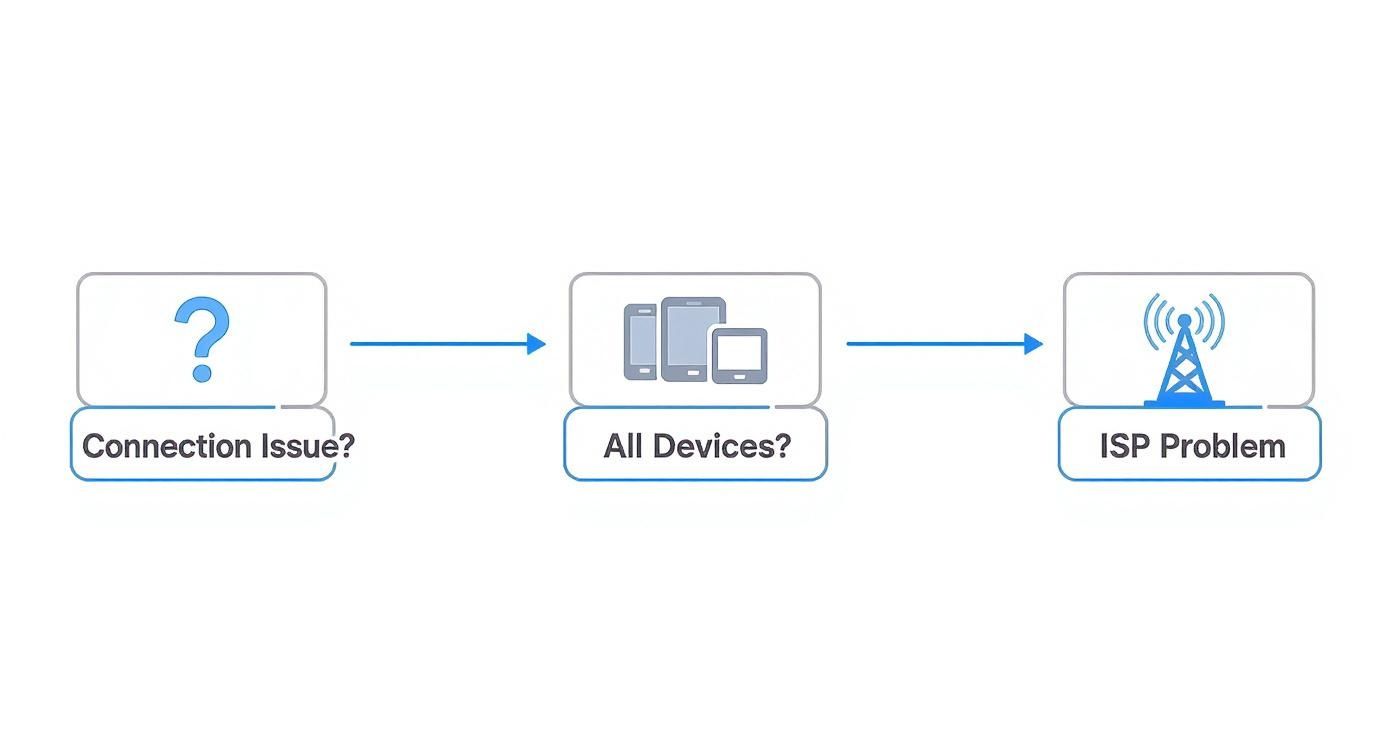
As it shows, if only one device is on the fritz, the problem is localized. If everything is offline, the issue points back to your central network gear or the ISP itself.
# Optimizing Your Home Network for a Rock-Solid Connection
After you’ve ruled out any device-specific glitches, it’s time to look at the heart of your home internet: the wireless router. If your router is struggling, your entire network suffers. A few smart adjustments here can turn a spotty, frustrating connection into one you can actually rely on.
So many of us just leave our routers wherever the technician first installed them—often tucked away in a corner, shoved behind a TV, or hidden inside a cabinet. This is probably one of the most common and easily fixed causes of an unstable WiFi signal. Your router's signal is a physical wave, and it absolutely hates obstacles.
Think of it like a lightbulb. You wouldn't stick it in a closet and expect it to light up every room in the house, right? Your router needs open space to do its job properly.
# Finding the Router Sweet Spot
The best spot for your router is usually in a central, elevated position. Just getting it off the floor and away from thick concrete or brick walls can make a world of difference for your signal strength.
You also need to be mindful of electronic interference. A lot of common household appliances can disrupt WiFi signals, creating dead zones and random connection drops.
- Microwave Ovens: These things are notorious signal killers. They operate on the 2.4 GHz frequency, the same as one of your WiFi bands. Running the microwave can temporarily knock your connection offline if the router is too close.
- Cordless Phones and Baby Monitors: Many older models also use the 2.4 GHz band, creating constant competition for your signal.
- Bluetooth Devices: While less of a problem, a bunch of active Bluetooth speakers or headphones clustered near your router can add to the signal noise.
Seriously, sometimes all it takes is moving your router a few feet. Shifting it from behind the TV cabinet to the top of a nearby bookshelf could be all you need to stabilize the connection in your home office. A practical tip is to download a WiFi analyzer app on your phone to see the signal strength in different parts of your home as you test new router locations.
# Taking Control of Your WiFi Channels
Most modern routers are "dual-band," meaning they broadcast two separate networks: one on the 2.4 GHz frequency and another on the 5 GHz frequency. By default, many routers combine these into a single network name, letting your devices decide which band to use. It sounds convenient, but it can be a huge source of instability.
Your devices might be constantly jumping between the bands, causing those tiny disconnects that interrupt downloads, buffer videos, and drop your calls. This happens a lot if you move around your home, as your phone tries to switch from the shorter-range 5 GHz band to the longer-range 2.4 GHz one.
Key Takeaway: Splitting your WiFi bands gives you direct control over which network your devices use. This simple change prevents your phone or laptop from automatically "roaming" between frequencies, which is a common cause of connection drops during video calls or streaming.
To fix this, log into your router's settings and give the two bands different names. Something simple like this works great:
- 2.4 GHz Network Name:
MyHomeWiFi - 5 GHz Network Name:
MyHomeWiFi-5G
Connect your stationary, high-priority devices—like your work computer, smart TV, or gaming console—to the MyHomeWiFi-5G network for faster speeds and less interference. Use the regular MyHomeWiFi network for devices that are farther away or don't need top speeds, like smart home gadgets. For services that demand a crystal-clear connection, like voice calls over the internet, this stability is non-negotiable. If you're curious about how this tech works, you can read more on the role of VoIP in cloud communications (opens new window).
# Go Wired for Ultimate Stability
WiFi is great for convenience, but nothing beats the pure reliability of a wired Ethernet connection. For any device that’s critical for work or entertainment and doesn't move, plugging it directly into your router is the gold standard for a stable connection. Period.
An Ethernet cable completely bypasses all the potential headaches of wireless interference, weak signals, and channel congestion. It’s the absolute best solution for:
- Desktop Computers: Especially in a work-from-home setup where a dropped meeting is not an option.
- Gaming Consoles: To kill lag and ensure your online gaming experience is actually smooth.
- Streaming Media Players: For buffer-free 4K movie nights without any interruptions.
Beyond just achieving stability, you might be looking to squeeze every bit of performance out of your network. For some more practical advice, check out this guide on how to improve internet speed (opens new window). Combining those optimizations with a direct wired connection for your key devices will solve the vast majority of unstable internet problems.
# Fixing Software and Device-Specific Connection Drops
So, you’ve confirmed the router is fine and everyone else in the house is streaming happily. That means it's time to zero in on the problem child: the specific computer where your internet connection is not stable.
More often than not, the issue isn't the network itself but something happening on that one machine. A rogue background app, a cranky driver, or an overzealous cloud sync can easily sabotage your connection, usually at the worst possible moment.
Let's run a quick diagnostic on your system. We’ll start with the easy stuff—finding hidden bandwidth hogs—before moving on to making sure your computer’s network hardware is running the latest and greatest software.
# Hunt Down Bandwidth-Hungry Applications
Before you start digging into drivers, check for a much simpler culprit: a background process secretly gobbling up all your bandwidth. These apps are often the silent assassins of a stable connection, syncing massive files or downloading hefty updates right when you jump on a video call.
Fortunately, both Windows and macOS have built-in tools to help you play detective.
- On Windows: Hit
Ctrl + Shift + Escto pull up the Task Manager. Click the "Network" column to sort everything by data usage. If you spot an app at the top eating up your connection, right-click it and hit "End task." - On macOS: Open Activity Monitor (just search for it with Spotlight). Head over to the "Network" tab. This gives you a live look at which apps are sending and receiving the most data.
You’d be surprised what you might find. It could be Dropbox or Google Drive syncing a giant folder, a game launcher downloading a multi-gigabyte patch, or even a browser extension that’s gone off the rails. Speaking of which, some add-ons can create conflicts that mess with connectivity. If you think that's the problem, you can learn how to fix common browser extension issues (opens new window) here.
# Update Your Network Adapter Drivers
Your computer's network adapter is the piece of hardware that physically connects you to the internet. The software that runs it is called a driver, and if it's outdated, it can cause all sorts of headaches. Buggy or incompatible drivers are a classic cause of an unstable internet connection, leading to those frustrating, random disconnects.
Thankfully, updating them is usually pretty straightforward.
- For Windows: Open the Device Manager, expand the "Network adapters" section, right-click your WiFi or Ethernet adapter, and choose "Update driver." The easiest path is to let Windows search automatically for the new software.
- For macOS: Apple bundles driver updates with macOS updates. Just make sure your system is current by going to System Settings > General > Software Update.
This simple step ensures your hardware is running the latest bug fixes and performance tweaks from the manufacturer. Think of it as a quick tune-up for your computer’s connection.
It's a well-known fact in IT circles that driver-related failures are one of the top causes of system instability. Keeping them fresh is a low-effort, high-impact way to keep your hardware running smoothly, especially when a solid connection is non-negotiable.
# Pause Cloud Syncing During Important Meetings
Sometimes, apps don’t even have to be misbehaving to wreck your connection. Cloud storage services like iCloud Drive, OneDrive, and Dropbox are designed to constantly sync files in the background—it’s their main job.
While that's great for productivity, it’s a disaster for video calls. If your computer decides to upload a huge video file while you're presenting, it's going to fight your meeting app for every last bit of bandwidth. The result? A choppy, unstable call for you and everyone else.
The fix is incredibly simple. Before you join an important meeting, just pause these services.
- Dropbox: Click the Dropbox icon in your system tray or menu bar and select "Pause syncing."
- OneDrive: Find the cloud icon, go to its settings, and look for the "Pause syncing" option.
- Google Drive: Open the app's preferences and you can find an option to "Pause syncing."
Making this a pre-meeting habit is a total game-changer. It guarantees your critical tasks get all the bandwidth they need, without having to fight off background uploads. For a practical tip, set a recurring calendar reminder 5 minutes before your first meeting of the day to pause syncing services.
# How to Survive Bad Internet During Important Meetings
Nothing sends a jolt of panic through you quite like when your internet connection gets choppy during a high-stakes client call. Your audio starts to stutter, your video freezes on a deeply unflattering expression, and you can feel the momentum of the meeting grinding to a halt.
When this happens, you don't have time to troubleshoot. You need a go-to action plan to salvage the call without missing a beat.
The first, and by far the most effective, move is to sacrifice your video feed. High-definition video is the single biggest bandwidth hog in any meeting. Killing it instantly frees up a massive chunk of your connection's capacity, dedicating everything to keeping your audio crystal clear.
Just say it calmly: "My connection is a bit unstable, so I'm turning off my video to keep the audio clear." It’s a simple line that shows you’re in control and prioritizing clear communication. For most temporary connection dips, this one quick fix is all you need.
# Your In-Meeting Bandwidth Survival Kit
If ditching your video isn't quite enough, it’s time to go on the offensive. You need to hunt down and eliminate anything else that might be stealing your precious bandwidth. Think of every browser tab, background app, and cloud service as a potential thief.
Before a big meeting—or the second you notice trouble—run through this quick checklist:
- Shut down non-essential apps: Close out of everything that isn't absolutely critical for the meeting. That means your email client, messaging apps like Slack (opens new window) or Teams (opens new window) (if you're not on a Teams call), and any other software humming away in the background.
- Cull your browser tabs: Your browser is a notorious resource hog. Close every tab that isn't directly related to what you're discussing. Even static pages can have little scripts that eat up bandwidth.
- Pause all cloud syncing: Services like Dropbox (opens new window), Google Drive (opens new window), and OneDrive (opens new window) love to start massive file syncs at the worst possible moments. Manually pause them for the duration of your call.
Following these steps ensures every last bit of your fragile connection is funneled directly into your meeting. Making this a pre-call habit can seriously improve your meeting game—a critical skill for any remote pro. For a deeper dive, check out our ultimate guide to productive Zoom meetings (opens new window).
# The Mobile Hotspot Backup Plan
Sometimes, your home internet just completely gives up the ghost. In these moments of total connection failure, your smartphone is your best friend.
Tethering to your phone's mobile hotspot can be an absolute lifesaver, but only if you’re ready before disaster strikes. Don't wait for your Wi-Fi to die before you figure out how to enable your hotspot.
Pro Tip: Before your first meeting of the day, do a quick hotspot test. Connect your computer to it for a minute to make sure it works and that you remember the password. That way, if your main internet drops, you can switch over in seconds instead of fumbling while your team waits.
Having this backup ready transforms a potential meeting-killer into a minor, two-minute hiccup. You can quickly rejoin and explain, "Sorry about that, my main internet dropped, but I'm back on my mobile connection."
This is also where tools that give you universal meeting controls can reduce friction. When you're stressed about a bad connection, the last thing you want to do is hunt for the right button in a new app.
MuteDeck provides a consistent interface for critical controls like muting your mic and toggling your camera, no matter what platform you're on. You can react instantly and kill your video with a single, reliable press, keeping you in control even when your internet isn't.
# When and How to Contact Your Internet Service Provider
So, you’ve done it all. You’ve rebooted, relocated, and reconfigured everything inside your home. You've hunted down bandwidth-hogging apps and updated every driver in sight. But your internet connection is not stable, and it keeps dropping out at the worst possible moments.
When you've exhausted all the fixes on your end, it’s time to accept that the problem might be outside your control. Calling your Internet Service Provider (ISP) can feel like a last resort, but if you go in prepared, you can actually get things fixed. The trick is to turn a vague complaint into a collaborative troubleshooting session.

Before you even think about dialing, you need to arm yourself with evidence. A support agent’s first move is almost always to run a speed test. If the numbers look okay in that single moment, they’ll often try to close the ticket. Your job is to prove the issue is about stability, not just speed.
# Gathering Your Evidence
For a day or two before your call, put on your detective hat. The goal is to document the flaky connection so the ISP can’t just dismiss it.
- Run Multiple Speed Tests: Use a reliable speed test service at different times of the day—morning, afternoon, and evening. Screenshot everything, especially if you see wild swings in speed or super high ping times.
- Keep a Disconnect Log: This is your most powerful piece of evidence. Just jot down the exact date and time your connection drops. For example: "Tuesday, 2:15 PM - Dropped during Zoom call. Tuesday, 8:40 PM - Netflix buffering, router light flashed red."
- Note What You Were Doing: When the connection died, what was happening? Were you in a video call? Gaming? Just browsing? This context helps the support agent understand the real-world impact.
This preparation completely changes the dynamic of the call. You’re no longer just another person with a complaint; you're a partner with data, ready to solve the problem.
# Mastering the Conversation
When you finally make the call, your choice of words is everything. Most people say their internet is "slow" or "bad," which are vague terms that just lead to a dead-end speed test. You have to be specific and use language that triggers the right support script.
Key Takeaway: Start the conversation with, "My internet connection is not stable and disconnects multiple times a day." This phrase immediately flags the problem as one of reliability, pushing the agent beyond their basic checklist.
Here’s a simple script to get you started:
- You: "Hi, I'm calling because my internet connection is not stable. It has been disconnecting frequently for the past few days. I've already power-cycled my modem and router and confirmed the problem happens on multiple devices."
- Support Agent: "Okay, let me run a speed test on your line."
- You: "Sure, but the issue isn't just speed—it's stability. For example, yesterday it disconnected at 2:15 PM, 4:30 PM, and again at 8:00 PM. My speed test at 9 AM showed 90 Mbps, but during these disconnects, everything drops completely."
This approach proves you’ve done your homework and stops the call from getting stuck in a frustrating loop. It also helps you steer the conversation toward more useful questions.
# Asking the Right Questions
Once you’ve clearly stated the problem, you can start asking targeted questions to get to the root of it. This empowers you to guide the conversation and push for a real solution.
- "Can you check for any reported outages or scheduled maintenance in my area?"
- "Could you run a diagnostic on the signal quality to my modem? I want to see if there's signal noise or fluctuations on your end."
- "From your system, are you able to see a history of my modem dropping its connection?"
Sometimes, the issue is bigger than just your house. Internet disruptions from network outages have been climbing. Data from early 2025 showed global network outages jumped by 53% in just three months, with many of those happening in the United States. These issues can come from anything from technical failures to physical cable damage. You can learn more about recent internet disruption trends (opens new window) to see if a bigger problem might be at play.
If the first support agent can't find the issue, don't give up. Politely ask, "Since these steps haven't worked, can we schedule a technician to check the physical line, or can this ticket be escalated to a higher support tier?"
# Still Have Questions About Your Unstable Internet?
Even after trying all the usual fixes, you might still be wondering what's really going on with your connection. Let's tackle a few of the most common questions people have when their internet gets flaky.
# Why Does My Internet Get So Bad at Night?
If your internet seems to take a nosedive every evening, you're not just imagining it. It's usually a classic case of network congestion.
Think of your neighborhood's internet like a highway. During the day, traffic is pretty spread out. But in the evening, everyone jumps on at once—streaming movies, downloading games, and scrolling through social media. This digital rush hour can easily overwhelm the local network, leading to slower speeds and frustrating disconnects for everybody.
While you can't tell your neighbors to log off, you can sometimes work around it. Try scheduling large downloads for overnight hours when traffic is lower. For example, if you need to download a large game, start it before you go to bed instead of during peak evening hours.
# Will a New Router Actually Fix My Unstable Connection?
It's tempting to throw money at the problem, and sometimes, a new router really is the answer—but only if your current one is the real bottleneck. If your router is more than five years old, it’s probably struggling to keep up with today’s speeds and the sheer number of connected devices in a modern home.
But here’s the catch: a shiny new router won’t fix problems that start with your ISP.
- When it helps: If your current router needs constant reboots, gives you terrible WiFi range, or chokes when multiple people try to stream at once.
- When it won't help: If the problem is a confirmed ISP outage, a damaged cable leading to your house, or that neighborhood-wide evening congestion we just talked about.
Before you head to the store, do a quick test. Plug your computer directly into your modem with an Ethernet cable. If your connection is suddenly rock-solid, that’s a pretty strong clue that your router is the culprit.
# Is My Slow Internet Speed Making My Connection Unstable?
This is a common point of confusion. While speed and stability are related, they’re not the same thing. You can have a blazing-fast connection that drops every ten minutes, or a slow-but-steady one that never lets you down. The real problem is often consistency, not raw speed.
That said, extremely low speeds can definitely feel like instability. In 2024, the global median for fixed internet download speeds climbed past 95 Mbps. But that average hides some wild differences—some places enjoy speeds over 300 Mbps, while others, like Cuba, are stuck with less than 3 Mbps, making even basic web browsing a struggle. You can see just how wide the gap is by exploring the global internet speed disparities on datareportal.com (opens new window).
A connection with high latency (ping) or jitter (wild swings in ping) is what truly feels unstable. This is especially true for real-time stuff like video calls or online gaming. Even if your speed test shows a decent download number, if the data packets are arriving unreliably, you'll get that awful stuttering and lag.
Ultimately, an unstable connection is one you can't count on, no matter how fast it claims to be. The goal is a consistent connection that delivers the performance you need, without the random drop-offs.
When a bad connection threatens to derail your meeting, the last thing you need is to hunt for the mute or camera button. MuteDeck gives you universal, hardware-based controls for Zoom, Teams, Google Meet, and more, so you can instantly kill your video to save bandwidth with a single, reliable button press. Stay in control, even when your internet isn't. Learn more at https://mutedeck.com (opens new window).