# Build the Perfect Mute Button Keyboard
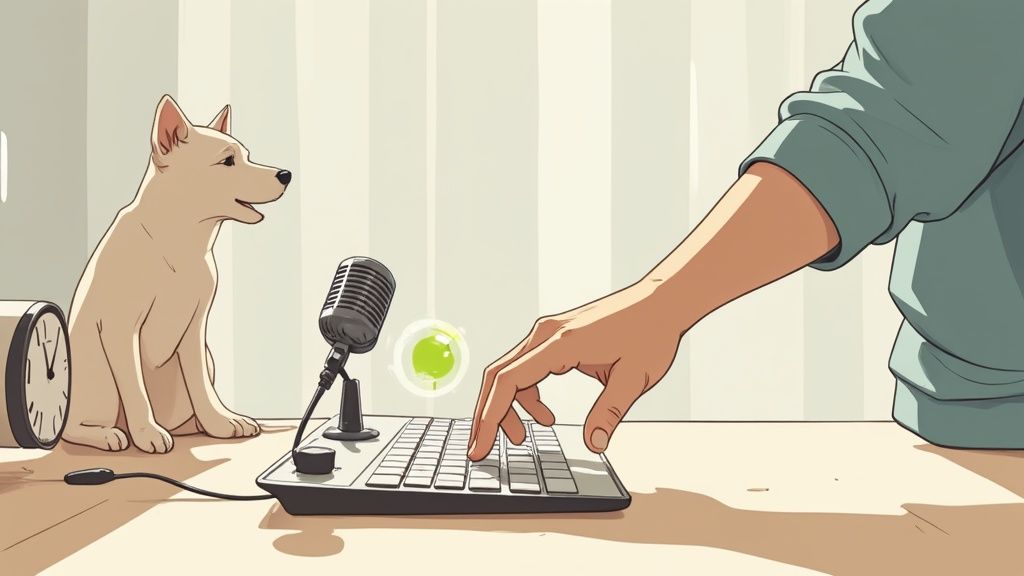
We’ve all been there. Your dog starts barking, the doorbell rings, or someone walks into the room, and suddenly you’re in a mad scramble to find the mute button. That split-second of panic, fumbling to find the right window and click the tiny microphone icon, is a universal remote work headache.
This guide is the cure. I’ll show you how to set up a dedicated, physical mute button that just works, every single time. One reliable key press is all you need to take back control of your microphone.
# Why Bother With a Dedicated Mute Button?
That frantic search for the mute button is more than just an annoyance. It’s a genuine source of stress—often called "hot mic anxiety"—that constantly pulls you out of the conversation. It chips away at your focus and can make you look flustered.
A physical button completely sidesteps this problem. Instead of relying on app-specific shortcuts that fail the moment you click away from the meeting window, a global mute button gives you a tactile, foolproof solution. It’s the difference between hoping you’re muted and knowing you are.
# The Flaw in Software-Only Mute Controls
The mute buttons built into Zoom (opens new window), Teams (opens new window), and Google Meet (opens new window) are situational at best. They only work when the app is the "active" or "in-focus" window on your desktop.
The second you switch to your notes, a browser tab, or a Slack message, those handy keyboard shortcuts stop working. This is the number one cause of embarrassing audio blunders. You think you've pressed Ctrl+Shift+M to go silent, but because Teams wasn't in focus, your mic is still live for everyone to hear.
# The Real-World Benefits of a Physical Button
Setting up a dedicated hardware solution pays off immediately for any remote professional. The advantages are simple but powerful.
- Universal Control: One button mutes your microphone across every app—Zoom, Teams, Meet, Webex, you name it. It doesn’t matter which window is active.
- No More Meeting Stress: The physical certainty of a button eliminates that constant, low-level worry about your audio status. You can finally just focus on the conversation.
- Look More Professional: You’ll avoid accidental interruptions and show clients and colleagues that you have your setup dialed in. It’s a small thing that builds a lot of confidence.
By creating a single point of control for your microphone, you transform a common source of anxiety into a seamless part of your workflow. It's less about the technology and more about reclaiming your focus.
For those looking to optimize their meeting experience even further, understanding how to manage calls effectively is key. You can explore more strategies in our ultimate guide to productive Zoom meetings (opens new window). Now, let's get that essential mute button built.
# Mastering Your Keyboard Mute Shortcuts
Before you shell out for new hardware, let's talk about the power you already have right at your fingertips. Your keyboard is the OG mute button, and it's the perfect no-cost starting point for getting a handle on your meeting audio.
Pretty much every meeting app has its own built-in shortcuts. You've probably seen them before: Alt+A for Zoom on Windows, Ctrl+Shift+M for Microsoft Teams, or Command+D for Google Meet on a Mac. Learning these is a decent first step, and they definitely beat frantically searching for the tiny microphone icon with your mouse.
Here's a quick rundown of the defaults you'll find in the wild.
# Default Mute Shortcuts for Popular Meeting Apps
This table is a handy reference for the standard mute/unmute shortcuts in the most common video conferencing apps.
| Application | Windows Shortcut | macOS Shortcut | Notes |
|---|---|---|---|
| Zoom | Alt + A | Shift + Command + A | Also supports Push-to-Talk (hold Spacebar). |
| Microsoft Teams | Ctrl + Shift + M | Command + Shift + M | This toggles your mic on and off. |
| Google Meet | Ctrl + D | Command + D | Simple and easy to remember. |
| Webex | Ctrl + M | Command + Shift + M | Similar to the Teams shortcut. |
Memorizing these is a good start, but as you'll soon see, they come with a major catch.
# The "App in Focus" Problem
Here’s the fatal flaw with those built-in shortcuts: they only work when the meeting app is the "active" or "in-focus" window on your screen. And this single limitation is the number one cause of hot mic fails.
We've all been there. You're on a Teams call, but you've clicked over to Slack to answer a quick message. Someone asks you a question. You confidently hit Ctrl+Shift+M, say something brilliant, and... silence. Why? Because you were typing in Slack, not Teams. The command never registered.
This focus-dependent behavior makes a supposedly convenient feature completely unreliable. You can never be 100% sure the shortcut will work unless you first click back into the meeting app, which totally defeats the purpose of a fast keyboard command.
This is exactly why a more dependable, system-wide solution is so critical.
# Creating a Mute Button That Actually Works
To solve this, you need what's called a "global" hotkey—a shortcut that controls your microphone no matter what application you're currently using. This is the key to having a mute button you can truly trust. You'll often see combinations like Ctrl + Alt + [key], which have become the modern equivalent of a physical switch for millions of people whose workdays revolve around calls.
You can set up a global hotkey a couple of different ways:
- System-Level Tools: On Windows, Microsoft's own PowerToys has a "Video Conference Mute" feature that creates a universal hotkey to kill your mic and camera. For macOS, a quick search on the App Store will turn up third-party apps with similar superpowers.
- Audio Driver Utilities: Some software that comes with audio interfaces or sound cards lets you map a custom key combination directly to the system's microphone input.
Setting up a global hotkey is a huge software-based upgrade. For a deep dive on how to configure these, check out our guide to https://mutedeck.com/help/features/global-hotkeys (opens new window). And if you want to become a true keyboard wizard, understanding concepts like character key shortcuts (opens new window) can give you an even bigger productivity boost.
Even so, these software fixes still don't quite replicate the tactile confidence of pressing a real, physical button.
# How to Build Your Dedicated Mute Button
Software shortcuts are a decent start, but the real magic happens when you have a physical, dedicated mute button. This is the moment you go from hoping you're muted to knowing you are. Let's look at how to build a one-press solution that gives you that foolproof, tactile control over your microphone.
This isn't just a niche want, either. Back in 2020, surveys showed that over 70% of remote workers were already using keyboards or external devices with mute buttons to wrangle their audio in meetings. It’s a clear sign of just how vital a dedicated button is for sounding professional and keeping background noise where it belongs. You can see this trend in action with popular tools like MicMuteToggle on Github.
# The Stream Deck and MuteDeck Power Combo
For a lot of us working remotely, the Elgato Stream Deck (opens new window) is the gold standard. Its customizable LCD keys give you both a satisfying button to press and instant visual feedback. Pair it with the MuteDeck plugin, and it transforms into the ultimate meeting controller.
Getting it set up is dead simple. Just search for "MuteDeck" in the Elgato Marketplace and hit install. This little plugin connects your Stream Deck directly to the MuteDeck app, letting you drag and drop commands right onto your keys.
This is what you're looking for in the Elgato Marketplace—it's the key to unlocking universal meeting controls.
Once you've installed it, you can assign a key to a universal "Toggle Mute" command that works everywhere—Zoom, Teams, Meet, you name it. The button will even change its look to show you if your mic is live or muted.
Here’s a practical tip: place the mute button in the exact same spot on every single Stream Deck profile you use. For example, always put it in the top-left corner. Building that muscle memory means you'll be able to hit it without a second thought, even when switching between work and gaming profiles. You can also configure the button to behave differently depending on your needs.
- Toggle Mute: The classic on/off switch. Press to mute, press again to unmute.
- Push-to-Talk: This keeps you muted by default. Your mic only goes live while you're actively holding the button down. It's a lifesaver if you're in a noisy environment or mostly just listen in on calls.
# Touch Portal: Stream Deck-style Control on Any Phone or Tablet
If you like the idea of a programmable control surface but don’t want to buy dedicated hardware, Touch Portal (opens new window) is a great middle ground. It turns any iOS or Android device into a customizable button deck that talks to a companion app on your Mac or Windows PC.
Why I recommend it:
- Runs on what you already own: Works on phones and tablets across iOS/Android, with a desktop companion for macOS/Windows.
- Budget-friendly flexibility: Build pages of buttons, folders, and multi-action macros without the cost of a physical deck.
- Perfect with global hotkeys: Map a Touch Portal button to send the same global mute hotkey you set up in MuteDeck or your OS tools—so it works across Zoom, Teams, Meet, and more.
- Visual feedback: Use toggles/states and icons so your button clearly shows when you’re muted vs. live (handy if your device sits in a dock next to your monitor).
Quick setup
- Install Touch Portal on your computer and your mobile device, then pair them on the same network.
- In MuteDeck (or your system tool), set a global mute hotkey (e.g.
Ctrl+Shift+Alt+M). - Create a new button in Touch Portal and assign it to send that hotkey.
- (Optional) Add a second “Push-to-Talk” button that holds the hotkey while pressed, or build a multi-action that also toggles camera, launches notes, etc.
Pro tip: Dock your phone/tablet in landscape and dedicate the first row to meeting controls—Mute, Camera, “Join Meeting,” and “End Meeting.” Keeping mute in the same position mirrors the Stream Deck muscle memory without the hardware cost.
# Hands-Free Control with a USB Foot Pedal
If your hands are always busy typing or navigating, a USB foot pedal is an awesome—and surprisingly affordable—solution. Your computer sees it as a basic keyboard, which means you can map a pedal press to any key or shortcut you want. For a mute button, this is a total game-changer.
The setup is pretty straightforward. You'll use the software that comes with the pedal to assign your global mute hotkey to it. For example, you could program the pedal to send that Ctrl+Shift+Alt+M shortcut you set up earlier. Now, a simple tap of your foot toggles your mic status, leaving your hands completely free.
Pro Tip: Make sure the pedal's configuration software is set to launch automatically when your computer starts. This one small step makes the whole experience seamless. You’ll never have to remember to open an app before your first call; your hands-free mute button will just work.
# Budget-Friendly Macro Keyboards
You don't have to break the bank to get this done. A simple one-key or two-key macro keyboard gives you the same core function for a fraction of the cost. These little keyboards are designed to do one thing: execute a command when you press a key.
Just like the foot pedal, you’ll use its software to assign your global mute hotkey to one of its buttons. The big advantage here is the tiny footprint; you can stick it anywhere on your desk for quick access. While you won't get the slick visual feedback of a Stream Deck, you get the most important part: a reliable, physical button. A practical tip is to use a dab of Velcro or double-sided tape to secure the small keypad to the side of your monitor base or the edge of your desk, ensuring it's always in the same reachable spot.
And for anyone looking to build more advanced workflows, it’s worth exploring how to program custom actions within MuteDeck (opens new window) to trigger other shortcuts, too.
# Integrating Your Mute Button with Smart Workflows
A dedicated mute key is a fantastic upgrade, but it's really just the starting point. When you start building smart workflows and multi-action macros, your simple mute button keyboard becomes the central command for your entire setup.
Imagine this: you press a single key, and it does more than just mute your mic. That one press could simultaneously turn off your camera, set your Slack status to "In a meeting," and even pause your Spotify playlist. This is where you go from just managing your mic to automating the friction out of your workday. It lets you flip into "deep work" mode instantly.
This infographic breaks down the typical process, from picking hardware like a Stream Deck or foot pedal to configuring the final action.
The key takeaway is that whether you use a button, a pedal, or a dial, it all leads to the same goal: reliable, single-press mute control.
# Building Multi-Action Macros
Creating these powerful sequences is surprisingly easy. Using software like MuteDeck (opens new window), you can stack commands to run in a specific order. For instance, your "Meeting Start" macro could be programmed to handle several tedious tasks at once.
- Mute Microphone: The main event, making sure you enter the call silently.
- Disable Camera: Avoids any of those awkward "just joining" moments.
- Launch Note-Taking App: Pops open Obsidian or Notion so you're ready to go.
- Set Communication Status: Automatically updates Slack or Teams to show you're busy.
You can then create a matching "End Meeting" macro that reverses all these actions, bringing your digital workspace back to its default state with another single press. It’s a simple way to streamline the constant context-switching that defines a remote workday.
By bundling these small, repetitive actions into a single command, you reclaim valuable mental energy. Instead of running a five-step pre-flight check before every call, you just press one button and focus on the conversation.
# Smart Home and Status Integrations
Your smart workflow doesn't have to stop at your computer screen. This is where things get really interesting. By connecting tools like MuteDeck to home automation platforms, you can link your digital meeting status to your physical environment.
One of the most practical examples I've seen is creating an "On Air" light. You can configure your system so that whenever your microphone is live in a meeting, a smart light bulb outside your office door turns red. This simple visual cue is a game-changer for anyone working from a busy home, preventing interruptions far more effectively than a closed door ever could.
You can even loop in voice commands. Imagine saying, "Hey Google, I'm joining my call." This could trigger a routine that mutes your mic, turns on your key light, and sets that "On Air" light. These integrations turn a simple mute button into a sophisticated control system for your entire work environment.
# Troubleshooting Common Mute Button Problems
Even the most buttoned-up setup can hit a snag. It’s incredibly frustrating when your carefully configured mute button keyboard suddenly gives up the ghost, because it kills the very reliability you were trying to create.
Don’t worry, though. Most of these glitches fall into a few common buckets, and they’re usually pretty straightforward to fix.
The classic complaint I hear is a hotkey that works perfectly in Zoom (opens new window) but does absolutely nothing in Microsoft Teams (opens new window). This is a textbook "app focus" problem. Your computer is sending the command, but only the application you have active is listening. This is exactly why you need a truly global hotkey.
Another frequent offender is a conflicting app. If your mute button suddenly stops working, ask yourself: what else did I just install or open? A new browser extension, a gaming app, or some other background utility could be hijacking that exact key combination for its own use, intercepting the command before it ever reaches your microphone.
# My Mute Button Works in Some Apps but Not Others
This is, without a doubt, the number one issue people run into. You press your button, it works flawlessly in the one app you set it up for, but it’s completely ignored everywhere else. The problem is that the shortcut is only registered locally within that single program, not across your entire system.
The fix is to use software that creates a global hotkey. A global hotkey operates at the operating system level, so it works no matter which window is in focus.
- Check Your Software: First, make sure you're using a tool designed for this, like MuteDeck (opens new window), Microsoft PowerToys (opens new window), or Karabiner-Elements (opens new window) on Mac. These all explicitly support global hotkeys.
- Re-assign the Shortcut: Dive back into your control software and re-bind the key. Look for a setting that specifies "Global" or "System-Wide" control, not an app-specific one.
This one tweak is often all it takes to get that universal control you’re after. And it’s worth the effort—usability studies show that a reliable, keyboard-based mute control can speed up your workflow by 25-30% compared to hunting for the mute icon with a mouse. If you want to dive deeper, you can find out more about keyboard shortcut reference and best practices.
# My USB Pedal or Stream Deck Is Not Recognized
When a physical device like a foot pedal or a Stream Deck (opens new window) seems dead in the water, the problem is almost always in the connection to your computer. Don’t panic. A methodical check will nearly always root out the cause.
Start with the simple stuff. Unplug it and plug it back into a different USB port. This alone can rule out a port that’s gone flaky. Next, make sure you have the latest drivers and control software (like the Elgato Stream Deck application (opens new window)) installed and running. Sometimes, a simple software update or even just a good old-fashioned reboot is all it takes to get the hardware and operating system talking again.
Pro Tip: If you suspect another program is stealing your hotkey, the easiest fix is to pick a more unusual key combination. A simple shortcut like
F12is far more likely to have a conflict than something more complex, likeCtrl+Shift+Alt+F12.
Finally, do a quick check for software conflicts. If you have a bunch of device management tools running at once—say, for your mouse, keyboard, and Stream Deck—one might be stepping on another’s toes. Try closing the other peripheral apps temporarily to see if your mute button suddenly springs back to life.
# Your Questions About Mute Keyboards Answered
As you start digging into the idea of a dedicated mute button, a few questions always seem to come up. Let's get them answered so you can figure out the best setup for you.
# Can I Use a Regular Key on My Keyboard as a Mute Button?
Absolutely. In fact, this is a fantastic, no-cost way to get your feet wet.
Using a powerful utility like Microsoft PowerToys (opens new window) on Windows or Karabiner-Elements (opens new window) on macOS, you can easily remap a key you rarely touch. Good candidates are often keys like Scroll Lock, Pause/Break, or even one of the right-side modifier keys like Alt Gr or the Menu key. The trick is to pick one you won’t mash by accident in the middle of typing. Once it's remapped to a global mute command, it becomes a surprisingly solid dedicated mute button.
# Do I Really Need an Expensive Stream Deck?
Not at all. While an Elgato Stream Deck (opens new window) is a brilliant piece of kit—offering that satisfying tactile click and clear visual feedback—it's far from the only option. You can get the same core function for way less money.
For under $20, you can find a simple USB foot pedal or a one-key macro keypad online. Once you set it up, it works perfectly as a mute button. The decision really comes down to your budget and how you work. Do you want a button at your fingertips, or a hands-free solution at your feet?
The goal is a reliable, physical control that you can activate without thinking. Whether that control costs $150 or $15 doesn't change the outcome: you get foolproof command of your microphone.
# Will a Mute Button Work with Google Meet in a Browser?
Yes, and this is exactly why a dedicated mute button keyboard setup is so powerful. App-specific shortcuts for web tools like Google Meet (opens new window) often stop working the second you click away from that browser tab.
A true global mute solution, however, works at the system level. Tools like MuteDeck control your microphone directly through the operating system, completely bypassing the application layer. This means your mute button just works—whether you're focused on a Chrome tab, a desktop app, or even looking at a different monitor. You're muted everywhere, every single time.
Ready to kill hot mic anxiety for good? MuteDeck gives you the universal, reliable control you need across all your meeting apps. Try it free and see how a dedicated mute button can transform your workflow. Get started with MuteDeck today (opens new window).