MuteDeck v4.11 (codename "Speedy Gonzales")
MuteDeck v4.11 is a heck of a lot faster and more responsive, especially if you use Teams or Zoom. 😊 And when you mute or toggle your camera, your meeting window can stay where it belongs: behind whatever you're working on.
This release also adds corporate proxy support, a feedback form, and fixes for Slack huddles, screen sharing and recording.
A Lot Less Waiting
I've reworked how MuteDeck keeps up with Teams and Zoom on macOS and Windows. It picks up meeting changes faster, responds more quickly when you press a button, and does much less work in the background to keep everything up to date.
How much quicker? Here are the estimated improvements:
- About 93% less waiting after pressing mute or camera in Teams. Seeing the new button status goes from 2–4 seconds to just 0.15–0.25 seconds. A few seconds down to a fraction of one. 😊
- Meeting status updates go from 2–3 seconds to 1.1–1.5 seconds, about 45–50% less waiting.
If you have both apps open, a busy Teams no longer leaves MuteDeck waiting to catch up with Zoom. And MuteDeck's own window stays responsive while your meeting app takes its time. Less waiting for the buttons to catch up with your meeting.
Mute and Camera Controls Stay in the Background
Reading your notes, editing a document or presenting a window? You can now mute or toggle your camera in Teams and Zoom on macOS and Windows without the meeting window jumping in front. Your notes stay visible and your mouse stays where you left it, whether you're using a Stream Deck, a hotkey or MuteDeck's own buttons.
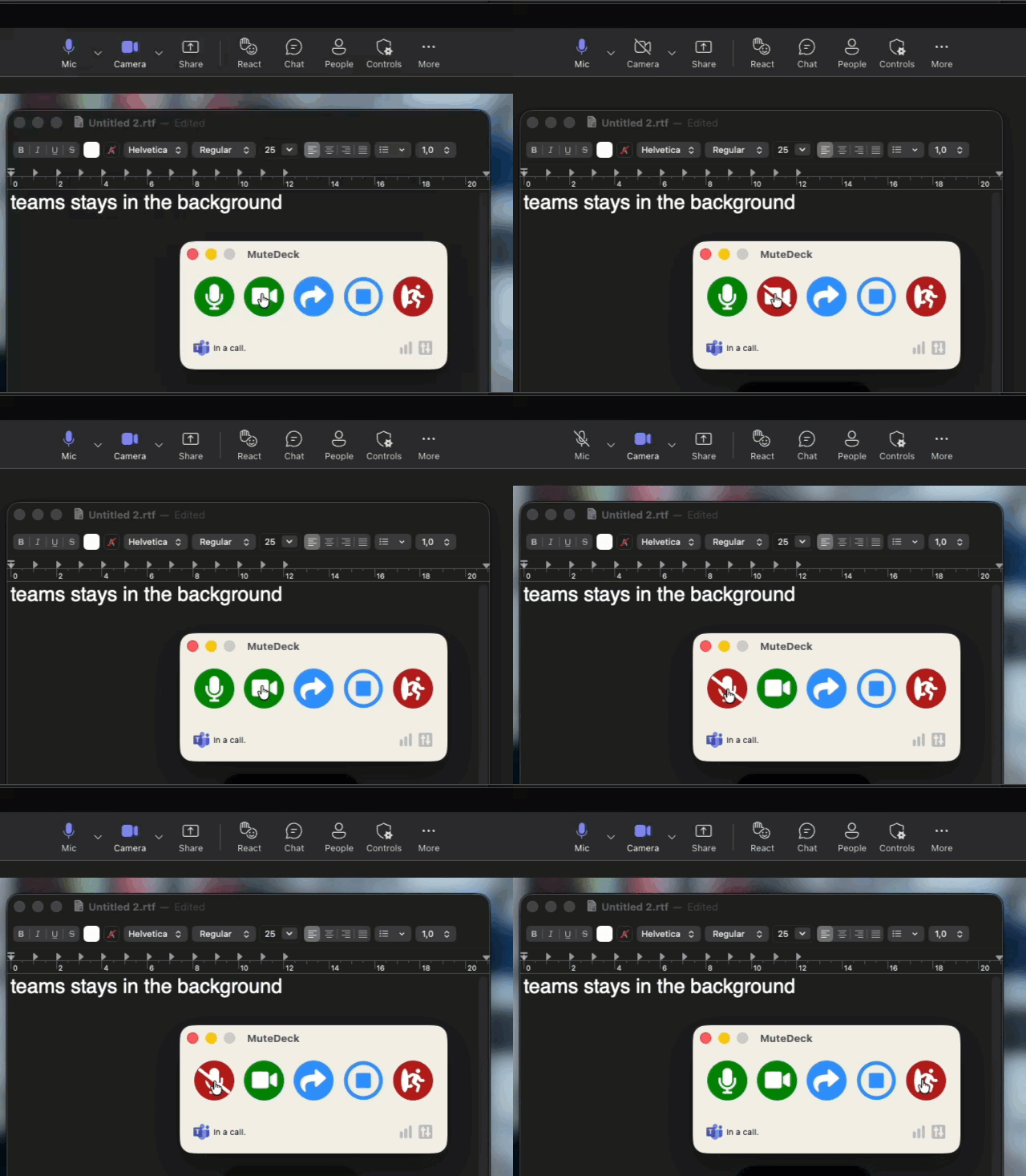
This also fixes a frustrating Teams problem on macOS: clicking mute or camera in MuteDeck could do nothing if you were still moving the mouse. Those clicks now work too.
Starting a screen share still brings up the window where you choose what to share. Other actions that open menus (like reactions) or use keyboard shortcuts may still bring the meeting app forward.
Corporate Proxy Support
If your office uses a proxy to connect to the internet, getting MuteDeck connected just got easier. Under Settings → Proxy, you can use your computer's existing settings or enter the details your IT team gives you. There's a Test connection button to check that everything works.
You can also open Proxy settings from the license window, so you don't have to activate MuteDeck before fixing the connection. License activation, settings sync and the smaller background updates all use these settings. Updates that need the full installer still use a separate updater, which can't use proxy details entered in MuteDeck.
Send Feedback from MuteDeck
There's a new Settings → Feedback section, also available through Send Feedback… in the tray or menu bar menu. Suggest a feature or report a bug without leaving the app.
Reporting a bug? MuteDeck can gather the logs and app details that help me figure out what went wrong, without you having to hunt for them. They're attached by default for bug reports, and you can turn that off before sending. You can add screenshots too, or save the logs to a file if you'd rather email.
Other Improvements
- Slack huddles (macOS and Windows): After a Slack update, MuteDeck now finds and controls huddles inside Slack's main window. You no longer have to pop the huddle out into its own window.
- Zoom shortcuts (Windows): Custom actions and reactions no longer fail just because you're still holding down the hotkey that triggered them.
- Teams screen sharing (Windows): Choosing what to share no longer makes MuteDeck think you've left the meeting.
- Teams recording (macOS): Starting and stopping a recording works with the different places Teams puts the button.
- No second click just because an app is slow: If Teams or Zoom takes a while to respond, MuteDeck checks whether the first press worked before doing anything else. That helps avoid muting and immediately unmuting again.
- Memory and stability: Fixed a few memory leaks and a problem where a stuck meeting app could keep MuteDeck from quitting.
- Windows interface improvements: Fixed a few cases where the main window and action notifications could have an odd border.
