# MuteDeck v4.13: Your Apps Now React to Your Meetings
MuteDeck v4.13 is out. The big one: when a meeting starts or ends, MuteDeck can now tell your other apps about it. Start a Granola note, run a Shortcut, start a Focus session in Raycast, or start a timer in Timing or Hubstaff, without lifting a finger. 😊
This release also adds Proton Meet, an option to show the MuteDeck window during meetings, a new Plugins & API section, and one macOS download that runs natively on every Mac.
# Integrations: Your Apps React to Your Meetings
A lot of you already use MuteDeck's webhook to light up a busy sign or kick off a home automation. But most apps don't take webhooks. They do have links, though: granola://, shortcuts://, raycast:// and so on. So that's what the new Settings → Integrations section uses.
When a meeting starts or ends, MuteDeck can:
- Granola: Start a new note for the meeting.
- Apple Shortcuts (macOS): Run a shortcut you pick, one at the start and one at the end. The meeting app's name is passed as input, so your shortcut can do something different for Zoom than for Teams.
- Raycast Focus (macOS): Start a Focus session when the meeting starts, and complete it when it ends.
- Obsidian: Create a note for every meeting, named after its date, time and meeting app.
- Timing (macOS) and Hubstaff: Start a timer when the meeting starts and stop it when it ends. Your timesheet fills itself in.
- Keyboard Maestro and BetterTouchTool (macOS): Run a macro or named trigger at the start and end. If you use either of these, you know that's where the real fun starts.
- Bunch (macOS): Open a Bunch when the meeting starts and close it when it ends.
Is your favorite app not listed? Choose Open my own link and enter any link or URL scheme for the start and the end. You can use {app}, {date} and {time} in the link, and MuteDeck fills them in.
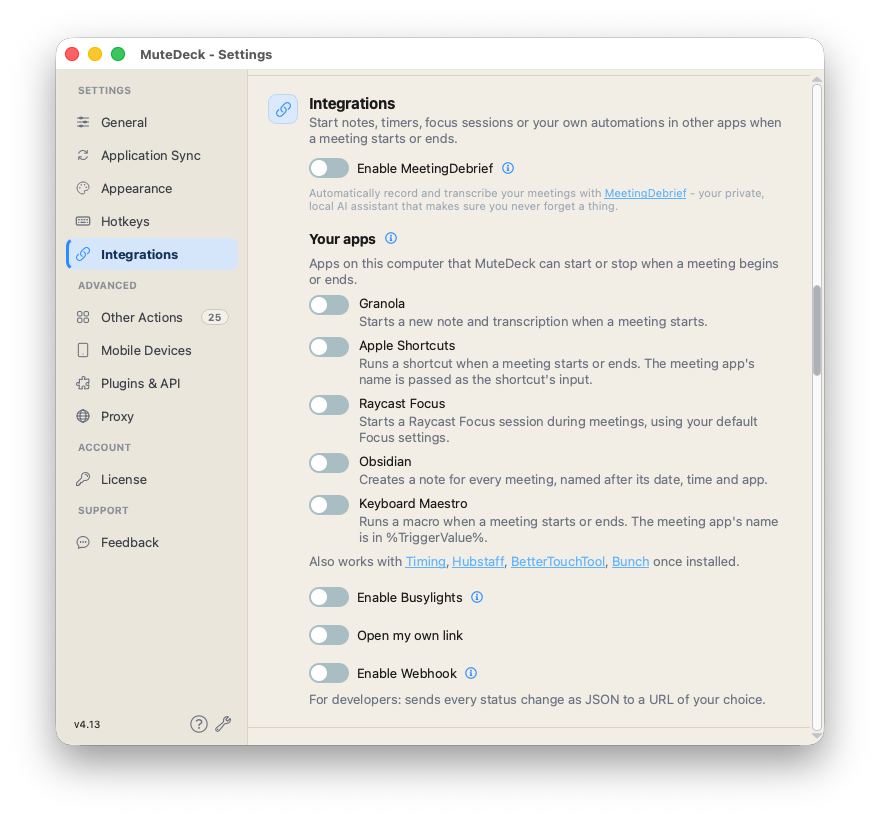
MuteDeck only shows a toggle for apps you have installed, and every integration has a Test button so you can try it without joining a call.
Busylights, the webhook and MeetingDebrief moved into this section too. Everything that reacts to your meetings is in one place now, and the old Notifications section is gone. Its other settings moved to General and Appearance.
# Show the Window During Meetings
Some of you only want to see MuteDeck when you're actually in a meeting. Turn on Show window during meetings in Settings → General, and the MuteDeck window shows up when a meeting starts. It doesn't take focus away from your meeting app, so you can keep typing.
When the meeting ends, the window waits a few seconds, so you can see the buttons turn grey, and then hides again. If you had the window open already, or opened it yourself during the meeting, it stays open. It's off by default.
# Proton Meet

The browser extension now supports Proton Meet. You can mute, toggle your camera, share your screen, record, send reactions and leave. MuteDeck shows the Proton Meet icon, and your Proton Meet time shows up in your meeting stats.
You'll need version 7.2.0 of the browser extension. Recording needs a paid Proton plan. On Proton Meet Free, MuteDeck shows a notice instead.
# Plugins & API
MuteDeck works with a lot of things by now: Stream Deck, Loupedeck, Touch Portal, Raycast, the browser extension, Home Assistant, your own scripts. The new Settings → Plugins & API section shows everything that has connected, and when it was last seen.
New plugins now ask for your approval once. Almost all plugins have been updated to do this. When it connects, MuteDeck asks Allow this plugin? Click Allow and it reconnects on its own from then on. You can remove access at any time.
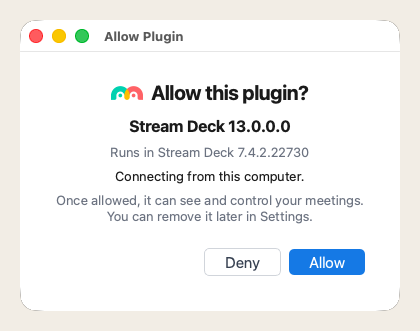
Your existing plugins keep working as they are. They don't ask for approval yet, and I'll update them one by one. If you'd rather not let plugins connect without asking, set Plugins without authentication to Allow from this computer only or Block.
Writing your own scripts against the MuteDeck API? You can now create API tokens in the same section.
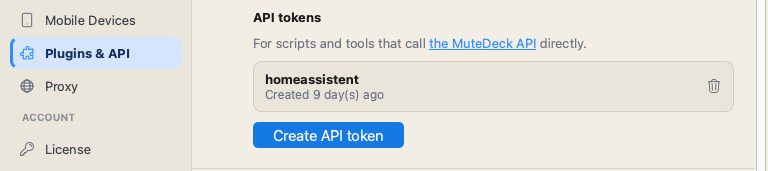
This improves security and privacy, protecting your meetings from connections you don't know about. MuteDeck doesn't send any data to the plugin until you approve it. For now, the Plugins without authentication setting is allow by default, but in the future it will become stricter.
# One Download for Every Mac
Until now there were separate macOS downloads for Apple silicon and Intel Macs. MuteDeck v4.13 is one universal app that runs natively on both. You don't have to do anything: existing installs move over with this update.
MuteDeck now needs macOS 13 Ventura or later.
# Crash Reports
When MuteDeck crashed, I usually only found out if you took the time to send me a crash log. Thanks to everyone who did! From this version on, MuteDeck can send a crash report by itself, so I can fix crashes even when nobody reports them.
Crash reports contain technical details about the crash, not your meetings. They go to my own server, not to a third party. If you'd rather not send them, turn off Send crash reports in Settings → General.
# Teams Improvements
- Teams in a language MuteDeck can't read: If Teams runs in a language MuteDeck doesn't recognize, MuteDeck can see the call but can't read the buttons. That used to look like "In a call." with grey buttons, which looked broken. MuteDeck now tells you which language Teams is in, with a link to the setting that fixes it.
- Swedish and Hungarian: Teams in Swedish and Hungarian is now supported, and the Japanese labels for mute, share and record are fixed.
- Recording: Newer Teams versions changed how recording starts and stops. MuteDeck now handles that, including the confirmation dialog on macOS. A stop request for a recording that had already ended also no longer starts a new one.
# Updates
- Remind me later: Clicking "Remind Me Later" now waits a day before asking about that version again, instead of asking on every start.
- Release notes on Windows: The release notes in the update window no longer stay blank on Windows.
- Installing over an existing copy: Downloading a fresh installer from mutedeck.com now updates or repairs your existing installation.
- Windows updates that need admin rights: If MuteDeck is in Program Files, the updater asks for admin rights up front. Before, it could fail halfway or get stuck trying the same update over and over.
- Install updates automatically: The "Update MuteDeck at login" setting is now called "Install updates automatically", which is what it actually does.
- A friendlier installer: The installer follows your light or dark mode, and the macOS download opens with clear instructions on what to double-click.
# A Few More Things
- Crash when dragging the window (macOS): On macOS 26.7 and 27.2, hovering over or dragging the top of the main window could crash MuteDeck. The window now uses a real macOS title bar, so it moves like any other window, follows you to other Spaces and snaps into place.
- Slack after a restart (macOS): After a reboot, Slack Huddles could show "No call" until you restarted Slack. MuteDeck now keeps trying until Slack is ready.
- Small and tiny buttons: The main window now shrinks to fit when you pick the small or tiny button size, and longer status text no longer gets cut off.
- Meeting Time Stats: Meetings that crossed the top of the hour lost a second or two. Fixed.
- System mic with audio routing tools (macOS): Toggling the system mic no longer crashes MuteDeck when a virtual audio device is your default input.
Check for updates in MuteDeck to get v4.13. The full changelog is at mutedeck.com/changelog (opens new window).
Which app would you like to see in Integrations next? Let me know at [email protected], or through Settings → Feedback. And as always, if you run into issues, let me know!
KEEP EXPLORING
More product updates