# Microphone Volume Increaser for Meetings: Host Runbook That Prevents Clipping
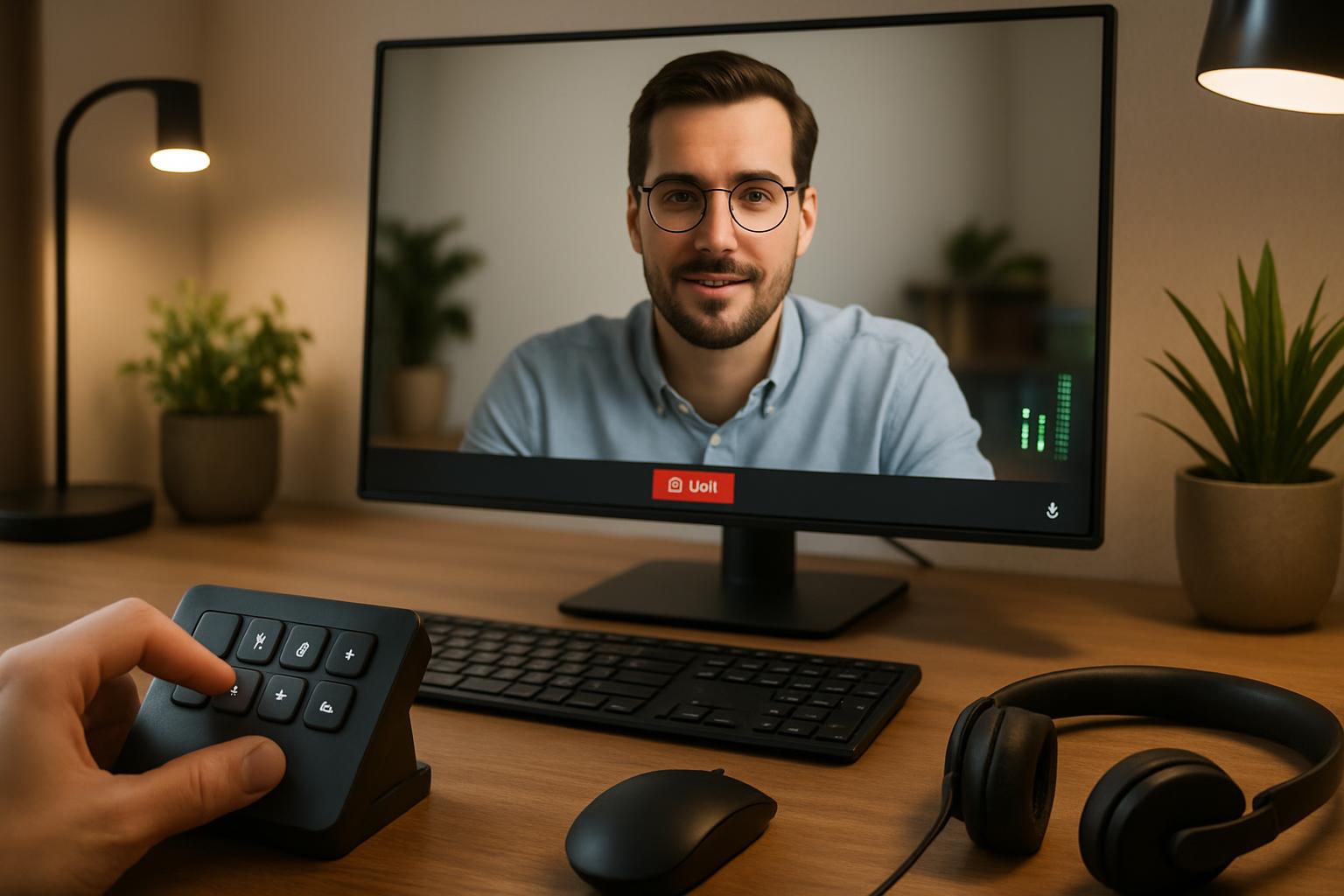
Searching for a microphone volume increaser usually leads to boost apps and "turn everything up" advice.
That can work for a one-off call. For operators running meetings daily, it often creates a worse issue: louder audio with more clipping, noise, and inconsistency between Zoom, Teams, and Meet.
This runbook focuses on reliable meeting control: raise voice level while keeping speech clear.
# What "volume increaser" should mean in a meeting workflow
In practice, your usable volume comes from three layers:
- Mic placement and speaking distance
- Input gain path (interface/OS + app level)
- Platform processing (auto-leveling and suppression)
If one layer is off, software boosting is usually a band-aid.
# Decision framework: choose the right fix first
| Situation you observe | Best first action | Why it works faster than boost-only fixes |
|---|---|---|
| You sound quiet only when moving around | Reduce distance variation (fixed mic position) | Stable input level reduces the need for aggressive gain changes |
| Quiet in all meeting apps | Raise OS/input gain in 5-10% steps | Fixes root level once instead of tweaking each app randomly |
| Loud enough in one app, quiet in another | Standardize app-specific audio profile | Prevents per-platform drift that causes repeated retuning |
| Loud but harsh/scratchy at peaks | Lower gain slightly and recheck suppression | Clipping is usually over-gain, not under-boost |
Operator rule: do not install a new "booster" during a live session unless you've tested it before.
# 10-minute host runbook (before your next important meeting)
# 1) Capture a baseline phrase
Record a 15-second clip with your normal meeting voice using one repeatable sentence.
Example: "Audio check for the 9:30 project sync; confirm clarity and consistent level."
This gives you a stable A/B reference.
# 2) Set physical consistency first
- Keep mic 10-20 cm from mouth
- Angle slightly off-axis to reduce plosives
- Keep keyboard and fan noise out of the pickup line
Most "quiet mic" reports improve here before any software boost.
# 3) Increase input gain gradually
Raise input gain 5-10% at a time and replay the same phrase.
Stop when:
- speech is clear at normal listener volume,
- loud words do not crackle,
- background noise remains acceptable.
# 4) Standardize Zoom, Teams, and Meet profiles
Use one explicit profile per platform (not ad-hoc defaults):
- Decide if auto-adjust is ON or OFF for your room
- Keep suppression level consistent
- Re-test while screen share is active
# 5) Lock controls into one operator scene
Create a meeting-control scene that opens audio settings quickly and keeps mute status visible.
MuteDeck helps here by keeping those controls in one repeatable layout across platforms, so you are not hunting through menus mid-call.
# Concrete scenario: workshop host switching between Teams and Meet
A training lead ran internal workshops in Teams and external sessions in Meet. Participants reported low volume in Meet only.
Root cause:
- OS gain was tuned for Teams,
- Meet had stronger suppression,
- host spoke further from mic during screen demos.
Fix that held up across sessions:
- standardized mic position marker on desk,
- +8% OS gain increase,
- Meet suppression adjusted one level lower,
- single control scene for quick audio panel access.
Result: no "you’re too quiet" interruptions for the next multi-session block, and fewer mid-meeting setting changes.
# Non-obvious implementation tip: calibrate during screen-share load
Many hosts tune audio while idle, then levels change once CPU load rises during screen sharing.
Do one test with your usual share workflow active (slides + browser tab). If level drops under load, tune for that state, not idle desktop state.
This prevents the common "sounds fine in prep, quiet in the actual meeting" failure.
# Fast preflight checklist for recurring hosts
- Mic position repeatable and marked
- Input gain in tested range (not maxed)
- Zoom/Teams/Meet profile selected intentionally
- Audio settings reachable in one action
- 15-second phrase check completed under screen-share load
A microphone volume increaser is useful only when it is part of a controlled gain workflow. For meeting operators, consistency beats raw loudness every time.
KEEP EXPLORING
More guides & tips