# "1 App Is Using Your Microphone": Meeting Host Runbook for Zoom, Teams, and Meet
The "1 app is using your microphone" warning usually appears at the worst time: right before a customer call, during handoff to a presenter, or while you are switching between Zoom and Teams.
For heavy meeting operators, this is not just a device issue. It is a workflow issue. The fix is to use a repeatable escalation order so you restore audio in under two minutes.
# What this warning usually means in practice
In most meeting environments, the warning is one of these four cases:
- A previous meeting app session did not release the mic handle.
- A browser tab (Meet, recording tool, AI note taker) still has microphone access.
- OS privacy permissions changed after an update or device reconnect.
- Two real-time apps are competing for exclusive input behavior.
The key is speed: identify the owner, reclaim the mic, verify audience-side audio.
# The 90-second triage sequence (operator version)
Use this exact order:
- Identify the active app owner in OS mic indicators (Windows/macOS).
- Close only the mic-owning app/tab, not your whole meeting stack.
- Re-select microphone inside the active meeting app (Zoom/Teams/Meet settings).
- Run a 5-second live check phrase from a second device or co-host.
- Lock your control path (mute/unmute and camera toggles) before resuming agenda.
This avoids the common overreaction of rebooting everything and delaying the room.
# Decision table: fastest fix by context
| Situation | Likely cause | Fastest fix | Recovery check |
|---|---|---|---|
| You just left Teams and joined Zoom | Teams process still owns mic | Fully quit Teams, then re-open only if needed | Zoom meter moves + co-host hears test phrase |
| Browser Meet tab is open in background | Tab-level permission still active | Close the tab or revoke mic permission for that site | OS mic indicator drops, then returns only for active app |
| USB headset reconnected mid-day | Device index changed | Re-select input device in OS and meeting app | Input device name matches headset in both places |
| Warning appears after OS update | Privacy reset | Re-enable app microphone permission in OS privacy panel | App can pass built-in test call |
# Concrete scenario: webinar handoff in 30 seconds
You are hosting a webinar in Zoom and coordinating production chat in Teams. A guest speaker joins, and Zoom suddenly shows no input while Windows says another app is using the mic.
Fast response:
- Keep Zoom live.
- Quit Teams completely (not just close window).
- In Zoom Audio settings, re-select your headset mic.
- Ask co-host for a "confirm audio" in private chat.
- Resume handoff.
You recover without forcing rejoin links, reassigning host, or stalling the agenda.
# Non-obvious implementation tip: split "operator" and "participant" audio profiles
Most teams keep one profile for everything. That creates drift.
Set up two profiles instead:
- Operator profile: fixed mic, fixed speaker, aggressive preflight checks, dedicated controls.
- Participant profile: lighter setup for internal standups.
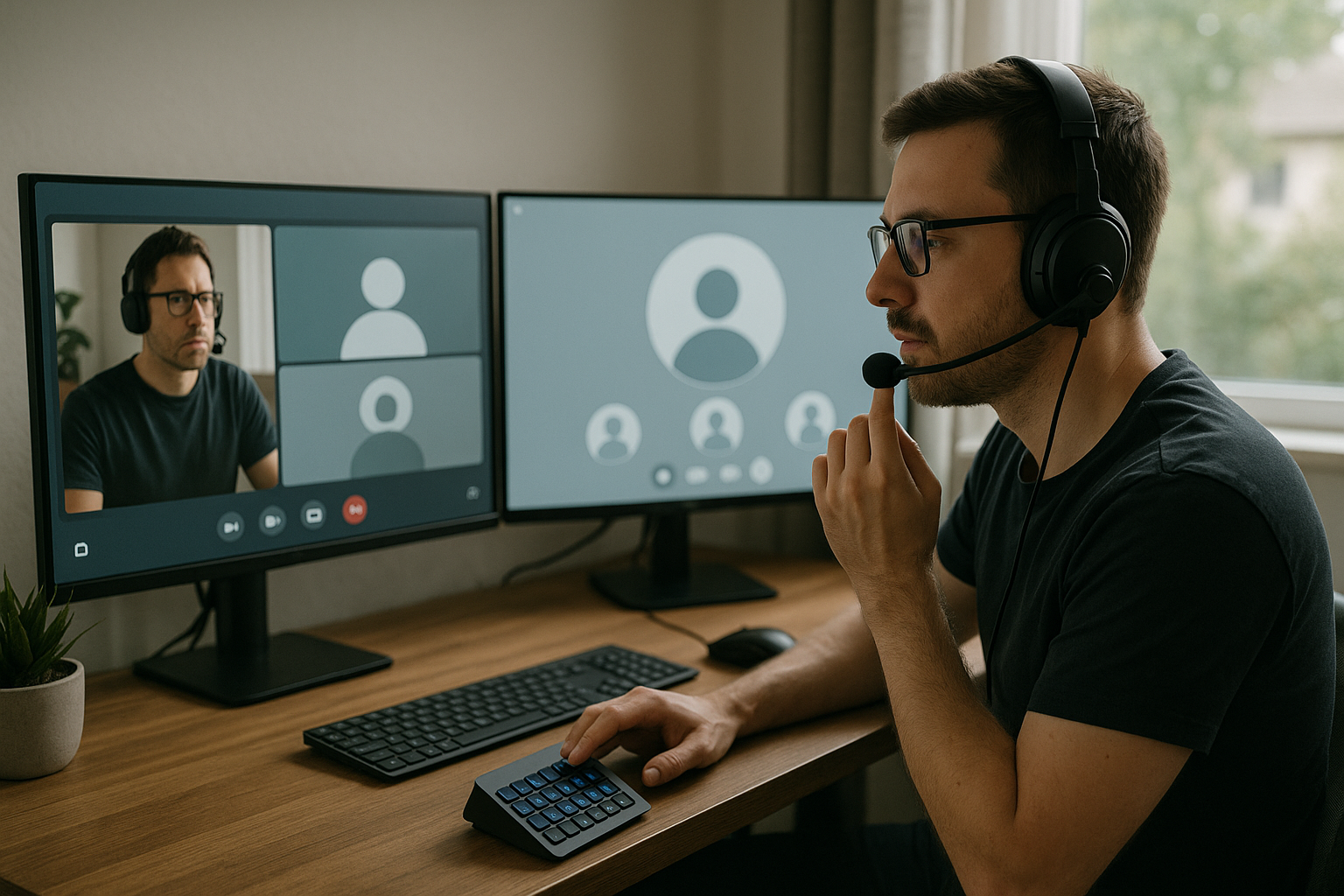
Then bind a hardware key (Stream Deck or similar) to open your app audio panel instantly before every external call. This tiny change prevents most "mic already in use" surprises because you verify ownership before the room fills.
# Where MuteDeck helps during recovery
MuteDeck gives hosts a stable control layer while audio ownership is being fixed. You can keep mute/camera/share actions consistent even when switching between Zoom, Teams, and Meet windows.
That consistency matters most during incident moments, where searching for controls creates extra dead air.
# Final takeaway
Treat "1 app is using your microphone" as an operator incident, not a random glitch.
Use a repeatable runbook:
- identify owner,
- release owner,
- rebind in active app,
- confirm audience-side audio,
- lock controls.
When this becomes routine, you keep meetings moving even when audio conflicts happen mid-day.
Need more practical host workflows? See the Meeting Masters Playbook (opens new window).