# How to Choose a One-on-One Meeting Tool That Helps You Run Better Meetings
Most advice about a one-on-one meeting tool focuses on agendas, templates, and note fields.
That matters, but if you run many one-on-ones each week, your real bottleneck is operational:
- joining on time,
- switching between meetings without friction,
- controlling mute/camera/screen share fast,
- and capturing follow-ups without losing context.
A good one-on-one setup is not just a notes app. It is a workflow that combines planning, meeting control, and follow-through.
This guide is for operators, managers, and team leads who run frequent remote meetings and want a system that actually reduces meeting drag.
# What a One-on-One Meeting Tool Should Do in Practice
For recurring one-on-ones, you need support across three stages:
- Before the call: prep the right context quickly.
- During the call: control the meeting without fumbling through app UI.
- After the call: capture decisions and next actions while details are fresh.
If a tool helps only one stage, you still end up with gaps.
# Before: Prep Without Calendar Chaos
At minimum, your setup should let you:
- keep a running agenda by person,
- add topics asynchronously during the week,
- and open relevant context (last notes, goals, blockers) in one click.
If you spend five minutes searching docs before every one-on-one, you burn hours every month.
# During: Fast Meeting Controls Matter More Than People Admit
In live meetings, execution speed matters.
If you hesitate to mute background noise or start share, you lose flow. Over dozens of meetings, those small delays compound into fatigue.
Your one-on-one workflow should give you reliable control over:
- mute/unmute,
- camera toggle,
- raise hand/reactions where needed,
- start/stop share,
- and quick leave/end actions.
This is especially important if your week spans Zoom (opens new window), Microsoft Teams (opens new window), and Google Meet (opens new window).
# After: Decisions Need a Landing Zone
A one-on-one is useful only if outcomes become action.
Your tool should make it easy to store:
- decisions,
- owners,
- due dates,
- and carry-forward topics for next week.
No heavy process needed. Just enough structure to avoid “we discussed this, but nothing happened.”
# Common Failure Modes (and How to Avoid Them)
Teams usually fail one-on-one tooling in predictable ways.
# 1) Over-optimizing Notes, Under-optimizing Execution
You can have the cleanest template in the world and still run clunky calls.
Fix: evaluate tools on meeting-day behavior, not just template aesthetics.
# 2) Platform-Specific Muscle Memory Breaks
Shortcuts and controls differ between meeting apps. If you jump between platforms, that inconsistency is costly.
Fix: standardize core controls with one consistent control surface where possible.
# 3) Fragmented Follow-Up
Agenda in one app, meeting in another, action items in a third, none connected.
Fix: define one canonical location for one-on-one outcomes and keep it consistent.
# A Practical Evaluation Checklist
When comparing one-on-one meeting tools (or combinations of tools), score each candidate on these operator criteria.
# A. Workflow Fit
- Supports recurring one-on-ones without creating duplicate docs.
- Allows shared agenda input from both manager and report.
- Makes last meeting context visible in under 10 seconds.
# B. Meeting Control Speed
- Core controls reachable by keyboard/hotkey/hardware button.
- Works across your real platform mix (Zoom/Teams/Meet).
- Reduces mouse hunting during high-pressure moments.
# C. Follow-Through Reliability
- Captures decisions and action items in-call.
- Supports carry-over topics for the next session.
- Easy weekly review for trends and unresolved blockers.
# D. Team Adoption Cost
- Minimal onboarding for reports.
- No fragile setup that breaks after app updates.
- Clear fallback if one integration fails.
If a tool scores high in only one area, you are likely buying new friction.
# Example Setup for Managers Running 15+ One-on-Ones per Week
Here is a lightweight setup that works well for many remote teams.
- Agenda + notes layer: a shared doc or one-on-one tool per direct report.
- Calendar layer: recurring events with consistent meeting links.
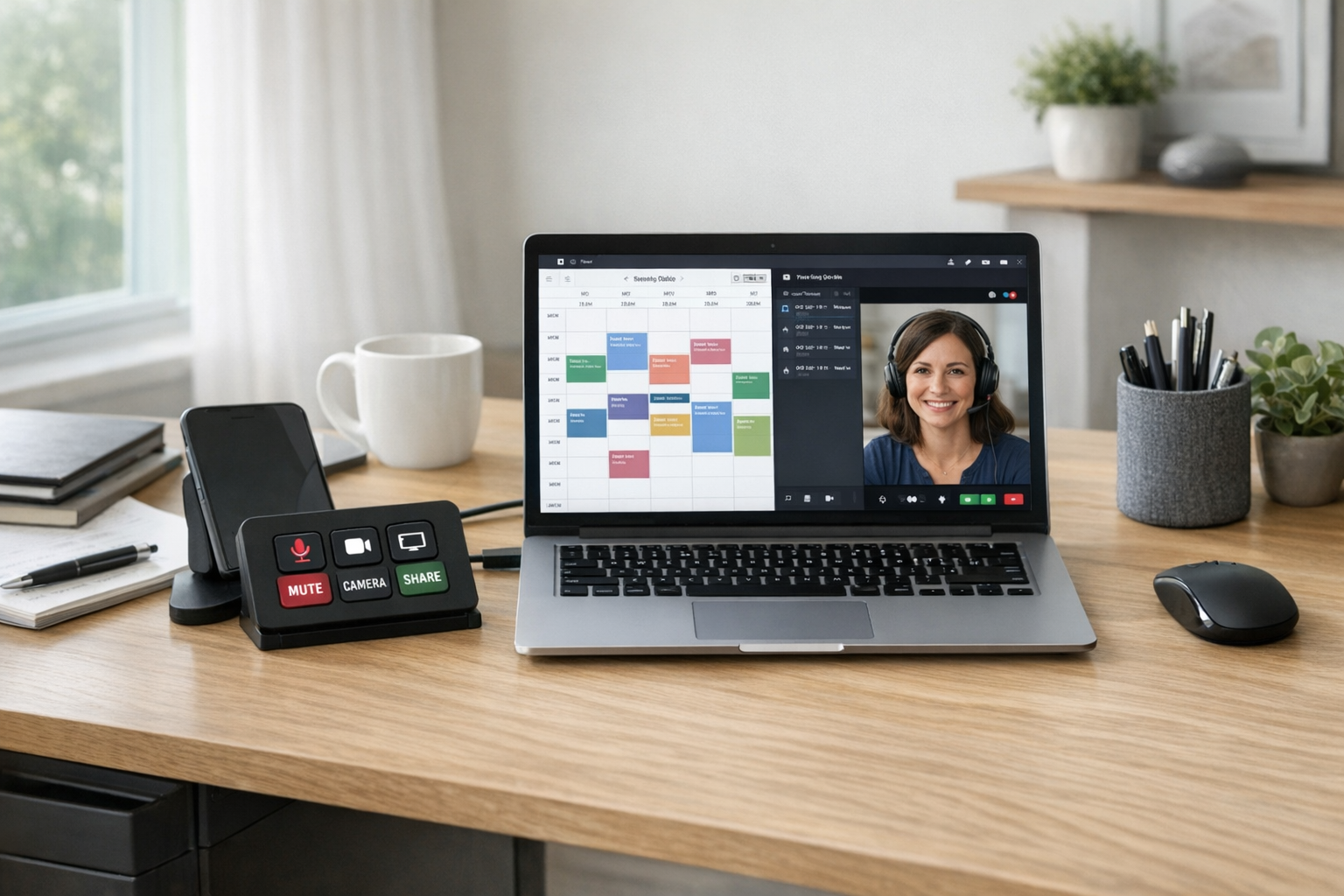
- Control layer: a universal meeting control utility mapped to hardware buttons.
- Action layer: one tracked list for commitments and due dates.
This structure keeps the process simple while protecting meeting quality at scale.
# Why Meeting Control Belongs in One-on-One Tooling
If you are managing a lot of one-on-ones, control consistency is a performance issue, not a nice-to-have.
Using a dedicated control layer like MuteDeck helps because your essential meeting actions stay in one place, even when the underlying platform changes.
That means:
- fewer “you’re on mute” moments,
- fewer share-start delays,
- and less cognitive overhead when switching between calls.
The result is a smoother conversation for both sides, which is the real goal of a one-on-one.
# Implementation Plan You Can Run This Week
Use this five-step rollout to avoid over-engineering.
Audit current friction Track one week of one-on-ones and note where time is lost (join delays, control issues, follow-up misses).
Pick one baseline workflow Standardize agenda, note format, and action-item capture for all recurring one-on-ones.
Map core controls Define your essential actions (mute, camera, share, leave) and map them to consistent shortcuts or hardware buttons.
Pilot with a small group Test with 3-5 recurring one-on-ones for two weeks before broader rollout.
Review outcomes monthly Measure: on-time starts, meeting interruptions, and action-item completion rate.
You do not need perfect tooling. You need a repeatable operating model your team can trust.
# Final Takeaway
The best one-on-one meeting tool is rarely a single app. It is a workflow that combines:
- clear prep,
- fast in-meeting control,
- and reliable follow-through.
If you run many meetings each week, consistency in controls is one of the highest-leverage upgrades you can make.
For teams working across multiple meeting platforms, MuteDeck (opens new window) can be the control layer that keeps one-on-ones smooth, regardless of which app is open.