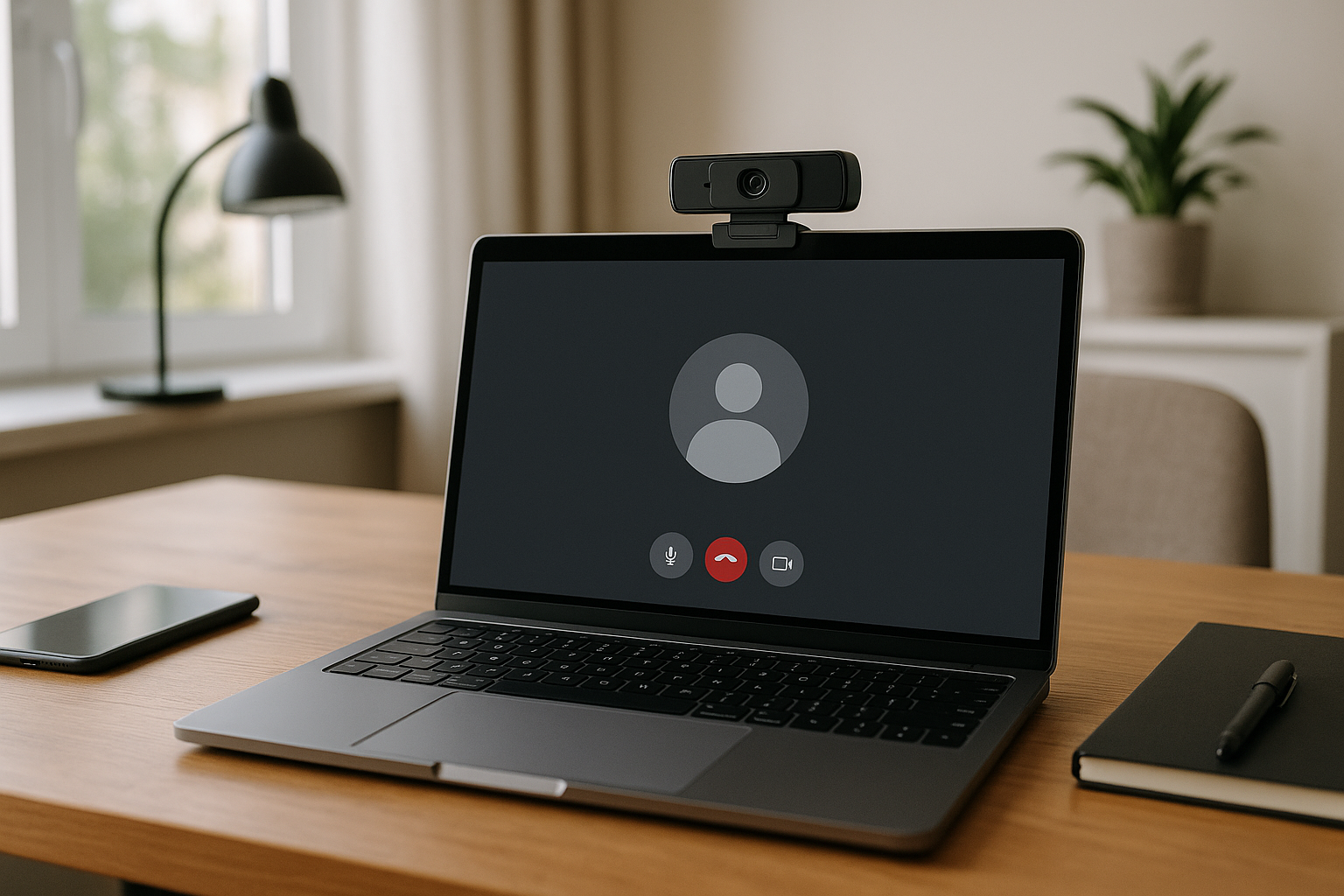
# Why Isn’t My MacBook Camera Working? A Meeting-Operator Fix Workflow for Zoom, Teams, and Meet
When your camera fails right before a call, the technical issue is only half the problem.
For people who run meetings daily, camera failure breaks the operator flow:
- preflight checks collapse
- meeting starts get delayed
- confidence drops for hosts, trainers, and presenters
This guide is a practical, time-prioritized workflow to get your MacBook camera back for Zoom, Microsoft Teams, or Google Meet without random guesswork.
# Fast triage (90 seconds before go-live)
If your meeting starts in under 2 minutes, run this order:
- Quit every app that can touch the camera (Zoom, Teams, Meet tabs, Loom, OBS, camera utilities).
- Reopen only your meeting app.
- In app settings, re-select the MacBook camera.
- If still blank, close app, wait 5 seconds, reopen.
If video returns, continue the meeting and do deeper cleanup later.
If it does not, run the full workflow below.
# What usually causes a MacBook camera failure
In meeting operations, the root cause is usually one of these:
- Camera ownership conflict (another app/browser tab still holds the camera).
- Permissions drift after macOS or browser updates.
- Client state issue in Zoom/Teams/Meet after sleep/wake cycles.
- Device policy restrictions on managed Macs.
Treat this as an operations incident: restore continuity first, then harden your setup.
# Full recovery workflow (operator order)
# Step 1) Clear camera ownership conflicts
The most common fix is removing hidden camera consumers.
Check and close:
- browser tabs with active camera permission
- background recording tools
- virtual camera utilities
- leftover meeting clients from previous calls
Then reopen in this order:
- meeting app only
- camera settings panel
- verify preview
# Step 2) Verify macOS camera permissions
On macOS, permission toggles can break after updates or app reinstalls.
Review:
- System Settings → Privacy & Security → Camera
- confirm Zoom/Teams/browser are enabled
- if disabled, enable and restart the affected app
For browser-based Meet workflows, also re-check per-site camera access in Chrome/Edge/Safari.
# Step 3) Reset the meeting client state
If permissions are correct but preview is still black:
- fully quit Zoom/Teams/browser (not just close window)
- wait 5–10 seconds
- relaunch and reselect camera device
Operator tip: do this once cleanly instead of repeatedly toggling random settings.
# Step 4) Check external monitor/dock edge cases
MacBook camera issues are common when users switch between docked and undocked setups.
If your workflow includes docks/adapters:
- disconnect/reconnect dock once
- test camera with no dock attached
- then reintroduce dock and retest
This isolates path-related issues fast.
# Step 5) Use continuity mode when time is tight
If camera reliability is uncertain and meeting start is critical:
- join on audio first
- keep mute/camera/share controls mapped to hardware
- turn camera on only after stable preview is confirmed
This avoids late starts while preserving control.
# Preflight checklist for heavy meeting users
Use this before important sessions:
- camera preview works in your primary meeting app
- app has camera permission after reboot/sleep cycle
- fallback path is known (browser vs desktop client)
- mute/camera/share controls are reachable without window switching
- backup device path exists (external webcam or phone fallback)
A written checklist beats memory when meetings stack back-to-back.
# Where MuteDeck helps during camera incidents
MuteDeck does not repair OS camera permissions, but it reduces control friction while you recover.
Practical patterns:
- keep mute/unmute and video toggles on dedicated keys
- map share-stop-share actions for quicker recovery if you rejoin
- avoid repeated window switching while troubleshooting
In real meetings, stable control paths often matter more than perfect setup aesthetics.
# IT-team playbook for recurring MacBook camera issues
If this repeats across a team, standardize response:
- define approved app/browser combinations for meetings
- document a one-page triage SOP (same order every time)
- include permission checks after every OS rollout
- track failures by app version and macOS build
This turns “camera not working” from ad-hoc chaos into a predictable support workflow.
# Common mistakes to avoid
- changing multiple settings at once
- keeping multiple meeting apps open during preflight
- testing only in one client (Zoom works, browser Meet fails, etc.)
- starting troubleshooting from deep system changes instead of fast ownership checks
Calm sequence wins.
# Final takeaway
If you’re asking, “Why isn’t my MacBook camera working?”, don’t start with random fixes.
Use a meeting-operator order:
- clear ownership conflicts
- verify permissions
- reset client state
- test dock/undocked paths
- protect meeting continuity first
That order gets you back on camera faster and keeps the meeting running smoothly.