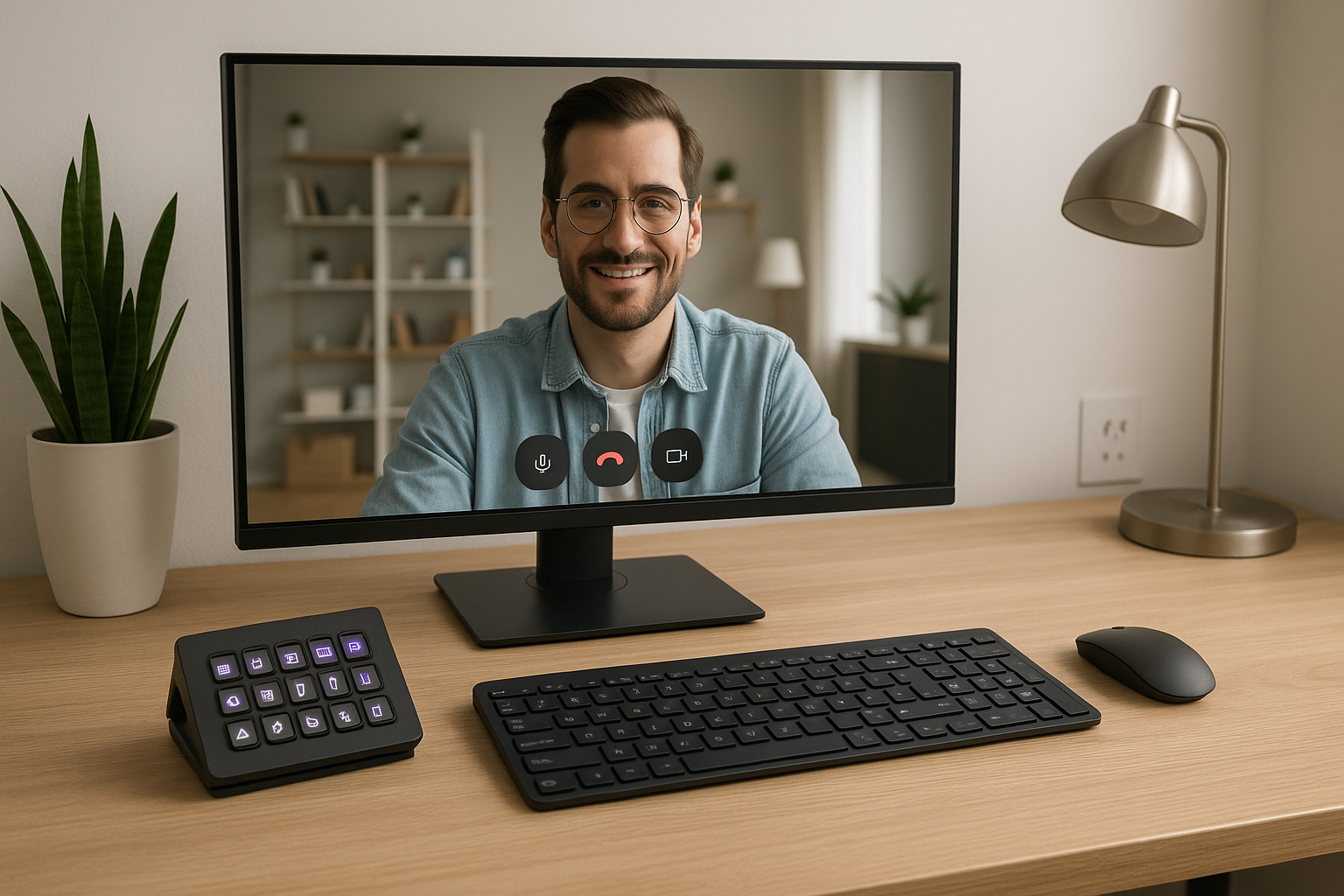
# Google Home Stream Deck Setup: Practical Meeting Control for Google Meet Hosts
If you host meetings from a home office, your main bottleneck is usually not the agenda.
It is live control friction: muting at the right time, handing off screen share fast, and recovering when someone says “we can’t hear you.”
This guide shows a practical Google Home Stream Deck setup for Google Meet operators who want fewer missed cues and cleaner transitions.
# What “good” meeting control looks like in a home setup
A home-office meeting rig is effective when it does three things reliably:
- Protect audio quality (fast mute/unmute and clear mic state).
- Protect pacing (instant transitions between talk, share, and Q&A).
- Protect attention (you run controls without hunting windows).
Your Stream Deck should be configured around those outcomes, not around every possible button.
# The minimum button layout that actually helps
Start with one page and 8–12 keys. Keep it simple.
# Core controls (top priority)
- Mic Toggle (global mute/unmute behavior for your setup)
- Camera Toggle
- Raise Hand / Reactions (if your workflow needs it)
- Leave Meeting Safely (confirmation flow)
# Flow controls (host productivity)
- Start Share
- Stop Share
- Open Agenda / Run-of-show note
- Open Action Log document
# Recovery controls (when meetings go sideways)
- Audio Check Macro (open system input settings + Meet device menu)
- Device Reset Shortcut (quick path to preferred mic/camera profile)
- Fallback Message Paste (“Audio issue, 10 seconds while I switch input.”)
For most hosts, these controls cover 90% of real meeting operations.
# Build a role-based page structure
Avoid giant one-size-fits-all pages. Use role pages:
- Host page: mute, camera, share, handoff, close.
- Presenter page: scene changes, notes, timing cues.
- Backup page: troubleshooting and fallback comms.
This prevents “button hunting” and lowers cognitive load during live calls.
# A practical pre-meeting sequence (60 seconds)
Run this sequence before every important session:
- Tap Preflight key (opens checklist doc + meeting link).
- Confirm mic input + test phrase.
- Confirm camera framing and light.
- Open agenda and action log side by side.
- Join early and run one mute/unmute test.
If you do this consistently, you remove most avoidable disruptions before attendees arrive.
# A practical in-meeting sequence for cleaner transitions
Use these operator moves at each handoff:
# Transition to presenter
- Stop your talk track.
- Tap Share On.
- Give control cue: “Handing over to Alex now.”
- Pause 1–2 seconds for audio stabilization.
# Transition to Q&A
- Tap Share Off.
- Return to camera.
- Tap Q&A note template key.
- Use one moderation sentence to set order.
# Transition to close
- Open action log.
- Read owners + due dates.
- Confirm next checkpoint.
- End via dedicated close key.
These small control habits reduce overlap, dead air, and repeated clarifications.
# Where MuteDeck fits in the stack
A common setup is:
- Stream Deck for tactile key layout,
- MuteDeck for meeting-aware control behavior,
- Google Meet as the runtime environment.
In practice, MuteDeck helps bridge control intent and meeting context, so key presses map to the actual behavior you want while hosting.
Keep mentions natural in your workflow docs, not in sales language.
# Troubleshooting playbook for home-office hosts
When something breaks, speed matters more than perfection.
# Problem: “You’re still muted” moments
- Use one dedicated Mic State Check key.
- Keep the key in the same position on every page.
- Add a spoken recovery line so you do not freeze.
# Problem: Wrong camera or unavailable input
- Add a Device Source key that opens input selectors instantly.
- Keep one fallback camera profile ready.
- Avoid mid-meeting deep settings navigation.
# Problem: Screen share delay during demos
- Preload tabs/apps before meeting start.
- Use separate keys for share start and stop.
- Keep a “return to host camera” key for quick recovery.
# Metrics to track for continuous improvement
If you run many meetings, track these weekly:
- Average time from meeting start to first productive minute.
- Number of audible control failures (“can’t hear,” “wrong share,” etc.).
- Number of disrupted handoffs per meeting.
- Total minutes lost to control fixes.
Then make one small layout change per week. Incremental tuning beats full redesigns.
# Example operator checklist (copy into your notes)
- [ ] Host page loaded
- [ ] Mic/camera preflight complete
- [ ] Agenda + action log ready
- [ ] Share source preloaded
- [ ] Recovery keys visible
- [ ] Close sequence prepared
Use this checklist before important client calls, webinars, or internal decision meetings.
# Final take
A good Google Home Stream Deck workflow is not about flashy automation.
It is about making meeting control predictable under pressure: stable audio, fast transitions, and clear ownership of the call flow.
If your setup helps you do those three things every time, your meetings will feel dramatically smoother for everyone involved.