# A Practical Guide to Video Conferencing in Business
Video conferencing is using video to hold live meetings with people in different places. For a modern business, it’s the space where daily team huddles, client pitches, and company-wide meetings happen.
If your company runs a hybrid or fully remote team, video conferencing isn't just a tool. It's a basic utility.
# How Video Conferencing Became Business as Usual
Not long ago, video conferencing was reserved for high-tech boardrooms. Today, it’s the operational backbone for distributed teams. It's the virtual office where we connect, work on projects in real-time, and build a company culture without sharing a physical address.
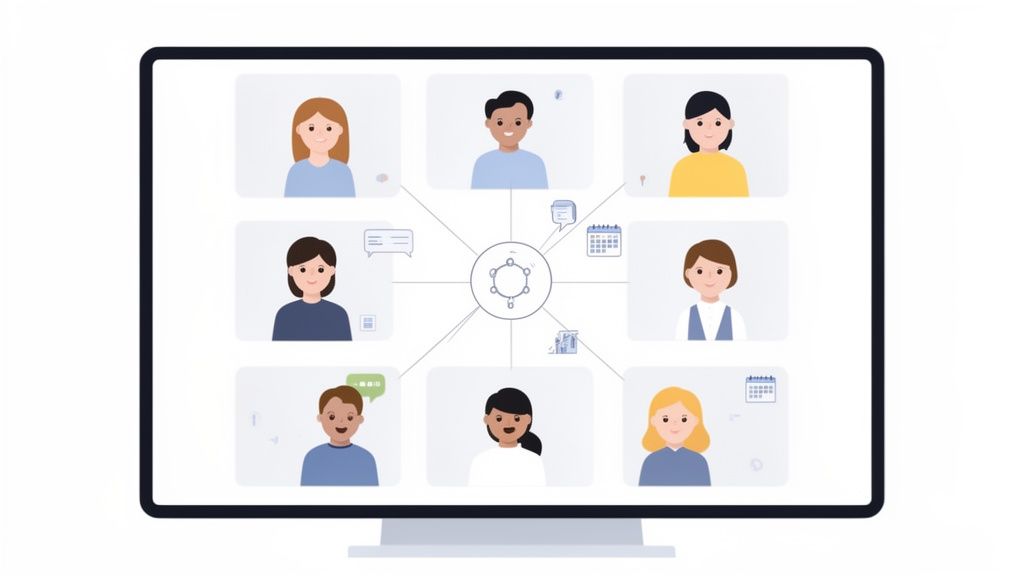
This shift from optional to essential accelerated in 2020. Platforms like Zoom saw usage explode to over 300 million daily meeting participants. Google Meet passed 100 million, and Microsoft Teams hit 75 million active daily users.
Suddenly, 78% of corporate companies worldwide were using video calls to keep their teams connected.
# The New Default for Communication
A video call used to be the substitute for a meeting. Now, it is the meeting. This isn't a temporary trend; it's a permanent change in how and where work gets done. The data supporting the remote work trend (opens new window) shows the hybrid model is here to stay.
This reliance created new problems. By 2020, 62% of companies were juggling three or more different video platforms. This led to a low-grade, constant frustration from inconsistent controls. An employee might start their day on Microsoft Teams for a stand-up, move to Zoom for a client call, then finish with a webinar on Webex. Every platform has a different spot for the mute, screen share, and leave buttons.
Constantly switching between meeting apps creates a subtle but persistent mental drain. It pulls focus away from the conversation and directs it toward managing the software itself.
# From Simple Calls to Integrated Workspaces
Modern video conferencing is more than just audio and video feeds. It has become an integrated collaboration space. Teams use these tools for all sorts of daily work:
- Daily Stand-ups: Quick, focused check-ins that keep agile teams on track.
- Client Presentations: Sharing pitches and product demos with stakeholders anywhere in the world.
- Project Collaboration: Working on a digital whiteboard or co-editing a document with screen sharing.
- Company-Wide Town Halls: Connecting leadership with every employee, no matter their time zone.
- Employee Onboarding: Welcoming and training new hires so they feel part of the culture from day one.
The technology makes sure the core functions of a business can run smoothly, without everyone needing to be in the same room. It’s the digital office where the actual work happens.
# The Good, The Bad, and The Ugly of Constant Video Calls
On the surface, video conferencing is a win for businesses. It cuts travel budgets, reduces the need for expensive office space, and opens up a global talent pool. Decisions can happen in hours, not days. It's fast, efficient, and direct.
But anyone living on back-to-back calls knows there’s a flip side. Convenience comes with a cost: a new kind of exhaustion and a layer of tech friction that can derail a workday. Having the tools is one thing. Knowing how to manage them—and the people using them—is what separates a productive team from a frustrated one.
To get a clearer picture, let's put the benefits and the day-to-day headaches side-by-side.
# Benefits vs Common Challenges of Video Conferencing
| Benefit | Common Challenge |
|---|---|
| Reduced Operational Costs (less travel, office space) | "Zoom Fatigue" (mental burnout from constant calls) |
| Access to Global Talent (hiring isn't tied to location) | Tech Friction (juggling Zoom, Teams, and Meet) |
| Increased Productivity (instant meetings, faster decisions) | Accidental Unmutes ("hot mic" anxiety and embarrassment) |
| Improved Work-Life Balance (no commute, more flexibility) | Distractions & Disengagement (multitasking is easy and common) |
For every major advantage, there's a practical hurdle that can get in the way if you're not careful. Let's look at both sides.
# The Clear Business Benefits
The upsides are compelling because they affect the bottom line and improve how teams operate. When companies fully adopt video conferencing, they see tangible results.
- Slash Operational Costs: The most obvious win. Money that once went to flights, hotels, and rent can be reinvested into product development, better salaries, or team growth.
- Hire Anyone, Anywhere: Your hiring pool is no longer limited to a 30-mile radius around an office. You can find the best person for the job, period. This leads to more diverse and skilled teams.
- Speed Up Everything: Have a problem? Start a quick call. No need to book a conference room or wait for everyone to be in the same building. This keeps projects moving.
- Give People Their Time Back: For many, ditching the daily commute is a significant life improvement. It means more time for family, hobbies, and rest. A happier, less-stressed employee is usually a more engaged and productive one.
These aren't just theories. They are the reality for thousands of modern businesses. Video conferencing can make companies more agile, resilient, and human-centric.
# The Everyday Frustrations
Now for the other side of the coin. The daily frustrations are just as real as the benefits, and they can chip away at productivity and morale.
The biggest complaint is exhaustion. We’ve all felt it. It even has a name: ‘Zoom fatigue.’ Staring at a grid of faces all day is a heavy cognitive load. Without the right strategies, it leads to burnout. Exploring proven ways to reduce Zoom fatigue (opens new window) is necessary for anyone whose calendar is full of video calls.
Then there’s the platform juggling act. Your 10 AM is on Zoom (opens new window). Your 11 AM is on Microsoft Teams (opens new window). Your lunch-and-learn is on Google Meet (opens new window). Each app puts the mute, camera, and share screen buttons in a slightly different spot. This constant context-switching is mentally draining and a perfect recipe for mistakes.
The fear of the "hot mic" is real. One accidental unmute can broadcast a private comment or distracting background noise to your entire team or a client. It kills focus and professionalism.
The solution is to lean into the benefits while actively fighting the frustrations. That means setting smarter policies, getting the right hardware, and training people not just on how to join a call, but how to lead one that doesn't make everyone want to log off.
# Building a Reliable Video Conferencing Setup
Dropping a software link in a company-wide email isn't an implementation strategy. If you want video conferencing to work for your business, you need a deliberate approach. This covers the tools people use, the network they connect with, and the ground rules for the entire experience. Without that foundation, you’re setting everyone up for choppy audio, frozen screens, and unprofessional meetings.
A reliable setup is built on three pillars: the right hardware, a stable network, and clear company policies. Get these three right, and video calls become an asset.
There’s a constant tug-of-war between the productivity gains from video calls and the very real burnout and technical headaches they can cause.
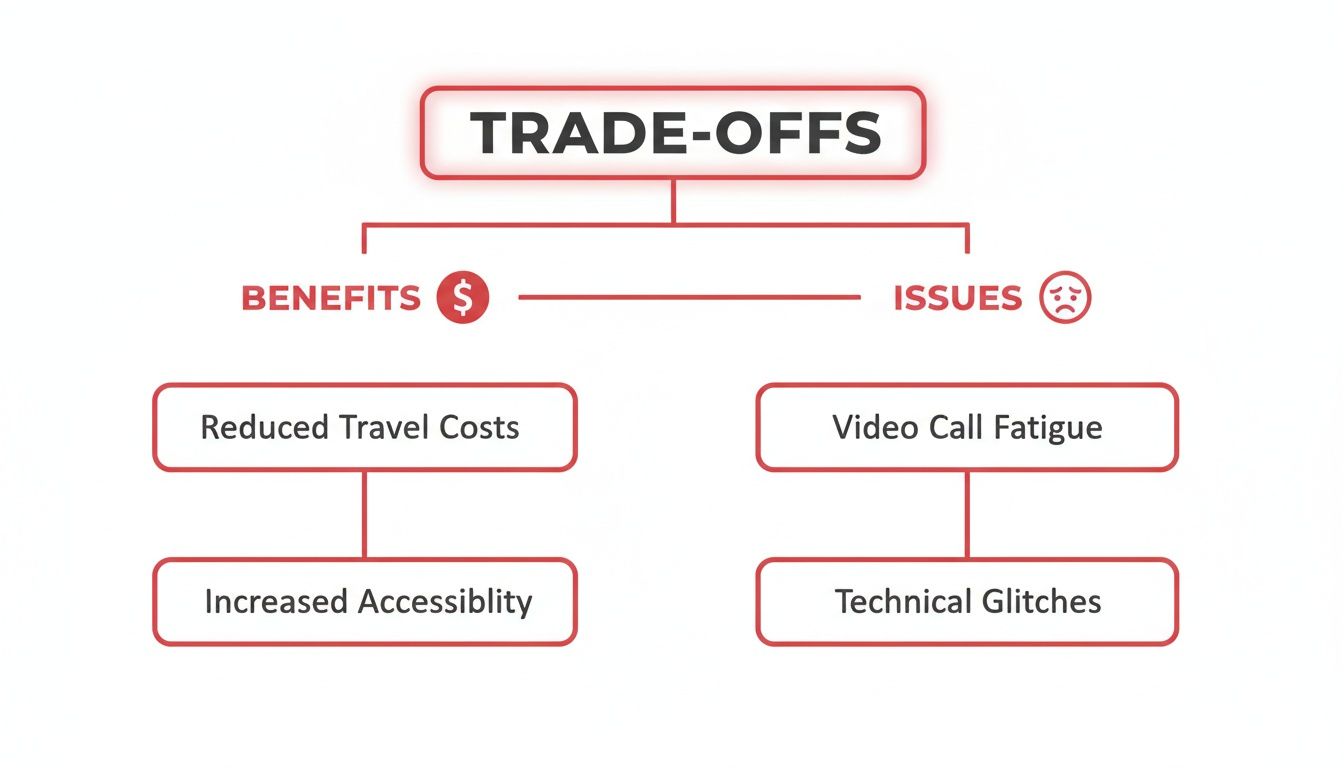
The benefits are huge, but they’re easily erased by a sloppy, poorly planned rollout.
# Choosing the Right Hardware
Bad audio and poor lighting are instant credibility killers. While built-in webcams and mics on laptops are improving, they aren't enough for professionals who spend much of their day on calls. Equipping your team doesn't have to be expensive, but it must be intentional.
Microphones: Hear and Be Heard Your voice is your most important tool in any virtual meeting. An external microphone is the single most important hardware upgrade you can make.
- Good Starting Point: A USB headset with a built-in boom mic (like a Logitech H390 or something from the Jabra Evolve (opens new window) series) is a massive leap from any laptop’s internal mic. It isolates your voice and cuts down background noise for well under $100.
- Better for a Dedicated Space: A standalone USB microphone like a Blue Yeti or Rode NT-USB+ (opens new window) delivers broadcast-quality audio. This is the choice for anyone who presents to clients or leads critical internal meetings.
- Best for Busy Environments: For an open-plan office or a noisy home, a headset with active noise cancellation (ANC) is a game-changer. It filters out distractions for both you and everyone else on the call.
Cameras: Look the Part That grainy, low-angle shot from your laptop camera doesn't look professional. An external webcam provides a clearer picture and lets you frame yourself properly.
- Good: A 1080p webcam (the Logitech C920 is a classic for a reason) is the modern standard. It gives you a sharp image and handles low light well.
- Better: A 4K webcam, like a Dell UltraSharp (opens new window) or Logitech Brio (opens new window), is great for sales pros or executives who need to make the best possible impression. The detail is noticeably crisper.
- Lighting: Lighting is more important than your camera. A simple LED ring light or a couple of small panel lights placed in front of you will eliminate shadows and dramatically improve your video quality, even with a basic webcam.
# Ensuring a Stable Network Connection
Great hardware is useless if your internet connection can't keep up. Lag, dropped calls, and robotic audio are almost always network problems. For one person on a group video call, you need at least 4-8 Mbps of both upload and download speed for a smooth experience.
People focus on download speed, but that's a mistake. For video conferencing, your upload speed is just as critical—it determines how clear your own video and audio are to everyone else.
Run a speed test during your normal work hours to get a real sense of your network's performance. If the numbers are consistently low, it might be time to upgrade your internet plan. For important meetings, plug directly into your router with an Ethernet cable instead of relying on Wi-Fi.
# Establishing Clear Company Policies
Technology is only half the battle. You need clear guidelines on how to use it, or you end up with unproductive, insecure meetings. If you manage a team, creating a simple policy document is necessary.
Your video conferencing policy should cover a few key things:
- Meeting Etiquette: Set the ground rules. Should cameras be on by default? How do people signal they want to speak? A simple rule like "mute yourself when you're not talking" can eliminate 90% of audio distractions.
- Recording and Consent: Define when it's okay to record meetings and explain how those recordings are stored and shared. Always require verbal consent from everyone before you hit record to respect privacy and maintain compliance.
- Data Security: Make it clear that employees must use company-approved platforms for business discussions. Prohibit sharing sensitive information on personal accounts or over unsecure networks. For teams with higher security needs, you can explore various video conferencing solutions (opens new window) that offer features like end-to-end encryption.
- Platform Standardization: People have their personal favorites, but standardizing on one or two primary platforms makes life easier. It simplifies IT support, streamlines training, and cuts down on the friction of constantly switching between different apps.
# Managing Security and Compliance Risks in Meetings
Every video call is a potential data leak. When your team shares a screen, talks strategy, or reviews client information, that conversation becomes a target. Ignoring the security and compliance side of video conferencing is a direct threat to your company’s integrity and your clients' trust.
The risks are common. We've all heard of "Zoombombing," where uninvited guests crash a meeting. The more subtle dangers are industrial eavesdropping on sensitive calls or an accidental data leak when someone shares the wrong screen, flashing confidential documents to everyone on the call.
This is about protecting your most valuable information. Securing your meetings doesn't require a massive technical overhaul. It starts with simple, consistent security habits.
# Practical Steps for Securing Your Meetings
You can reduce your risk by using the security features already in most professional video conferencing platforms. The trick is making them a non-negotiable habit for everyone. Start with these three controls.
- Always Use a Waiting Room: This is your virtual bouncer. It puts everyone in a holding area until the host manually lets them in. This one feature stops uninvited guests.
- Set Meeting Passwords: A password adds another layer of security, making sure only people with both the link and the code can join. For internal meetings, a simple, recurring password works. For external client meetings, always generate a unique one.
- Manage Participant Permissions: Don't give every attendee full control. As the host, you should be the only one who can share their screen by default. You can grant permission to others as needed, which prevents accidental and malicious screen takeovers.
These are basic tools that prevent the most common security slip-ups. Making them a standard part of your meeting setup is a simple but powerful first step.
Think of your video meeting like a physical office. You wouldn't let strangers wander in off the street, and you wouldn't leave confidential documents on an open table. Apply that same common-sense security to your virtual spaces.
# Navigating Compliance Regulations
For many businesses, security is also about staying on the right side of the law. If you're in healthcare, finance, or do business in Europe, regulations like HIPAA (Health Insurance Portability and Accountability Act) and GDPR (General Data Protection Regulation) have strict rules about handling personal data.
Choosing a video conferencing platform that is explicitly compliant with these regulations is essential. A business-tier plan from a major provider will almost always offer features like end-to-end encryption and data processing agreements to help you meet your legal duties. Using a free, consumer-grade tool for sensitive conversations is a serious compliance gamble.
The global video conferencing market was valued at USD 37.29 billion in 2025 and is projected to hit USD 65.72 billion by 2034. With North America leading the market and 62% of companies using multiple platforms, keeping security and compliance straight across different tools is a real headache for IT teams. You can find more details in this video conferencing market growth report from fortunebusinessinsights.com (opens new window).
# Creating a Culture of Security
Technology can only do so much. Your team is your first and last line of defense. A strong security culture is built on clear communication and consistent training.
- Train Your Team on the Risks: Don't just show them what buttons to click. Explain why it matters. Use real examples of what can go wrong when a screen is shared incorrectly or a meeting isn't locked down.
- Establish a Clear Policy: Write down your security expectations. Make it clear which platforms are approved for business and outline the required security settings for every single meeting.
- Conduct Regular Reminders: Security isn't a one-time training session. Briefly go over best practices in team meetings or send out quick reminders to keep this information top of mind.
By combining the right platform settings with an informed team, you can protect your company and client information without slowing down work.
# Smarter Workflows for Different Roles
How you use video conferencing changes depending on your job. An IT manager’s needs are a world away from a salesperson’s. Generic best practices are a decent start, but real productivity comes from building workflows that solve the actual problems each role faces daily.
This isn't about using every feature a platform offers. It's about using the right features to make your job easier, not harder.
Here's how a few different professionals can build smarter habits.
# For the Remote Professional
The remote professional lives by their calendar—often a solid wall of back-to-back video calls. The problem isn't one bad meeting; it's the slow drain of constantly switching contexts and feeling like you always have to be "on."
The Pain Point: Alex, a project manager, wraps up a client call on Zoom (opens new window) and has two minutes before an internal strategy session on Microsoft Teams (opens new window). In that time, Alex has to find the new meeting link, close the old app, launch the new one, and mentally pivot to a different conversation. This constant scramble is exhausting.
A better workflow cuts out that friction.
- Prep Your Digital Space: Before your day starts, open all the tabs and documents you'll need for your first few calls. This ends the frantic "Where is that file?" search while everyone on the call watches.
- Automate Joining Meetings: Use a calendar integration or a tool that lets you join your next meeting with a single click, regardless of the platform. It's a small automation that saves seconds and mental energy between calls.
- Schedule Buffer Time: Use a tool like Clockwise or Calendly to automatically add 5-10 minute breaks between meetings. This gives you time to get water, stretch, and process the last conversation before the next one.
The goal for a remote professional isn't just to survive back-to-back meetings, but to control them. A disciplined workflow turns a chaotic day into a manageable one.
# For the Salesperson
For a salesperson, a video call is a stage. Every demo and presentation has to be flawless. Any technical glitch, background noise, or fumbling for a button can kill a deal's momentum and undermine credibility. The workflow must be built around reliability and professionalism.
The Pain Point: Maria is in the middle of a big product demo. She needs to share a specific window but accidentally shares her entire screen, revealing a cluttered desktop and internal chat notifications. The interruption is small, but it breaks the flow and makes the pitch feel less polished.
A salesperson's workflow should eliminate every possible point of failure.
- Create a "Demo Mode" Checklist: Before any client-facing call, run through a quick checklist. Close unnecessary apps and tabs, silence all notifications on your computer and your phone, and check that your background is clean.
- Master Screen Sharing: Get comfortable sharing just one application window, not your whole desktop. This prevents accidental leaks of sensitive information and keeps the client focused.
- Use Physical Controls: For critical actions like muting your mic, relying on a mouse click is risky. Using a physical button on a device like an Elgato Stream Deck (opens new window) ensures you can mute instantly and reliably without looking away from your presentation.
For more ideas on improving remote collaboration, you might be interested in our guide on the best collaboration tools for remote teams (opens new window).
# For the IT Manager
The IT manager’s challenge with video conferencing isn't one call; it's managing hundreds of them across different departments and platforms. Their world is about deployment, security, and support. A good workflow here means creating a stable, secure, and easy-to-use environment for everyone else.
The Pain Point: An executive can't get their audio to work on Google Meet (opens new window) five minutes before a company-wide town hall. The IT manager, David, has to troubleshoot the issue remotely while also making sure the platform is configured for 500 attendees. He’s juggling user error, platform settings, and network problems all at once.
An effective IT workflow is proactive, not reactive.
- Standardize Platforms: While some variety is inevitable, try to standardize the company on one or two primary platforms. This simplifies training, support, and enforcing security policies.
- Develop Clear Documentation: Create simple, one-page guides for common tasks on each approved platform (e.g., "How to Securely Host a Meeting on Teams"). Make them easy to find on the company intranet.
- Pre-Configure Security Settings: Use the admin console of your video conferencing plan to set secure defaults for everyone. For example, you can enforce waiting rooms and disable guest screen sharing at the organization level. This takes the security burden off individual employees.
# How Universal Controls Reduce Meeting Friction
The biggest drag on any meeting is usually the technology itself. One minute you're deep in conversation, and the next you're hunting for the mute button that Microsoft Teams (opens new window) moved in its latest update.
This constant app-switching is a tax on your focus. It pulls you out of the discussion and forces you to think about the software instead of the people you're talking to. It's a subtle drain on your mental energy.
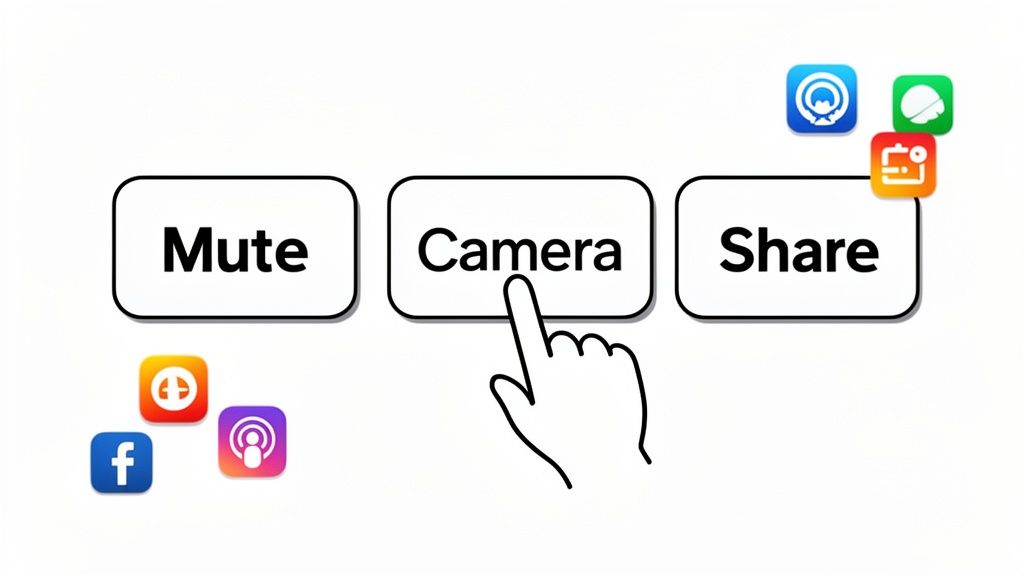
Universal control systems solve this by giving you one consistent way to manage every meeting, no matter the platform.
# Standardizing Your Most-Used Actions
The fix is simple: separate the controls from the software. When you use a dedicated tool like MuteDeck with a physical device like an Elgato Stream Deck, you create a workflow driven by muscle memory.
The mute button is always the same physical button, in the exact same spot, whether you’re in a Zoom (opens new window) call, a Google Meet (opens new window) session, or a Teams huddle.
This puts your most critical meeting actions on dedicated, tactile keys:
- Mute/Unmute: A single, reliable button to toggle your mic. The key can light up red when you're muted and green when you're live for instant feedback.
- Camera On/Off: Kill your video with a confident press. No more anxiety about being on camera when you think you aren't.
- Start/Stop Screen Share: Share your deck with one tap, without having to find the icon buried in the meeting window.
- Leave Meeting: End the call cleanly, avoiding the awkward fumble for the "End Call" button.
It’s the difference between fumbling for your car’s AC controls on a distracting touchscreen versus instinctively turning a physical knob. Your brain knows what to do.
The real win here isn't just speed; it's about focus. When you no longer have to think about how to mute, you can dedicate all your mental energy to what you're going to say next.
# Eliminating the "You're on Mute" Problem
That phrase—"Sorry, you're on mute"—is more than a meme. It's a symptom of a design flaw.
Native meeting controls give you poor feedback. You have to hunt for a tiny icon on your screen to know your status, which is easy to miss when you're focused on presenting or listening.
A universal controller provides clear, persistent, and physical feedback. A dedicated mute button on a Stream Deck stays lit, giving you an impossible-to-miss indicator. This eliminates the guesswork and the embarrassing interruptions.
For anyone who spends their day in back-to-back calls, this level of reliability is a game-changer. It turns video conferencing from a clunky, error-prone chore into a smooth, professional experience. Seeing how a tool like MuteDeck stacks up against built-in software controls is eye-opening; you can learn more about MuteDeck vs. native meeting controls in our article (opens new window) to see how much a dedicated tool improves reliability.
Ultimately, standardizing your controls removes a layer of cognitive load from every meeting. It lets you and your team stop managing software and start having better conversations.
# Your Top Video Conferencing Questions, Answered
Here are a few quick, practical answers to the questions we hear from businesses trying to get their video conferencing setup right.
# What’s the Real Minimum Internet Speed I Need?
For a smooth one-on-one video call, you'll want at least 1.5 Mbps for both your download and upload speeds. But for a group call with multiple people on camera, you should aim for 4-8 Mbps.
Raw speed isn't the whole story. A stable, consistent connection matters more. And your upload speed is just as critical as your download. It’s what sends your audio and video out to everyone else.
# How Can I Sound Better Without Buying an Expensive Mic?
You can get a massive audio quality boost for free, or close to it. A few small tweaks make a world of difference.
- Just use a headset. Even the basic wired earbuds that came with your phone will sound much better than your laptop's built-in microphone.
- Find a "soft" room. Take your call in a room with carpets, curtains, or a bookshelf. Hard, empty rooms create echo.
- Get closer to the mic. Position it near your mouth and point it away from noisy things like computer fans or an open window.
# Are Free Video Conferencing Tools Secure Enough for Business?
Probably not for anything important. The free versions of popular platforms almost always remove the critical security features businesses need. Think advanced user permissions, single sign-on (SSO) enforcement, and the detailed audit logs you need for compliance with regulations like GDPR or HIPAA.
A free tool might be okay for a quick, informal catch-up, but you're taking a risk if you're handling sensitive client information or internal company data. A business-tier subscription gives you the security and control you actually need. Don't let a data breach be the reason you finally decide to upgrade.
Tired of fumbling for the mute button? MuteDeck gives you universal, physical controls for every meeting on any platform. Stop the friction and run your calls like a pro. Learn more at MuteDeck.com (opens new window).