
# Mastering Meeting Scheduler Time Zones for Global Teams
Messing up meeting scheduler time zones is more than a calendar glitch. It’s a small mistake that spirals into a missed sales call, a frustrated teammate waking up at 5 AM, or a project that’s suddenly a day behind. This isn't just an annoyance—it's a direct hit to your team's productivity.
# The Hidden Costs of Time Zone Mismanagement
Scheduling across time zones feels like a trivial task, but the friction adds up. Every poorly timed meeting chips away at team cohesion and pushes people closer to burnout. The goal isn't just finding an empty slot; it's respecting people's work-life boundaries and creating a sustainable rhythm for collaboration.
When a scheduler ignores time zones, it creates a pattern of inequity. It's almost always the same employees—usually those furthest from the "main" office—who get stuck with calls outside their normal working hours. This is a fast track to disengagement.
# Productivity and Team Morale
The damage goes beyond hurt feelings. With over 16% of employees now working remotely across different countries, misaligned schedules can slash team productivity by as much as 30%.
Imagine a team split between New York, London, and Tokyo. The New York engineers are brainstorming at 9 AM EST. Their London colleagues are trying to wrap up their day at 2 PM GMT, and the developers in Tokyo have been offline for hours. This staggered reality creates delays, miscommunication, and a drop in momentum.
The real cost isn't the wasted hour from a missed meeting. It's the cumulative effect of dozens of tiny scheduling frictions that drain energy, kill momentum, and make collaborative work a chore.
# The Financial Drain of Inefficient Meetings
Poorly scheduled meetings hit the bottom line. Every minute spent in an unproductive call or trying to reschedule a missed one is a minute not spent on actual work. These lost hours pile up across teams and projects, becoming a significant operational cost.
The constant back-and-forth drains focus and shatters any chance of deep work. You can calculate the financial impact of your meetings (opens new window) to see how quickly these small inefficiencies turn into a substantial expense.
Getting your meeting scheduler's time zone settings right isn't just good manners; it's a strategic move. It builds a respectful, efficient, and productive global team where everyone can contribute without sacrificing their personal time.
# Configuring Your Tools for Global Scheduling
Your calendar and scheduling apps are your first line of defense against time zone chaos. A single wrong setting buried in your preferences can throw off an entire meeting.
Taking ten minutes to audit your setup now can save you hours of headaches later. The goal is to make your tools do the heavy lifting, automatically showing your availability in the recipient's local time. It removes the mental math that leads to mistakes.
The friction from time zone mix-ups has a real impact on productivity and employee well-being.
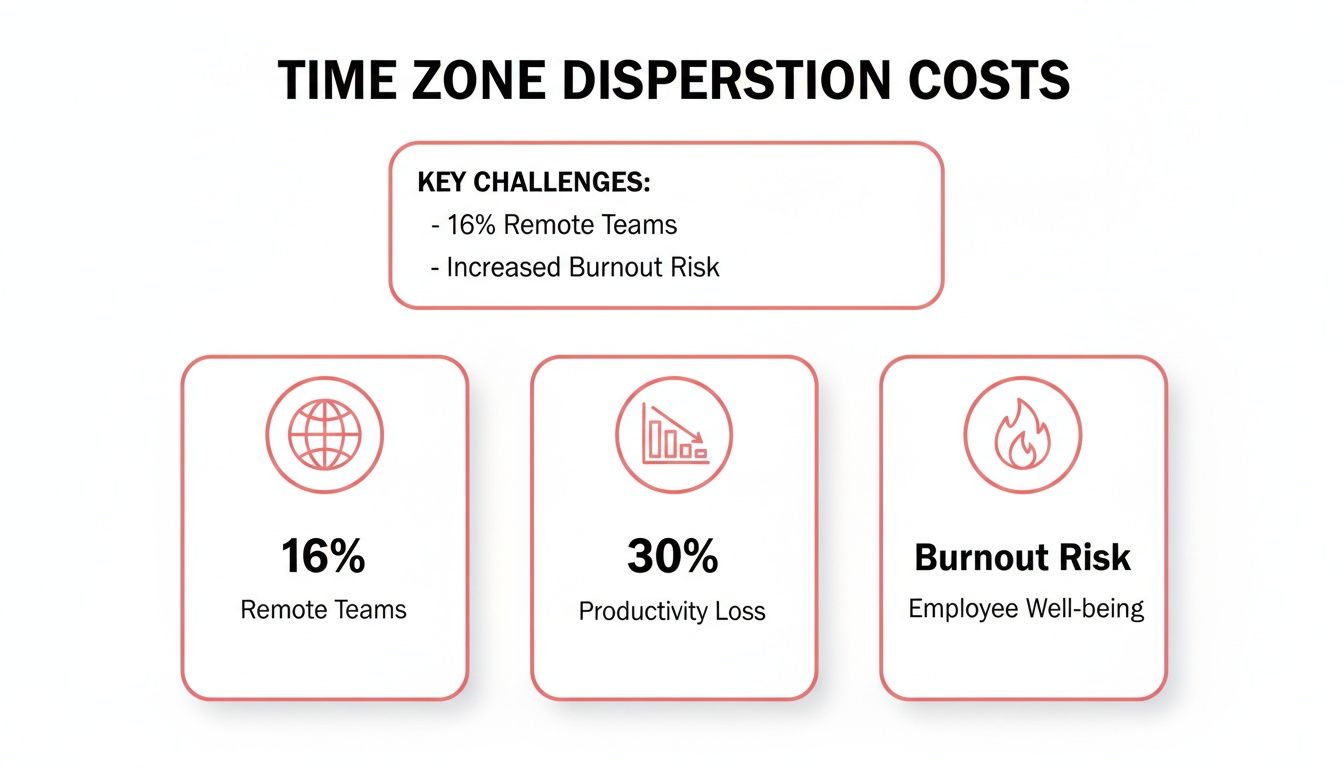
With 16% of the workforce now fully remote, that productivity loss adds up fast. It’s a business problem, not just a scheduling annoyance.
# Set Your Primary and Secondary Time Zones
Most modern calendars, including Google Calendar and Outlook, let you display multiple time zones right on your screen. This feature helps you visualize your day relative to your colleagues.
Here’s how to set it up:
- Primary Time Zone: Set this to wherever you are physically located. It’s the default for your calendar.
- Secondary Time Zone: Add the time zone where most of your team or clients are. If you work with people globally, picking a reference point like UTC or a major hub like EST works well.
In Google Calendar, you can find this under Settings > General > Time zone. Getting this right is fundamental. For a deeper dive, our guide on how to import events to Google Calendar (opens new window) shows how to make sure all your appointments respect these settings from the start.
# Key Calendar Settings for Time Zone Management
Getting your settings correct is the most important step. Here's a quick reference guide for the big two calendar apps.
| Setting | Google Calendar | Microsoft Outlook | Why It Matters |
|---|---|---|---|
| Display multiple time zones | Yes (Settings > Time zone) | Yes (File > Options > Calendar > Time zones) | Lets you see your schedule and a colleague's side-by-side, preventing mental math errors. |
| "Use device time zone" | Yes (Settings > Time zone) | Yes (Settings > Calendar > View) | Automatically updates your calendar's time zone when you travel. Turn this on. |
| "Ask to update..." | Yes (When device time zone is off) | N/A | If you don't let your device manage time zones, this prompt is your backup to avoid errors. |
| Event-specific time zones | Yes (In the event creation window) | Yes (In the event creation window) | Locks an event to a specific location's time, respecting DST changes. |
Taking a moment to confirm these settings can save you from a world of scheduling pain. It’s a simple fix that ensures your calendar is working for you, not against you.
# Fixed vs. Floating Time Zones
When you create an event, you’ll often see a choice between a fixed time zone (like "America/New_York") and a floating time zone. This detail is critical, especially when Daylight Saving Time (DST) rolls around.
A fixed time zone event is locked to that specific location. If DST changes in New York, the event automatically adjusts for everyone, no matter where they are. This is what you want 99% of the time for meetings.
A floating time event happens at the same clock time regardless of location or DST. Think of a daily 9 AM personal reminder. It's useful for you, but it's a disaster for multi-time zone meetings because it will break everyone's schedule twice a year. Always choose fixed for meetings.
# Write Clear and Unambiguous Invitations
Even with perfect settings, human clarity goes a long way. Never assume someone will correctly guess the time zone.
A simple best practice is to include multiple time zones directly in the meeting title or description. For example: "Project Sync (9 AM PT / 12 PM ET / 5 PM GMT)".
This step provides an instant sanity check for all attendees.
For teams that rely on virtual collaboration, using the right platform is just as important. For example, the best online tutoring software (opens new window) is built to manage sessions across different student and tutor locations. These platforms often have built-in schedulers that handle all the time zone conversions for you.
# Finding a Meeting Time That Actually Works for Everyone
You’ve got your calendar settings dialed in. That’s the easy part. The real challenge is finding a time that respects everyone’s day—a blend of smart strategy and basic decency. This isn't just about finding an open slot; it's about building a meeting culture that doesn't burn out your distributed team.
# Use a Visual Time Zone Converter
Before you send an invite, pull up a visual tool. I use World Time Buddy (opens new window) for this. It’s a simple, free utility that lets you overlay multiple time zones to see where working hours overlap. In about 30 seconds, you can spot who you’d be dragging out of bed or keeping late.
This quick visual check is your first line of defense against proposing obviously bad times. It saves back-and-forth emails and shows you respect your team’s time from the get-go.
# The Time Zone Overlap Framework
Not all time zone gaps are the same. I find it helpful to think about them in three categories to decide if a live meeting is the right call.
- Near-Overlap (2-6 hours): This is the ideal scenario. Think New York and Los Angeles. Finding a time that works for everyone during standard business hours is usually simple.
- Moderate-Overlap (7-10 hours): This is where it gets tricky. A team split between London and San Francisco falls into this bucket. Someone has to start early, and someone has to stay late. Compromise is necessary.
- Extreme-Gaps (11+ hours): For teams spanning continents like North America and Asia (e.g., New York and Singapore), live meetings should be a last resort. Pushing for synchronous calls in these situations is a fast track to burnout. Asynchronous communication should be your default. Our guide to pre-meeting success (opens new window) is especially useful here, as solid prep is non-negotiable when you can't all be in the same virtual room.
The goal isn't to find a time that's perfect for everyone—that's often impossible. The goal is to find a time that's equally inconvenient and to rotate that inconvenience over time.
# Implement a Fairness Rotation
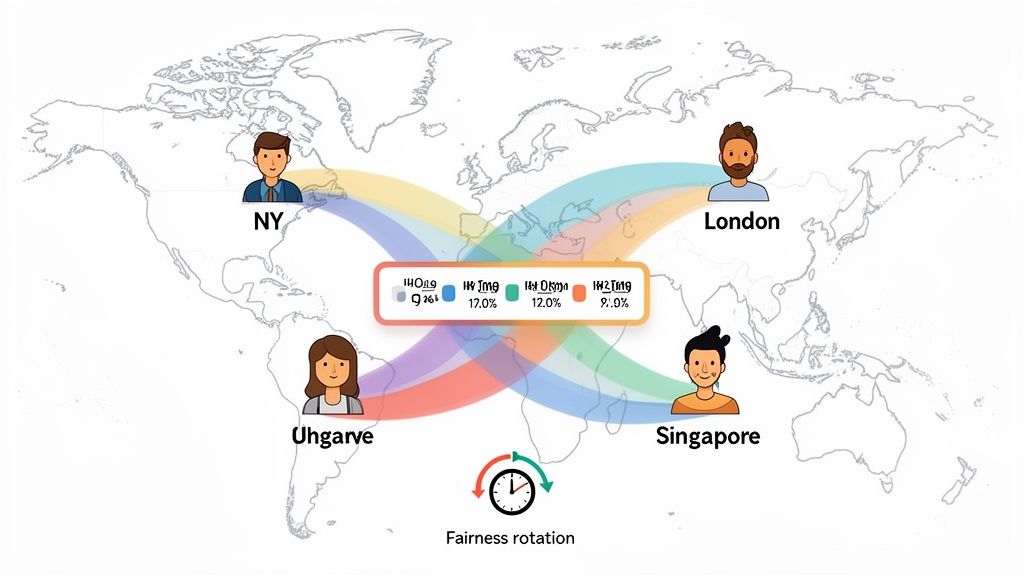
For those moderate-overlap situations, never let the same person get stuck with the bad time slot. It’s a recipe for resentment. The solution is a simple fairness rotation.
Let's say your London and San Francisco team has a weekly sync. One week, schedule it for 8 AM in London, meaning the SF team joins at their 4 PM. The next week, flip it: 8 AM in San Francisco, which is 4 PM for the London crew. Sharing the scheduling pain makes a huge difference in team morale.
This isn’t just a nice idea; it’s a proven management tactic. Research from Harvard Business Review on managing teams across five or more time zones (opens new window) shows that setting firm rules—like banning meetings between 10 PM and 7 AM local time—is critical. It creates humane, predictable working hours for everyone.
# Leverage Polling Tools for Large Groups
When you're trying to coordinate with more than three or four people across different zones, email threads become a nightmare. Use a polling tool.
Tools like Doodle (opens new window), or the features built into schedulers like Calendly (opens new window) and SavvyCal (opens new window), are perfect for this. You propose a few options, and everyone votes on what works for them. The tool shows you the winner. It automates the process and keeps your inbox from exploding.
# Scheduling Based on Global Economic Rhythms
For anyone who talks to customers for a living, scheduling isn't just about finding an empty slot on the calendar. The timing of your meeting can make or break its success. You want to connect with people when they're most active and receptive, which usually lines up with the rhythm of their local business day.
This means thinking beyond simple availability. You have to get strategic and understand where and when global economic activity happens. Time your outreach to hit those peak hours, and your engagement rates will climb.
# The Golden Hours of Global Business
A huge chunk of the world's economic activity is packed into a handful of time zones. The trick is finding the "golden hours" where these major economic centers overlap.
Here’s a breakdown:
- North America & Europe: The morning in North America (specifically, Eastern Time) overlaps with the afternoon in Europe. This window, roughly from 8 AM to 11 AM ET, is prime time for any transatlantic business.
- Europe & Asia: The European morning briefly lines up with the late afternoon in major Asian markets. This window is shorter, but it’s a valuable slot for coordination.
- Asia & North America: There’s almost no direct overlap. A call usually means one person has to work very early or very late. Asynchronous communication is often the smarter play.
Knowing these overlaps helps you target your most important meetings for maximum impact. A product demo for a client in London is far more likely to land well at 10 AM ET (3 PM GMT) than at 4 PM ET (9 PM GMT).
A successful meeting scheduler does more than find an open time; it finds the right time. It aligns your meeting with the natural pulse of your prospect's business day, making them more likely to show up engaged and ready to talk.
# Adapt Your Strategy to Emerging Markets
The economic map is changing. While the traditional powerhouses in EST and GMT are still huge, the fastest growth is happening elsewhere. Smart scheduling means adapting to these new centers of economic power.
Just six time zones capture almost 75% of global consumption. By 2040, that shift will be even more dramatic as Asia's consumer base grows. China Standard Time and Indian Standard Time are on track to add over a billion new consumers and trillions in spending power. You can read the full analysis on global spending rhythms (opens new window) to see how much these trends will reshape global business.
What does this mean for you? Your scheduling strategy for a lead in Mumbai should look different from one for a lead in New York. Respecting their local business hours and cultural rhythms isn't just polite—it's a competitive advantage.
# Automating Your Workflow for Stress-Free Meetings
Once a meeting is booked, the hard part should be over. Your brain can switch from scheduling logistics to the actual conversation. But the mental load from juggling time zones often sticks around—a low-level stress that follows you right into the call.
It’s 7 AM, you’re still waking up, and now you’re hunting for the mute button in a meeting app you barely use. This is where automation and consistent controls can help.
# Consistent Controls for Any Meeting Platform
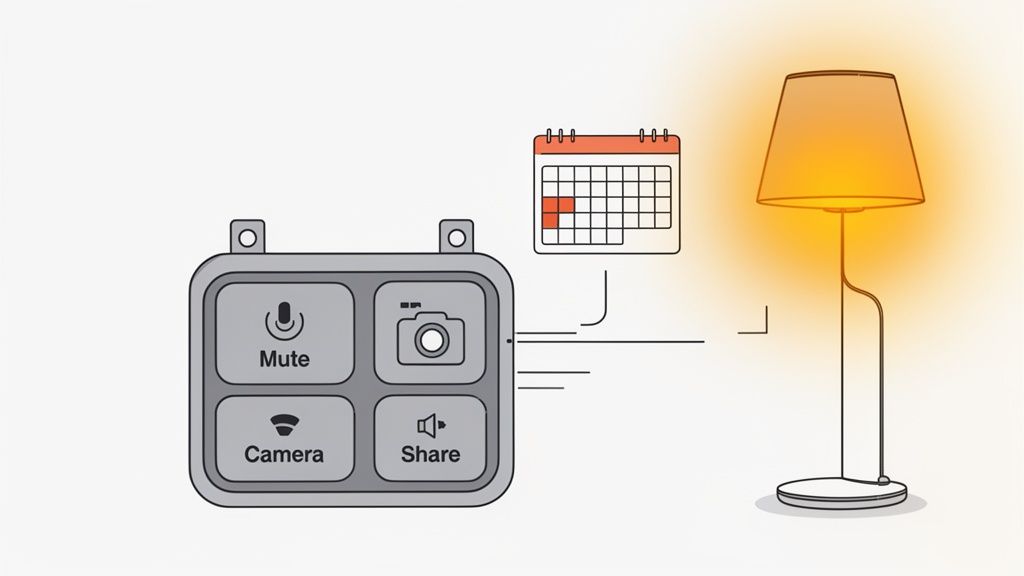
A tool like MuteDeck (opens new window) gives you a consistent, physical control panel that works with Zoom, Teams, Google Meet, and others. It doesn’t matter what time it is for you or which platform the other person picked. Your mute button is always the same button.
If you pair MuteDeck with hardware like an Elgato Stream Deck, you get physical, one-tap buttons for all the core meeting actions:
- Mute/Unmute Mic: A single, tactile button you can find and press without looking.
- Toggle Camera: Instantly kill your video when the cat jumps on your desk.
- Share Screen: Start and stop screen sharing with one tap.
- Leave Meeting: A clean way to exit the call without searching for the hang-up icon.
This kind of setup removes in-meeting friction. Instead of thinking about the controls, you can stay locked in on the conversation. That’s a huge win when you’re trying to stay sharp across multiple time zones.
The real benefit of physical meeting controls isn't just convenience; it's about reducing cognitive load. When you don't have to think about the software, you can dedicate all your mental energy to the people in the meeting.
# Advanced Automation for Your Workspace
Workflow automation can link your meeting status to your physical environment. This is especially handy for signaling to family or coworkers that you're busy, without saying a word.
Using MuteDeck's REST API, you can connect it to home automation platforms like Home Assistant (opens new window). This unlocks possibilities for building a smart meeting space.
A Few Practical Ideas:
- "On-Air" Lights: When you join a meeting, MuteDeck can trigger Home Assistant to turn a smart light outside your office red. When you leave, it flips back to green. No more interruptions.
- Focus Mode: The moment you unmute your mic to speak, your desk lights could automatically dim and shift to a cooler color.
- Audio Nudges: Ever start talking while muted? You could set up a subtle audio cue that plays only for you as a gentle reminder.
These automations aren't just tricks. They're practical tools for managing the boundaries and distractions of remote work—a problem that gets bigger when your schedule is packed with calls at odd hours. By offloading these tiny tasks to technology, you reclaim mental bandwidth to be at your best, no matter what time the clock says.
# A Few Common Time Zone Snags
Even with the best intentions, a few specific issues always seem to crop up. Let's tackle some of the most common questions head-on so you can troubleshoot problems before they start.
# How Do I Handle Daylight Saving Time with International Teams?
This is a classic. Rely on modern tools that handle DST automatically. When you're creating a calendar event, make sure you set it to a dynamic time zone like "America/New_York" instead of a static one like "EST." This tells your calendar to adjust along with the local changes.
Always give invites a quick second look when you're scheduling meetings around the DST changeover dates, since those dates are different all over the world.
For a final layer of clarity, I spell it out right in the invitation body. Something like "10 AM PDT / 6 PM BST" leaves no room for error.
# What’s the Best Way to Ask for Someone's Availability?
Don't send the dreaded, "What time works for you?" email. That just kicks off an endless chain of back-and-forth messages and makes the other person do all the work.
Instead, use a scheduling tool like Calendly (opens new window), which automatically shows your free slots in the viewer's local time.
If you have to do it manually, propose a few specific times and do the conversion for them. For example: "Would any of these times work for a 30-minute call? Option 1: 9 AM my time (3 PM your time), Option 2: 11 AM my time (5 PM your time)." This courtesy cuts down on email tag.
A good meeting request makes it easy for the other person to say "yes." Don't make them do the time zone math; do it for them.
# Should My Company Set a Policy for Global Meeting Times?
Yes. A formal policy is one of the best ways to prevent burnout and set clear expectations for a distributed team.
A good policy usually establishes "core collaboration hours" where everyone can expect some overlap. It should also define "no-meeting zones" to protect people's personal lives—think before 8 AM or after 7 PM local time.
It’s also smart to encourage rotating meeting times so the same people aren't always taking the late-night or early-morning call. Finally, the policy should push for asynchronous communication (like recordings and detailed notes) as the default for teams spread across wide time differences.
Once your meetings are on the calendar, keep them running smoothly with MuteDeck. It gives you universal, physical controls for every meeting platform, so you can stop hunting for buttons and stay focused on the conversation. Try it free at mutedeck.com (opens new window).