
# A Practical Guide to Dial-In Conference Calls
In an age of HD video meetings, why dial into a conference call with a phone? Because simple and reliable often beats fancy and frustrating.
Dialing in means using your phone to connect to a meeting's audio, bypassing internet-based apps. It’s a solid backup for when your Wi-Fi gets flaky and the easiest way to join when you’re on the move. Find the phone number and meeting ID in your invite, dial, and you're in.
# Why Old-School Dial-In Still Works
The traditional phone call runs on the PSTN, or Public Switched Telephone Network. It's the same system that has connected calls for over a century, and its biggest selling point is stability. It works.
When you’re driving through a dead zone for cellular data or trying to join from a coffee shop with bad Wi-Fi, the PSTN is your best option. It delivers clear, uninterrupted audio when an internet connection can't. It also saves mobile data and lets you join a meeting without turning on your camera.
# The Annoyances of the Past Are Still Relevant
Many of us remember early conference calls. Back in 2010, when over 70% of businesses used them, the experience was often a mess of fumbled access codes and forgotten PINs. One survey from that era found that 42% of users blamed "dial-in errors" for their biggest headaches.
Today, while video platforms like Zoom logged over 3.3 trillion meeting minutes in 2023, that dial-in option remains a necessary fallback. The tech has changed, but the need for dependable audio has not.
The real value of a dial-in number is its simplicity and stability. When your video connection drops or internet audio becomes a garbled mess, a quick phone call keeps the conversation moving.
# When to Choose Voice Over Video
Knowing when to skip the app and just dial in is an underrated skill. Here are a few times when it's the smarter move:
- Your internet connection is weak or unreliable. A phone call will almost always give you a cleaner audio feed than VoIP (Voice over Internet Protocol) on a spotty connection.
- You need to save mobile data. Video calls consume a lot of data. A voice call uses your plan's minutes, which are often unlimited.
- You're in a distracting environment. It’s easier to participate without video when you don’t want to broadcast your messy office or a noisy background.
- Your device is about to die. A voice call uses little battery power, while a video conferencing app drains it fast.
Learning to pick the right tool for the job makes a difference. While there is a huge world of modern video conferencing solutions (opens new window), sometimes the oldest trick is still the best one.
# Picking Your Dial-In Method
When it's time to join a conference call by phone, you have two main routes. The first is the PSTN dial-in, where you find the right phone number in the invite and punch in the codes. The second is a feature where the meeting platform calls you.
Each has its use. Knowing the difference helps you pick the right tool, whether you're focused on audio quality, convenience, or just trying to avoid international charges.
# The Classic: PSTN Dial-In
This is the standard way to dial into conference calls. You find the number, dial it, and follow the automated voice to enter a meeting ID. It’s manual, but it’s reliable.
Imagine you're stuck in traffic and about to be late for a client's Webex call. Your data signal is weak, but your phone connection is clear. This is where PSTN is useful. Dial the number, enter the meeting ID, and you’re in with perfect audio. It’s the go-to when your internet is acting up.
Your connection quality is almost always the deciding factor.
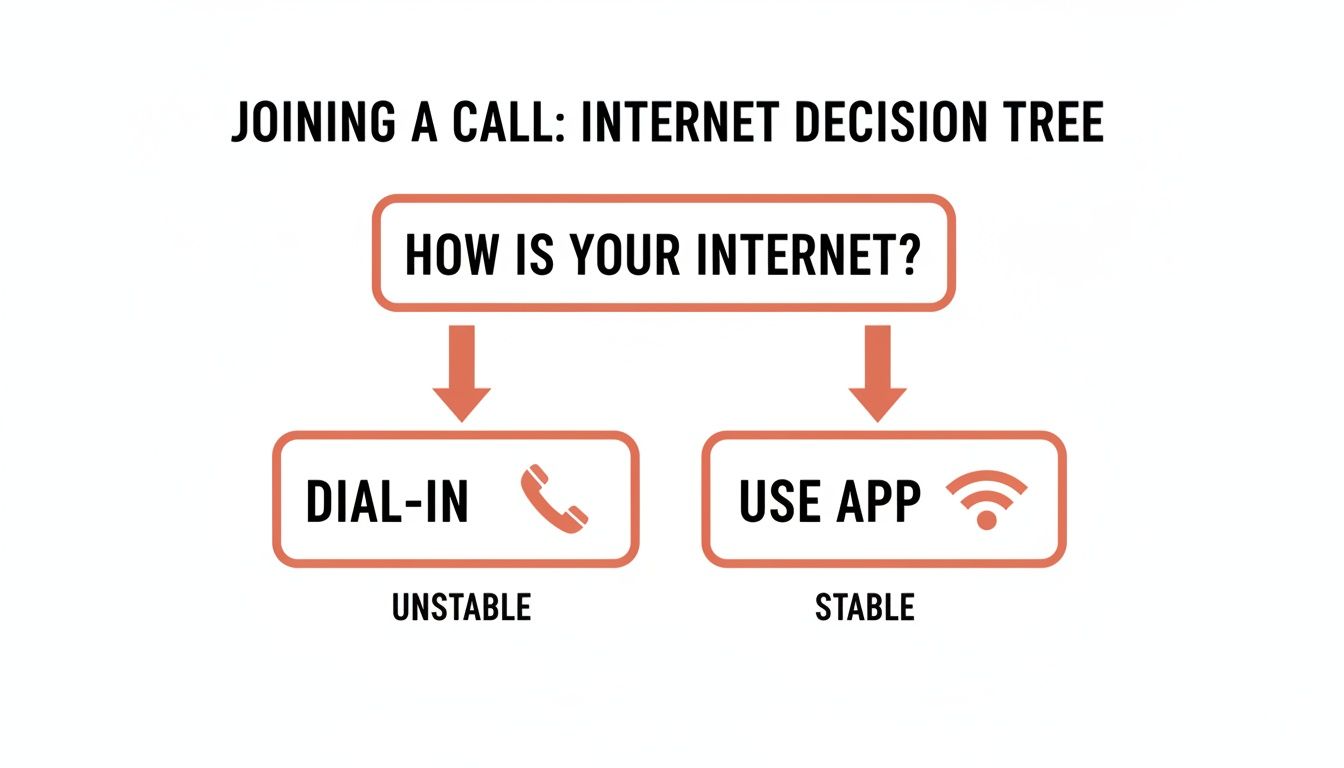
The takeaway is simple: if your Wi-Fi or mobile data is flaky, a traditional dial-in is your best bet for stable audio.
# The Modern Way: App-Based 'Call Me'
Platforms like Zoom and Microsoft Teams have a "Call Me" feature. Instead of you dialing out, you enter your phone number into the app, and the service rings your phone, connecting you directly to the call. No codes are necessary.
This method gives you the convenience of the app with the reliability of a phone line. It's fast and eliminates the risk of mistyping a ten-digit meeting ID. It's a great option if you're already in the meeting on your computer but want to switch to your phone for better audio. Sometimes the best internet telephone service (opens new window) is the one that works with the tools you already use.
Here’s a quick comparison of the two methods.
# PSTN Dial-In vs. App-Based Dial-In
| Feature | Traditional PSTN Dial-In | App-Based 'Call Me' Feature |
|---|---|---|
| How It Works | You dial a number and enter a meeting ID. | The app calls your phone number directly. |
| Best For | Unstable or non-existent internet connections. | Convenience and avoiding manual entry. |
| Convenience | Manual, requires finding numbers and codes. | High, just a click or two in the app. |
| Reliability | Very high, uses the public phone network. | High, but requires the app to initiate the call. |
| Cost | Can incur long-distance charges. | Usually included in the meeting plan. |
Both get you into the call. The 'Call Me' feature is my go-to for speed, but I always keep the traditional dial-in numbers handy as a fallback.
When outfitting a team, professional Data and Voice Solutions (opens new window) can help build a reliable communication stack. In the end, choosing between PSTN and an app-based call comes down to your immediate need for reliability versus ease of use.
# Navigating International Numbers and Carrier Fees
Joining a global conference call can get expensive. That long list of international numbers in your meeting invite is your best defense against surprise charges from your phone carrier.
Before you dial, scan the invite for a local or toll-free number for your country. A number listed as "United Kingdom" is a local call from London, but it’s an expensive international one if you’re dialing from Los Angeles.
# Dialing Formats: Don't Overthink It
International numbers start with a + symbol, followed by the country code. For example, the US is +1 and the UK is +44. Your phone knows what to do with that + sign, so there's no need to hunt for an exit code.
Just punch in the number exactly as it appears in the invite, + sign included.
A common mistake is dialing a US-based toll-free number (like
+1 800-XXX-XXXX) from another country. While it's free inside the US, your carrier will bill you at standard international rates. That's a bad surprise for your next phone bill.
# A Quick Real-World Example
Say you’re in Germany and need to join a call hosted by a US company. The invite gives you two options:
+1 800 555 1234(Toll-Free)+49 30 555 1234(Berlin)
Dialing the +1 800 number from your German mobile will connect you, but your provider sees it as an international call to the US. The smart move is to dial the +49 Berlin number. It's a local call and won't cost you extra.
# When to Skip the Phone and Use an App
If you can't find a local number, check your mobile plan's international rates. They’re often high.
In these cases, joining through the meeting app over a stable Wi-Fi connection is almost always cheaper. VoIP (Voice over Internet Protocol) calls don't use your carrier's voice network, letting you sidestep international fees. It's the safest option for your wallet when you can't find a local number for your dial in conference calls.
# Solving Common Dial-In Problems

Even with good preparation, dial-ins can go wrong. A technical hiccup can derail an important call. Here’s how to troubleshoot the most common issues.
An "Invalid Meeting ID" error is almost always a typo. Slow down, double-check the invite, and carefully re-enter the numbers. If it still won't connect, the host might not have started the meeting, or you may have the wrong code.
If you get a busy signal, the conference bridge could be full. This is rare but happens on large calls. The only fix is to wait a minute and redial, or message the organizer to let them know people can't get in.
# Dealing With Poor Audio Quality
Bad audio can ruin a meeting. Static, echo, and garbled voices are common but usually fixable from your end.
The easiest fix? Mute your own line. A huge amount of echo comes from a single unmuted mic creating a feedback loop with their speakers. If that doesn't solve it, your connection might be the issue.
- Move to a better spot. If you’re on a cell phone, poor reception is the top cause of static and dropped words.
- Hang up and redial. This simple step resolves many audio glitches by giving you a fresh connection to the bridge.
- Get off speakerphone. Your phone's speakerphone is a known source of echo. Using the handset directly or a headset will give everyone clearer sound.
If you constantly have audio problems across different calls, the issue might be your microphone. Sometimes it’s a hardware problem, not a connection one. We have a guide on what to do if you suspect my microphone is not working (opens new window).
# When Nothing Seems to Work
If you've tried everything and the audio is still a mess, it might be a system-wide problem with the service itself.
Let the host know what's happening. They might need to restart the conference or switch to a backup service. A quick message can save everyone a lot of frustration.
# Managing Your Audio Like a Pro
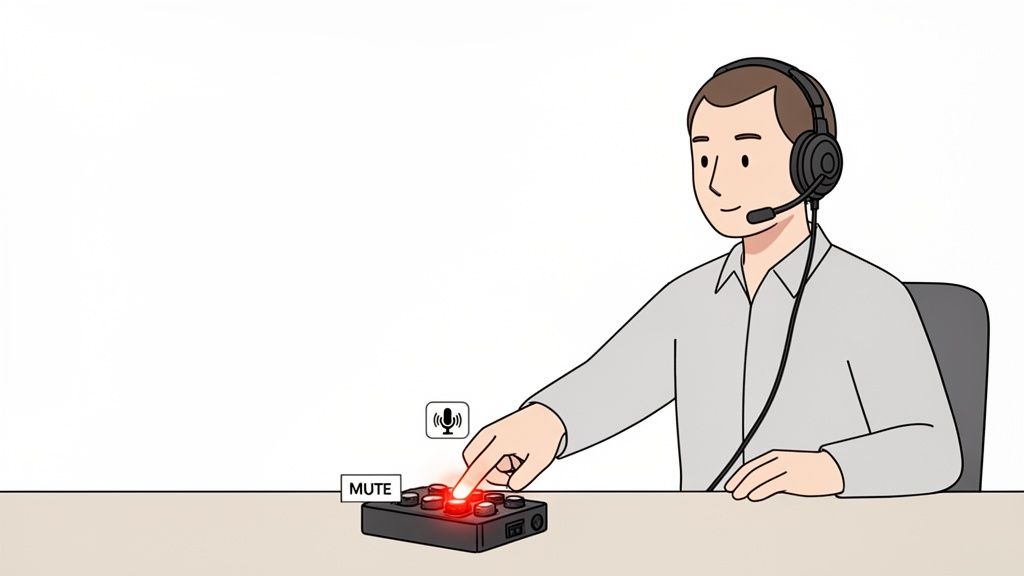
Once you’re in the call, your job isn't over. Professionalism starts with a few simple habits. First, announce yourself when you join so the team knows you’ve arrived. Then, hit mute. Immediately.
This isn’t just good manners; it’s necessary for a clear call. A single open mic can introduce distracting background noise—keyboard clicks, a barking dog, or office chatter. These small sounds can derail a conversation for everyone.
If you’re in a busy office, the physical space matters. Quiet zones with modern office glass partition walls with acoustic solutions (opens new window) can make a large difference. The goal is simple: speak only when you mean to.
# The Problem of Platform-Hopping
The biggest cause of audio mistakes is juggling different meeting apps. The mute button in Zoom is in one spot, but it’s somewhere else in Microsoft Teams and Google Meet. This constant context-switching is why we all dread the “...you’re on mute” interruption.
It’s more than embarrassing; it’s a productivity drain. By 2022, virtual meetings made up 77% of all business interactions, and fumbling for the right button costs U.S. businesses an estimated $37 billion every year. These small issues happen in over half of all meetings, stealing minutes from our day.
We’ve all felt that panic—frantically searching for the on-screen button while everyone waits. It breaks your flow and can hurt your confidence, especially when you're trying to make an important point.
# A Better Way: The Physical Mute Button
The most reliable solution is to take control away from the software and put it at your fingertips. A dedicated physical device, like an Elgato Stream Deck running MuteDeck, gives you a universal, always-on mute button that works across all your meeting apps.
This setup gives you two major benefits:
- Tactile Control: You're not hunting for a tiny icon with your mouse. You’re pressing a real, physical button. It’s faster and more intuitive.
- Clear Visual Feedback: The button lights up, giving you an unmistakable, at-a-glance confirmation of your mute status. No more second-guessing, no matter which app you’re using.
Managing your audio goes from a frantic search to a single tap. You can focus on the conversation, not the user interface. This one change eliminates the most common audio headaches that plague dial in conference calls.
Got a few lingering questions about dialing in? Let's clear them up.
# Meeting ID vs. Participant ID: What's the Difference?
A meeting ID (or access code) is like the address of the party—it’s mandatory to get you into the right virtual room.
A participant ID, on the other hand, is like your name tag. It’s usually optional, but it helps by linking your phone number to your name in the app. Without it, you show up as a random phone number. With it, the host knows who is talking.
# Can I Dial In Without Installing the App?
Yes. As long as the meeting invite has a phone number and a meeting ID, you can join from any standard mobile or landline phone.
You won't get video or screen sharing, but your audio will work without downloading anything. It’s a great fallback if your internet is down.
# Why Won't the Keypad Work When I Enter the Meeting ID?
This is a classic problem. It usually means your phone's touch-tones (DTMF tones) aren't being sent correctly.
The easiest fix is to wait a moment after the prompt before you start typing the numbers. Rushing can cause the tones to get jumbled. If you're using Wi-Fi calling, a spotty connection can also be the problem. Try switching to your regular cellular network or simply hanging up and redialing. That usually works.
Is It Free to Dial Into a Conference Call? Sometimes. If the invite includes a toll-free number for your country, it's free. But if it's a standard or long-distance number, your phone carrier's normal rates apply. Always scan the invite for a local or toll-free number first.
Stop fumbling for the mute button. MuteDeck gives you a universal, physical control for all your meeting apps, so you can manage your calls with confidence. Learn more and start your free trial at MuteDeck.com (opens new window).