
# Choosing the Right Video Conferencing Solutions
A video conferencing solution is the software and hardware that lets people in different places have a face-to-face meeting. It’s the platform, like Zoom (opens new window) or Microsoft Teams (opens new window), plus the physical gear like webcams, microphones, and displays that make it work.
It's the entire setup that makes remote work feel a little less remote.
# What Modern Video Conferencing Solutions Are
A video conferencing solution is a tech stack designed to send audio and video over a network in real-time. The software is the digital meeting room; it sets the rules and provides the tools. Your hardware—the camera and mic—is how you show up and speak in that room.
Before you get to features, every solution uses one of two architectures: cloud-based or on-premise.
# Cloud-Based vs. On-Premise Architecture
Cloud-based solutions are what most of us use. Services like Google Meet (opens new window) and Zoom run on servers owned by the provider. You connect through a web browser or app, and they handle the infrastructure.
- Upside: Easy setup, automatic updates, and you can scale to hundreds of users without touching a server.
- Downside: You trust the provider with your security and uptime. Your data lives on their servers, which can be an issue for organizations with strict data policies.
On-premise solutions are hosted entirely on your organization's servers. This is the "roll your own" approach, giving you full control over the system. This is common in government agencies or police departments where security is the top priority.
- Upside: Total control over data, security, and system configuration.
- Downside: Higher upfront cost for hardware and constant maintenance. You need a skilled IT team to keep it running.
People think "video conferencing" just means the app. It's really an integrated system. The software, network, and hardware all have to work together. A top-tier platform is useless if you're using a bad microphone.
# The Complete Ecosystem
Modern video conferencing tools don't operate in a vacuum. They plug into other business software, creating a connected workflow often called Unified Communications. For example, your video platform might sync with your calendar to schedule meetings or connect to a CRM to log sales calls. Understanding what is Unified Communications (opens new window) shows how these tools build a more efficient system.
This ecosystem includes all the peripherals and utilities that make meetings better. The hardware includes:
- Cameras: Anything from a laptop's built-in webcam to high-definition PTZ (Pan-Tilt-Zoom) cameras for large boardrooms.
- Microphones: Dedicated USB mics, headsets, or specialized speakerphones designed to capture clear audio from everyone in the room.
- Displays: The monitors, projectors, or interactive whiteboards used to see participants and shared content.
A complete solution is more than an application you install. It's the right mix of platform architecture, reliable hardware, and smart integrations that lets teams connect and get work done, no matter where they are. Whether you choose a cloud or on-premise solution depends on your organization's needs for security, budget, and in-house tech skills.
# Comparing Core Features Across Platforms
Not all video conferencing platforms are created equal. Most get the basics right—letting you see and hear other people—but the real differences are in the details. When comparing, draw a clear line between the must-haves and the premium features that solve specific problems.
Any tool you consider should deliver stable, high-definition video and crisp audio. Screen sharing is the other non-negotiable. If a platform can't nail these three things, the fancy extras don't matter.
Once you get past that baseline, the feature sets vary. This is where you match the tool to how your team works. A sales team that lives in their CRM will get a boost from a platform with a native Salesforce or HubSpot integration. A creative team might value high-fidelity screen sharing that can render motion and color perfectly during a design review.
This is all part of a larger ecosystem where software, the platform itself, and your hardware all have to work together.
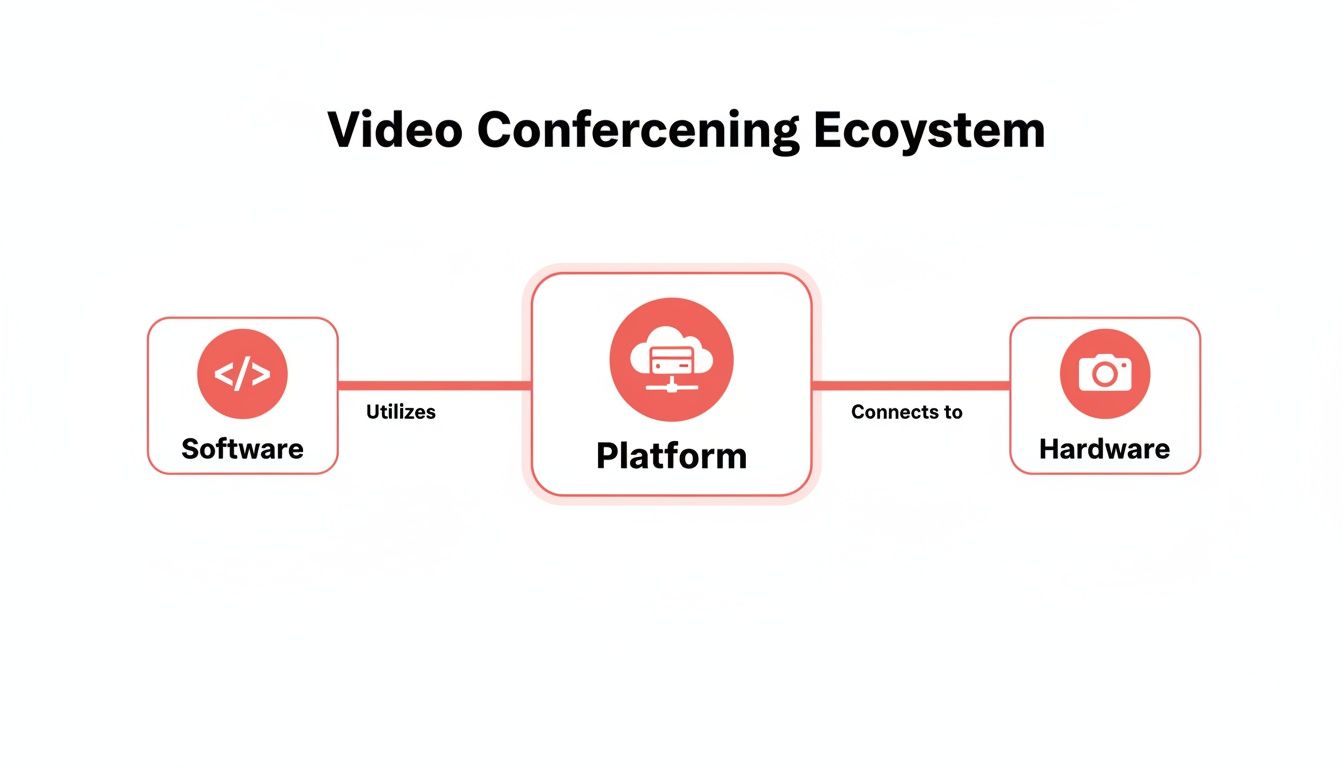
As the diagram shows, a weakness in any one of these areas can drag down the whole experience.
# Essentials Versus Advanced Capabilities
The challenge is figuring out which "advanced" features are worth paying for. Many platforms use AI to offer tools like real-time transcription and automated meeting summaries. For teams that need a perfect record of client calls or internal decisions, these are major time-savers.
Think about the kinds of meetings you run. A team doing quick, informal daily stand-ups probably doesn't need breakout rooms or polling features. But for an educator engaging a classroom or a corporate trainer running a workshop, those tools are essential. When you compare platforms, detailed breakdowns like this one on Microsoft 365 vs Google Workspace (opens new window) can help you see how different ecosystems bundle their features.
This breakdown separates standard features from the more premium ones you'll encounter.
# Essential vs. Advanced Feature Comparison
| Feature Category | Essential Capability (What to Expect) | Advanced Capability (What to Look For) |
|---|---|---|
| Core Functionality | HD video/audio, screen sharing, basic chat | Virtual backgrounds, noise cancellation, high-fidelity screen sharing for video/audio |
| Engagement | Raise hand, basic reactions (emojis) | Breakout rooms, interactive polling, Q&A modules, whiteboarding |
| Automation & AI | Cloud recording and local recording options | AI-powered transcription, automated summaries, speaker identification, action item detection |
| Integration | Calendar plugins (Outlook, Google Calendar) | Native CRM integration, project management tool connections (e.g., Jira), API access |
Sorting through these options can feel overwhelming. Focus on what will genuinely make your team’s life easier, not just what sounds impressive on a feature list.
# Building Your Evaluation Checklist
Instead of getting lost in a giant list of features, make a checklist based on your team’s biggest problems.
Does your team struggle to remember who was assigned what action item? If so, automated summaries and action-item detection should be at the top of your list. Are you constantly fighting background noise from home offices? Then top-tier noise cancellation becomes a priority.
The best video conferencing solution isn't the one with the most features. It's the one that supports the work your team actually does.
For example, a marketing team's checklist might prioritize:
- Webinar functionality: Look for registration pages, attendee management, and post-event analytics. These are different from standard meeting features.
- Recording and sharing: The ability to quickly record a product demo, trim it, and send a clean link to a prospect is a common workflow.
- Brand customization: Some platforms let you add your company logo and colors to the meeting interface or waiting room, which is a small but useful touch for client-facing calls.
By starting with your specific needs, you can cut through the marketing fluff. You'll avoid paying for shiny tools your team will never touch and instead invest in a solution that makes their work simpler.
# Selecting Solutions for Different Roles
The “best” video conferencing tool isn’t a one-size-fits-all solution. The right choice depends on who you are and what you need to do. Picking a platform without considering the user's role is like buying a tool without knowing the job.
You have to look at it through the eyes of the people who will use it most. For an IT admin, "works well" means secure and manageable. For a teacher, it means keeping students engaged. For a presenter, it's all about a flawless delivery.
# The IT Administrator Perspective
For any IT administrator, the conversation starts with security, management, and integration. Flashy features don't matter if the platform creates a security hole or a support nightmare. Their checklist is about control and stability.
First is security. An IT admin looks for end-to-end encryption (E2EE), detailed user permissions, and compliance with standards like HIPAA or SOC 2. They need to be able to control exactly who gets in and what they can do.
Next is user management. A good platform offers a centralized dashboard to add users, assign licenses, and enforce company-wide policies. Single Sign-On (SSO) integration is non-negotiable, as it simplifies life for users while keeping the tech stack secure.
Finally, the platform has to work with existing tools. An admin will check for a solid API for custom builds and native integrations for calendar syncing. It's why some government agencies or law firms still use on-premise solutions—they get total control over their data.
# The Educator Perspective
An educator’s main goal is to keep students engaged. Their video conferencing tool is the classroom. It needs features that can spark interaction similar to a real-world learning space.
For teachers, the most valuable features get students involved.
- Breakout Rooms: Essential for turning a large lecture into small, collaborative group discussions.
- Interactive Polling and Quizzes: Good for quick knowledge checks and pulling students back into the lesson.
- Digital Whiteboarding: A must-have for brainstorming, drawing concepts, and letting students contribute ideas visually.
- Content Sharing: Educators need to reliably share presentations, documents, and videos with crisp audio.
An educator isn't just dumping information; they're creating a learning experience. The right platform acts like a great teaching assistant.
Accessibility is also important. The software has to be simple enough for students of all tech levels to use. Features like live closed captioning are critical for making sure everyone can participate. For a closer look at this, our guide to the best tools for online teaching (opens new window) digs into more software built for the virtual classroom.
# The Frequent Presenter Perspective
If you’re in sales, corporate training, or any role that involves presenting, your focus shifts to impact and polish. The goal is to deliver a smooth, professional presentation without any technical issues. For you, it's about reliability and features that make you look good on camera.
High-quality recording is a non-negotiable. Presenters need to capture their sessions reliably, whether for a client who missed the demo or for an internal training library. The best platforms even offer separate audio and video tracks, which is a major benefit for anyone doing post-production editing.
Features that sharpen the delivery itself are also key.
- Presenter Overlays: Some tools let you overlay your video on top of your slides, creating a more dynamic, news-anchor-style look.
- Virtual Backgrounds and Filters: These help you maintain a professional appearance, no matter what your home office looks like.
- Seamless Control: Presenters can't be fumbling for the mute button or struggling to share their screen. Confidence comes from knowing your controls are instant and predictable.
A frequent presenter just needs a tool that works, every single time. It should fade into the background, letting them focus on their message, not the technology.
# Integrating Peripherals for a Better Experience
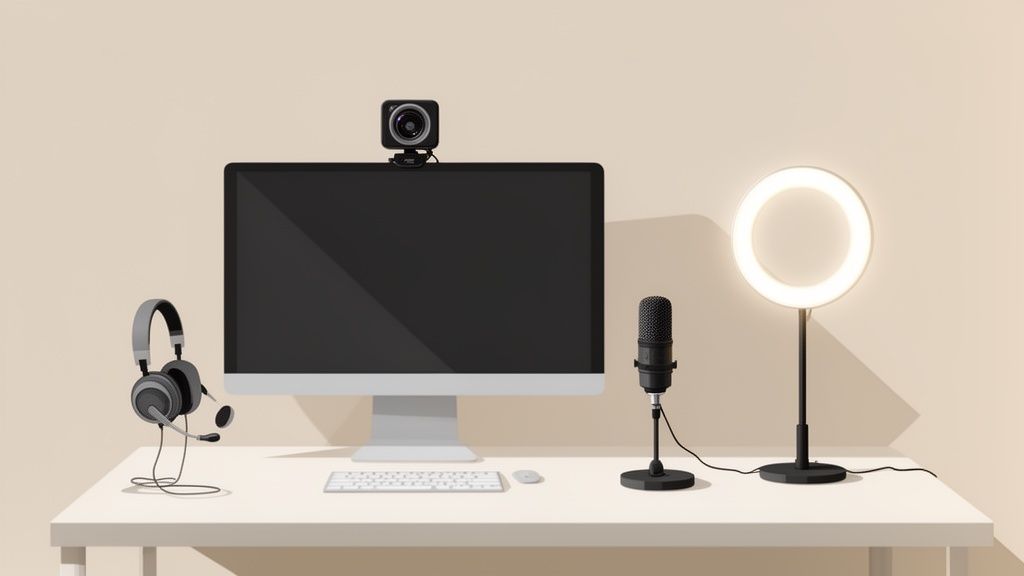
The video conferencing software is just the starting point. Relying on your laptop's built-in webcam and microphone is often the cause of low-quality calls. The right external hardware—peripherals—is what transforms a clunky meeting into a professional exchange.
Think of it this way: your software is the meeting room, but your peripherals are how you show up. A poor microphone makes you sound distant and muffled, while bad lighting can turn you into a silhouette. Investing in basic external gear is the fastest way to improve your presence on any video call.
# Prioritize Your Audio First
Most people overspend on video and neglect audio. That’s a mistake. If your video freezes for a second, the conversation continues. But if your audio cuts out, the meeting grinds to a halt. Clear audio is non-negotiable.
Your laptop's microphone is usually tiny and placed next to a noisy keyboard and fan. A dedicated external microphone is the most impactful upgrade you can make. The goal is to get the microphone close to your mouth, isolating your voice from room echo and background noise.
Here’s a quick rundown of your options:
- Headset Microphones: These are great for noisy environments. The mic sits right next to your mouth, perfect for capturing your voice clearly while rejecting background sounds.
- USB Condenser Microphones: Placed on your desk, these offer rich, broadcast-quality sound. They're ideal for quiet home offices where you want your voice to sound full. They can pick up keyboard clicks if you're not careful.
For example, a sales professional in a busy open-plan office would benefit from a noise-canceling headset. A consultant presenting from a quiet home office will sound more polished using a desk condenser mic.
# Choosing the Right Webcam
Once your audio is sorted, you can focus on video. While modern laptop webcams are getting better, a dedicated external webcam offers a huge jump in quality. They have better sensors that perform well in low light and better lenses that produce a sharper image.
A 1080p resolution is the standard for professional quality. You'll see 4K webcams on the market, but most video conferencing platforms compress your video feed anyway. You won't see much benefit unless you're also recording high-quality content locally.
A $70 external microphone and a $50 external webcam will almost always produce a better experience than a single $200 4K webcam that relies on your laptop's terrible built-in mic.
# Don't Forget About Lighting
Good lighting makes any webcam look better, and it doesn't have to be expensive. The key is to have a soft light source positioned in front of you, illuminating your face evenly. This gets rid of harsh shadows and helps your camera produce a clearer image.
- A Simple Fix: Sit facing a window. Natural light is flattering and costs nothing.
- An Inexpensive Upgrade: A small, clip-on ring light can make a huge difference, especially in a poorly lit room or at night. They provide soft, direct light that smooths out your appearance.
Before your next important call, open your video preview and check for shadows. If one side of your face is dark, move a desk lamp to that side, keeping it out of the camera's view. This simple adjustment can improve your video quality without costing a cent.
# Streamlining Workflows with Meeting Utilities
Even the best video conferencing platforms have frustrations. We’ve all been there: fumbling for the mute button while a dog starts barking, or realizing you’ve joined the wrong meeting five minutes late. A category of tools—meeting utilities—is popping up to solve these problems.
These are not full platforms trying to replace what you use. They're small, focused apps that sit on top of your existing setup. Their job is to automate tedious tasks and smooth out the rough edges of your daily meeting grind. Think of them as a better dashboard for the car you already drive.
# Universal Controls for Sanity
One of the biggest headaches for anyone juggling multiple video conferencing tools is the lack of consistency. The mute button in Zoom is in a different spot than in Microsoft Teams, and Google Meet has its own layout. This constant context-switching adds mental drag to your day.
A universal control utility provides a single, reliable interface that works across all your apps.
The goal is muscle memory. When your controls are always in the same place—whether a physical button on your desk or a consistent menu bar—you can focus on the conversation, not the software.
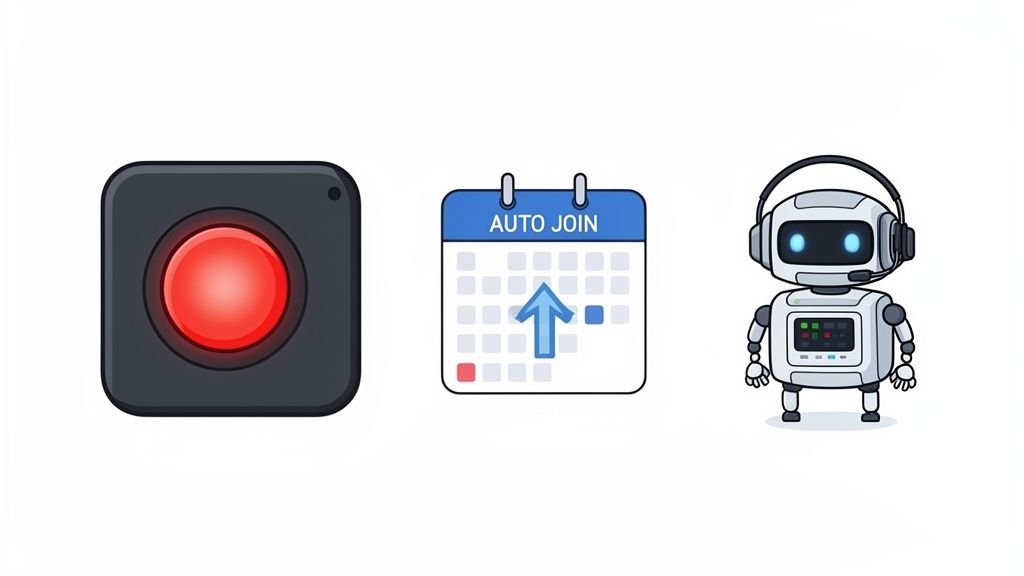
Take a tool like MuteDeck, which connects to a physical device like an Elgato Stream Deck (opens new window). You can assign one physical button to mute or unmute your microphone in any application. This eliminates the panic of hunting for the on-screen icon and prevents the "you're on mute" interruption.
# Automating the Administrative Burden
These utilities can also take on the administrative tasks that eat away at your day. Scheduling and joining meetings might seem like small actions, but they add up. Automation here can give you significant time back.
- Scheduling Assistants: Tools like Calendly (opens new window) or Clockwise (opens new window) plug into your calendar, find common availability for everyone, and kill the back-and-forth emails just to find a time that works.
- Automated Meeting Joins: Some calendar apps and dedicated utilities can automatically open and join your next video call a minute before it starts. You’ll never be late again because you were digging through your inbox for the right link.
# Building a Cohesive Meeting Workflow
The real value appears when you combine these utilities to create a seamless workflow. Imagine this: a scheduling assistant books your meeting, your calendar automatically launches the call, and a physical button on your desk controls your mic and camera. Each tool handles one small part of the process, but together, they remove nearly all the manual friction.
This approach lets you build a customized setup tailored to how you work, without being locked into a single software ecosystem. By mastering these small efficiencies, you can spend less time managing your meetings and more time participating in them. To see more advanced strategies for upgrading your meeting habits, you might be interested in our Meeting Masters Playbook (opens new window).
# Navigating Security and Compliance Concerns
Whenever you join a video call, you're handing over data. It might be a team check-in or a sensitive client negotiation. Security isn't just an IT headache; it's a core part of trusting the platform you use.
This matters more than ever. The global video conferencing market is expected to hit $60.17 billion by 2032, driven by hybrid work and telehealth. That's a massive amount of sensitive information flying across the internet. You can see the market trends on fortunebusinessinsights.com (opens new window).
This boom puts a spotlight on how providers protect your conversations. A tool has to be more than just easy to use—it has to be a vault.
# Understanding Encryption and Data Protection
The first term to know is end-to-end encryption (E2EE). With E2EE, only the people in the meeting can see or hear what’s happening. Your audio and video are scrambled the moment they leave your computer and only get unscrambled when they reach the other participants.
Even the service provider—the company that makes the software—can't access the content. For conversations about trade secrets, legal matters, or personal health, this is the gold standard. Not all platforms enable it by default; you might have to enable it in your settings.
Beyond the tech, providers often get audited to prove their security. When you’re looking at different options, a key thing to look for is understanding SOC 2 Compliance (opens new window). This certification is a strong signal that a provider has solid systems to keep your data safe.
# Meeting Industry Compliance Standards
Different fields have different rules. A marketing agency’s data privacy needs are worlds away from a hospital’s, and your video conferencing tool has to meet your specific industry's requirements.
- Healthcare (HIPAA): The Health Insurance Portability and Accountability Act has strict rules for protecting patient data. If you’re in healthcare, you need a platform that will sign a Business Associate Agreement (BAA). This is a legal guarantee they'll protect patient info to HIPAA standards.
- Finance (FINRA & GDPR): Financial firms have to worry about regulations for data retention and privacy. This means looking for features like unchangeable recording logs and data residency options, which let you choose the geographic region where your data is stored.
Checking for compliance isn't just about ticking a box. It's about making sure the platform has the technical and legal agreements to shield you from massive fines and data breaches. Ask for their documentation.
# Practical Security Settings You Can Control
Security isn't just on the provider; you have a role, too. There are simple settings you can control that make a huge difference in keeping meetings secure.
Your Security Checklist:
- Use Waiting Rooms: This is your virtual bouncer. It holds everyone in a lobby until the host lets them in. It's the best way to stop "Zoom bombers" and other uninvited guests.
- Enable Passcodes: Always put a passcode on your meetings. It's a simple but effective barrier that stops anyone who stumbles upon your meeting ID.
- Manage Participant Permissions: Go into your settings and decide who gets to share their screen, unmute their mic, or record the call. For big presentations or webinars, it's smart to lock this down to just the hosts and presenters.
By taking a few moments to configure these settings, you add your own layer of security on top of what the platform already provides.
# Got Questions? We've Got Answers.
Here are a few common questions we hear about picking and using video conferencing tools.
# What’s a Good Internet Speed for Video Calls?
If it’s just you on a call, a stable 2 Mbps for both upload and download is a decent starting point for HD video. For group meetings with multiple video feeds, you’ll want something closer to 8 Mbps down and 3-5 Mbps up to keep things from getting choppy.
If you’re sharing Wi-Fi at home or in the office, you're also sharing that bandwidth. It's a good idea to run a speed test before a big meeting.
# Are the Free Video Conferencing Tools Actually Any Good?
Yes. For casual chats, one-on-ones, or quick team syncs, the free versions of Zoom (opens new window), Google Meet (opens new window), and Microsoft Teams (opens new window) are great. You get essentials like screen sharing and HD video without paying. The main trade-offs are usually time limits (40-60 minutes) and a cap on how many people can join.
For a major client pitch, a big webinar, or any meeting where you need top-notch security and recording, a paid plan becomes a must-have.
# Can I Use Zoom to Call Someone on Teams?
No. You can’t dial up a Microsoft Teams user directly from your Zoom account. These platforms don't natively talk to each other for direct calls.
That said, there are workarounds. Some conference room systems are built to bridge this gap. For the rest of us, the easiest fix is just sending a meeting link. Most platforms now let people join from a web browser without downloading anything, which makes jumping into a call on a platform you don’t normally use less of a headache.
Stop hunting for the mute button mid-sentence. MuteDeck puts a single, universal control for Zoom, Teams, Meet, and more right at your fingertips. Take back every meeting at https://mutedeck.com (opens new window).