# How to Do Conference Calls Like a Pro
A great conference call comes down to three things: a clear plan, the right tech, and solid prep work. You set the stage for success before anyone joins, so the conversation can be the main event—not the technical hiccups.
# Your Foundation for a Flawless Conference Call
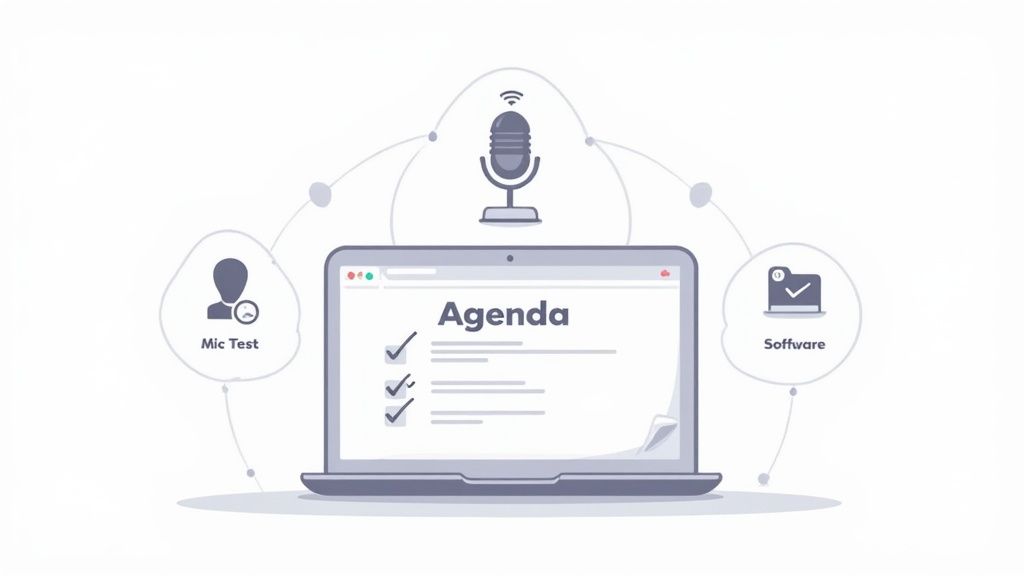
The smoothest conference calls feel effortless, but they never happen by accident. The groundwork you lay beforehand directly affects the call's outcome. Skipping these steps is why meetings run long, veer off-topic, or get bogged down by technical problems.
This isn't about adding bureaucracy to your day; it's about respecting everyone's time. A focused meeting design with a mandatory agenda can shorten the average call by 15–30%. With most business calls clocking in around 38 minutes, that’s a decent chunk of time handed back to your team. The data is clear: preparation pays off (opens new window).
# Create a Sharp Agenda
An agenda is your roadmap. Without one, you're just hoping to stumble upon a useful destination. A good agenda does more than list topics; it defines the purpose of the conversation.
First, your agenda needs a one-sentence goal. Is this a decision-making session? A brainstorming meeting? A simple status update? Each one requires a different mindset from your participants.
A solid agenda should always include:
- The main objective: Why are we all here? Keep it to one clear sentence. For example: "Decide on the Q4 marketing budget allocation."
- Key discussion points: List 3-5 specific topics and assign a time estimate to each.
- Required participants: Make it clear who is essential and whose attendance is optional.
- Pre-reading materials: Link to any documents people need to review before the call.
Sending the agenda at least 24 hours in advance is a game-changer. This habit transforms attendees from a passive audience into active, prepared contributors. If you want to dive deeper, check out our guide on how to write an agenda for a meeting (opens new window).
# Pick the Right Tech for the Job
Not all calls are the same, so your tech shouldn't be a one-size-fits-all solution. The choice between an audio call and a video meeting depends on your goal.
For a quick check-in with a couple of teammates, a simple audio call works. It’s low-friction and gets straight to the point. But for collaborative work, client presentations, or sensitive discussions, video is necessary. Seeing facial expressions and body language adds a layer of context that audio can’t deliver.
# Run a Personal Tech Check
Before every call, take 60 seconds to check your setup. This small ritual prevents the common tech issues that eat up the first five minutes of most meetings.
This pre-flight checklist will save you headaches:
- Test your mic and camera. Make sure they're selected in your meeting software and are working.
- Check your internet connection. A quick speed test can warn you if your connection is shaky. If Wi-Fi is weak, get closer to your router or plug in an Ethernet cable.
- Update your software. Make sure your Zoom (opens new window) or Teams (opens new window) app is the latest version. This avoids compatibility bugs.
To make this easier, here's a quick checklist you can run through before you hit "Join."
# Pre-Call Preparation Checklist
This table is your quick-glance guide to starting every call on the right foot.
| Action Item | Why It Matters | Example |
|---|---|---|
| Send Agenda | Sets clear expectations and encourages preparation. | Send a Google Doc link with topics and timings 24 hours ahead. |
| Choose Platform | Matches the tool to the meeting's goal (e.g., audio vs. video). | Use Zoom for a client demo, but a simple phone call for a 1:1 check-in. |
| Test Audio/Video | Prevents the "Can you hear me now?" at the start. | Open your meeting app's settings and check the mic/camera preview. |
| Check Internet | Ensures a stable connection to avoid freezing or drop-offs. | Run a quick speed test or switch to an Ethernet cable if Wi-Fi is unstable. |
| Review Materials | Allows you to contribute meaningfully from the get-go. | Skim the attached Q3 report before the financial review call. |
This isn't about being overly cautious. It's about building a repeatable habit that eliminates stress and lets you focus on the conversation.
# How to Host and Manage Your Call

Hitting the "start meeting" button isn't the end of your job—it's the beginning. Your role shifts from planner to conductor, and the first few minutes set the tone.
Always start on time. It’s a sign of respect for everyone's schedule. A quick welcome followed by a clear statement of purpose—tying directly back to the agenda—gets everyone focused from the start.
# Mastering Host Controls
Your meeting software has tools to keep the call running smoothly. Knowing how to use them without thinking separates a chaotic meeting from a productive one.
The mute-all button is your best friend. A barking dog, a surprise doorbell—use it the second a distraction pops up.
When you share your screen, be surgical. Most platforms let you share just one app or window instead of your entire desktop. Do that. It prevents everyone from seeing your email notifications or messy downloads folder.
A physical mute button can be a lifesaver. Tools like a MuteDeck give you instant, tactile control over your mic, so you aren't frantically hunting for the on-screen icon when someone asks you a direct question. It keeps your focus on the people, not the interface.
# Guiding the Conversation
As the host, your job is to keep the discussion on track. This takes a gentle but firm hand, especially when the conversation starts to drift.
Politely redirecting a tangent is an art form. A simple phrase like, "That's an interesting point, John. Let's add it to the 'parking lot' so we can circle back after we cover today's main topics," works well. It validates the idea without derailing the meeting.
You also need to make sure everyone gets a chance to speak. If you notice quieter people haven't chimed in, create an opening for them.
- Directly invite their input: "Sarah, you have experience with this data. What are your thoughts?"
- Go around the horn: "Let's do a quick round-robin for feedback on this proposal."
This makes the meeting more inclusive and often brings unspoken perspectives to the surface. For a deeper dive, check out the best meeting management software (opens new window) to help streamline how you facilitate and track engagement.
# Ending with a Clear Path Forward
A strong start needs a decisive finish. The worst way to end a call is to let it fizzle out as people drop off one by one.
In the last few minutes, take charge. Summarize the key decisions made and outline the action items. Name names and set deadlines—who is responsible for what, and by when? This final step turns an hour of talk into progress.
And end on time. It’s the ultimate sign of respect for your attendees' calendars and cements your reputation as an efficient leader.
# Conference Call Etiquette for Participants
When you join a conference call, you’re an active participant. Your presence, or lack of it, impacts how the meeting goes. The fundamentals seem obvious, but they are often ignored.
Hop on a couple of minutes early. Find a quiet spot. And please, keep your microphone muted when you're not talking. This creates a space where everyone can hear and focus.
The average business conference call is around 38 minutes. With the market for these tools expected to hit over $12 billion by 2025, every minute is valuable. Nothing kills productivity faster than spending the first five minutes dealing with feedback loops or asking, "Sorry, could you repeat that?" You can see more data on the growing reliance on conference calls (opens new window) if you're curious.
# Be Present and Focused
It's easy to multitask. Firing off a quick email or checking a notification feels harmless, but it fractures your attention. When you’re only half-listening, you miss key details and your contributions aren't as sharp.
The most valuable people in any meeting are the ones who listen. They give the speaker their full attention, which shows respect and allows them to add more insightful comments when it's their turn.
A simple trick? Before the call starts, close any tabs or apps you don’t need. If it's a video call, turn your camera on. That one move keeps you accountable and helps you feel more connected to the group.
# Know When and How to Speak
Jumping into a conversation without derailing it is a skill. On most video platforms, the "raise hand" feature is the best tool. It’s a clean, non-disruptive way to signal you have something to say, and the host can bring you in at a natural pause.
On audio-only calls, it's a bit more challenging. The unwritten rule is to state your name before you speak.
- For example: "This is Sarah, just a quick question on that last point."
That small gesture clears up confusion about who’s talking, especially with many people on the line. It keeps the conversation flowing smoothly and stops people from accidentally talking over one another.
Being a good collaborator means mastering effective communication skills (opens new window) so your interactions are clear and respectful. These small habits separate a helpful participant from just another person on the line.
# Troubleshooting Common Conference Call Problems
Tech will betray you at some point. It’s inevitable. The skill isn't preventing every glitch—it's knowing how to handle them without letting the meeting grind to a halt.
Panicking when someone's audio cuts out doesn't help. Having a quick mental checklist for the usual suspects keeps you in control. Most issues fall into a few categories: audio problems, video freezes, or someone getting kicked off.
The most common issue? Echo. Before you do anything else, ask everyone to mute their mics. Nine times out of ten, the echo vanishes. You've just found the culprit—someone's microphone is picking up the sound from their speakers, creating a feedback loop.
# Solving Audio and Video Glitches
A robotic, choppy voice is a sign of a weak internet connection. The same goes for a video feed that's frozen, pixelated, or lagging.
Your first move should be to reduce the load on your bandwidth. The fastest way is to turn off your video. This frees up bandwidth and often clears up the audio. If you're still having trouble, ask others to turn off their cameras too.
A shaky internet connection can throw off the entire call. If you regularly deal with lag, try plugging an Ethernet cable directly into your router. A wired connection is almost always more stable and faster than Wi-Fi.
Good call etiquette comes down to a simple decision. Are you talking? If not, you should be muted. It’s that easy.
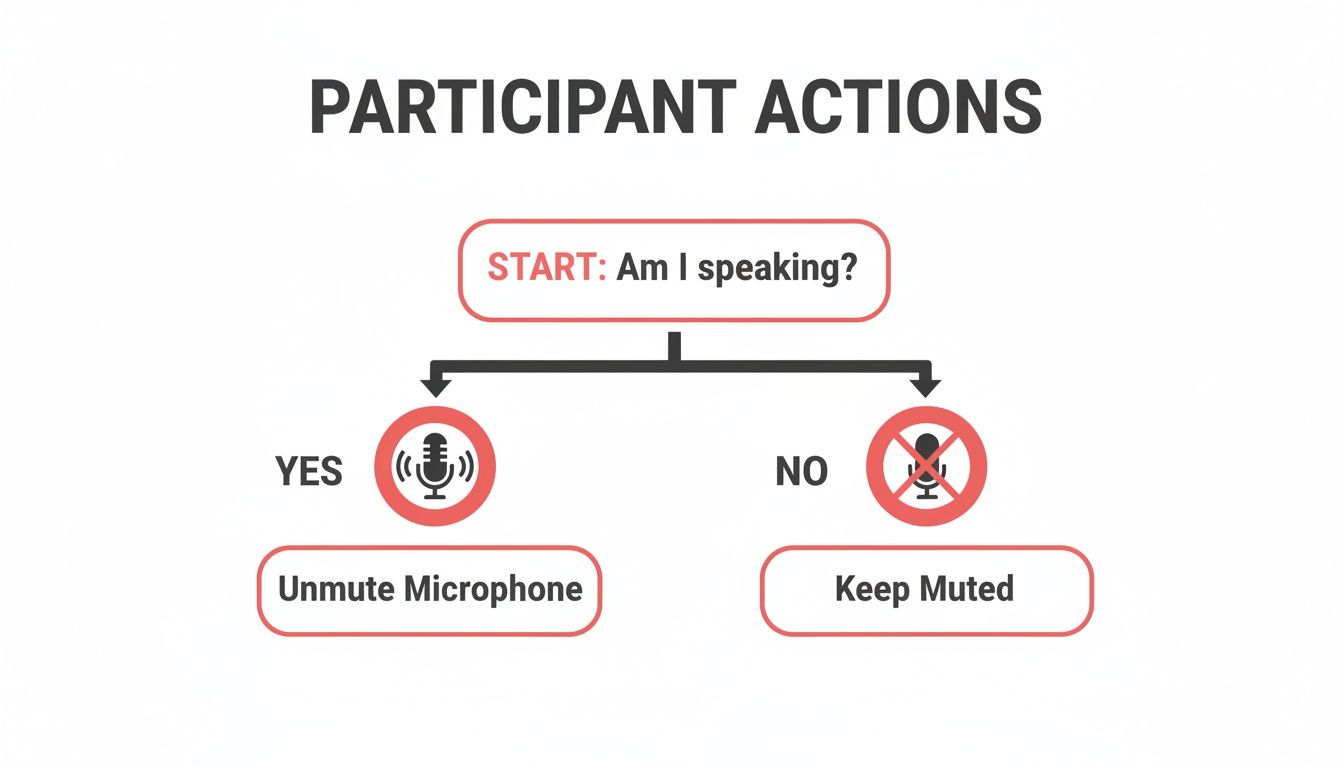
This flowchart says it all. Muting yourself when you're not speaking is the single best thing you can do to prevent background noise.
# Handling Connection and Access Problems
What do you do when someone gets dropped from the call, or can't get in? If you're hosting, stay calm and address it head-on.
If a key speaker drops, pause the conversation for 30 seconds. Give them a moment to rejoin. If they're still struggling, send them the dial-in number as a backup. Joining by phone is a solid alternative when the app or browser is acting up.
For people who can't get in at all, the problem is usually one of three things:
- A bad link: It happens. Quickly double-check the invitation you sent and resend it.
- App glitches: The classic "turn it off and on again" works. Have them close the app completely and relaunch it, or try joining from a web browser instead.
- Corporate firewalls: This is common in larger companies. Network security can block certain apps. Again, the audio dial-in is your best option here.
# Common Call Issues and Quick Fixes
Most call problems can be solved in seconds if you know what to look for. Here’s a quick-reference table to help you diagnose and fix frequent issues on the fly.
| Problem | Likely Cause | First Thing to Try |
|---|---|---|
| Audio Echo | Someone's mic is picking up their speaker audio. | Ask everyone to mute themselves. |
| Robotic/Choppy Audio | Poor internet connection (bandwidth issue). | Turn off your video camera. |
| Frozen/Pixelated Video | Poor internet connection (bandwidth issue). | Ask all non-essential participants to turn off their video. |
| Can't Hear Anyone | Your own audio output is misconfigured. | Check that your computer's audio output is set to your headphones/speakers. |
| No One Can Hear Me | Wrong microphone is selected, or you're muted. | Check the mute button, then verify the correct mic is selected in the app's settings. |
| Can't Join the Call | Bad link, app error, or a firewall block. | Try re-joining, use the web browser version, or use the phone dial-in number. |
Having these quick fixes in your back pocket means you can keep the meeting moving, even when technology stands in your way.
# Tools and Techniques for Better Calls
Standard conference call software gets the job done. But if you want to move from functional to professional, you need to be intentional about your tools and techniques.
The post-2020 explosion in virtual meetings isn't going away. In that year alone, virtual group meetings increased by over 613%. By 2022, 77% of meetings were happening online, with remote employees attending about 50% more meetings than their in-office colleagues. Optimizing your setup is a necessity.
# Upgrade Your Hardware for Immediate Impact
The fastest way to improve how you sound on a call is to ditch your laptop’s built-in microphone. It’s designed for convenience, not quality, so it picks up every keyboard click, room echo, and background hum, making you sound distant and muffled.
An external microphone is a game-changer. A simple USB mic can make your voice sound crisp and clear, which helps hold your audience's attention. For a deeper dive, check out our guide on the best microphones you can buy in 2024 (opens new window).
Beyond audio, think about physical controls. We've all seen someone frantically hunt for the on-screen mute button. It breaks their flow and looks clumsy. A dedicated physical mute button, like the one on a MuteDeck, gives you instant, reliable control without looking away. It's a small change that makes a big difference.
# Leverage Software Features to Your Advantage
Modern meeting platforms are packed with tools that can automate tasks and boost engagement. Don't let them go to waste.
AI transcription is a good example. Instead of forcing someone to type notes, these services generate a full, searchable transcript of the conversation. This frees everyone up to participate. After the call, you can scan the text for action items and key decisions.
- Virtual Whiteboards: For brainstorming or mapping out ideas, a virtual whiteboard is useful. Tools like Miro (opens new window) or Mural (opens new window) let everyone contribute sticky notes and draw in real-time.
- Automated Summaries: Some platforms now use AI to pull out key topics and action items, creating a concise summary for you.
- Recording and Sharing: Recording important calls is great for team members in different time zones. To make sure your contributions are sharp, especially on a recording, it helps to practice. Check out these tips for removing filler words (opens new window).
The best tools are the ones you forget you're using. The goal isn’t to add complexity; it’s to use technology to remove friction so you can focus on the human side of the conversation.
By combining better hardware with smart software, you create a more professional, engaging, and productive environment for every call.
# Got a Question? Conference Call FAQs
We’ve all been there—awkward silences, technical glitches, and that one person who won't mute. Here are some quick answers to common conference call problems.
# "I'm Running Late! What Should I Do?"
Don't announce your arrival.
Slipping into a call late and shouting, "Hey everyone, sorry I'm late!" derails the conversation.
Just join silently, mute your mic instantly, and listen to catch up. If it's a video call, turn your camera on so the host knows you've made it. If you feel you must apologize, send a private chat to the host or save it for after the call.
# "How Do I Keep a Huge Call from Turning into Chaos?"
Managing a big conference call is like directing traffic. Once you have more than a handful of people, the risk of it spiraling out of control is real.
A few moves can make a difference:
- Use the "mute all" button. Use it from the start. Let everyone know you'll be calling on people directly or taking questions at specific times.
- Create a clear system for questions. The "raise hand" feature works well. Alternatively, have people drop questions in the chat. This prevents everyone from trying to talk at once.
- Bring in a co-pilot. Juggling a presentation, monitoring a chat, and watching for raised hands is hard. Ask a colleague to be your co-host to manage the queue and flag important questions.
Once you’re dealing with 20+ people, it’s often better to run the call like a webinar. Keep a tight grip on the audio flow, and you'll keep the meeting on track.
The larger the group, the more your agenda matters. A tight, time-boxed agenda is the single best tool for keeping a massive call from falling apart.
# "What's the Best Way to Follow Up After the Call?"
A follow-up email is non-negotiable. Without it, the conversation fades with no action to show for it. Send it within a few hours, while the details are still fresh.
Keep it short and scannable. Your email only needs three things:
- Key Decisions: A few bullet points summarizing what was agreed upon.
- Action Items: Clearly list who owns what, and by when. Using @mentions next to each person’s name is a good trick for grabbing their attention.
- The Recording: If you recorded the call or took detailed notes, drop in a link. It's a lifesaver for anyone who missed it or needs a refresher.
This simple act closes the loop and ensures talk turns into progress.
# "Video or Audio-Only? Which Should I Choose?"
This depends on the goal of the meeting. More video isn't always better.
Go with video for:
- Building rapport. When meeting a new client or teammate, seeing faces and reading body language helps.
- Tackling complex or sensitive topics. Nuance gets lost over audio. Video helps you see if your message is landing correctly.
- Working together. Brainstorming sessions or design reviews are better when you can see everyone's reactions.
Stick to audio-only for:
- Quick check-ins. If it's a routine status update, audio is faster and less of a production.
- When people are on the go. Someone might be commuting or have spotty Wi-Fi. Audio is a more reliable option.
- Fighting "Zoom fatigue." We're all tired of being on camera. Giving your team a break can help them focus.
Tired of fumbling for the right mute button across Zoom, Teams, and Meet? With MuteDeck, you get universal control over your mic, camera, and sharing from one consistent interface—or even physical buttons. Stop the frantic clicking and start running calls like a pro. Try it free at mutedeck.com (opens new window).